7.3 Limit Configuration

This topic provides systematic instructions about limit configuration.
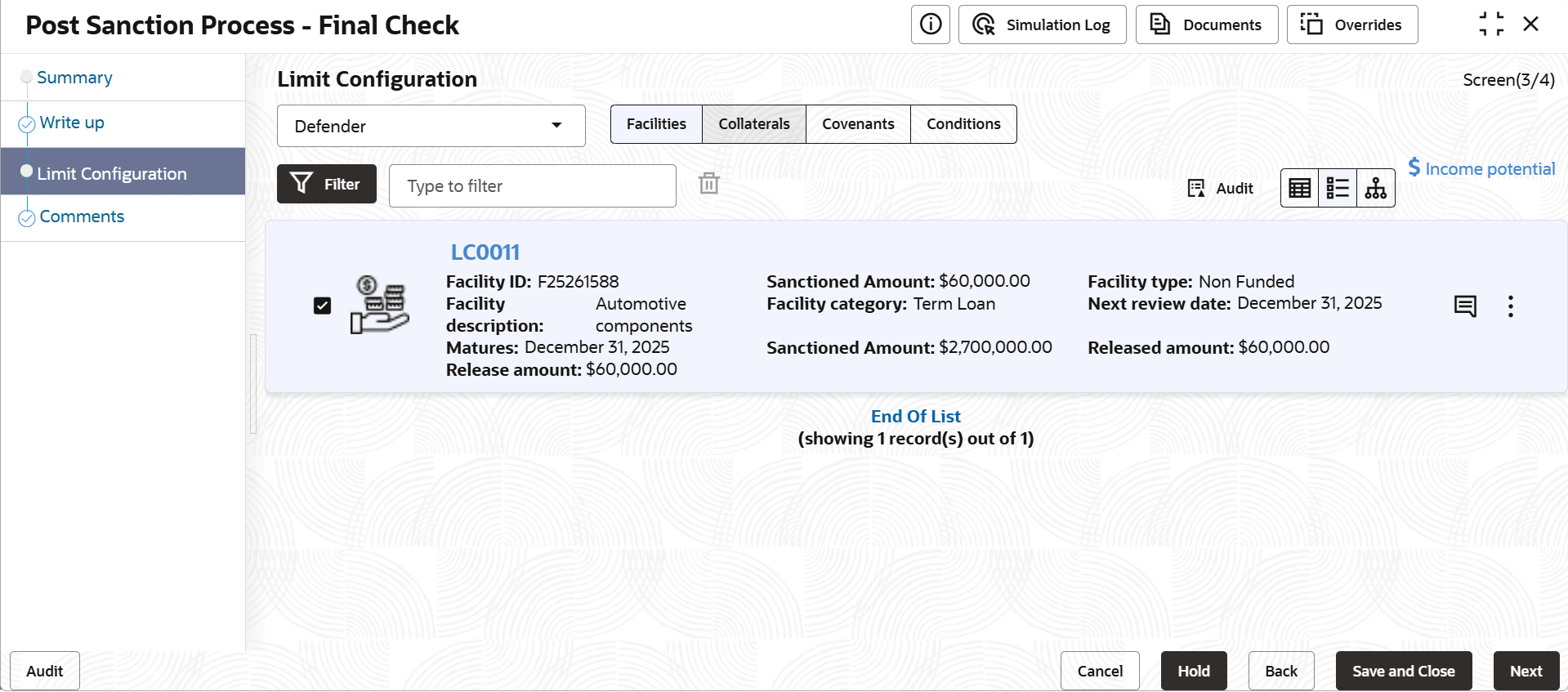
In this screen, the facility amount to be released to the customer must be specified and the documents necessary for the PSN process must be uploaded.

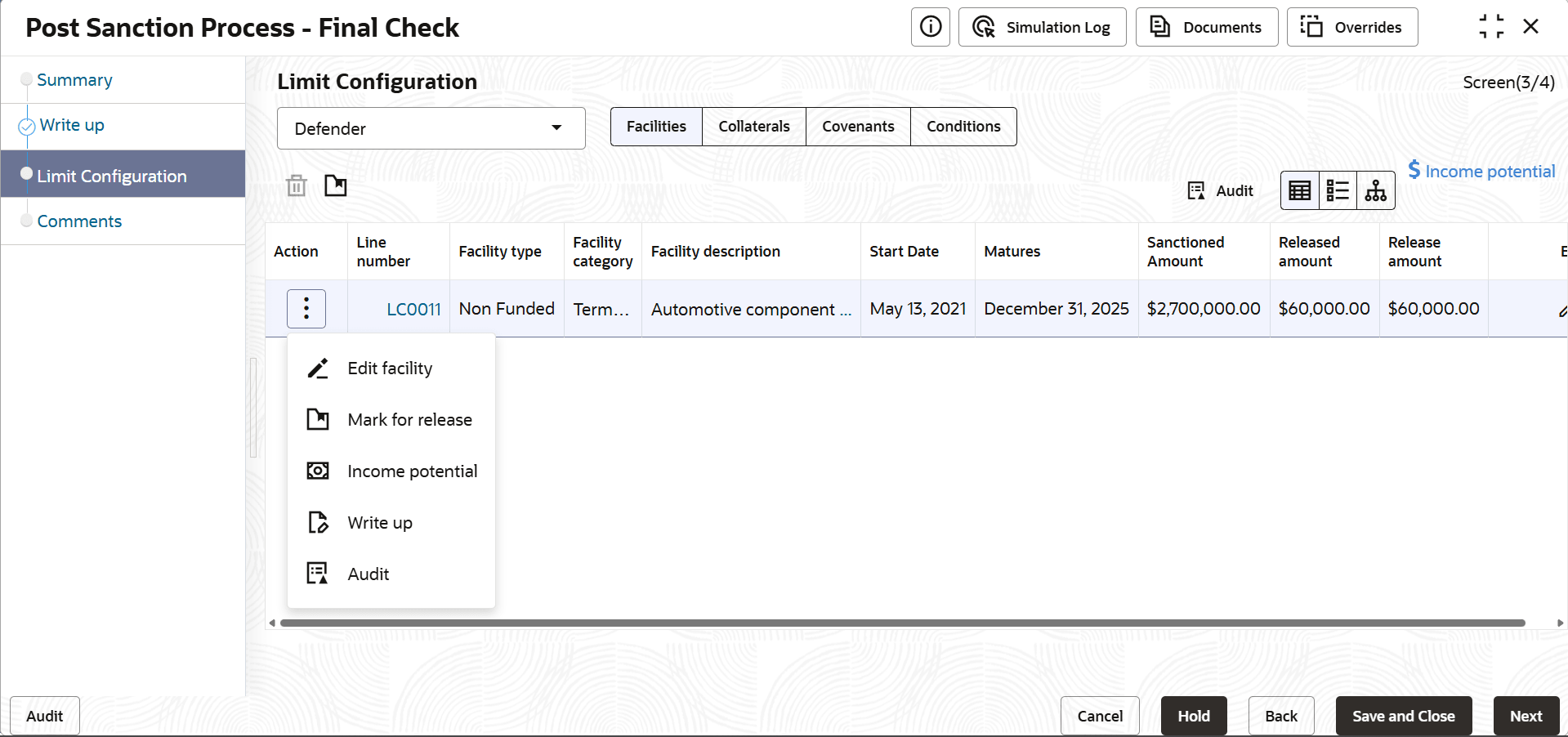
Figure 7-10 Limit Configuration


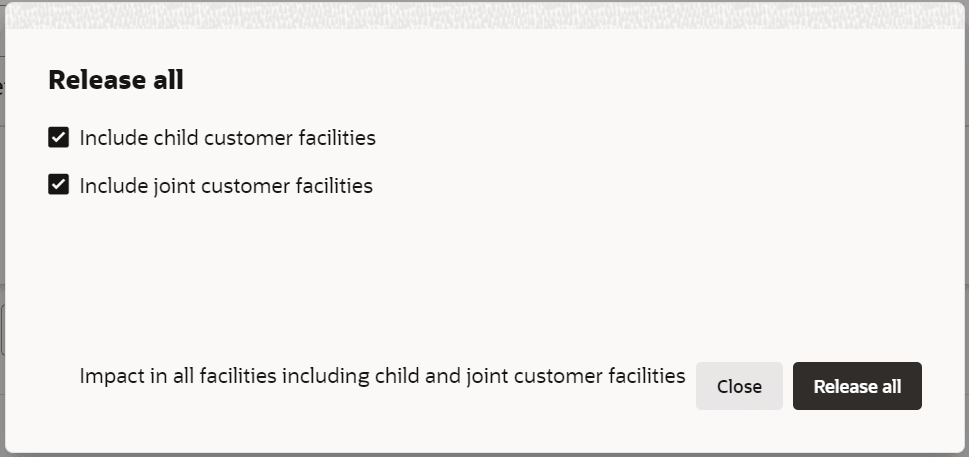
  1. To mark all the facilities for release, click Action icon and select Release All.
    The following window is displayed.
  2. Select Include child customer facilities and Include joint customer facilities check boxes, in case you want to mark those facilities as well for release.
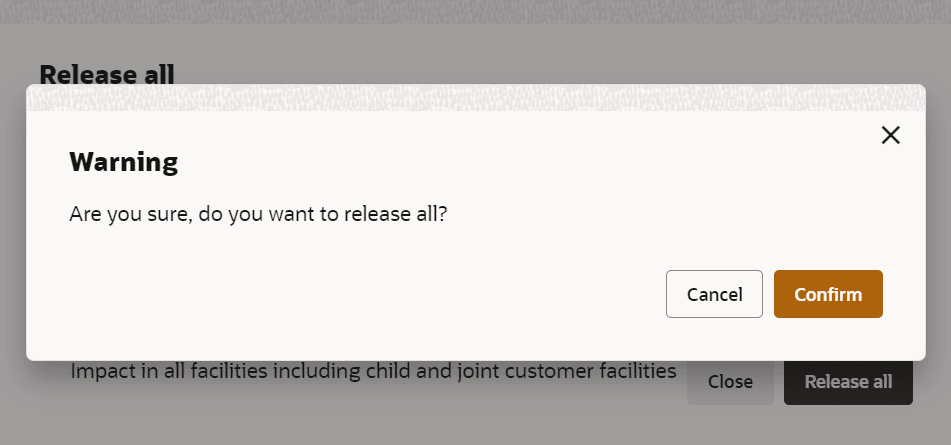
  3. Click Release All. The Warning window is displayed.

    Figure 7-12 Release All - Warning


    Click Confirm to release all the selected facilities.

    Facilities will be marked for release with release amount as full amount.

    Figure 7-13 Limit Configuration


    Note:

    While marking all the facilities for release, the system will validate and skip the facilities that are already marked for release in different WIP PSN application.

    Release All option appears in all the stages, only if it is configured in Business Process configuration.

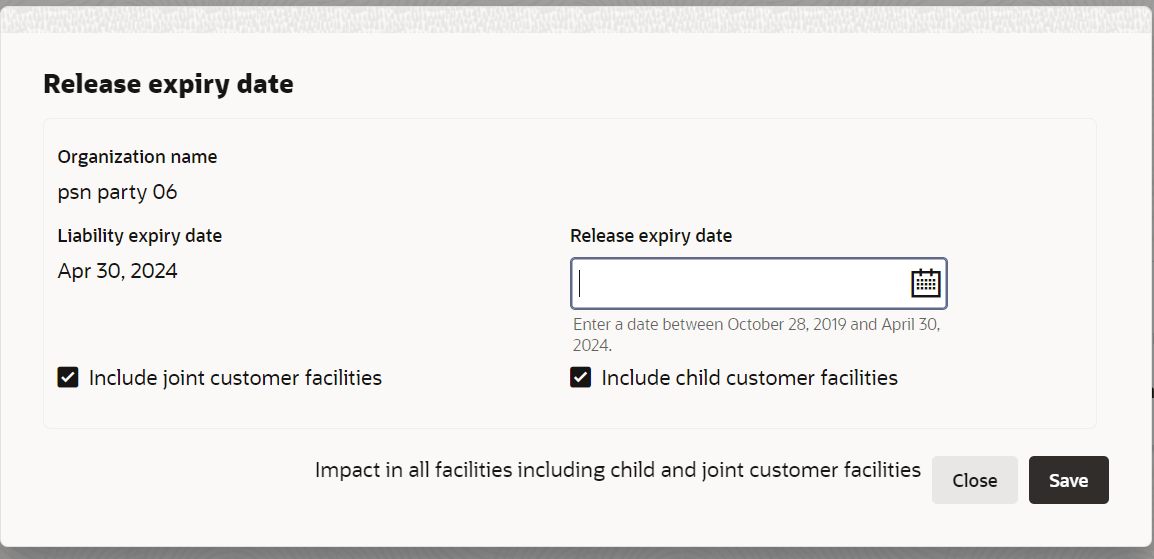
  4. To mark all the facilities for release expiry date, click Action icon and select Release Expiry Date.

    Figure 7-15 Release Expiry Date


    Enter or select Release Expiry Date and Select Include joint customer facilities and Include child customer facilities check boxes, in case you want to mark those facilities as well for release expiry date.

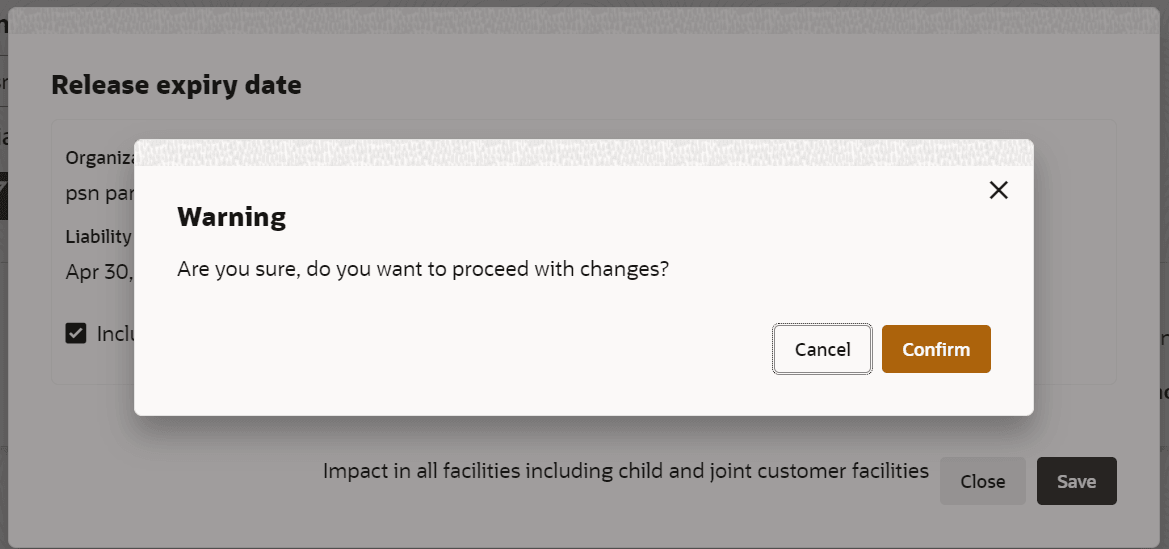
    Click Save. The Warning window is displayed.

    Figure 7-16 Release Expiry Date- Warning


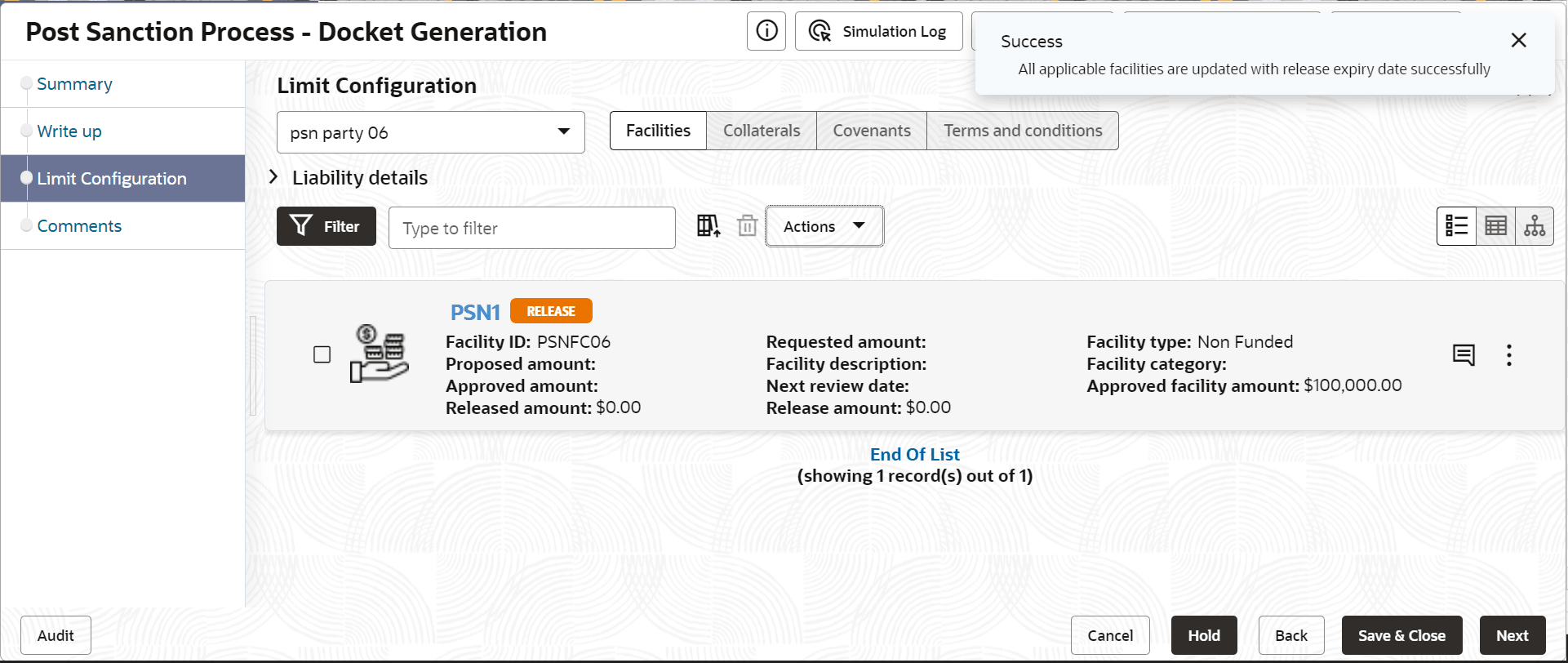
    Click Confirm to update expiry date for all the selected facilities. All applicable facilities are updated with release expiry date and displayed as below.

    Figure 7-17 Limit Configuration - Release Expiry Date Updated


  5. To mark a particular facility for release, click Action icon in the required facility and select Edit Facility.
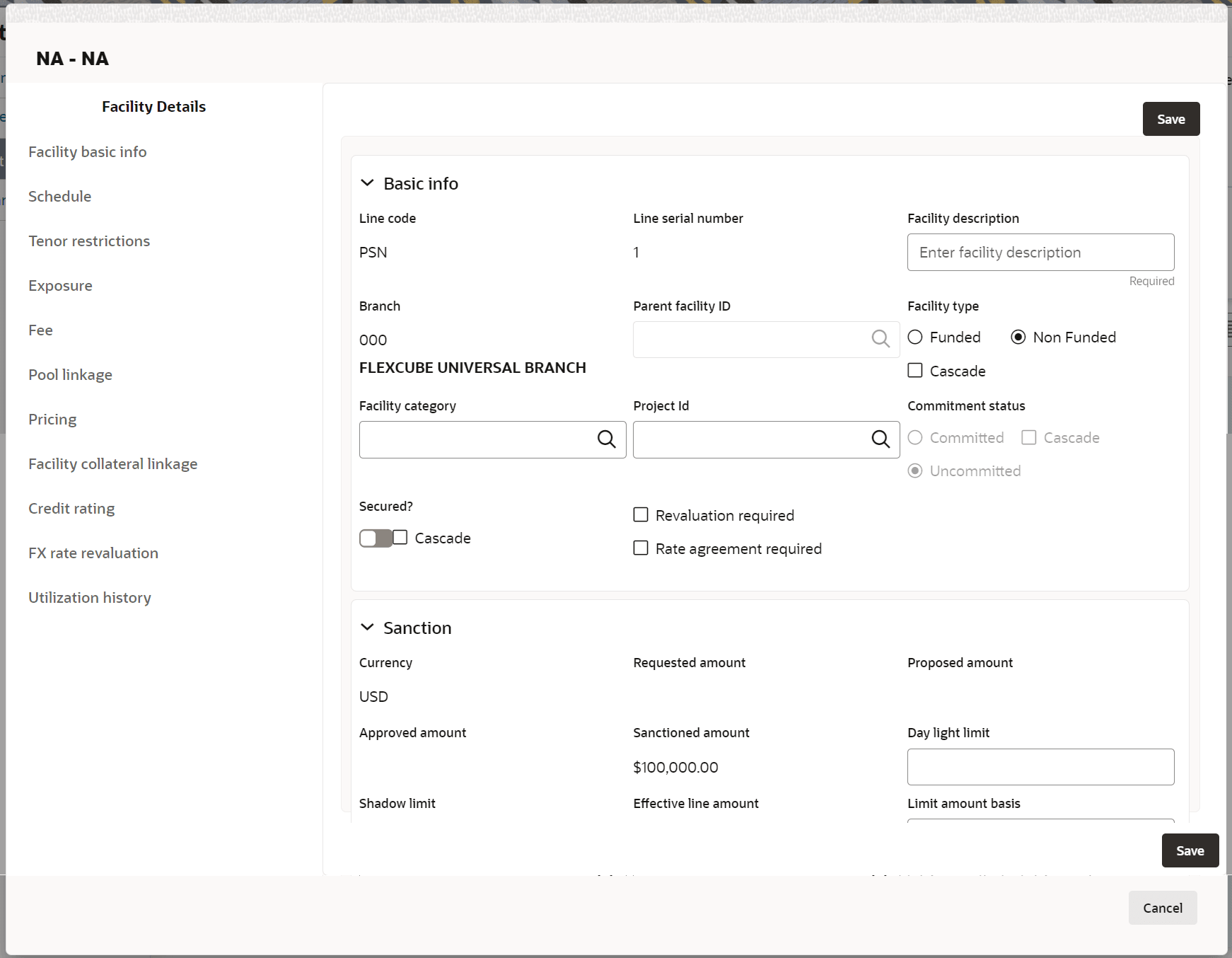
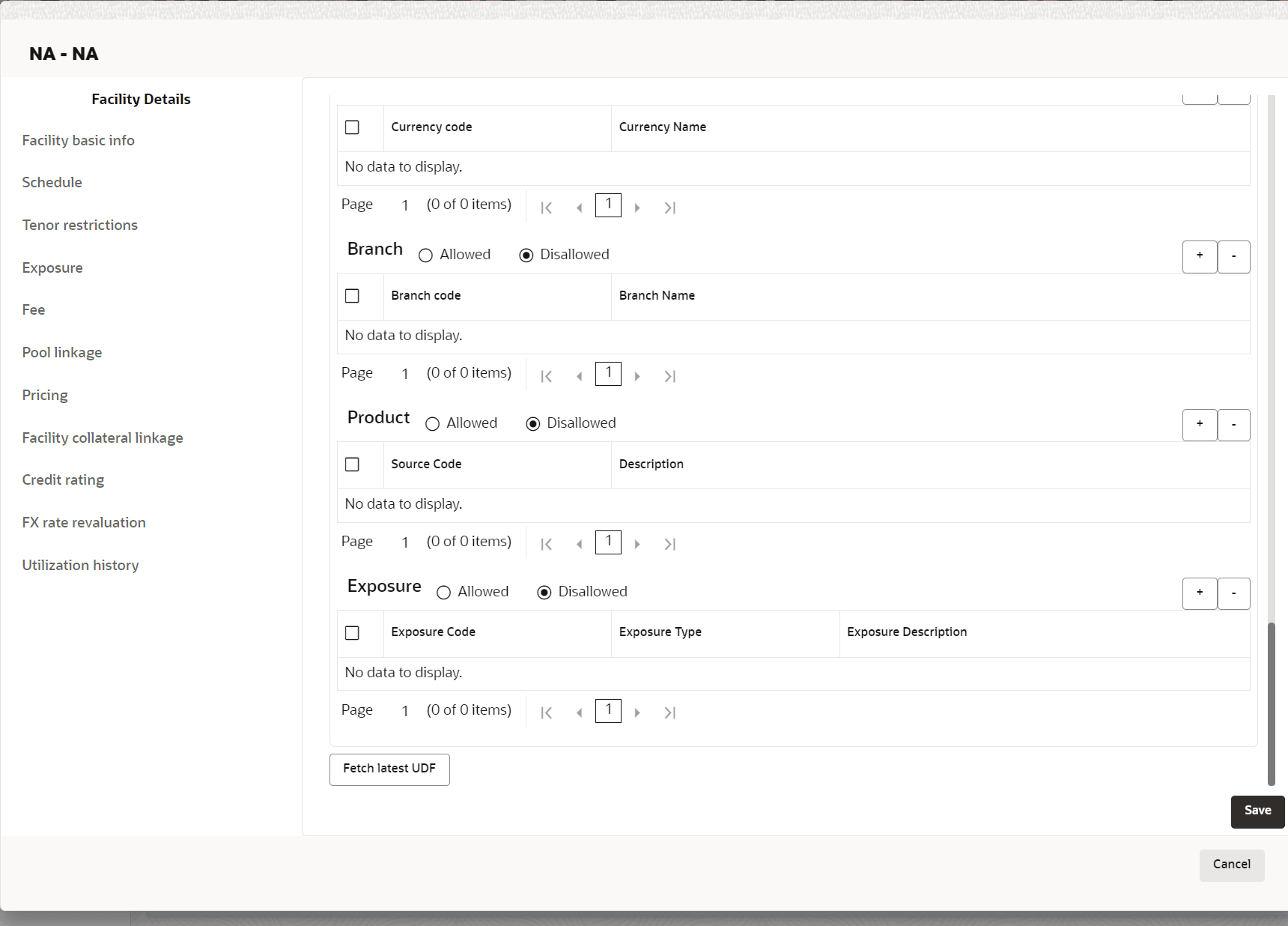
    The Facility Details window auto-populated with the details provided in credit proposal or amendment process is displayed.

    Note:

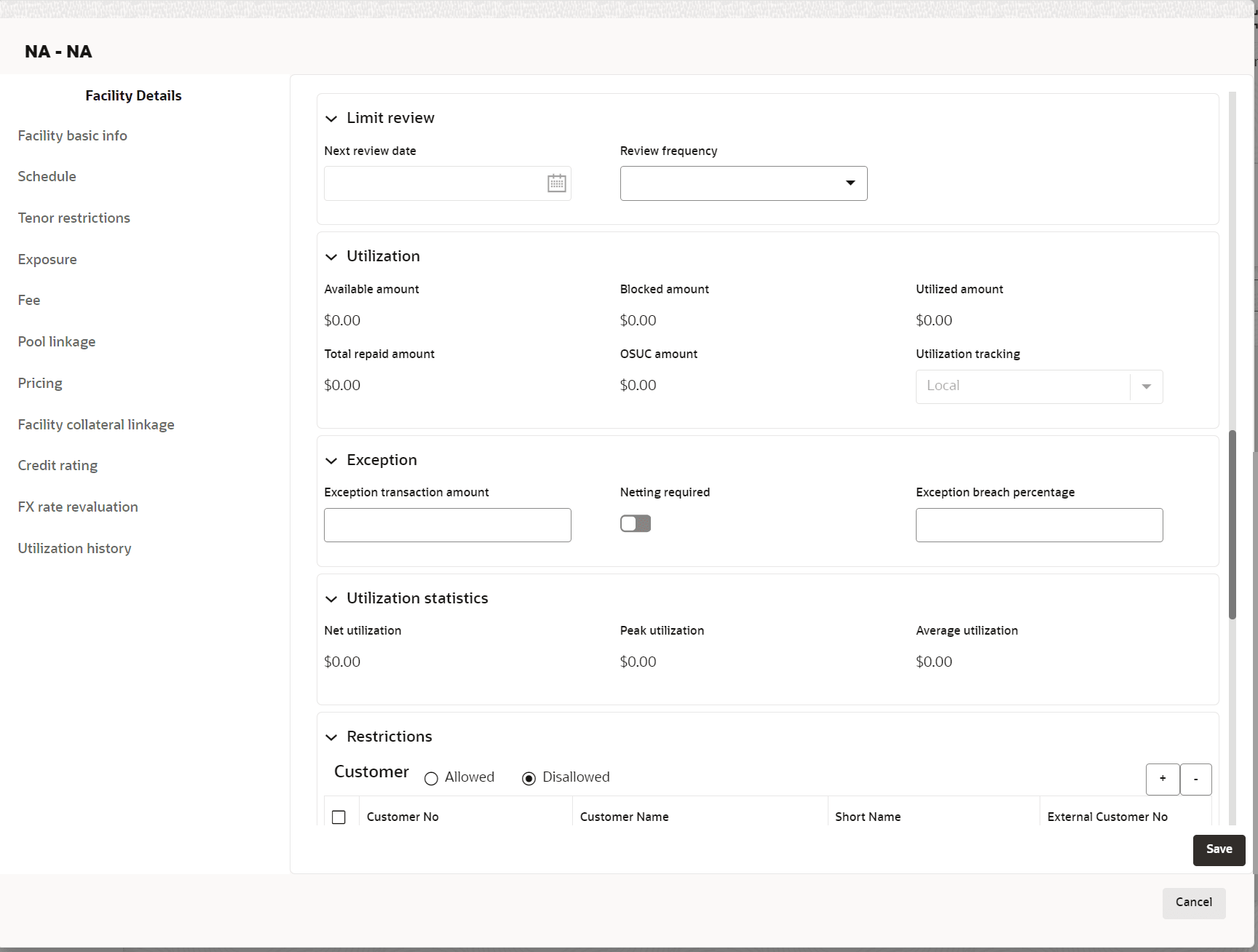
    Only the steps related to Post Sanction Process are explained in this user Guide. Refer Credit Proposal User Guide for information on all the side menus in the Facility Details window.

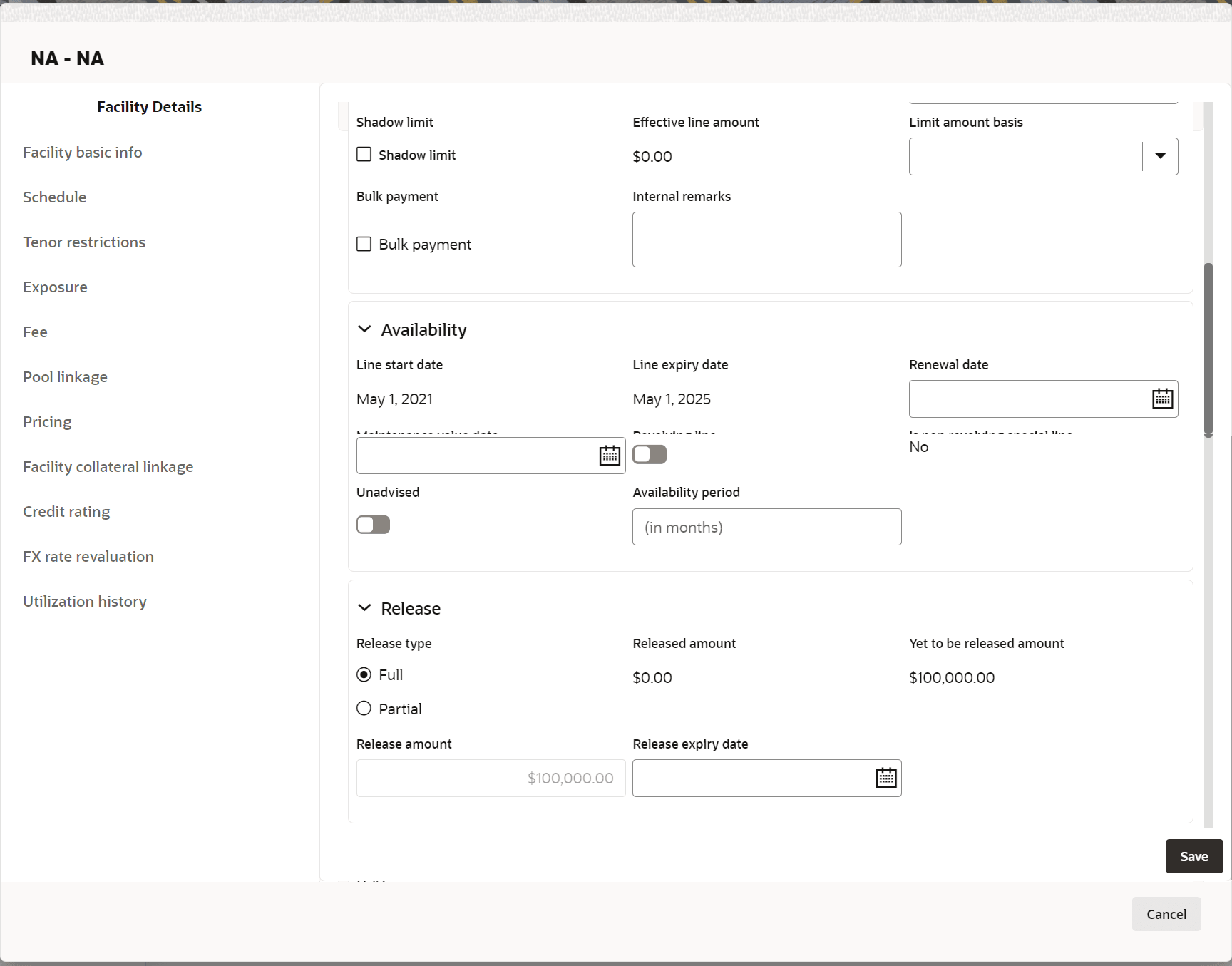
  6. Post Sanction Details
  7. Select the facility Release Type. The options available are: Full and Partial.
  8. In the Release Amount field, specify the amount to be released.
    The system allows to enter the Release Amount, only if Partial is selected as Release Type. In this case, you cannot enter the full amount manually.

    If Full is selected as the Release Type, the Release Amount is automatically filled with the Approved Facility Amount.

    In the Released Amount field, the facility amount already released to the party is displayed.

    In the Yet to be Released Amount field, the balance facility amount is displayed.

  9. Click Save and then click Close. Post sanction details are saved and the facility is displayed as Release as shown below:

    Once the facility status is changed to Release, you can delete the facility or remove the facility from PSN process.

  10. To delete the facility, select the facility and click Delete icon.
  11. To release the facility from PSN process, click Hamburger icon in the corresponding facility and select Remove from PSN.

    Note:

    At least one facility must be marked for release to proceed further.
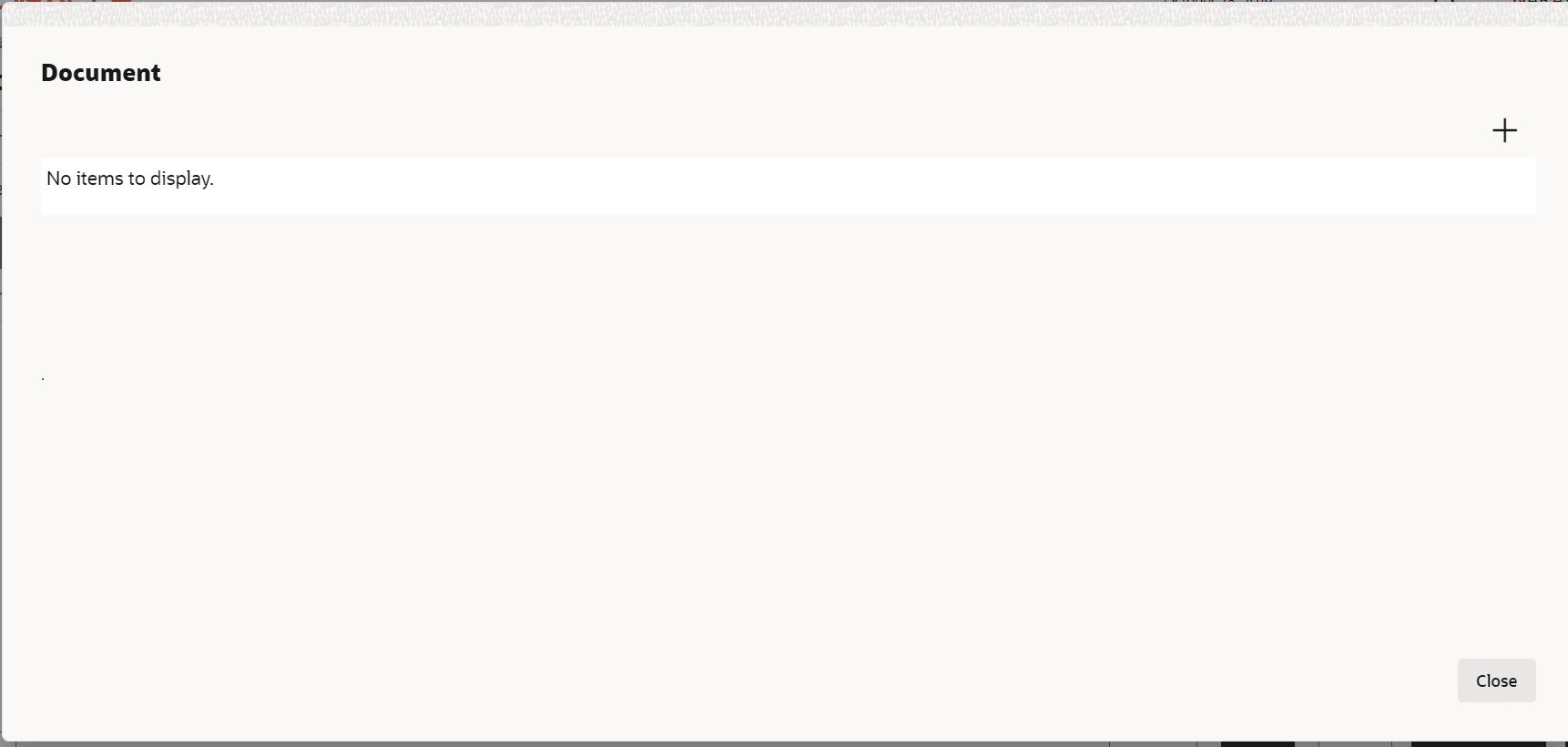
  12. To upload necessary customer documents for the facility, click Hamburger icon in the corresponding facility and select Link Document. The following screen is displayed.
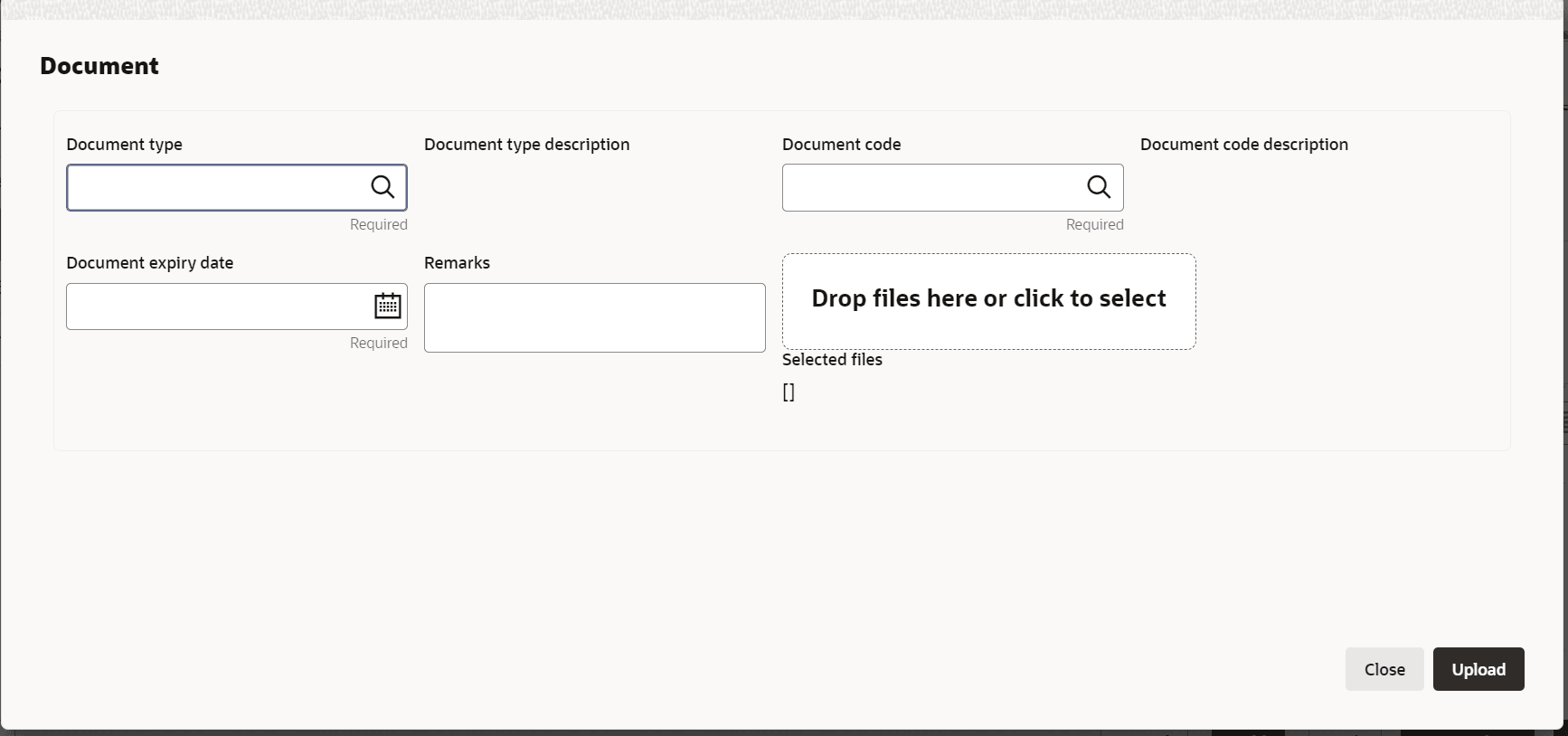
  13. Click Add New Documents. The Document window appears:
  14. Search and select Document Type from the drop-down list maintained in the Maintenance module.
    The Document Type Description is automatically populated based on the selected Document Type.
  15. Search and select Document Code from the drop-down list maintained in the Maintenance module.
    The Document Code Description is automatically populated based on the selected Document Code.
  16. Click Calendar icon and select Document Expiry Date.
  17. Enter Remarks for the document, if any.
  18. In the Drag files here or click to select section, drag and drop or click and select the necessary documents.
    The Selected Files count is displayed below the Drag files here or click to select section
  19. Click Upload. The documents are uploaded