12.3 Comments

This topic provides systematic instructions about the Comments data segment in Customer Acknowledgement stage.

This data segment allows you to add overall comments for the Customer Acknowledgement stage.

Click Next in the Customer Acknowledgement - Customer Acceptance screen, the Comments data segment is displayed.

Figure 12-4 Customer Acknowledgement - Comments
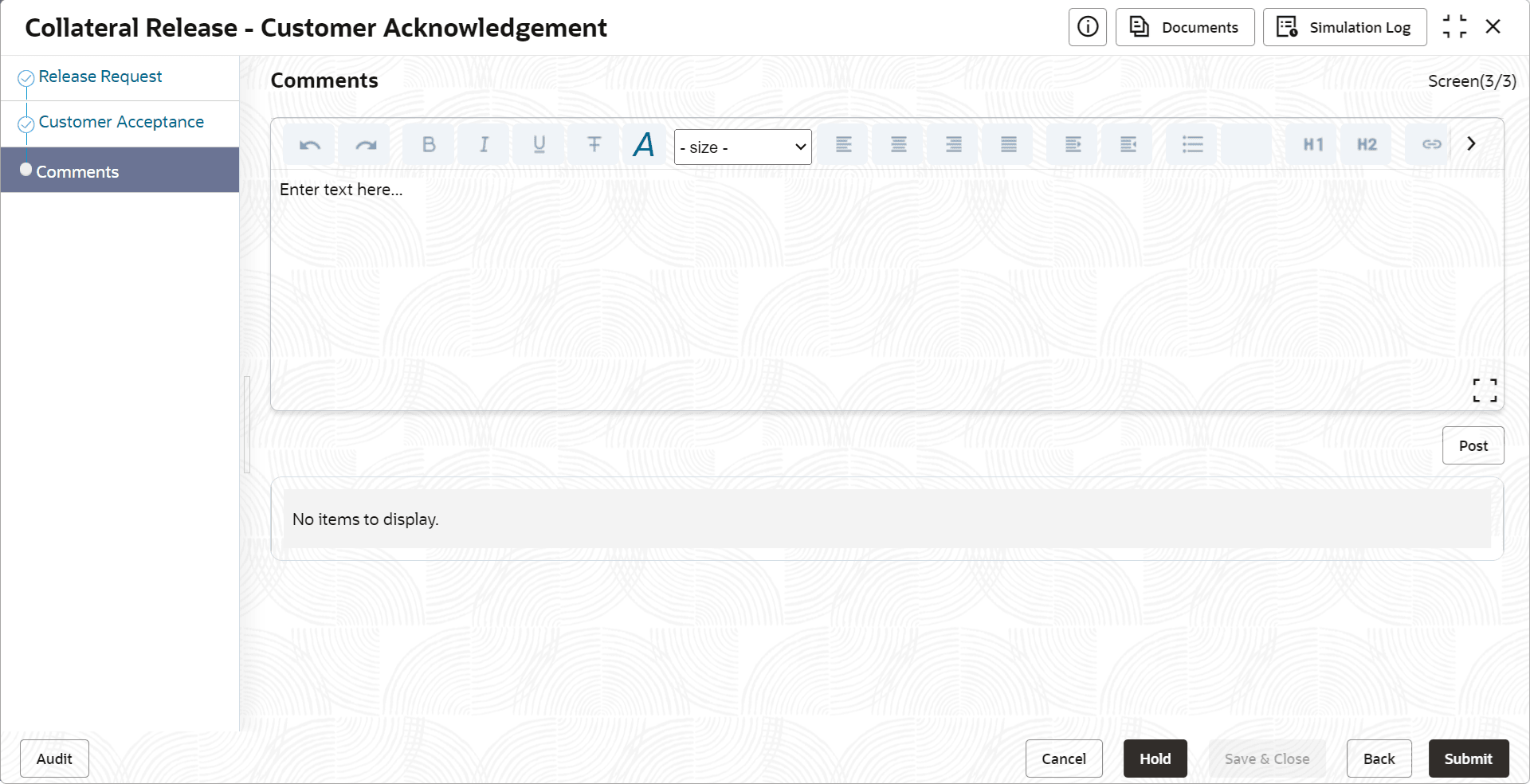


  1. Type comments for the Customer Acknowledgement stage in the text box.
  2. Click Post.
    Comments are posted below the text box.
  3. To go back to the previous screen and make changes, click Back.
  4. If changes are not required, click Submit.
    The Checklists window is displayed.

    Figure 12-5 Checklist
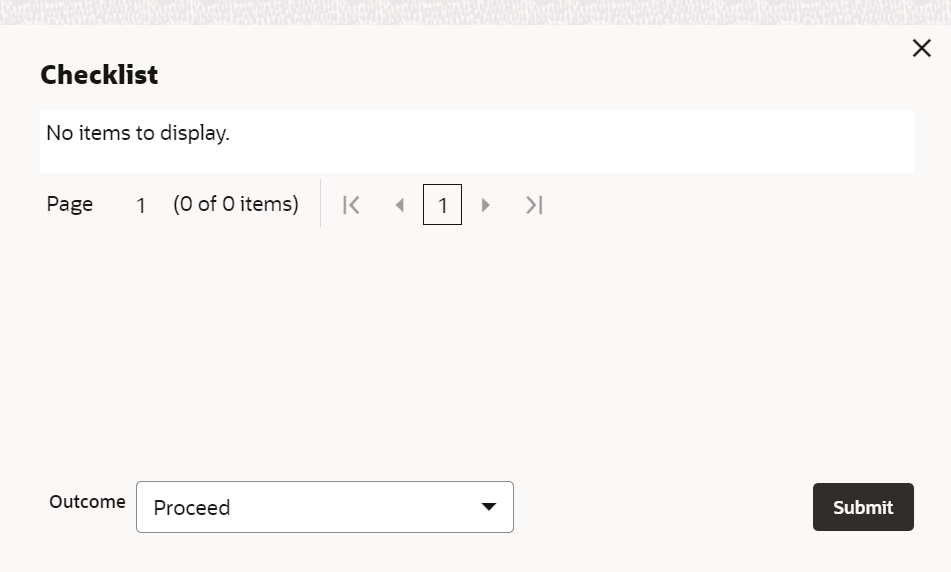

    Checklist

    Note:

    Checklist can be configured for each stage of a process in Business Process Maintenance screen. Refer Credit Facilities Process Maintenance User Guide for more information.
  5. Verify all the checklist and enable corresponding checkbox.
  6. Select the required Outcome and click Submit.
    The options available in the drop down list are:
    • ACCEPT
    • ADDITIONAL_INFO
    • REJECT

    If the Outcome is selected as ACCEPT, the collateral is released on clicking Submit.

    If the Outcome is selected as ADDITIONAL_INFO, the application is moved back to the Approval stage on clicking Submit.

    If the Outcome is selected as REJECT, the Collateral Release application is rejected.