2 SME CP Initiation Process
This topic describes the systematic instructions for SME CP Initiation.
The small and medium enterprise (SME) credit initiation process consists of the
following stages:
- Enrichment
- Proposal Structuring
- Proposal Approval
- Draft Generation
- Customer Acceptance
- Manual Retry
- Awaiting Confirmation
SME CP Initiation
- On Home screen, click Credit
Facilities, under Credit Facilities,
click on Corporate, under
Corporate, click on SME CP
Initiation.The SME CP Initiation screen displays.
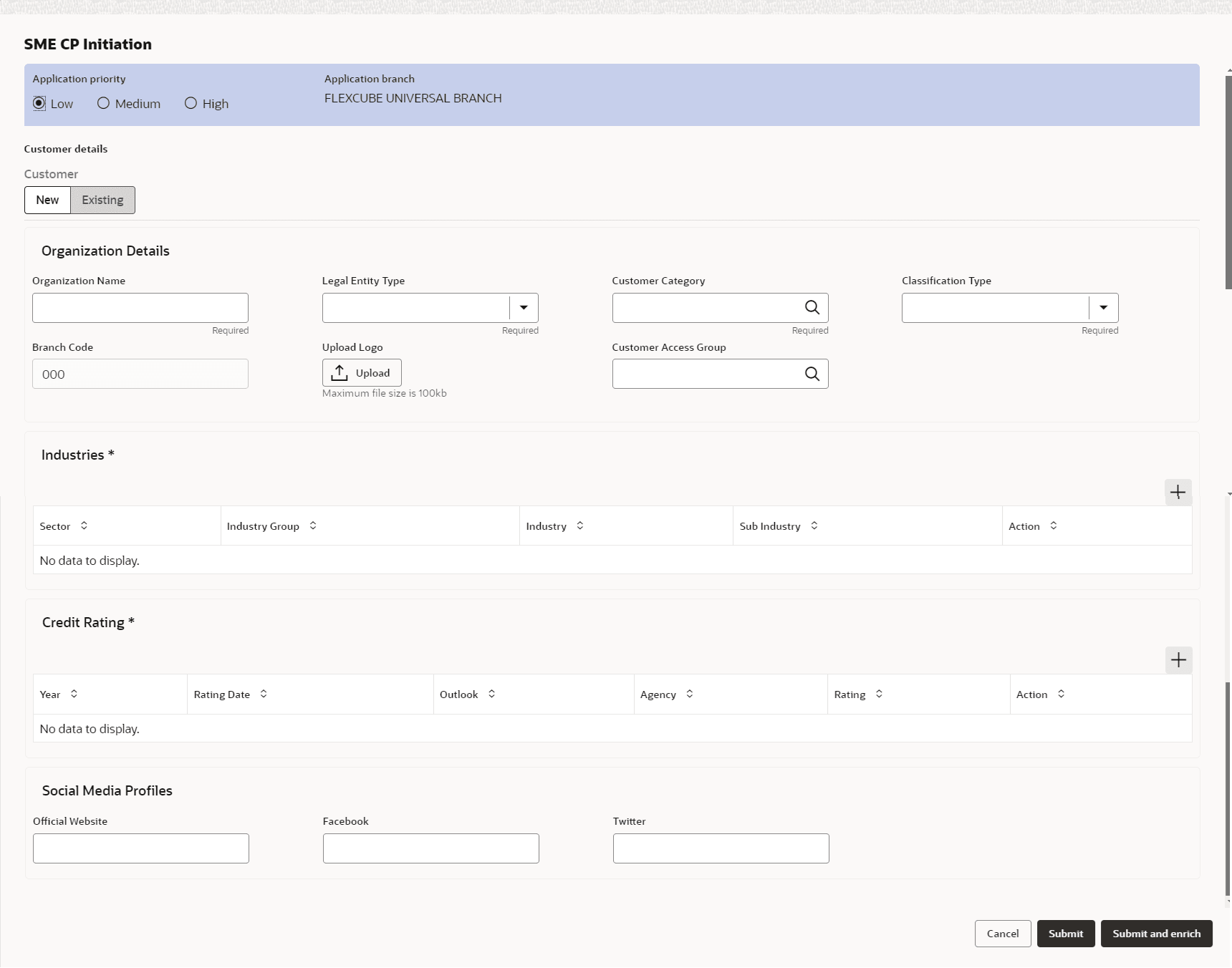
Application priority
Customer Details
Industries
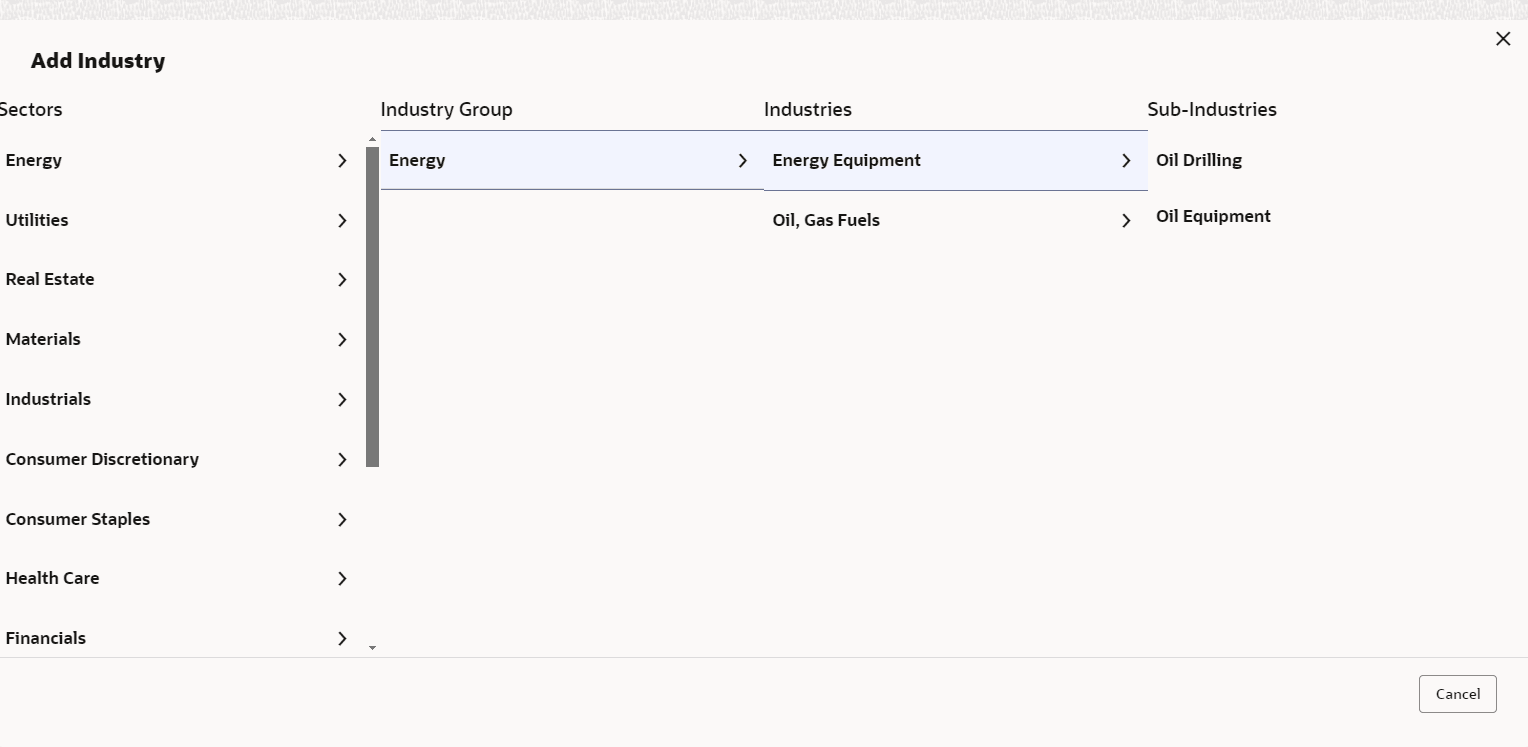
- To capture the line of business of the party, click +
icon.The Add Industry screen is displayed. For more information on fields, refer to the field description table.
Table 2-2 Add Industry
Fields Description Sector Select Sector of the party. Industry Group Available industry group under Sector will appear. Select Industry Group appropriate for the party. Industry Available industries under industry group appears. Select Industry appropriate for the party. Sub Industry Available sub-industries under industries appears. Select Sub Industry appropriate for the party. Delete Click Delete, if you need to delete the industry details.
Credit Rating
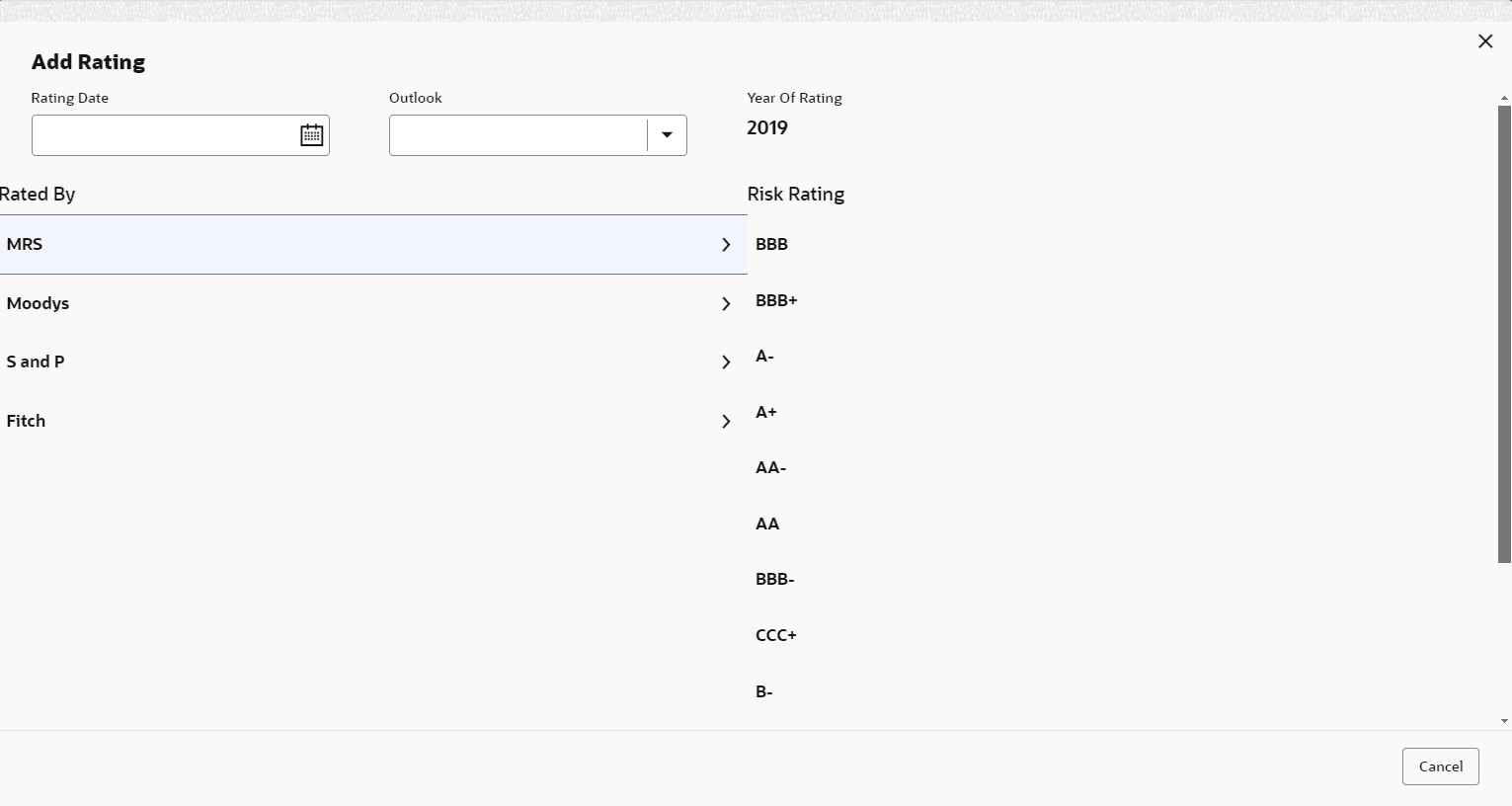
- To capture rating information of the party, click +
icon.The Add Rating screen displays. For more information on fields, refer to the field description table.
Table 2-3 Credit Rating
Fields Description Rating Date Select Rating Date. The date when the rating was done by the rating agency. Outlook Select Outlook. The outlook given by the rating agency. The available options are: - Positive
- Neutral
- Negative
Year Of Rating Year Of Rating is automatically populated based on the selected Rating Date. Rated By Select Rated By. The rating agency name. Delete Click Delete, to delete the added rating
Social Media Profiles