3 SME CP Initiation - Enrichment
This topic describes the systematic instructions for SME CP Initiation - Enrichment.
- Customer info
- KYC Check
- Other Bank Facilities
- Write up
- Summary
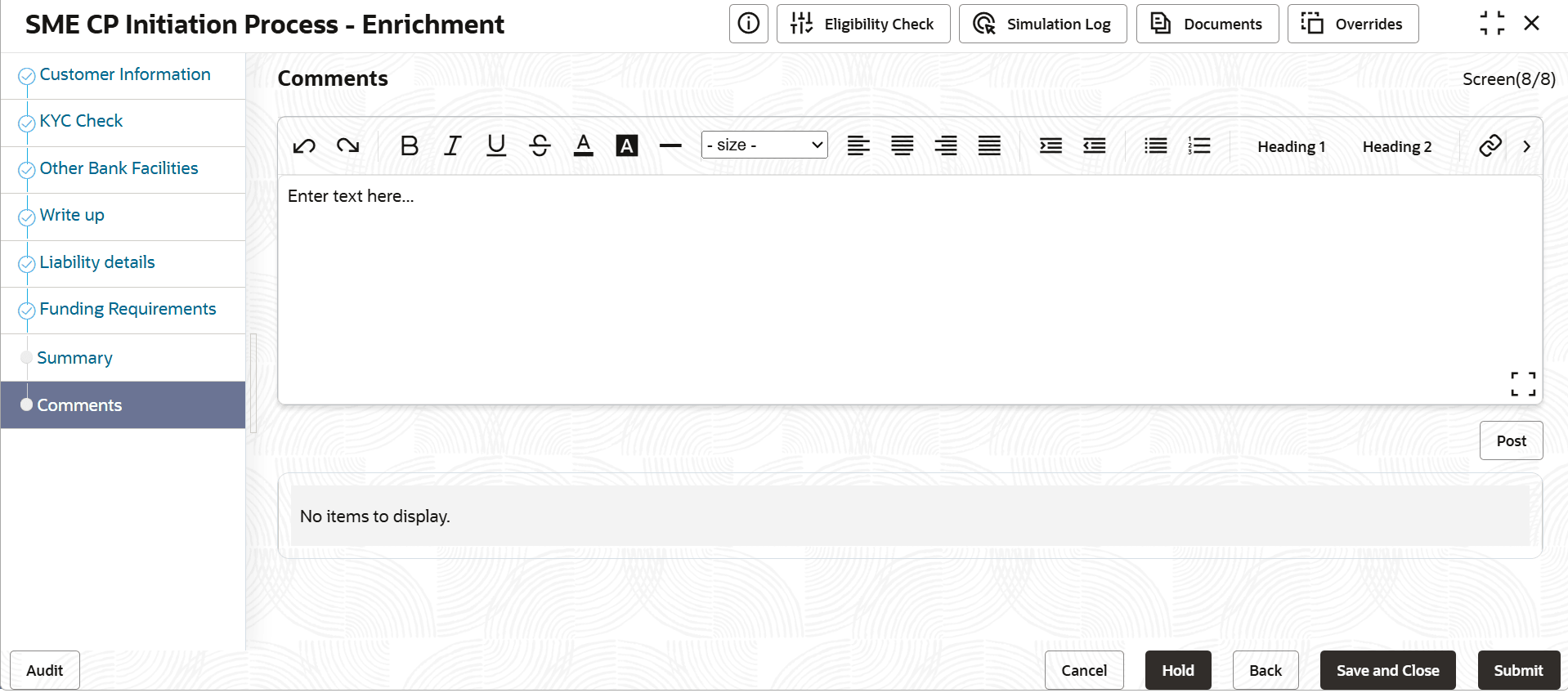
- Comments
Steps to enrich SME CP Initiation - Enrichment
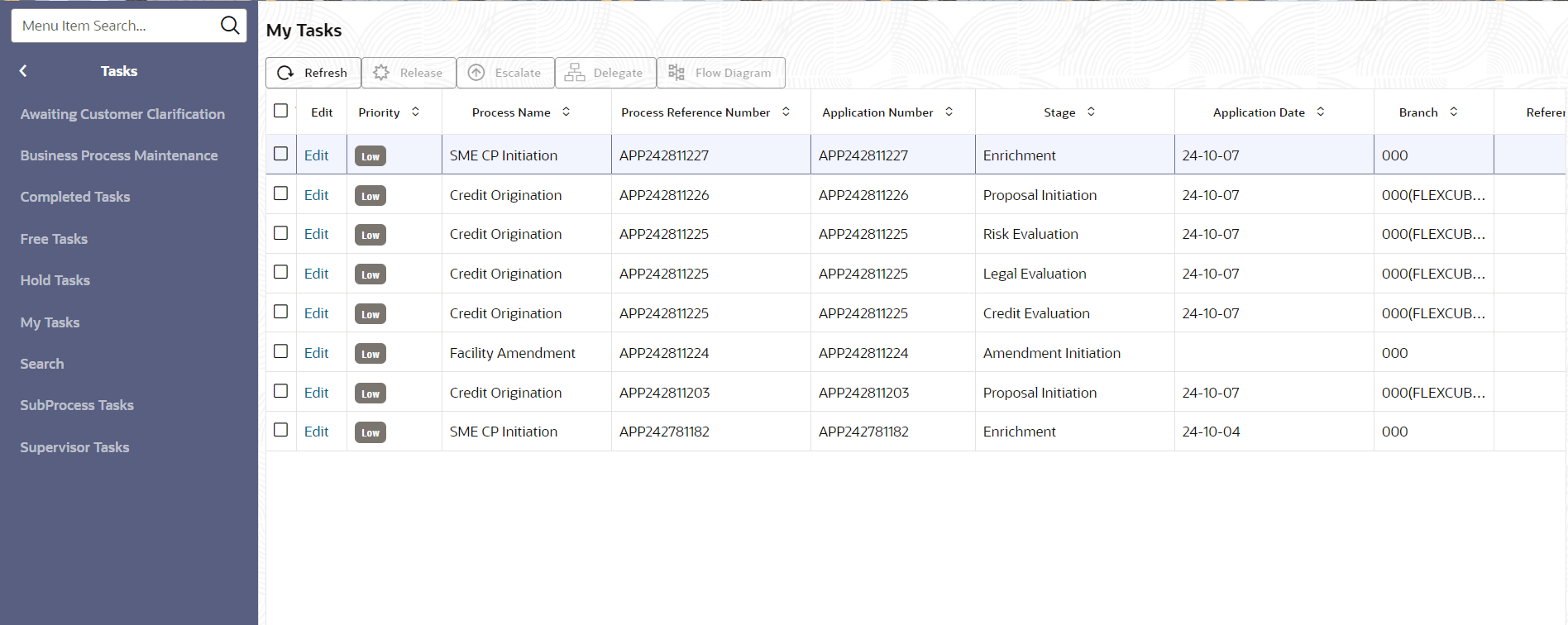
- In OBCFPM home screen click Tasks
under Tasks, click on My
TasksThe My Tasks screen displays.
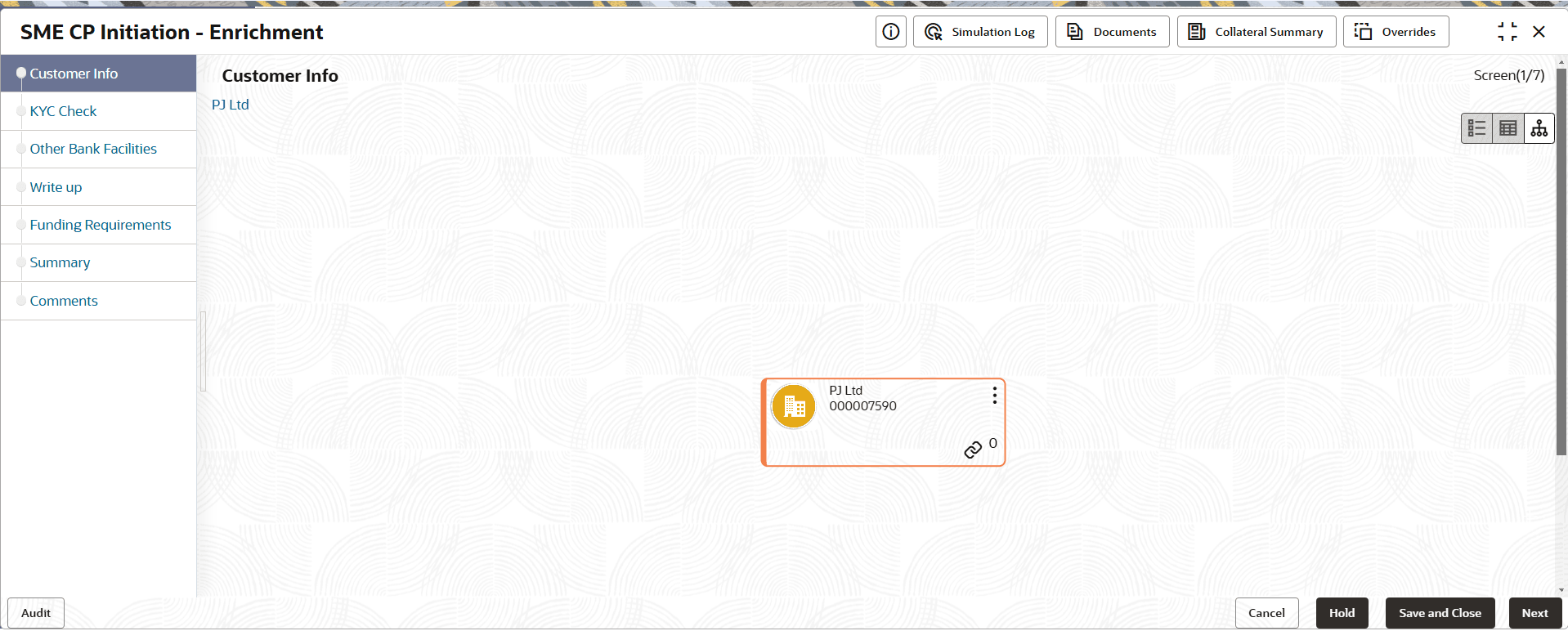
- Click on Edit.The SME CP Initiation - Enrichment screen displays.
- Click
 icon. Following actions are available:
- Add Customer
- Configure
- Link Customer
- View
- Quick View
- Click Configure.The Party Details screen displays.
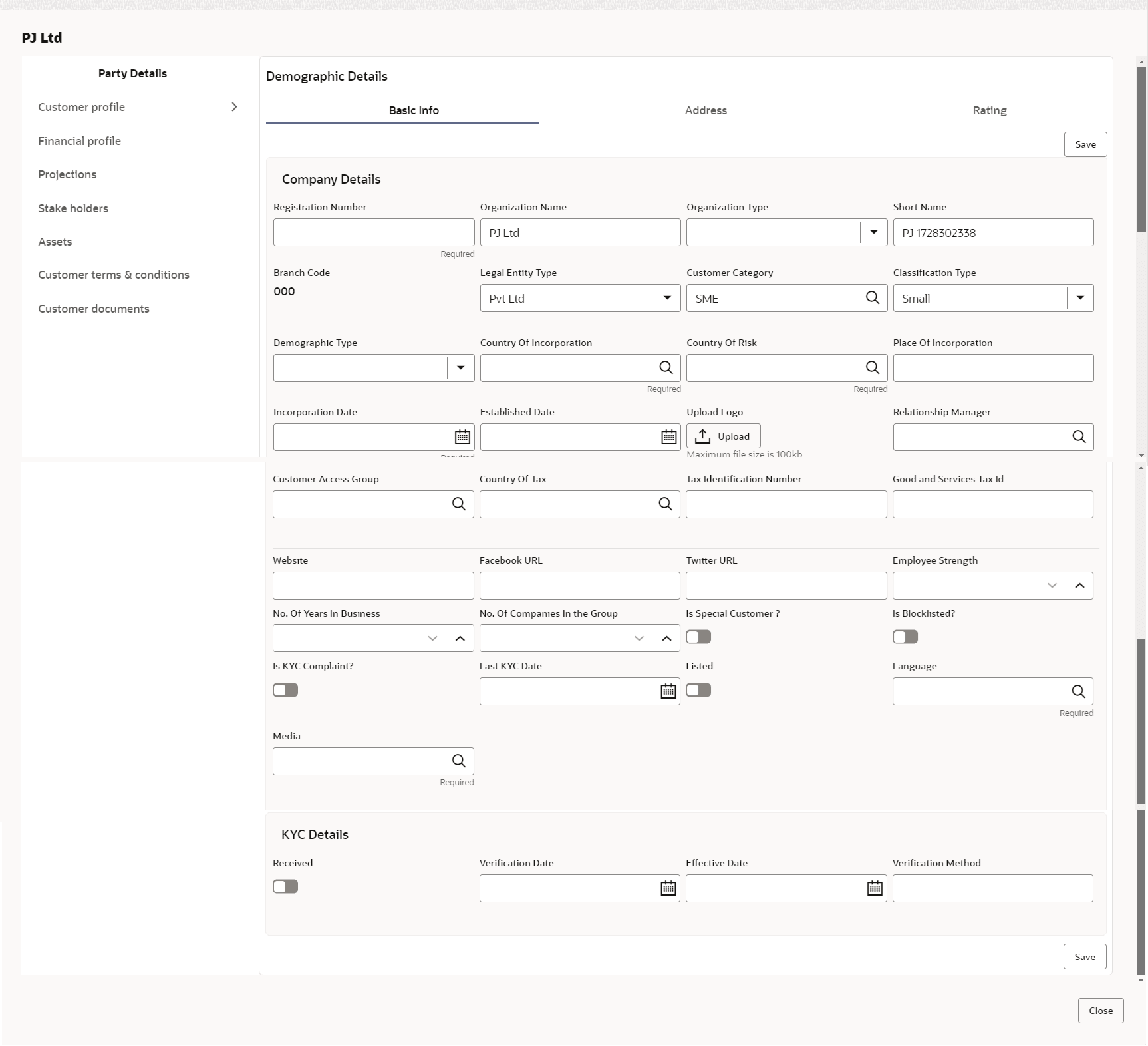
Customer Profile
- To add the party address details in Demographic Details screen, click Address
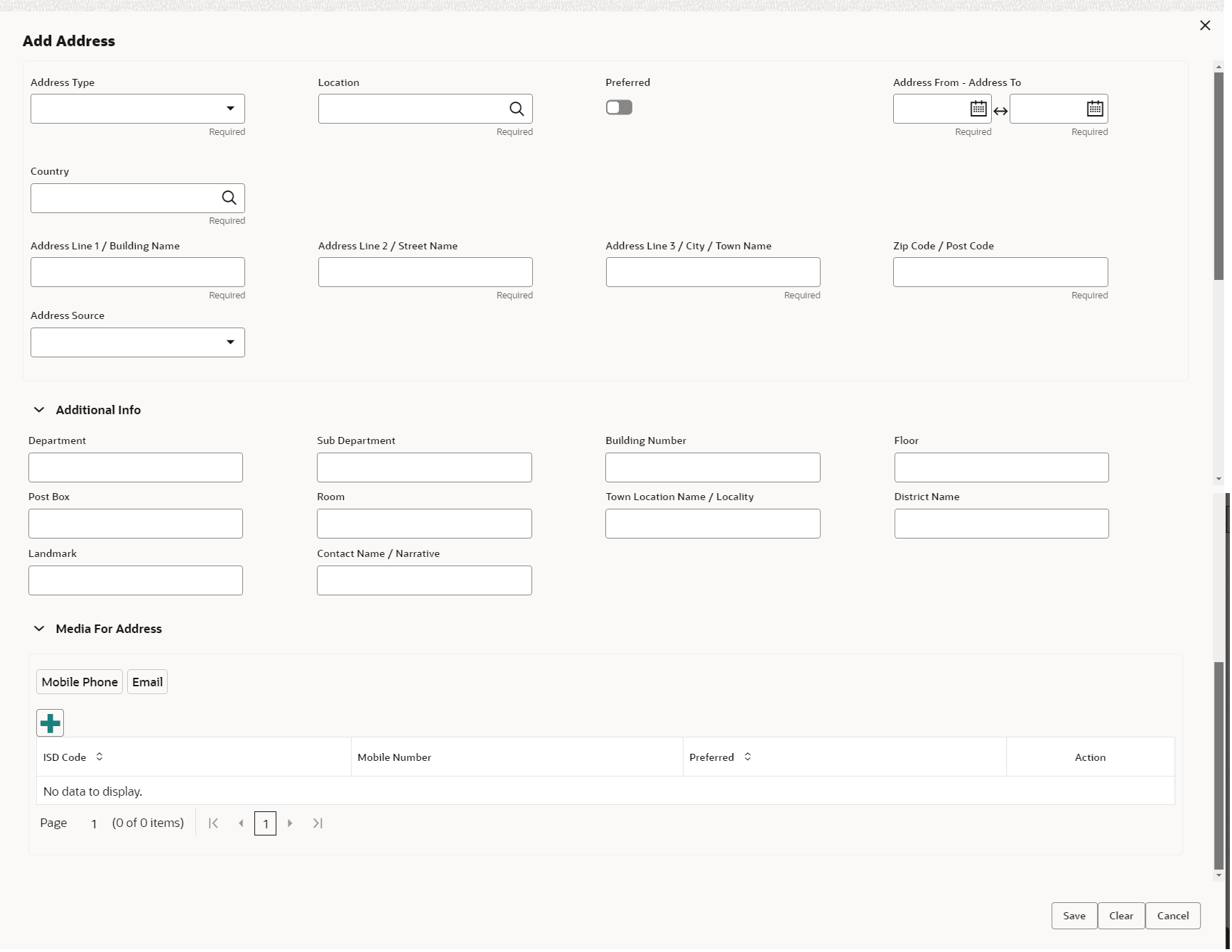
tab and then click + icon.The Add Address screen displayed. For more information on fields, refer to the field description table.
Note:
The fields marked as Required are mandatory.Table 3-3 Add Address
Fields Description Address Type Specify the Address Type. The available options are: - Head Office
- Registered Office
- Branch Office
- Communication Address
Location Click Search icon and specify the Location. Address From Click Calendar icon and select KYC Address From. Address To Click Calendar icon and select KYC Address To. Country Click Search icon and specify the Country. Address Line 1 / Building Name Specify the Address Line 1 / Building Name. Address Line 2 / Street Name Specify the Address Line 2 / Street Name. Address Line 3 / City / Town Name Specify the Address Line 3 / City / Town Name. Zip Code / Post Code Specify the Zip Code / Post Code. Address Source Specify the Address Source. Additional Info Click Additional Info. The following options are displayed. Enter the details in the below fields: - Department
- Sub Department
- Building Number
- Floor
- Post Box
- Room
- Town Location Name/ Locality
- District Name
- Landmark
- Contact Name/ Narrative
Table 3-4 Media For Address
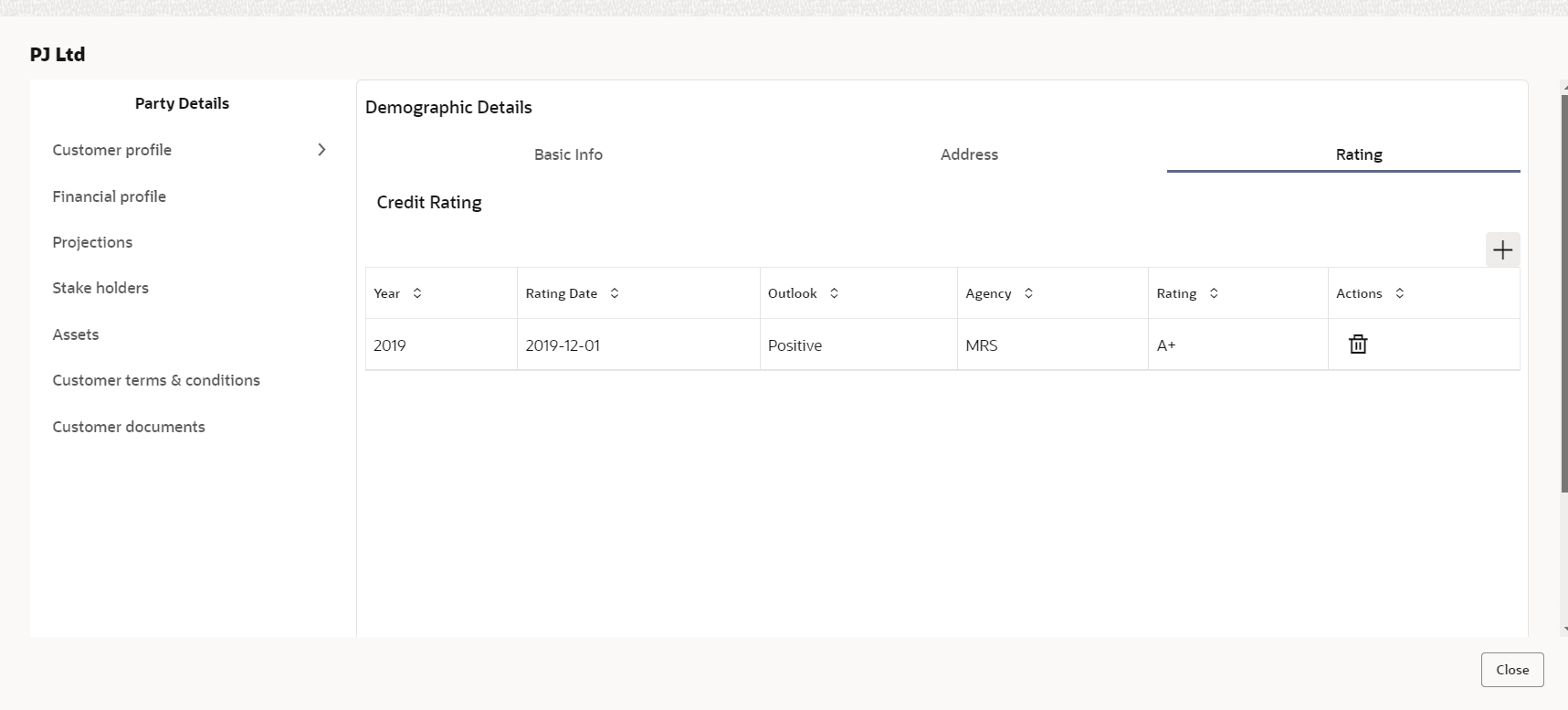
Fields Description ISD Code Specify ISD Code. Mobile Number Specify Mobile Number. Preferred Specify is preferred or not. Email Id Specify Email Id. - To view Rating in Demographic Details screen, click
Rating.The Rating screen is displayed with Credit Rating details for below fields.
- Year
- Rating Date
- Outlook
- Agency
- Rating
- Actions
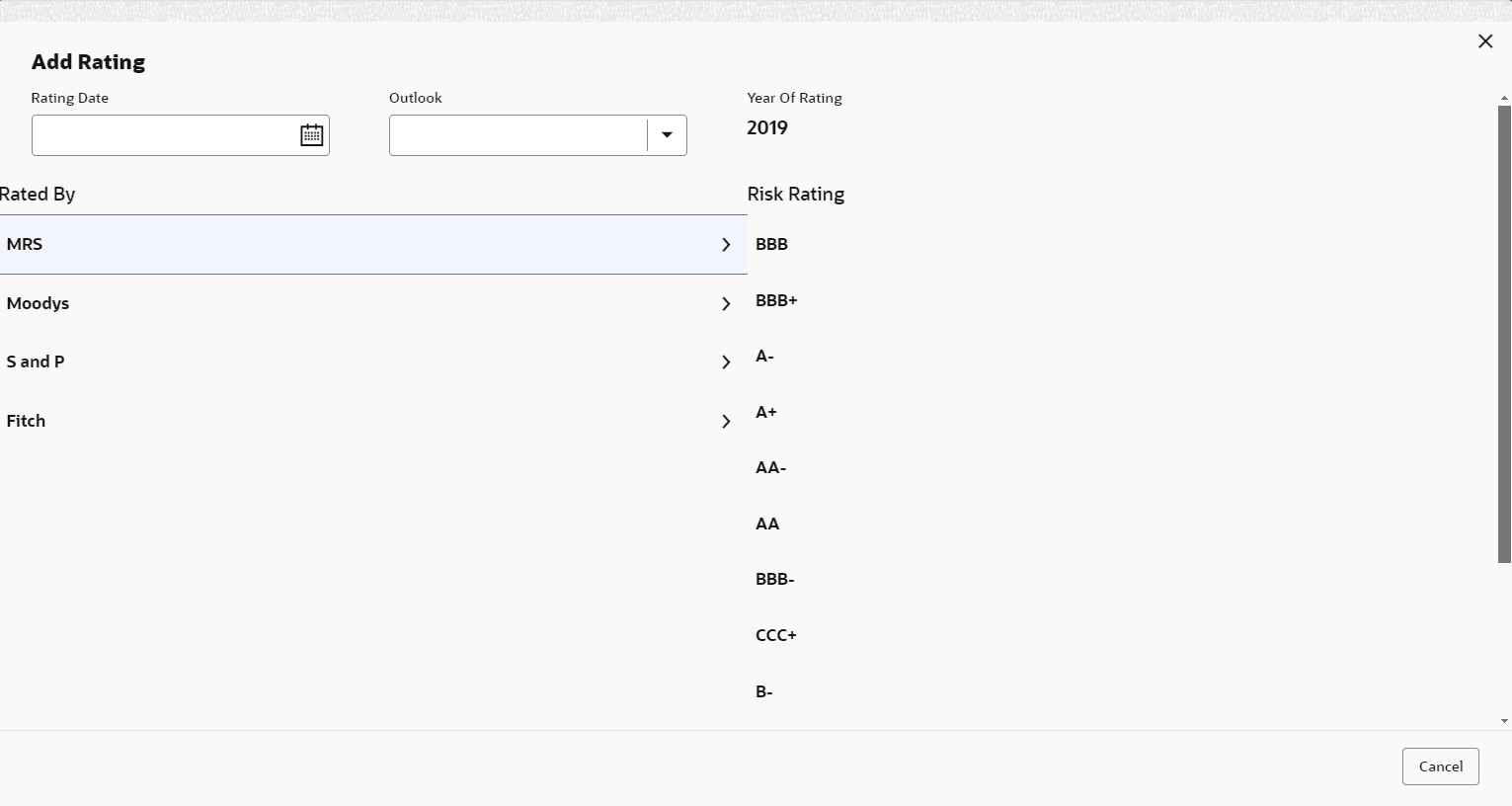
- To add new rating click + icon.The Add Rating screen displays. For more information on fields, refer to the field description table.
Table 3-5 Add Rating
Fields Description Rating Date Click Calendar icon and select Rating Date. Outlook Select Outlook. The available options are - Positive
- Neutral
- Negative
Year of Rating Year of Rating is displayed by default. Rated By Select Rated By from the below list: - MRS
- Moodys
- S and P
- Fitch
Risk Rating Select Risk Rating from the below list: - BBB
- BBB+
- A-
- A+
- AA-
- AA
- AA+
- CCC+
- B-
- B
- BB+
- AAA
- BBB
Financial Profile
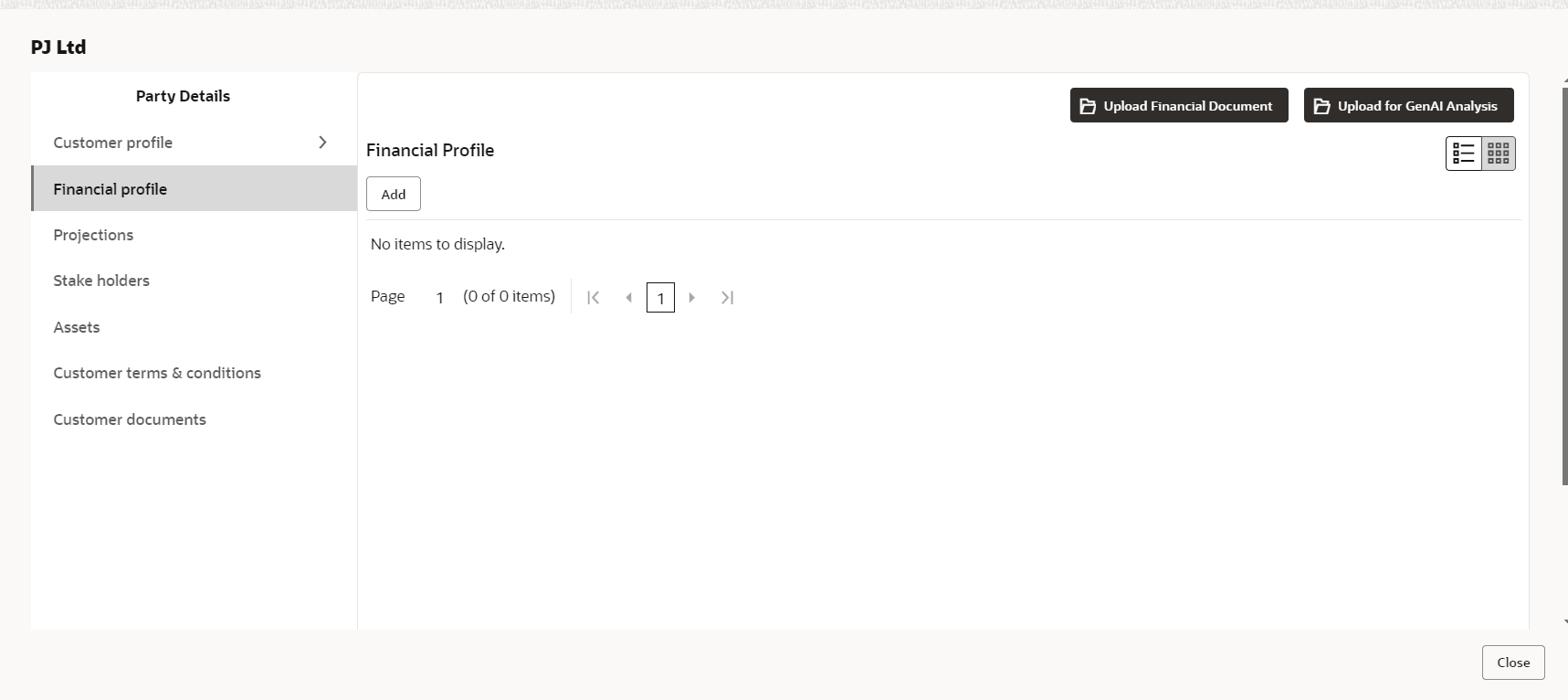
- To Upload / Add party’s financial details, click Financial
Profile in left menu.The Financial profile screen is displayed.
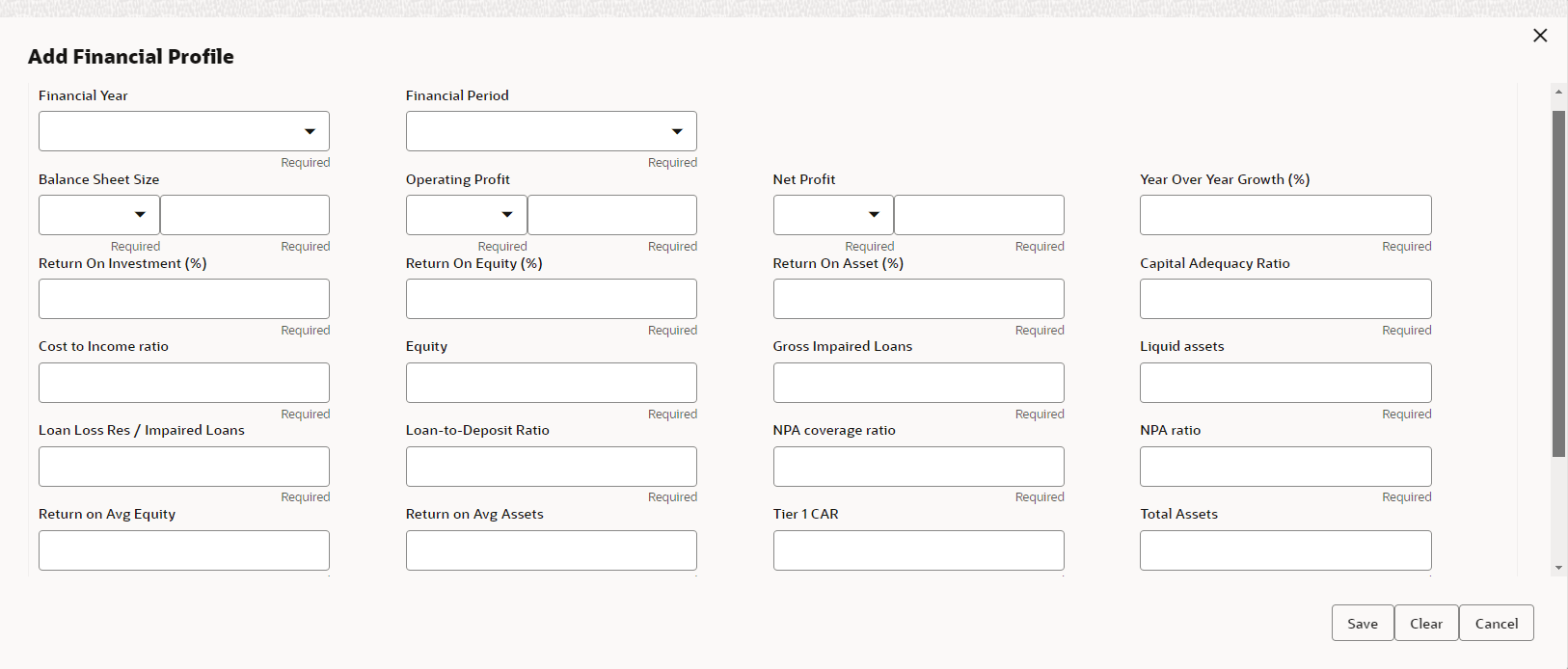
Click Add icon. The Add Financial Profile screen displays.
Note:
The fields marked as Required are mandatory.For more information on fields, refer to the field description table.
Note:
The fields marked as Required are mandatory.Table 3-6 Add Financial profile
Fields Description Financial Year Specify Financial Year for which the party’s financial details are to be added. Details Specify the following details in the corresponding fields: - Balance Sheet Size and currency from drop-down list
- Operating Profit and currency from drop-down list
- Net Profit and currency from drop-down list
- Year Over Year Growth
- Return On Investment
- Return On Equity
- Return On Asset
- Capital Adequacy Ratio
- Cost to Income ratio
- Equity
- Gross Impaired Loans
- Liquid assets
- Loan Loss Res / Impaired Loans
- Loan-to-Deposit Ratio
- NPA coverage ratio
- NPA ratio
- Return on Avg Equity
- Return on Avg Assets
- Tier 1 CAR
- Total Assets
- Unreserved Equity
Save Click Save. Party’s financial details are added. - To add financial documents, click Upload Financial
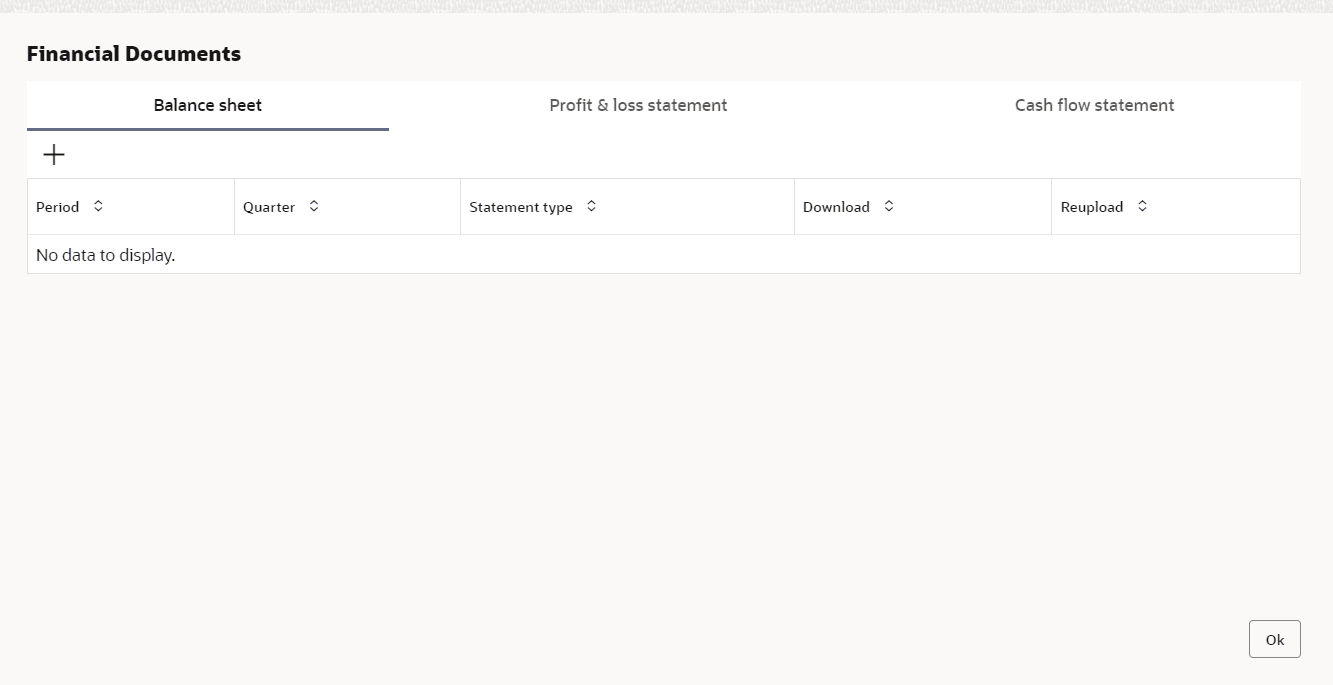
Document.The Financial Documents screen displayed.In the Financial Documents, the user can Add the following documents by clicking respective tabs.
- Balance Sheet
- Profit & Loss Statement
- Cash Flow Statement
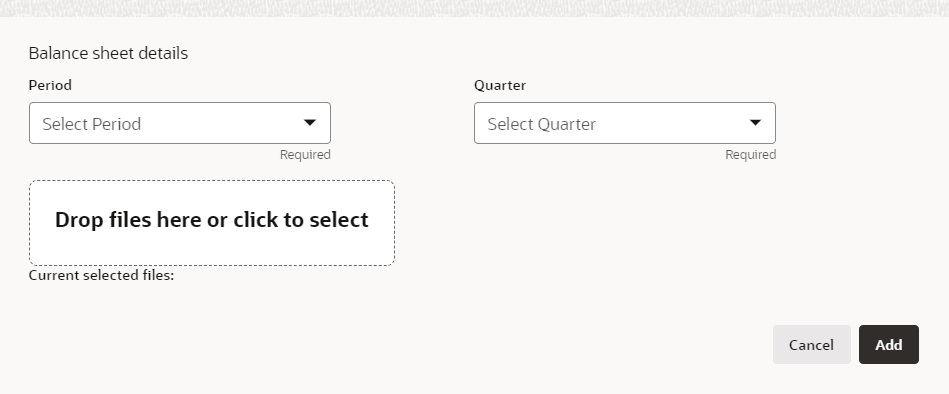
Click Add in any of the above tabs, the following window to upload documents is displayed.
Note:
The fields marked as Required are mandatory.For more information on fields, refer to the field description table.
Note:
The fields marked as Required are mandatory.Table 3-7 Balance Sheet Details
Fields Description Period Select Period for which the financial document is to be added. Quarter Select Quarter for which the financial document is to be added. Drop files here or click to select In Drop files here or click to select section, drag and drop or click and upload the financial document. Add Click Add. Document is added. Chart view In the Financial Profile screen, click Chart view icon to change the List view to Chart view.
Projections
- To Upload / Add projection details, click
Projections from the left menu and then click the
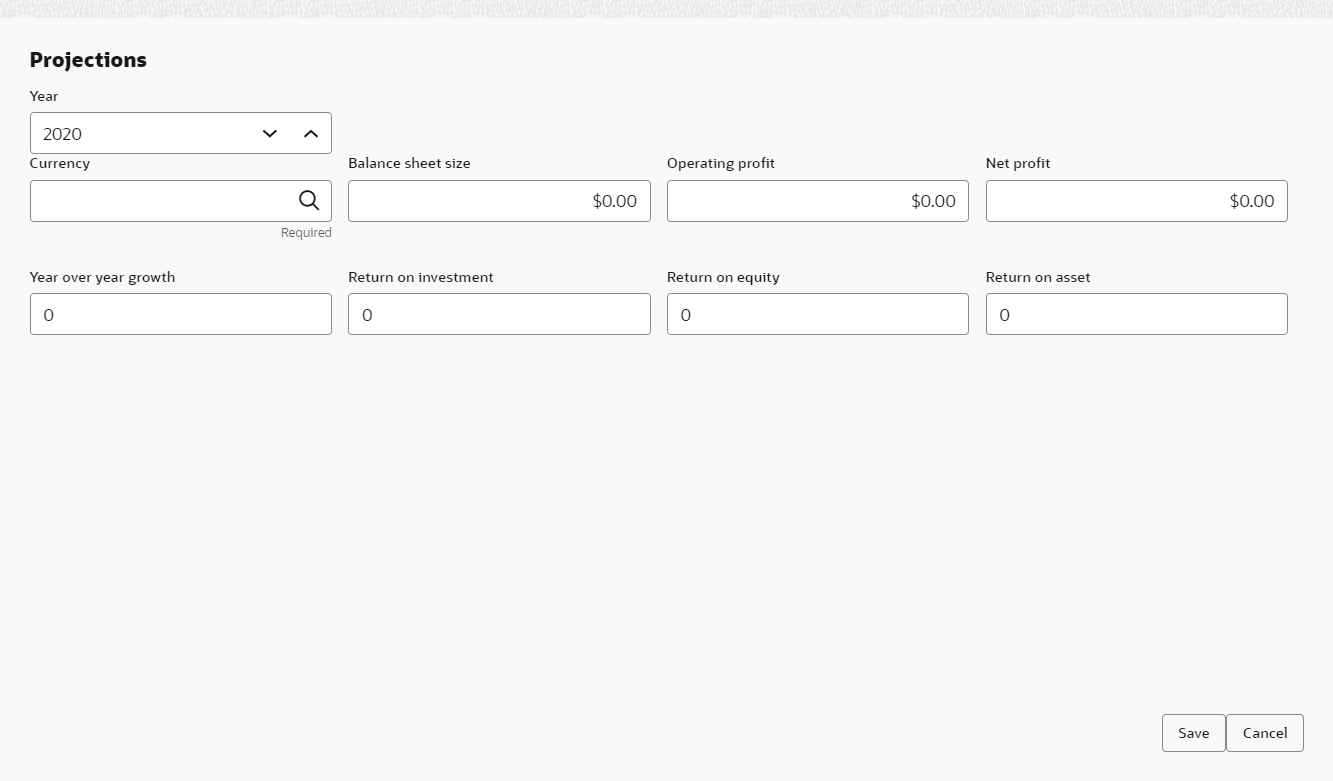
Add icon.The Projections screen displays.
For more information on fields, refer to the field description table.
Note:
The fields marked as Required are mandatory.Table 3-8 Projections
Fields Descriptions Year Specify Year for which the party’s projection details are to be added. Currency Search and select Currency for the projection details. Details Specify the following details in the corresponding fields: - Balance Sheet Size
- Operating Profit
- Net Profit
- Year Over Year Growth
- Return On Investment
- Return On Equity
- Return On Asset
Save Click Save. Party’s projection details are added.
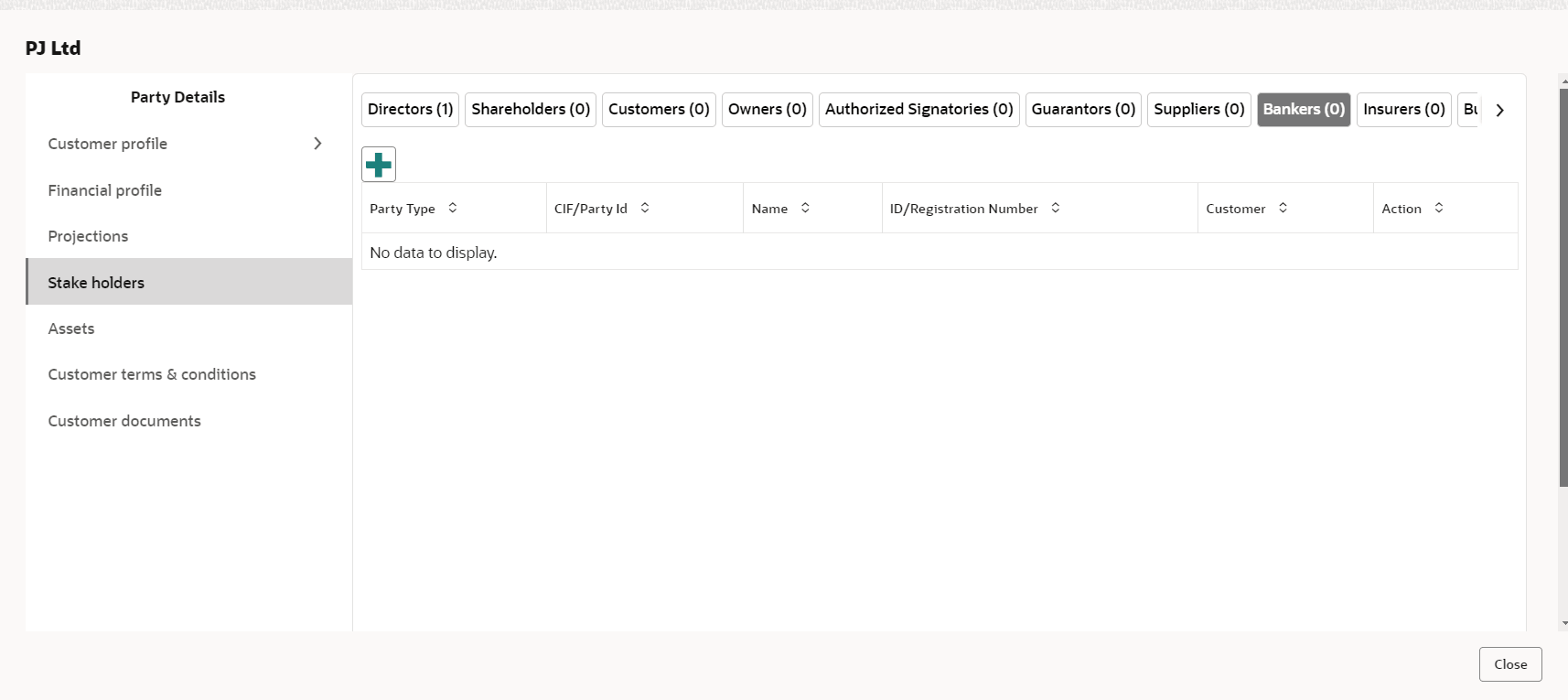
Stake Holders
- User can add information about the following stakeholders by clicking the
Stake Holders menu:
- Owners
- Authorized Signatories
- Guarantors
- Suppliers
- Bankers
- Insurers
- Buyers
- Management Team
- Sponsors
- Debtors
- Creditors
- Advisor
- Auditors
- Directors
- Contractors
- Shareholders
- Customers
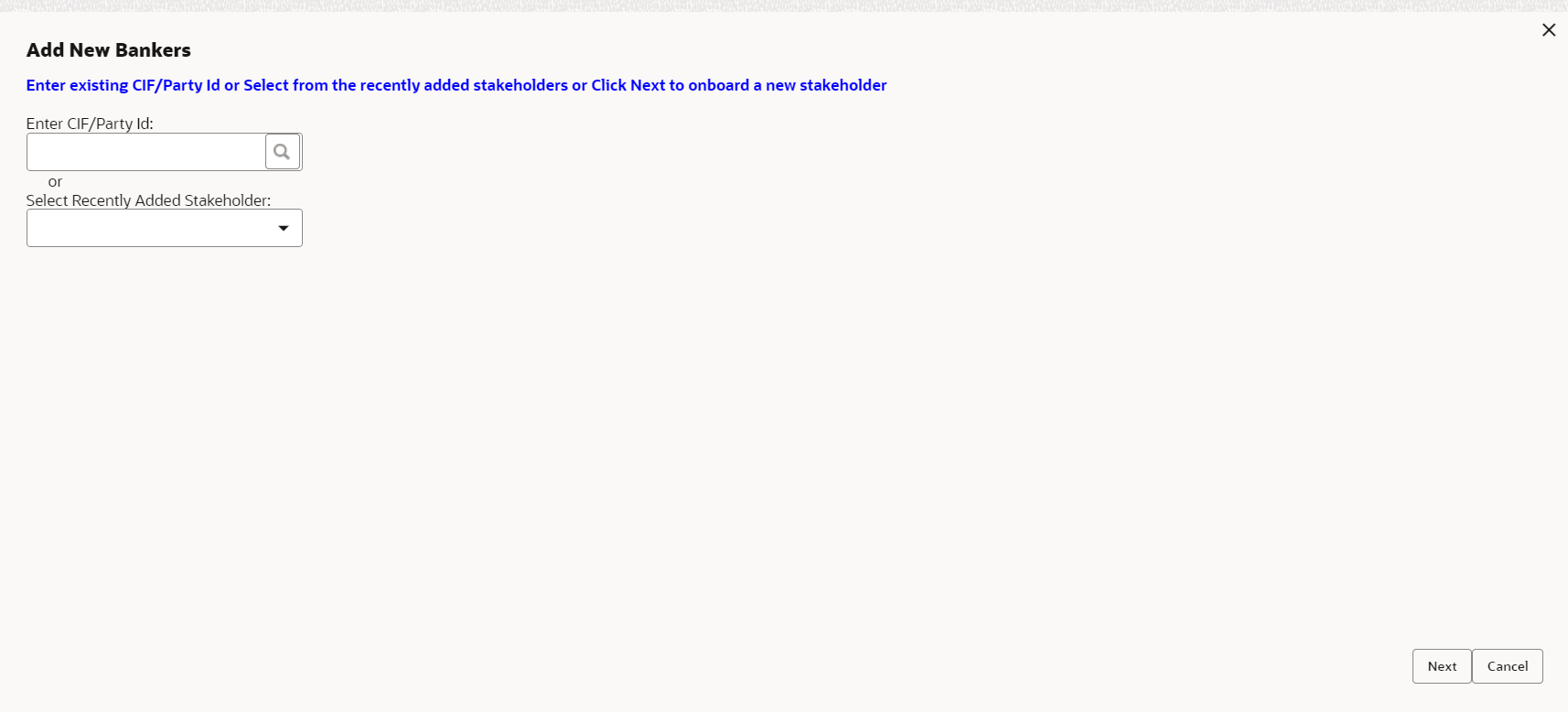
To Add Owners
Click + to add new owners. The Add Owners screen is displayed with following options:- Enter existing CIF/Party Id or
- Select from the recently added stakeholders or
- Click Next to onboard a new stakeholder
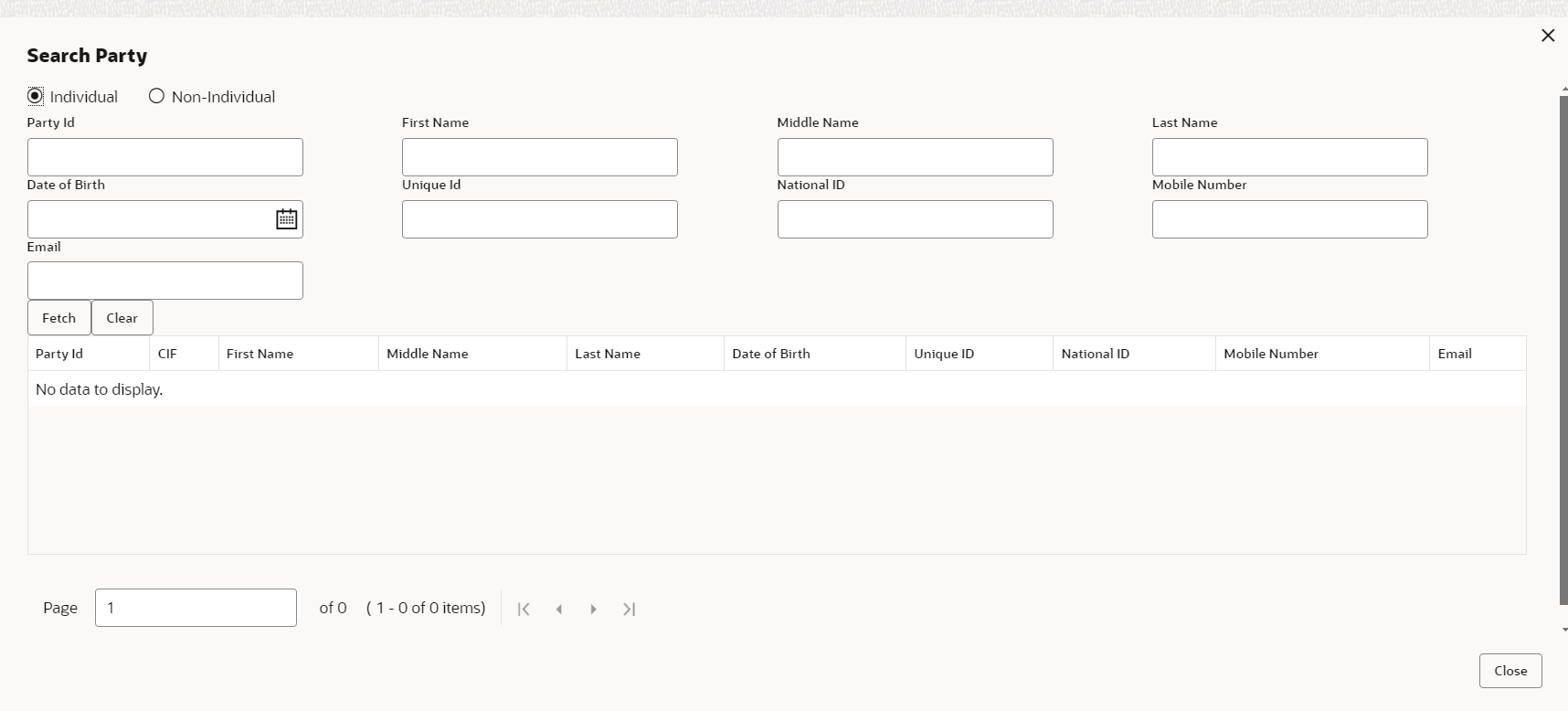
To Enter Existing CIF/Party Id
Specify Enter CIF/Party Id or click search, the Search Party screen is displayed.
Select Individual or Non-Individual check box. Enter the field details or click Fetch. The Stakeholders details are displayed.
Select from the Recently Added Stakeholders
Select Recently Added Stakeholder from the drop-down list.
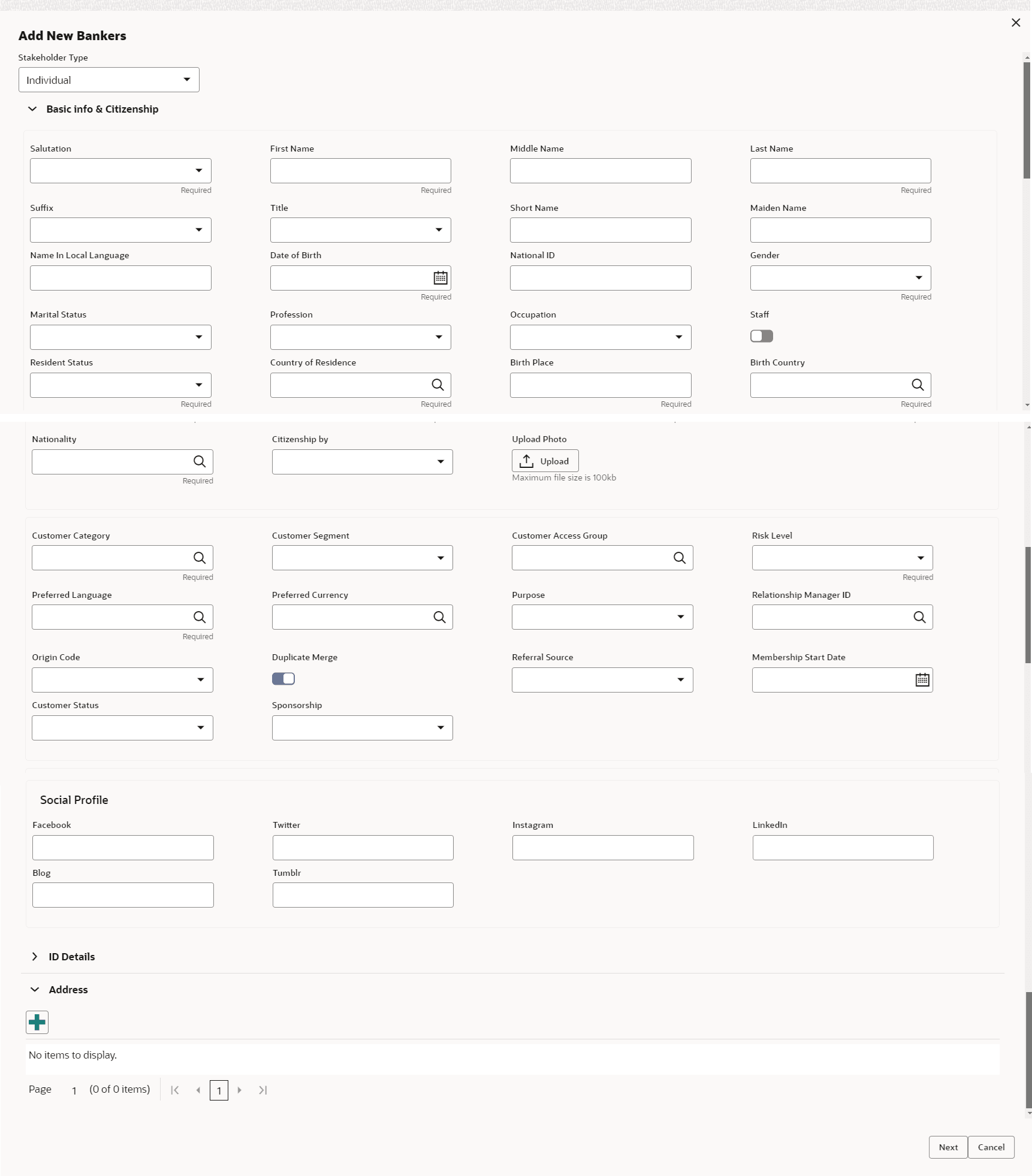
Select Next to onboard a new stakeholder
Click Next, the Add New Owners screen is displayed. Select Stakeholder Type and enter the field details for the below fields and click Next.- Basic info & Citizenship
- ID Details
- Address
Assets
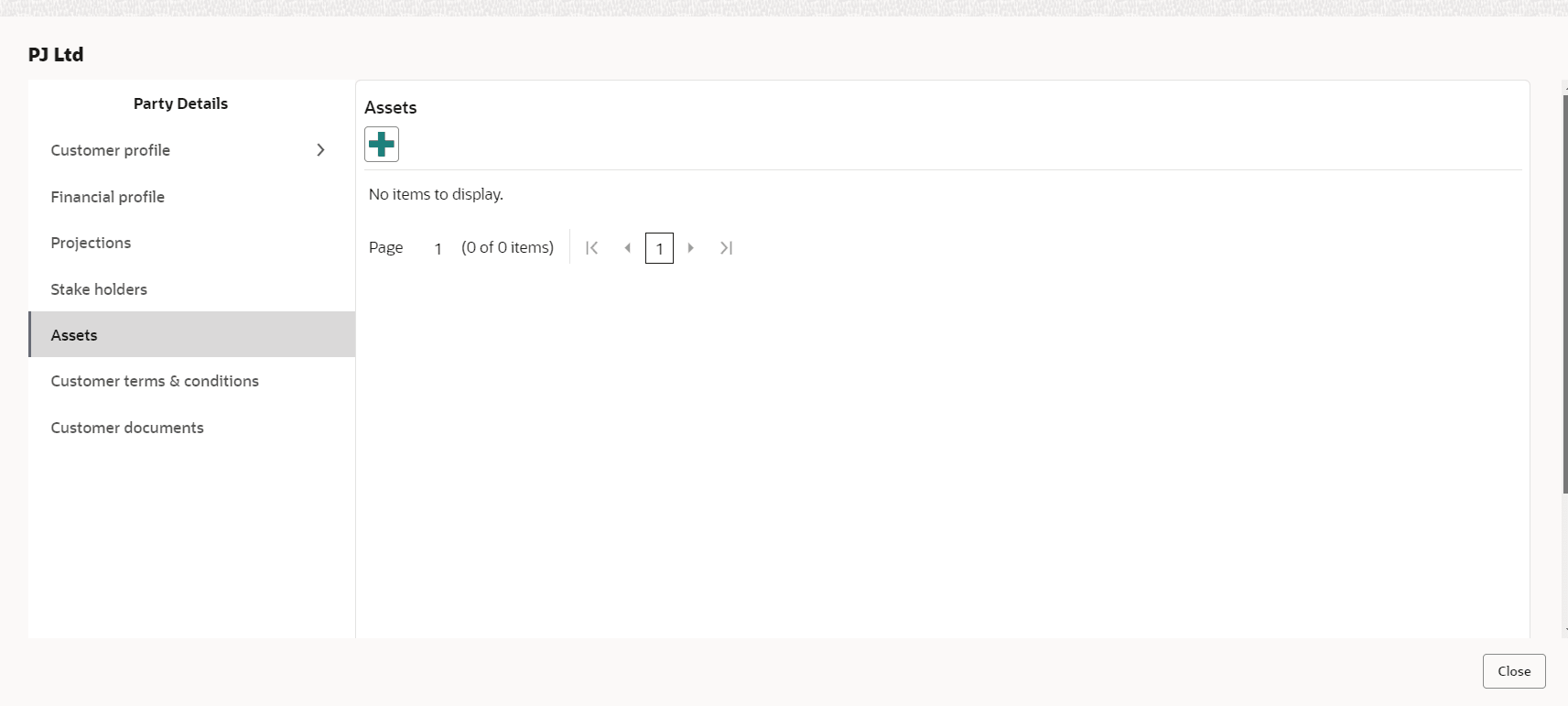
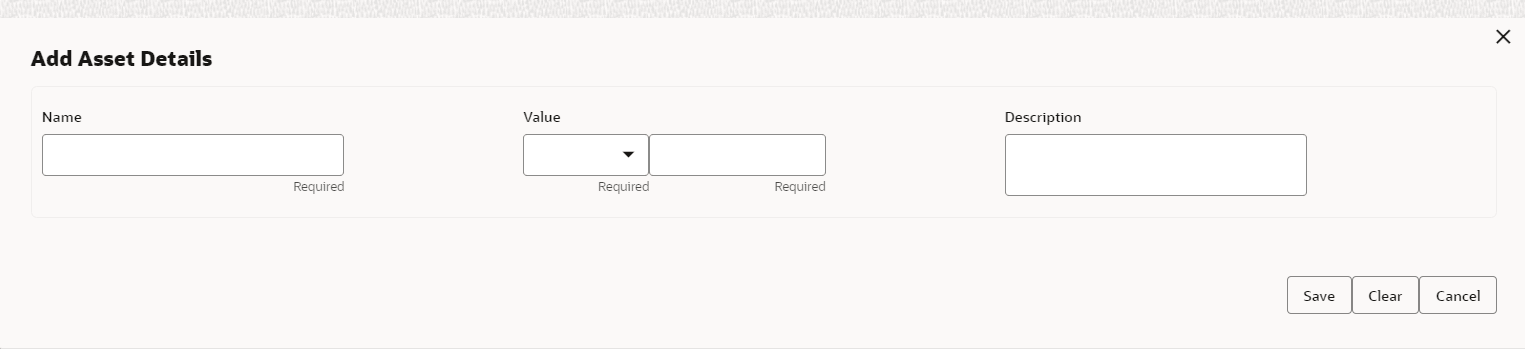
- To add asset details, click Assets from the left menu
and then click Add.The Assets screen displays.
For more information on fields, refer to the field description table.
Table 3-9 Assets
Fields Description Name Enter Name of the Asset. Value Specify the asset Value and select currency from the drop-down list. Description Enter Description of the Asset. Save Click Save. Asset details are added.
Customer terms and conditions
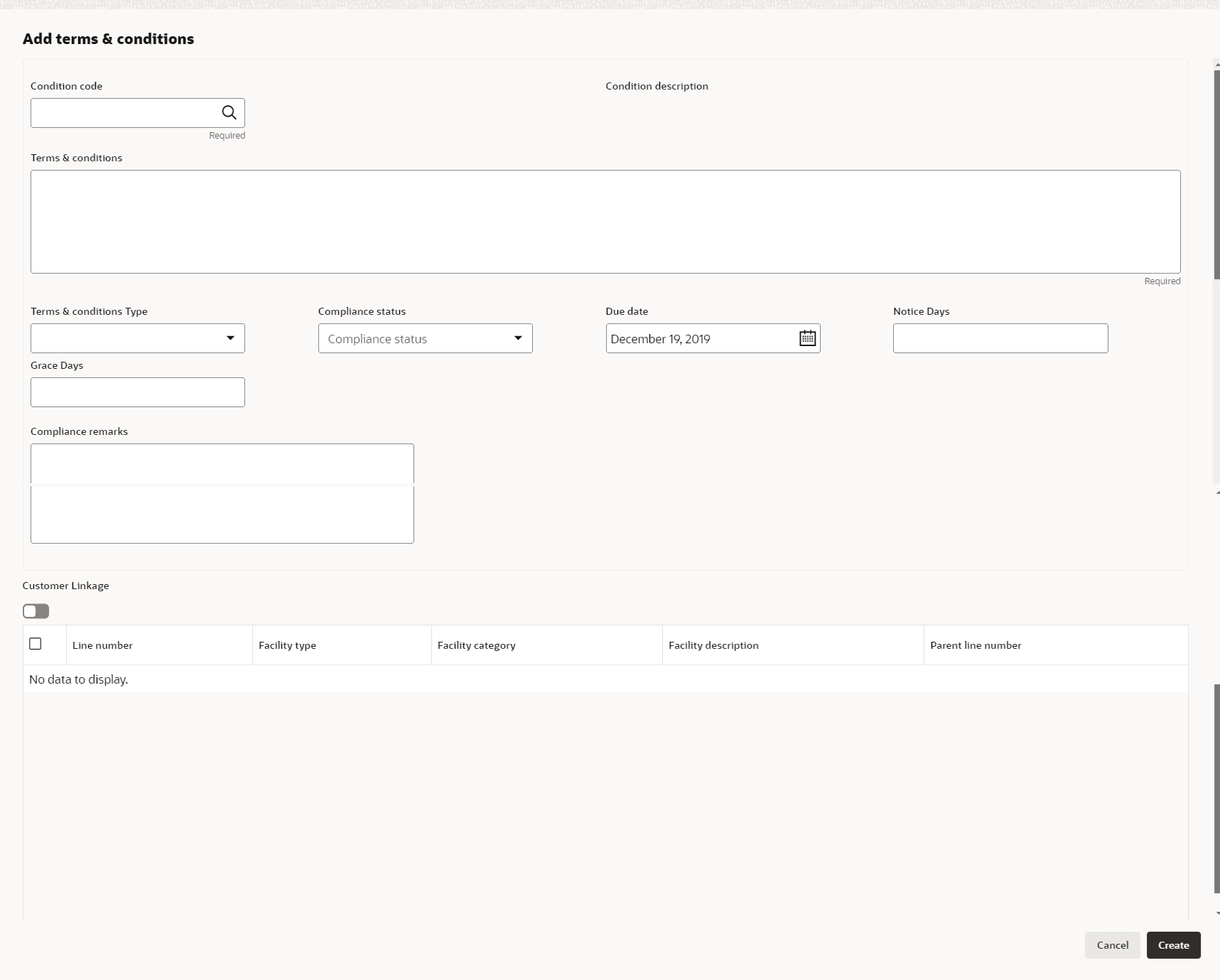
- To add new terms & conditions, click + icon.The Add terms and conditions screen displays. For more information on fields, refer to the field description table.
Note:
The fields marked as Required are mandatory.Table 3-10 Add Terms and Conditions
Fields Description Condition Code Search and Select Condition Code. Condition Description and Terms & Conditions are defaulted based on the selected condition code. Terms and Conditions Type Terms and Conditions Type is defaulted based on selected condition code. The options available are: - Pre-Disbursement
- Post-Disbursement
- Pre-Sanction
Compliance Status Select Compliance Status from drop-down list. The options available are: - Breached
- Met
Due date Click Calendar icon and select Due date. Notice Days Specify the Notice Date. Grace Days Specify the Grace Date. Compliance remarks Enter Compliance Remarks, if required. Customer Linkage Customer Linkage details are displayed by default based on selected condition code.
Customer Documents
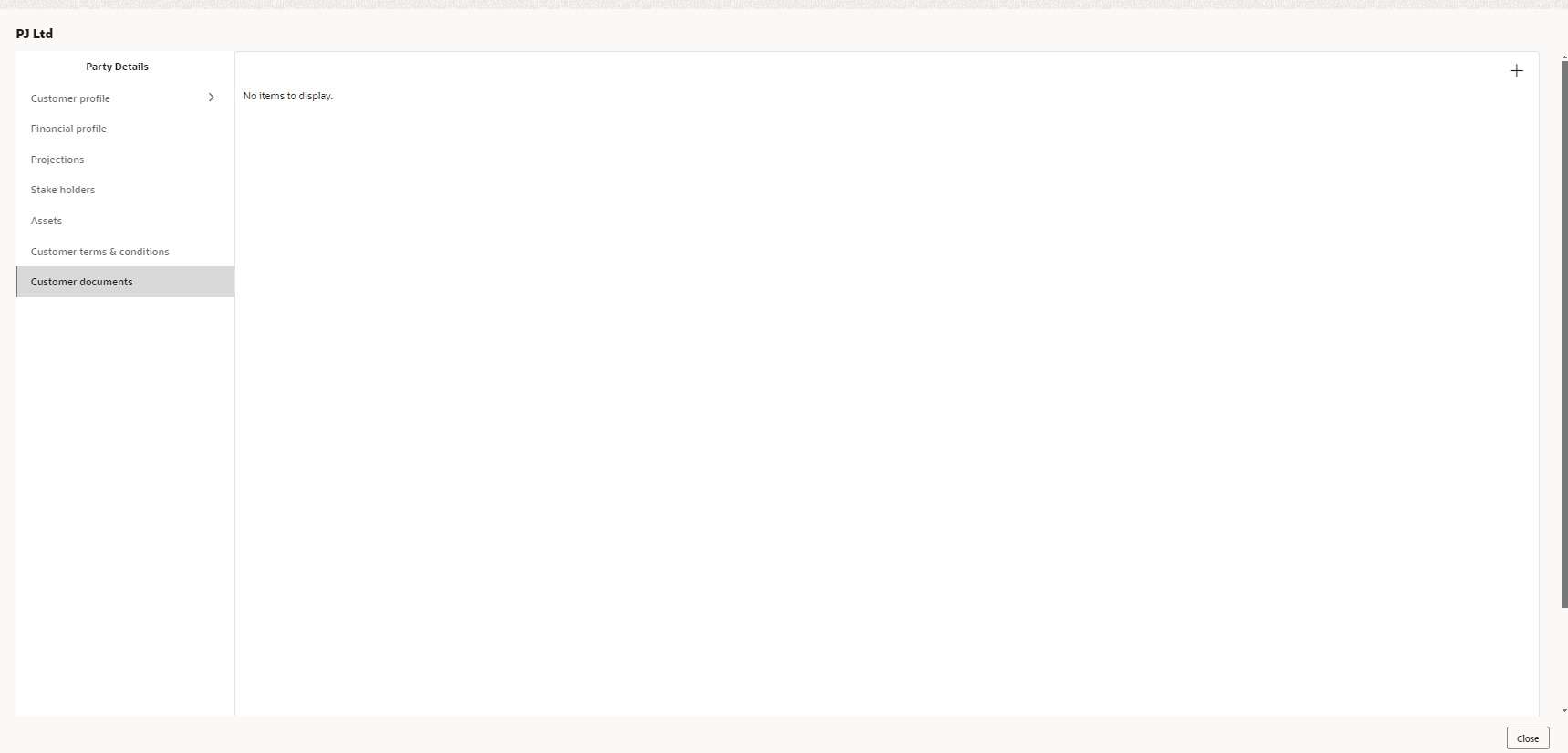
- To add documents, click Customer Documents from the
left menu and then click + icon. Enter the fields in
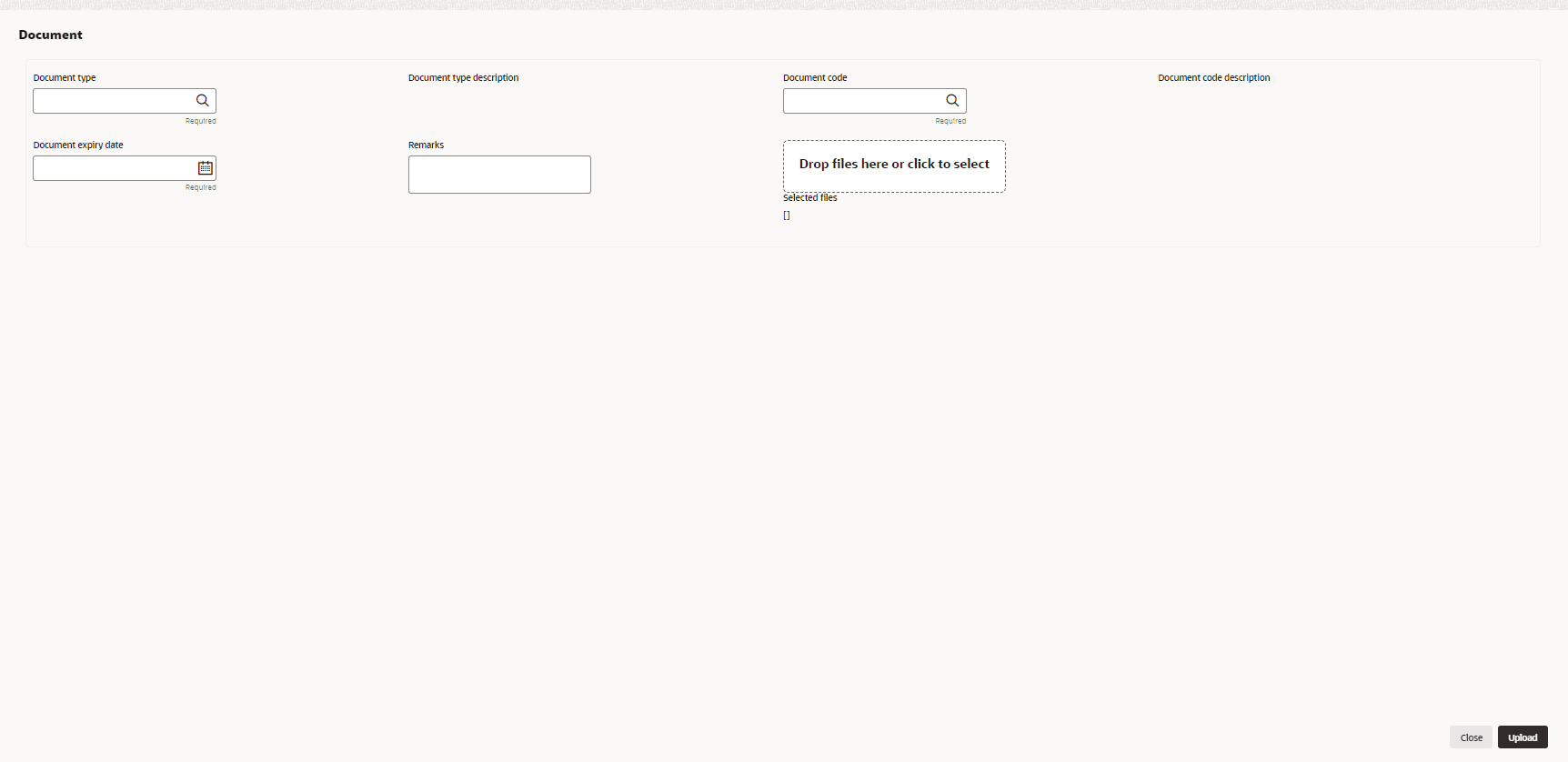
Document page and click Upload.The Customer Documents screen displays.
Figure 3-19 Customer Documents
For more information on fields, refer to the field description table.Note:
The fields marked as Required are mandatory.Table 3-11 Document
Fields Description Document Type Click Search icon and specify the Document Type Document Type Description Displays the Documents Type Description Document Code Click Search icon and specify the Document Code. Document Code Description Displays the Document type Description. Document expiry date Click Calendar icon and select Document expiry date. Remarks Specify Remarks, if any. Drop files here or click to select In Drop files here or click to select section, drag and drop or click and upload the financial document.
KYC checker
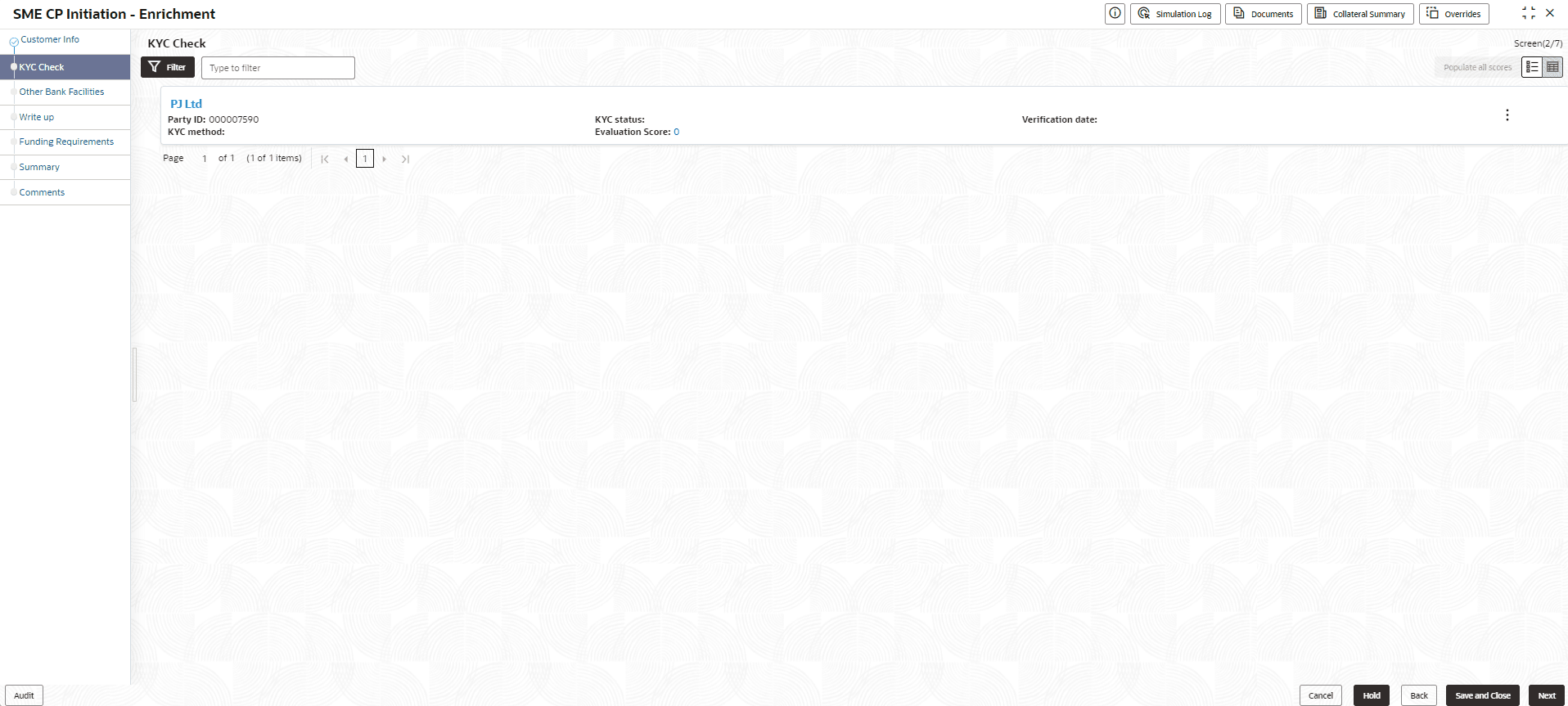
- On SME CP Initiation - Enrichment, click KYC
Check.The KYC Check screen displays.
- Click
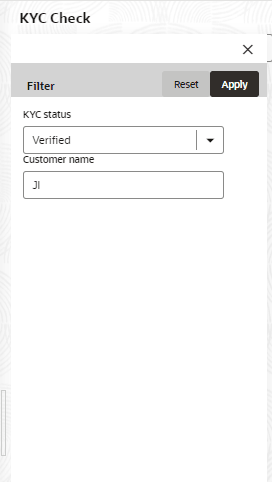
 icon.The KYC Check - Filter screen displays. For more information on fields, refer to the field description table.
Table 3-12 KYC - Filter
Fields Description KYC Status Specify the KYC Status. The options available are: - Yet to verify
- Verified
- Verification failed
Customer name Specify the Customer name. - Click
 The Other Bank Facilities page appears.
Other Bank Facilities
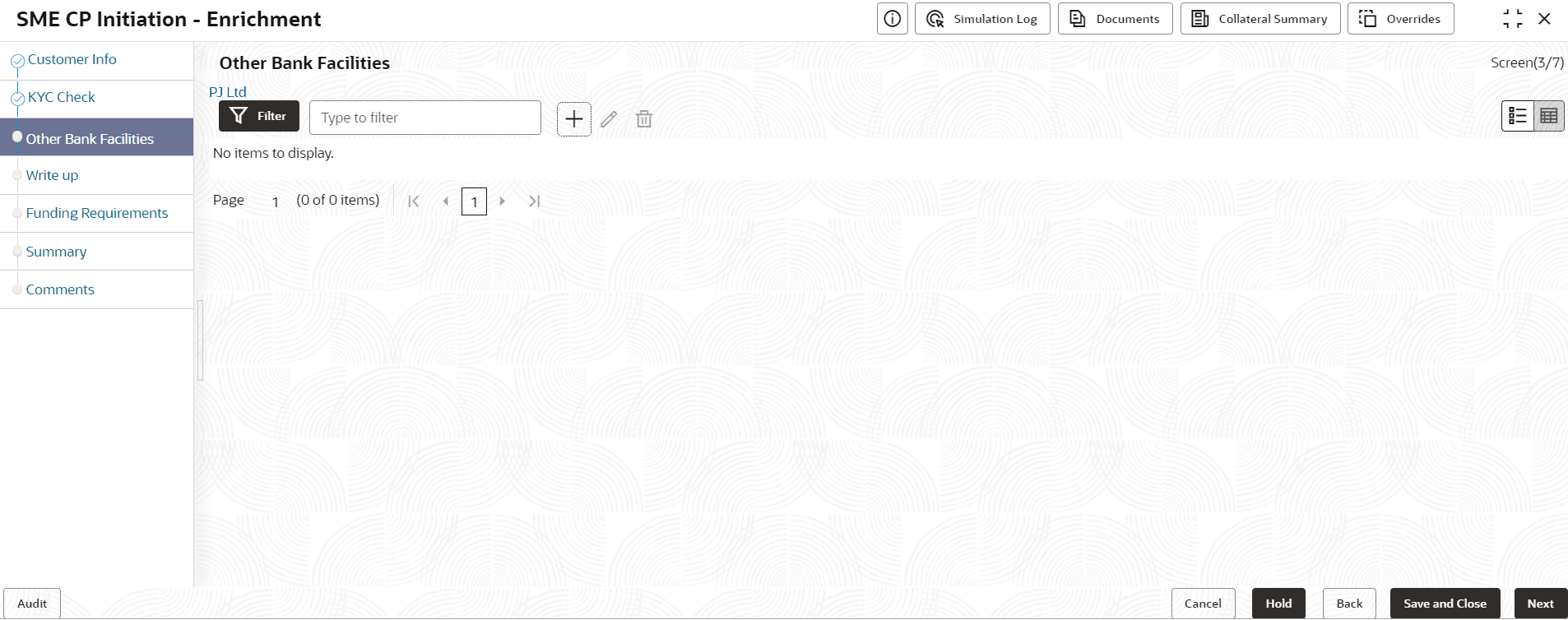
- click Next in the KYC Check screen.The Other Bank Facilities screen displays.
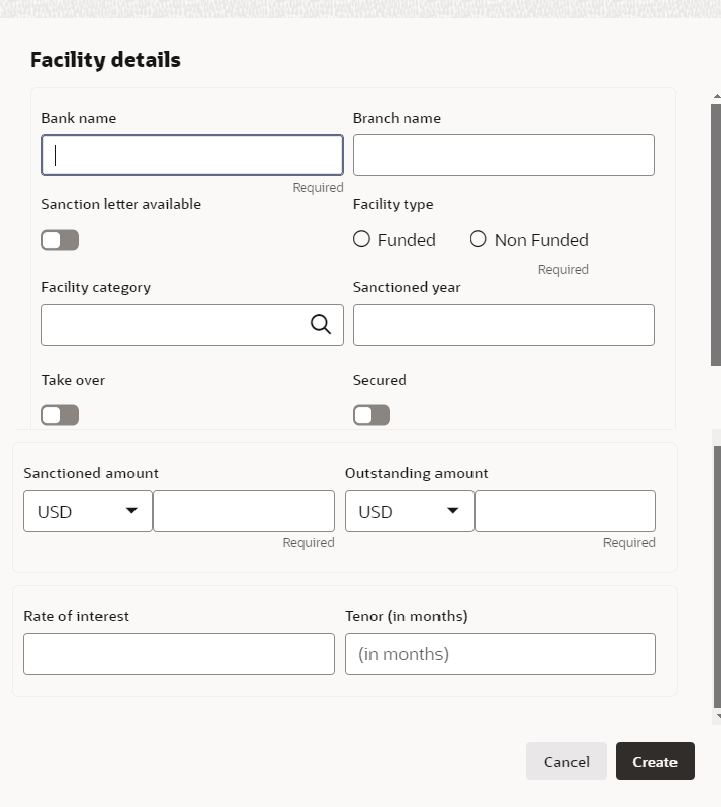
- Click + icon.The Facility Details screen displays.For more information on fields, refer to the field description table.
Note:
The fields marked as Required are mandatory.Table 3-13 Facility Details
Field Description Bank Name and Branch Name In Bank Name and Branch Name fields, enter the name of other bank from which the party has availed facility. Sanction Letter available Enable Sanction Letter available option, if sanction letter is available for the other bank facility. Facility Type Choose Facility Type. The options available are: - Funded
- Non-Funded
Facility Category Select Facility Category from the drop-down list. Sanctioned Year In the Sanctioned Year field, enter the year in which the other bank facility is sanctioned. Take Over Enable Take Over option, if the party has requested the bank to takeover the facility. Once this option is enabled the facility gets added in the funding requirement section by default.
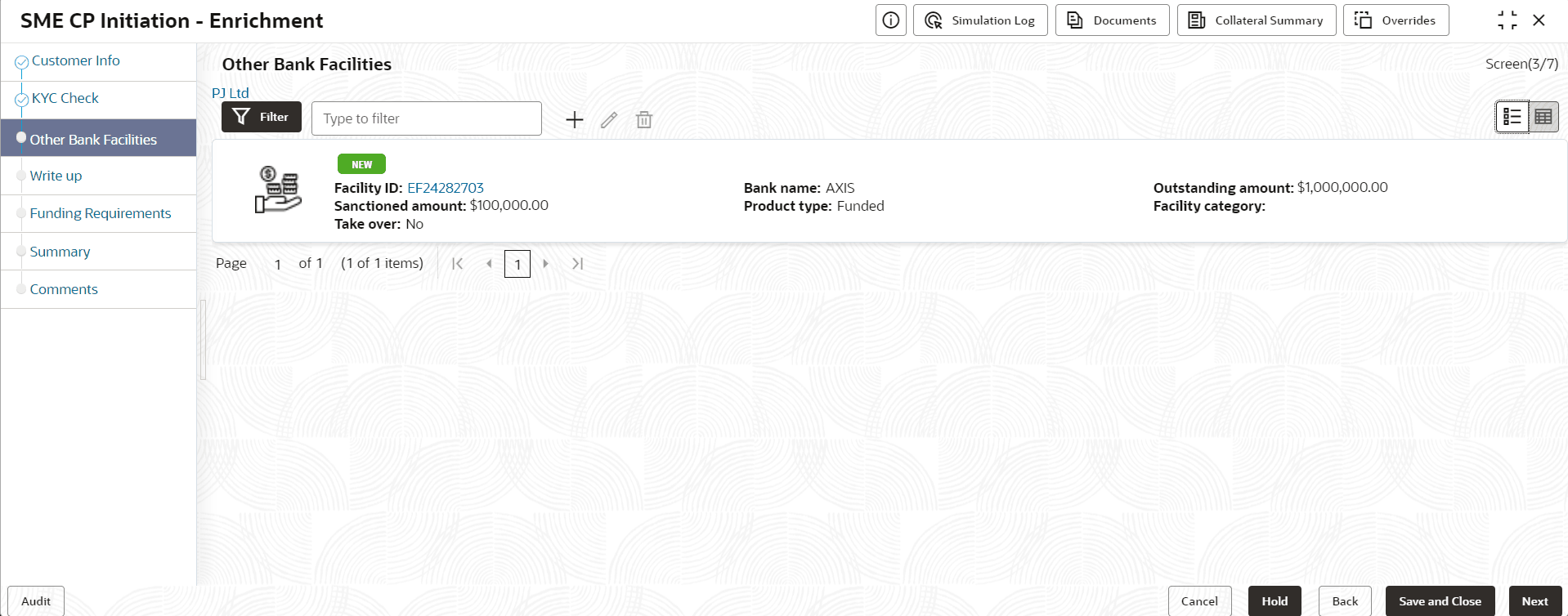
Currency Search and select Currency for the sanctioned amount. Sanctioned Amount In the Sanctioned Amount field, specify the initial facility amount sanctioned by the other bank. Outstanding Amount Specify Outstanding Amount to be paid by the party. Rate of Interest Specify Rate of Interest at which facility is offered by the other bank. Tenor Specify Tenor of the other bank facility. Secured Enable Secured option, if the other bank facility is secured with collateral. - Click Create. The Other bank facility is added and displayed as shown below:
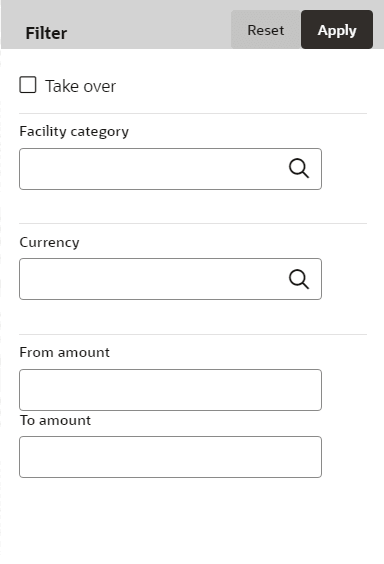
- To filter the required facility from all the available other bank facilities,
click Filter button. The Filter screen displays.
Figure 3-26 Other Bank Facilities - Filter
For more information on fields, refer to the field description table.Table 3-14 Filter
Field Description Apply Click Apply. Other bank facilities that matches the filter parameters are displayed. Reset Click Reset, to enter new filter parameters. Facility Category Search and select Facility Category. It indicates the category of the facility. Example: Overdraft, Term Loan, etc. Note: Minimum 3 characters need to be entered in the Type to filter text box to filter the facilities.
From Amount Enter From Amount for the sanctioned amount. To Amount Enter To Amount for the sanctioned amount.
Write up
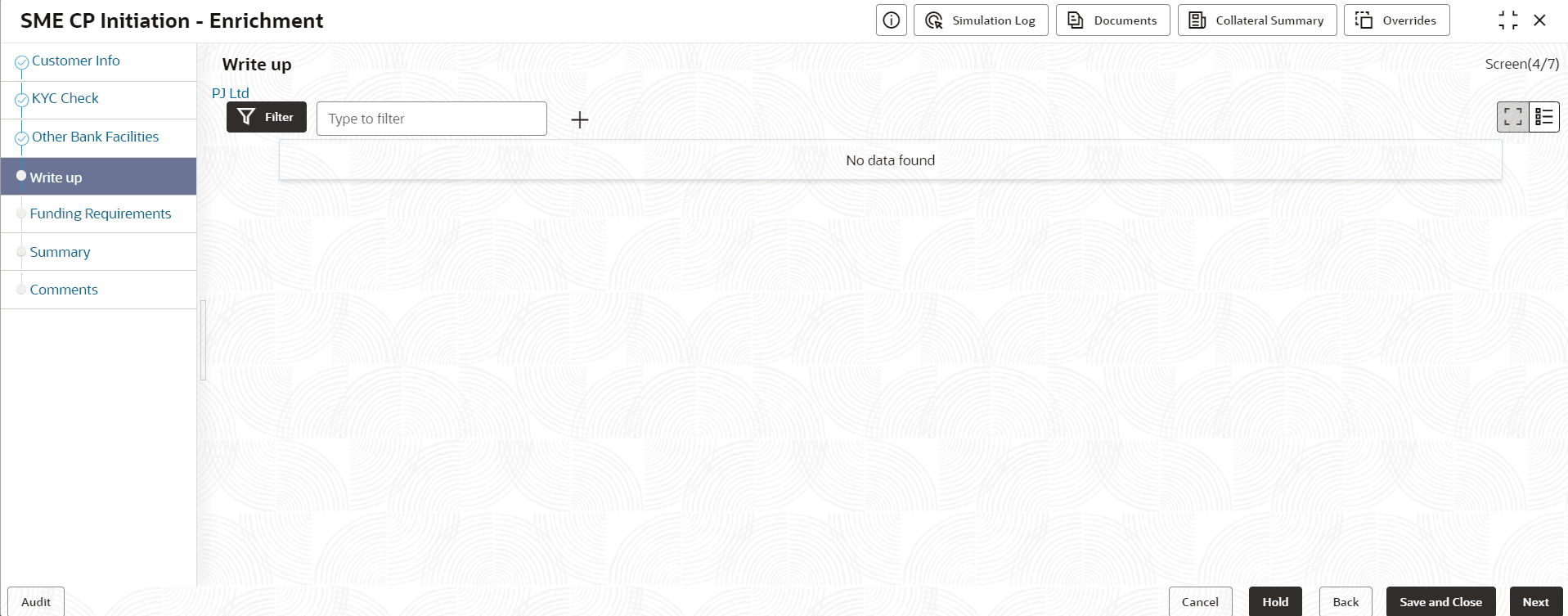
- click Next in the Other Bank
Facilities screen. The Write up screen displays.
Note:
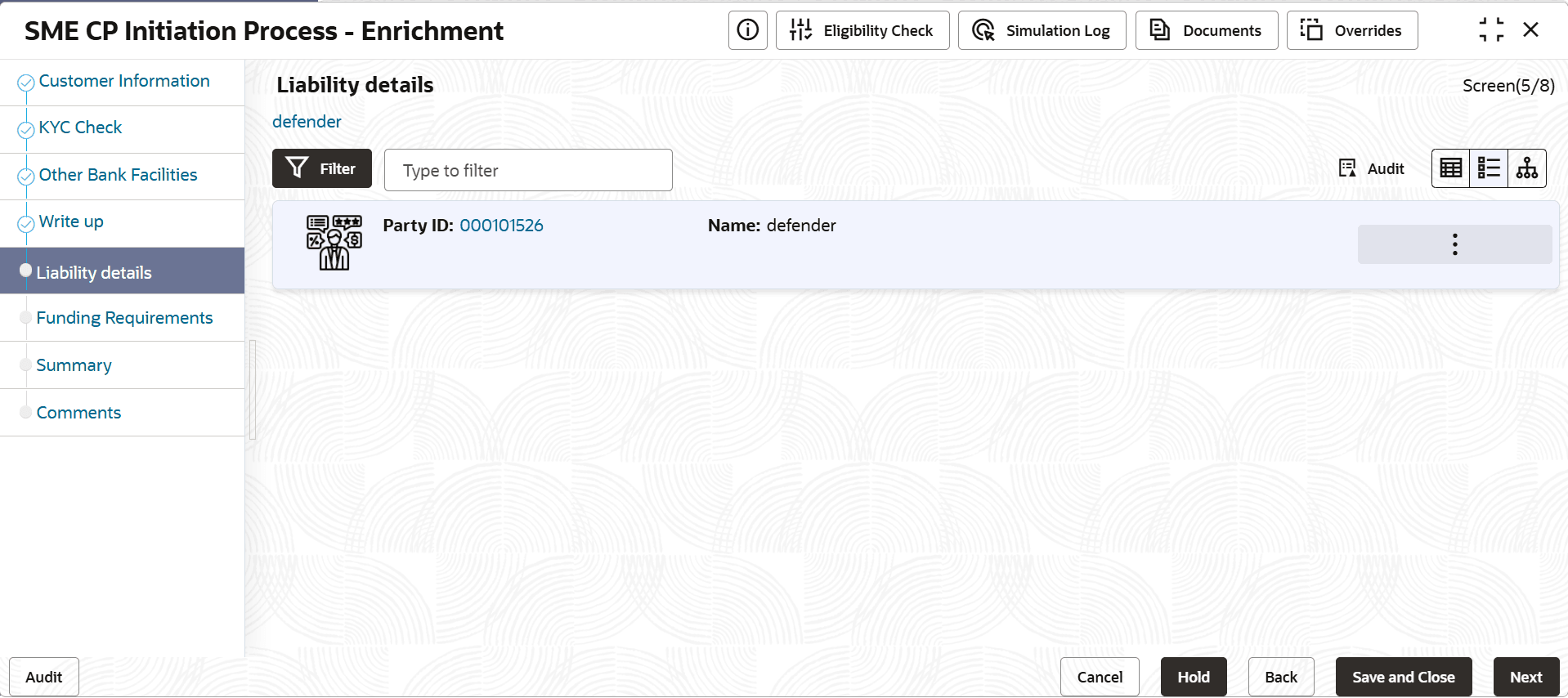
For more information about Write up refer Credit Proposal User Guide - Proposal Initiation - Write Up. - Click Next. The Liability Details screen displays.
Funding Requirements
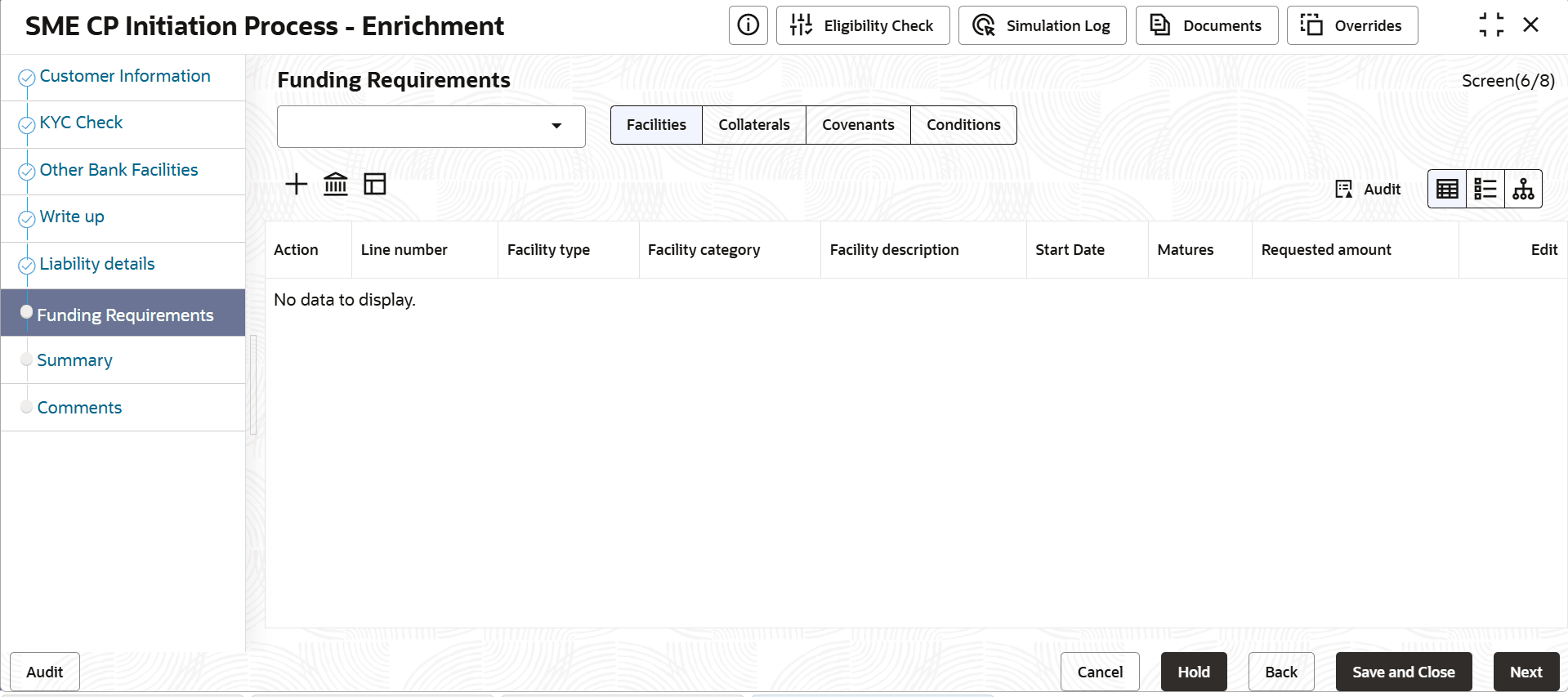
- click Next. The Funding Requirements screen is displayed.
Note:
For more information on fields, refer Field Configuration ParametersNote:
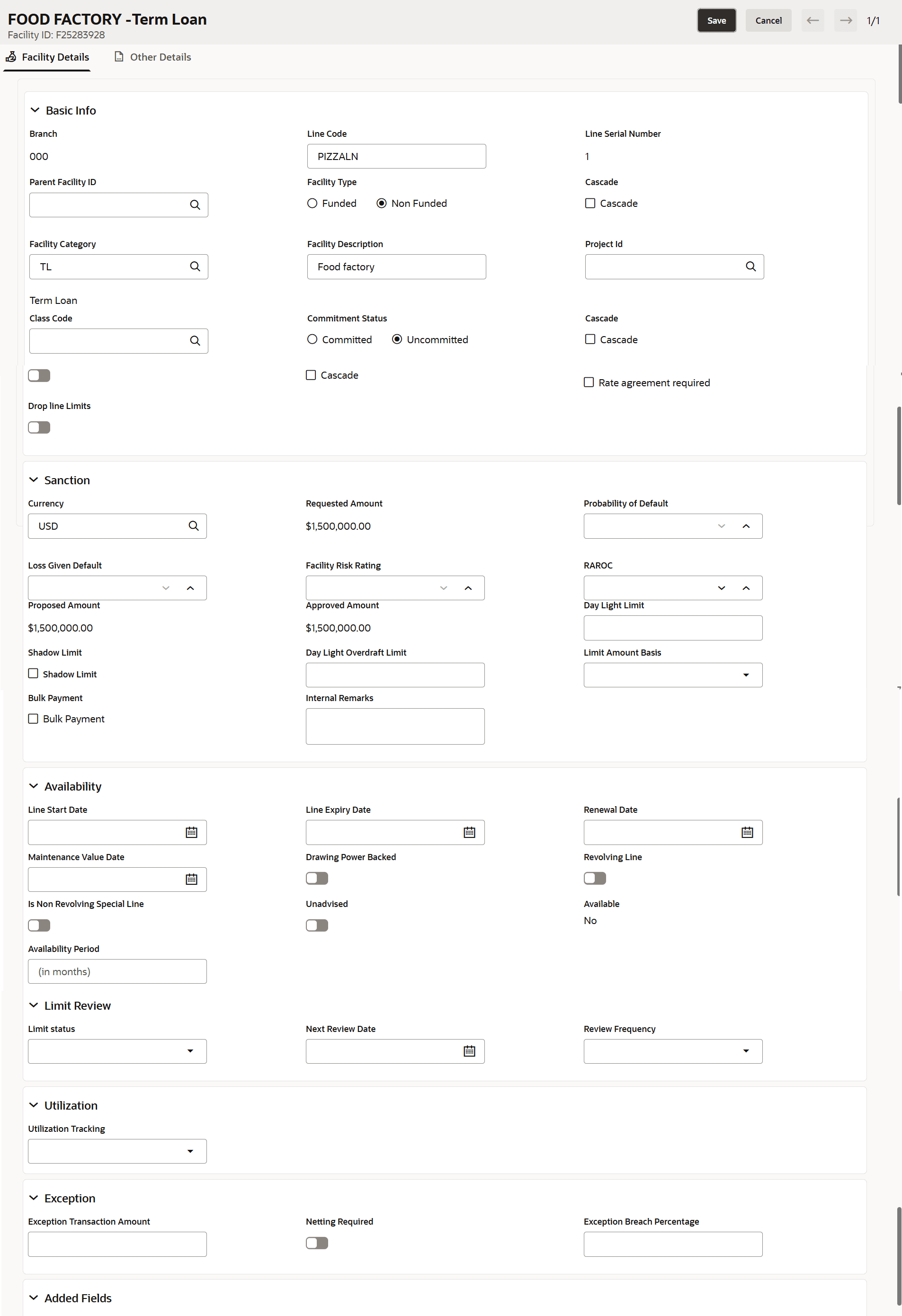
For more information about Funding Requirements refer Credit Proposal User Guide - Proposal Initiation - Funding Requirements - Click + icon. The New Facility screen displays.For more information on fields, refer to the field description table below.
Table 3-15 Facility
Fields Description Branch Displays the branch number. Line Code Specify the unique line code. Line Serial Number Displays the unique line serial number. Parent Facility ID Search the Facility ID from the list. Facility Type Select the facility type. The available options are: - Funded
- Non Funded
Cascade Specifies whether certain attributes are inherited from the parent facility. Facility Category Search the Facility category from the list. Facility Description Specify the description. Project ID Search the project ID from the list. Class Code Search the class code from the list. Committment Status Select the committment status. The available options are: - Committed
- Uncommitted
Drop Line Limits Select the toggle to indicate if limits should drop or reduce over time. Currency Search the currency from the list. Requested Amount Displays the requested amount. Probability of Default Specify the default probability. Loan Given Default Specify the default loan. Facility Risk Rating Specify the facility risk rating. Proposed Amount Displays the proposed amount. Approved Amount Displays the approved amount. Day Light Limit Specify the day light limit. Shadow Limit Specify the shadow limit. Day Light Overdraft Limit Specify day light overdraft limit. Limit Amount Basis Specify the basis on which the limit was sanctioned. Bulk Payment Specifies whether repayments can be made as lump-sum amounts. Internal Remarks Specify the remarks, if any. Line Start Date Select Date for Line Start Date. Line Expiry Date Click Select Date and select date for Line Expiry Date. Renewal Date Click Renewal Date and select date for Renewal Date. Maintenance Value Date Click Maintenance Value Date and select date for Maintenance Value Date. Drawing Power Backend Enable Drawing Power Backed, if required. Revolving Line Enable Revolving Line, if required. Is Non Revolving Special Line Enable Is Non Revolving Special Line, if required. Unadvised Enable Unadvised, if required. Available Displays the current Available status of the line. Availability Period Specify the Availability Period for the facility. Limit Status Select Limit Status from the drop-down list. The options are: - Active
- Closed
- Frozen
Next Review Date Select Date for Next Review Date. Review Frequency Select Review Frequency from the drop-down list. The options are: - Half yearly
- Monthly
- Quarterly
- Yearly
Utilization Tracking Select Utilization Tracking from the drop-down list. The options are: - Local
- Global
Exception Tansaction Amount Specify the transaction amount. Netting Required Select the option from the available list. Exception Branch Percentage Specify the exception breach percentage.
Comments
- click Next in the Funding
Requirements screen.The Comments screen is displayed.
Note:
For more information about Comments refer Credit Proposal User Guide - Proposal Initiation - comments.