3 Create ESG Definition
This topic describes the systematic instructions to Create ESG Definition.
The bank needs to capture ESG related data points which helps the banks to assess the ESG performance of the borrower.
- On Homescreen, click Credit
Facilities. Under Credit Facilities,
click Maintenance. Under
Maintenance, click ESG Definition
Maintenance. Under ESG Definition
Maintenance, click Create ESG
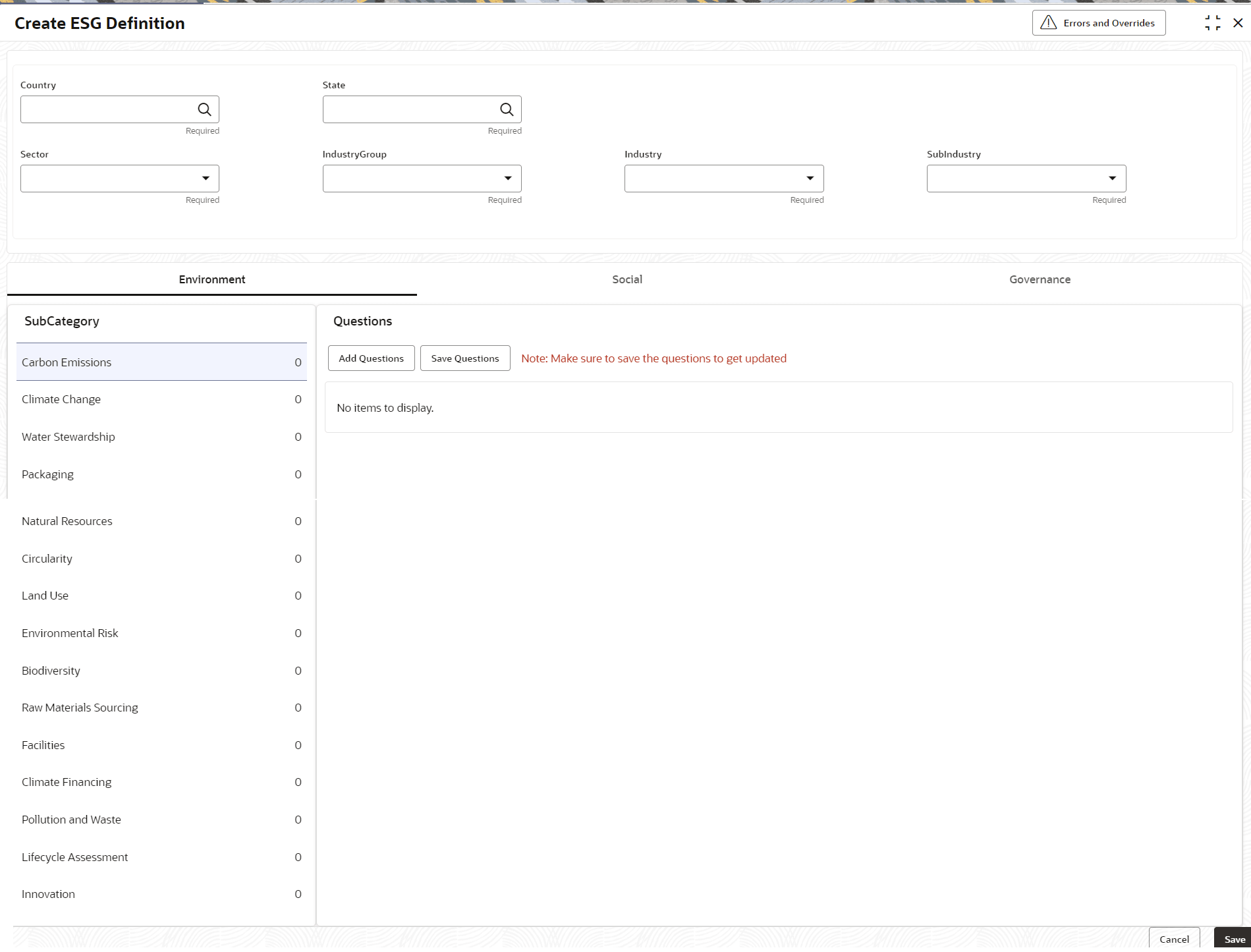
Definition.The Create ESG Definition screen displays. For more information on fields, refer to the field description table.
Table 3-1 Create ESG Definition
Fields Description Country Click Search icon and select the Country from the list. State Click Search icon and select the State from the list. Sector Specify the Sector. The options available are: - Energy
- Utilities
- Real Estate
- Materials
- Industrials
- Consumer Discretionary
- Consumer Staples
- Health Care
- Financials
- Information Technology
- Telecommunication Services
Industry Group Specify the Industry Group. Industry Specify the Industry. Sub Industry Specify the Sub Industry.
Environment
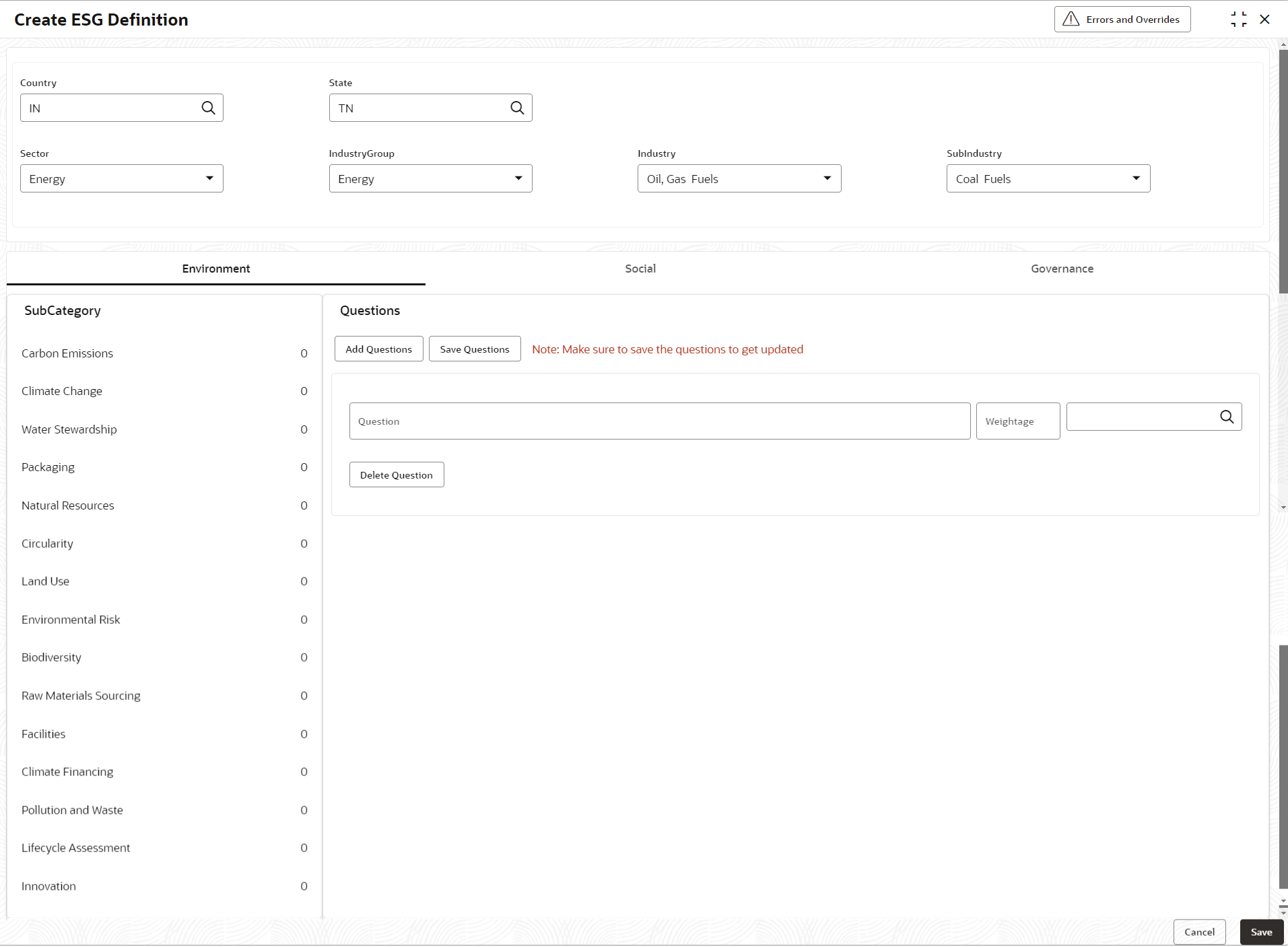
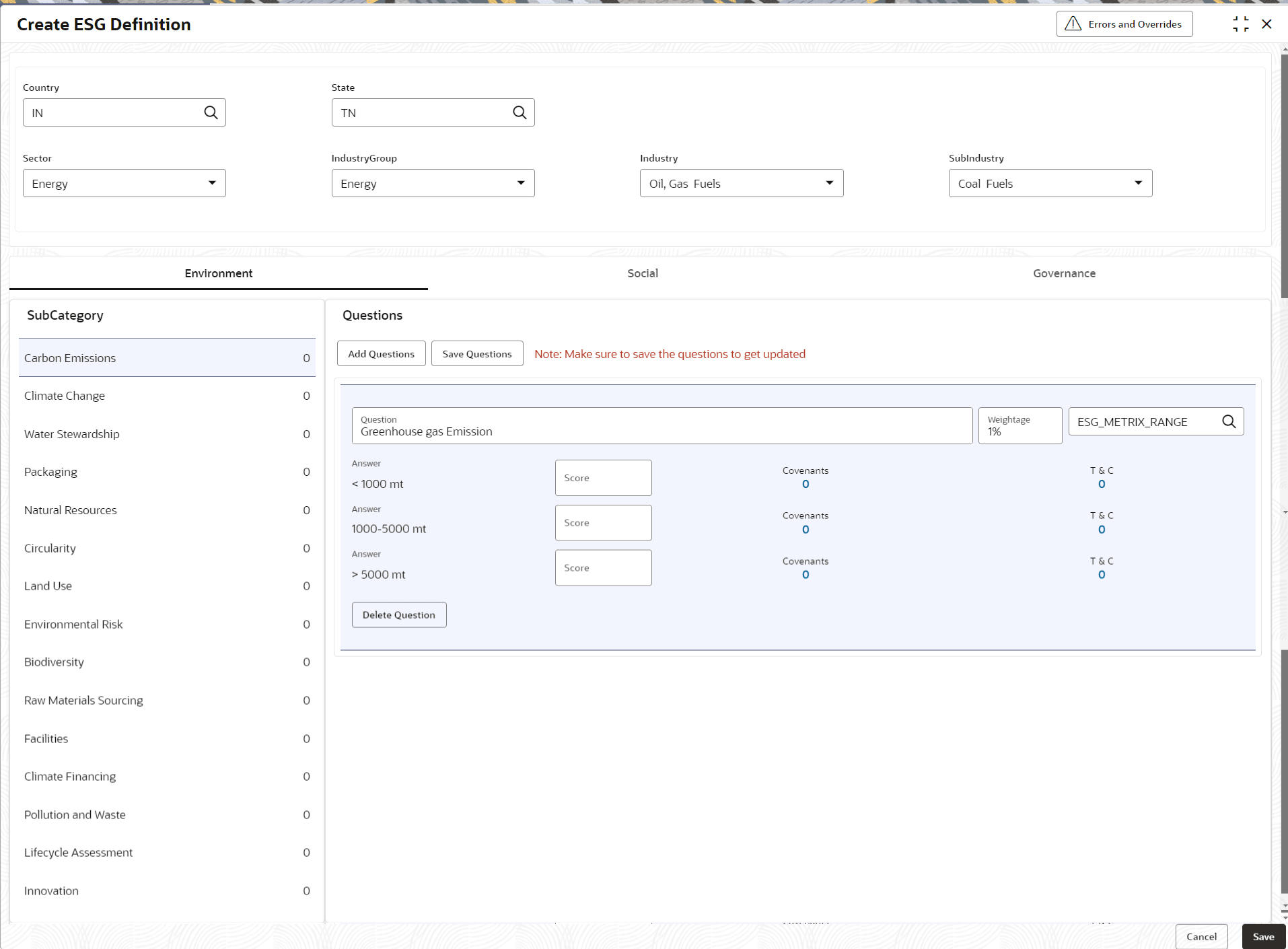
- Click on Environment and select Sub
Category to which question to be add.The Create ESG Definition - Environment screen displays.
Figure 3-2 Create ESG Definition - Environment
- Click Add Questions.
For more information on fields, refer to the field description table.
Table 3-2 Add Question
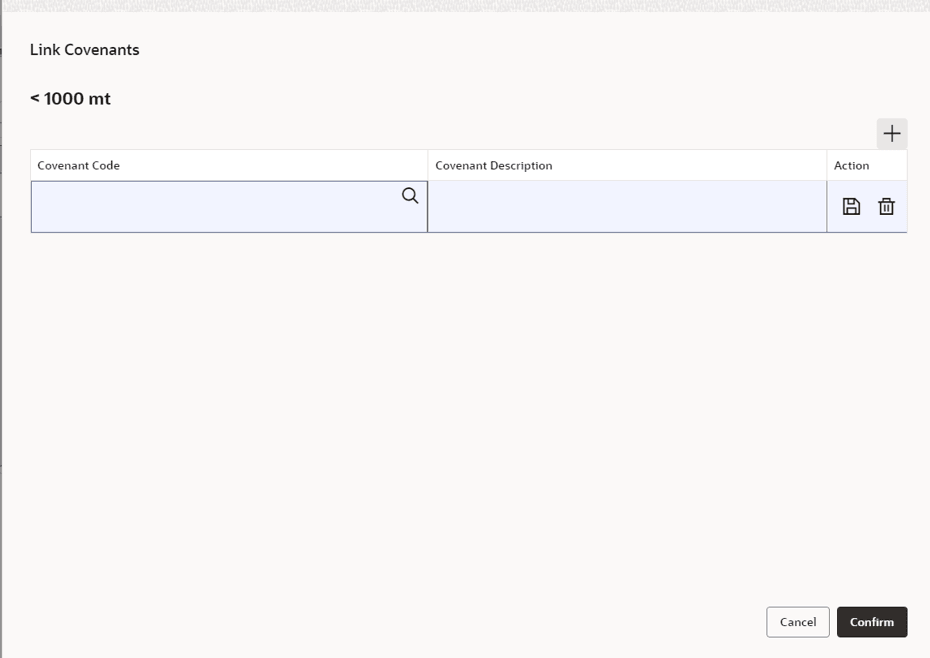
Field Description Question Enter the Question. Weight age Enter the Weight age of the question. Linked Code Details Click Search icon and select the Linked Code Details from the list. - Click Covenants to add covenant to the answer.The Link Covenants screen displays. For more information on fields, refer to the field description table.
Table 3-3 Link Covenants
Field Description Covenant Code Click Search to view and select the Covenant Code. Covenant Description Displays the Covenant Description based on the Covenant Code selected. Action - Click Save icon to save the added Covenant Code.
- Click Delete icon to delete the added Covenant Code.
Cancel Click Cancel to close the details without saving. Confirm Click Confirm to save the details. - Click on T&C to add the Terms and Conditions to the
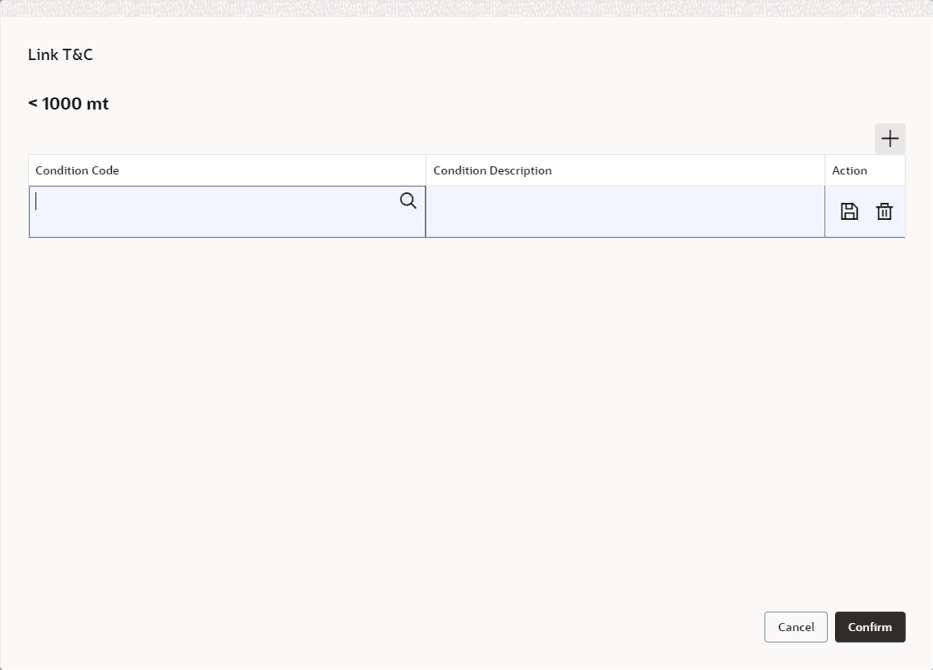
answer.The Link T&C screen displays. For more information on fields, refer to the field description table.
Table 3-4 Link T&C
Field Description Condition Code Click Search to view and select the Condition Code. Condition Description Displays the Condition Description based on the Condition Code selected. Action - Click Save icon to save the added T&C.
- Click Delete icon to delete the added T&C.
Cancel Click Cancel to close the details without saving. Confirm Click Confirm to save the details.
Social
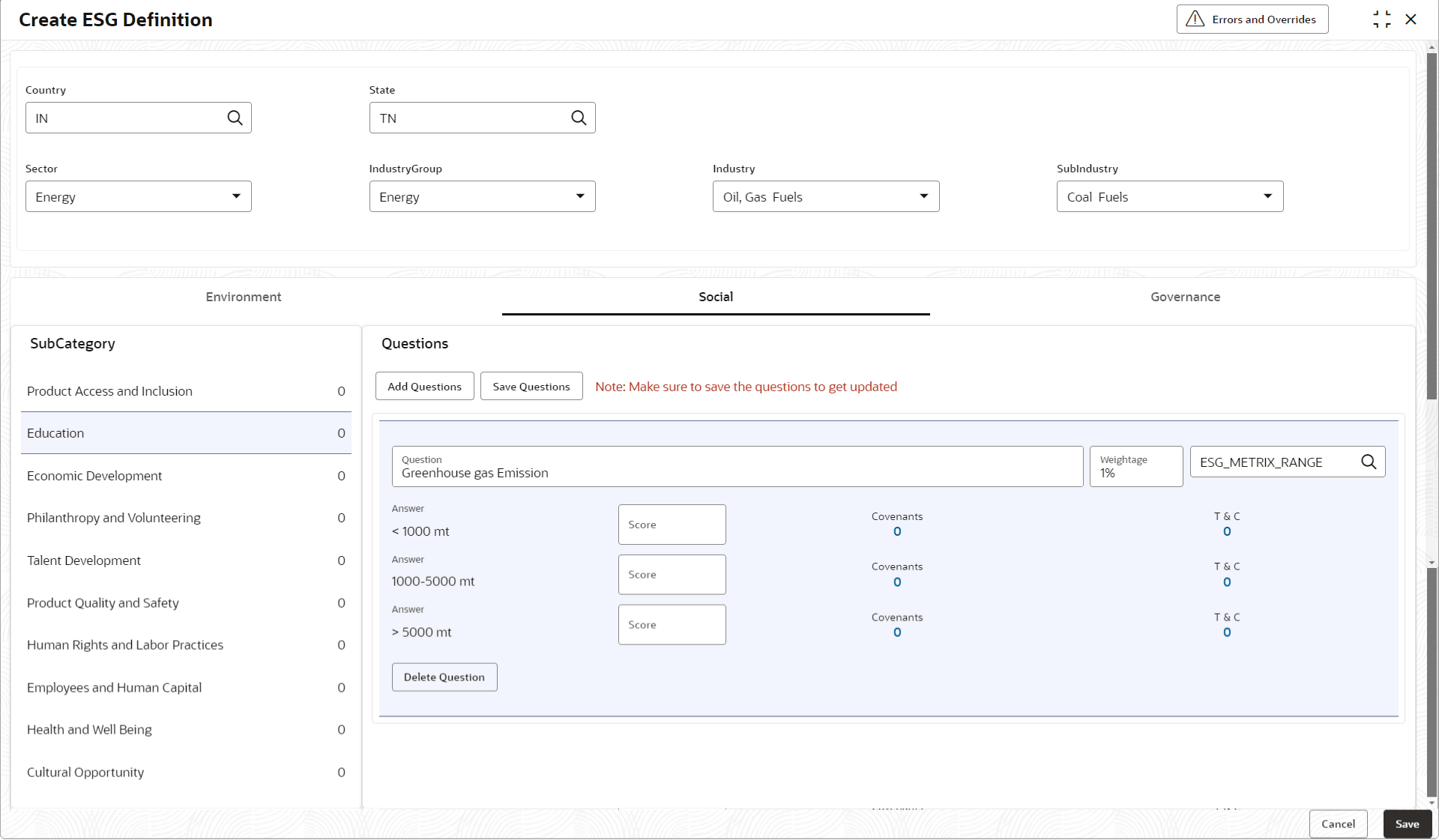
- Click on Social and select Sub
Category to which question to be add.The Create ESG Definition - Social screen displays. For more information on fields, refer to the field description table.
Table 3-5 Create ESG Definition - Social
Field Description Add Questions Click Add Questions and enter the question. Question Enter the Question. Weight age Enter the Weight age of the question. Linked Code Details Click Search icon and select the Linked Code Details from the list. - Click Covenants to add Covenants to the question.The Link Covenants screen displays. For more information on fields, refer to the field description table.
Table 3-6 Link Covenants
Field Description Covenant Code Click Search to view and select the Covenant Code. Covenant Description Displays the Covenant Description based on the Covenant Code selected. Action - Click Save icon to save the added Covenant Code.
- Click Delete icon to delete the added Covenant Code.
Cancel Click Cancel to close the details without saving. Confirm Click Confirm to save the details. - Click T&C to add the Terms and Conditions to the
question.The Link T&C screen displays. For more information on fields, refer to the field description table.
Table 3-7 Link T&C
Field Description Condition Code Click Search to view and select the Condition Code. Condition Description Displays the Condition Description based on the Condition Code selected. Action - Click Save icon to save the added T&C.
- Click Delete icon to delete the added T&C.
Cancel Click Cancel to close the details without saving. Confirm Click Confirm to save the details.
Governance
- Click Governance and select Sub
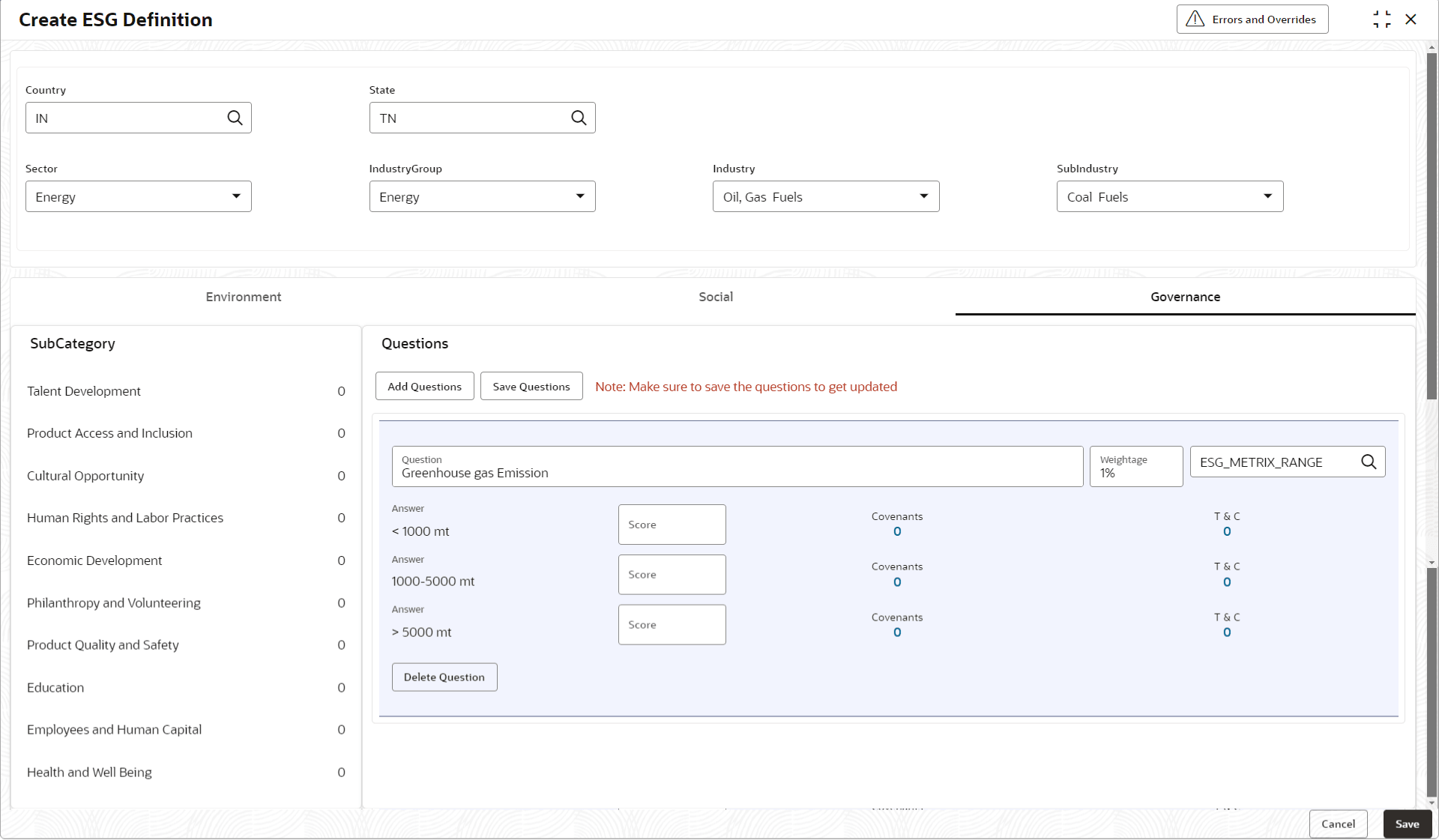
Category to which question to be add.The Create ESG Definition - Governance screen displays.For more information on fields, refer to the field description table.
Figure 3-9 Create ESG Definition - Governance
Table 3-8 Create ESG Definition - Governance
Field Description Add Questions Click Add Questions and enter the question. Question Enter the Question. Weight age Enter the Weight age of the question. Linked Code Details Click Search icon and select the Linked Code Details from the list. - Click Covenants to add Covenants to the answer.The Link Covenants screen displays. For more information on fields, refer to the field description table.
Table 3-9 Link Covenants
Field Description Covenant Code Click Search to view and select the Covenant Code. Covenant Description Displays the Covenant Description based on the Covenant Code selected. Action - Click Save icon to save the added Covenant Code.
- Click Delete icon to delete the added Covenant Code.
Cancel Click Cancel to close the details without saving. Confirm Click Confirm to save the details. - Click T&C to add the Terms and Conditions to the
question.The Link T&C screen displays. For more information on fields, refer to the field description table.
Table 3-10 Link T&C
Field Description Condition Code Click Search to view and select the Condition Code. Condition Description Displays the Condition Description based on the Condition Code selected. Action - Click Save icon to save the added T&C.
- Click Delete icon to delete the added T&C.
Cancel Click Cancel to close the details without saving. Confirm Click Confirm to save the details.