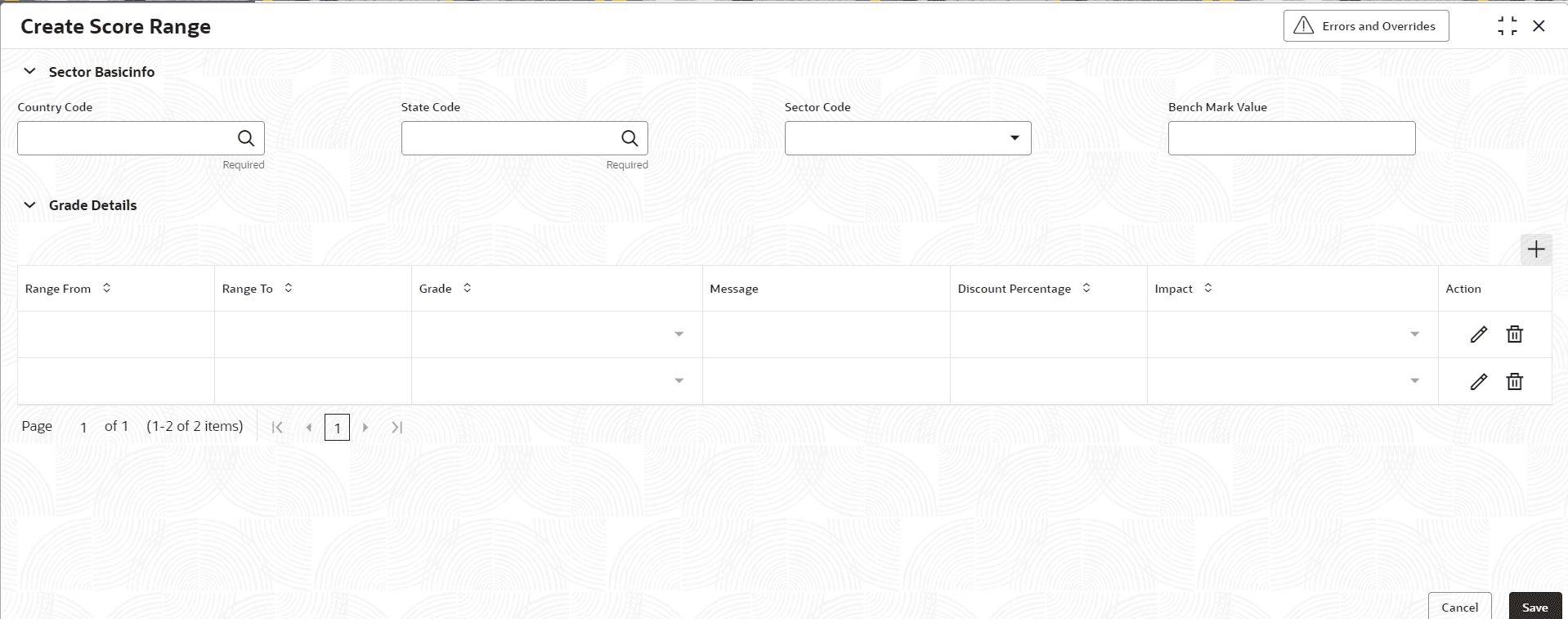
4 Create Score Range
This topic describes the systematic instructions to Create Score Range.
- On Home screen, Click Credit Facilities. Under
Credit Facilities, click
Maintenance. Under
Maintenance, click Score Range
Maintenance. Under Score Range
Maintenance, click Create Score
Range.The Create Score Range screen displays.For more information on fields, refer to the field description table.
Note:
The fields marked as Required are mandatory.Table 4-1 Create Score Range
Field Description Country Code Click Search icon and specify the Country Code. State Code Click Search icon and specify the State Code. Sector Code Specify the Sector Code.The available options are: - Consumer Discretionary
- Consumer Staples
- Energy
- Financials
- Health Care
- Industrials
- Information Technology
- Materials
- Real Estate
- Telecommunication Services
- Utilities
Bench Mark Value Specify the Bench Mark Value. Range From Specify the starting point of the range. It represents the minimum value. Range To Specify the endpoint of the range. It indicates the maximum value. Grade Specify the Grade. The available options are: - A
- A-
- A+
- AA
- AA-
- AA+
- AAA
- B
- B-
- B+
- BB
- BBB
- BBB-
- BBB+
- C
- CC
- CCC
- CCC+
- D
- DD
- DDD
Message Enter the message. Discount Percentage Enter a number between 0 and 100%. Impact Specify the Impact. The available options are; - Additional
- Discounted
Action - Click Edit icon to edit the Grade Details
- Click Save icon to save the Grade Details
- Click Delete icon to delete the Grade Details