6.1 ESG Assessment - Initiation
This topic describes the systematic instruction to Initiate ESG Assessment.
- Click Initiate in the ESG
Assessment screen to Initiate.The ESG Assessment - Initiation screen displays.
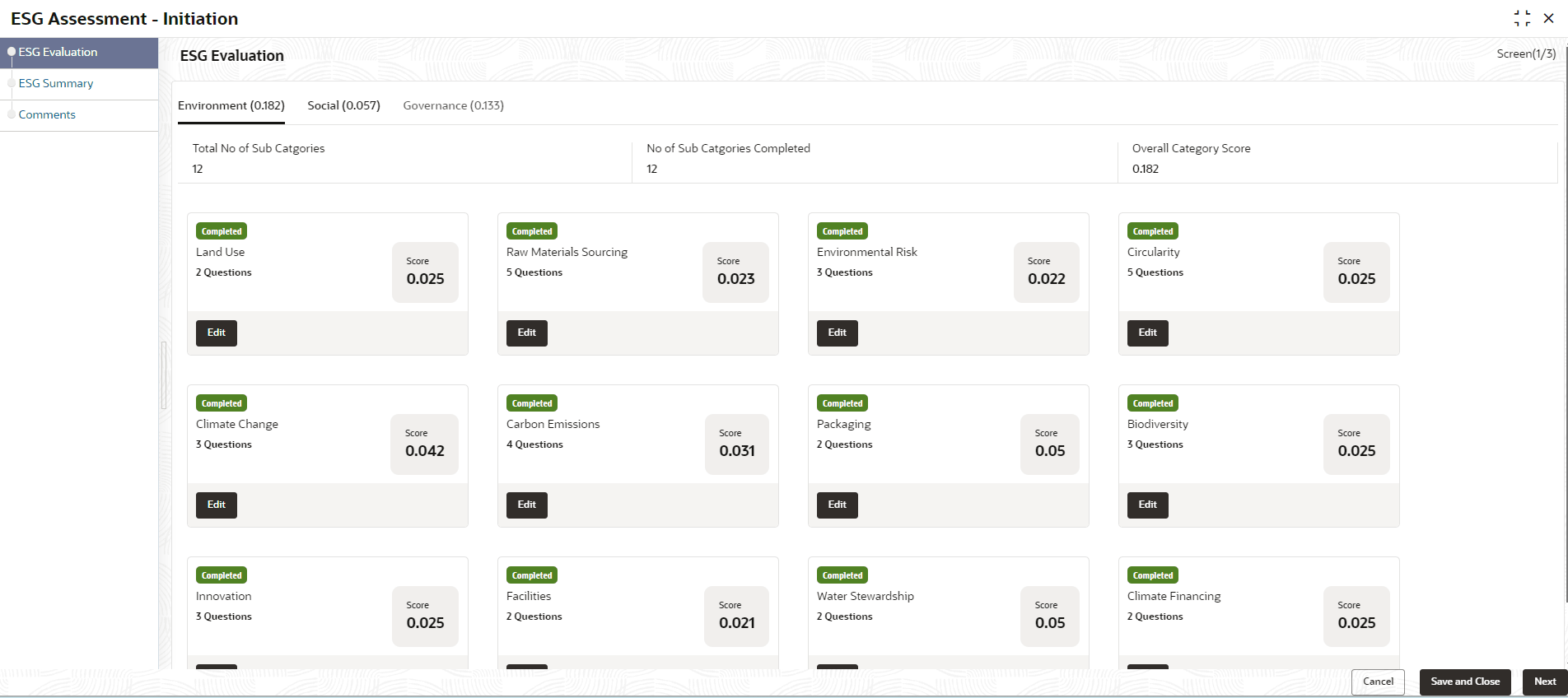
ESG Evaluation
- Click Environment and click on
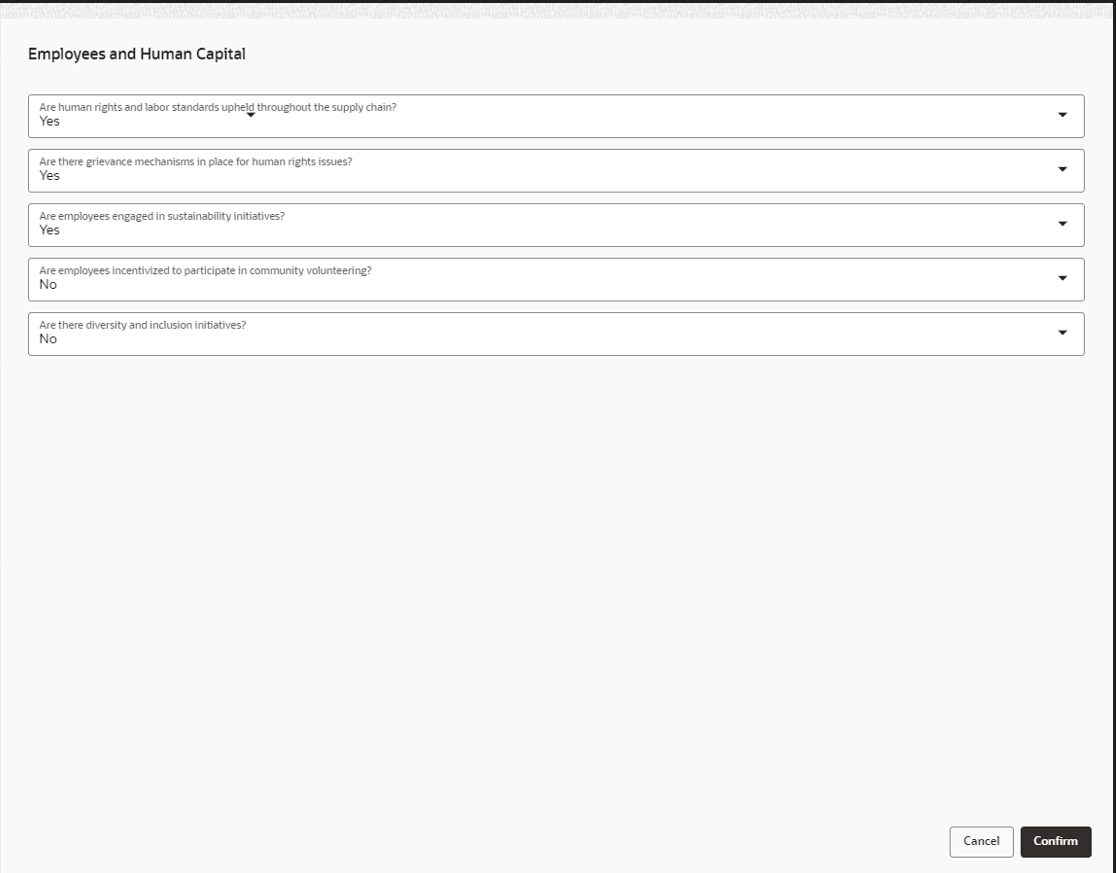
Edit to configure the answers.The questions added to the environment sub category screen displays.
Note:
Specify the answers to the questions dispalyed. The options available are :- Yes
- No
- Click Social and click on Edit to
configure the answers..The questions added to the social sub category screen displays.
Note:
Specify the answers to the questions dispalyed. The options available are :- Yes
- No
- Click Governance and click on
Edit to configure the answers.The questions added to the governance sub category screen displays.
Note:
Specify the answers to the questions dispalyed. The options available are :- Yes
- No
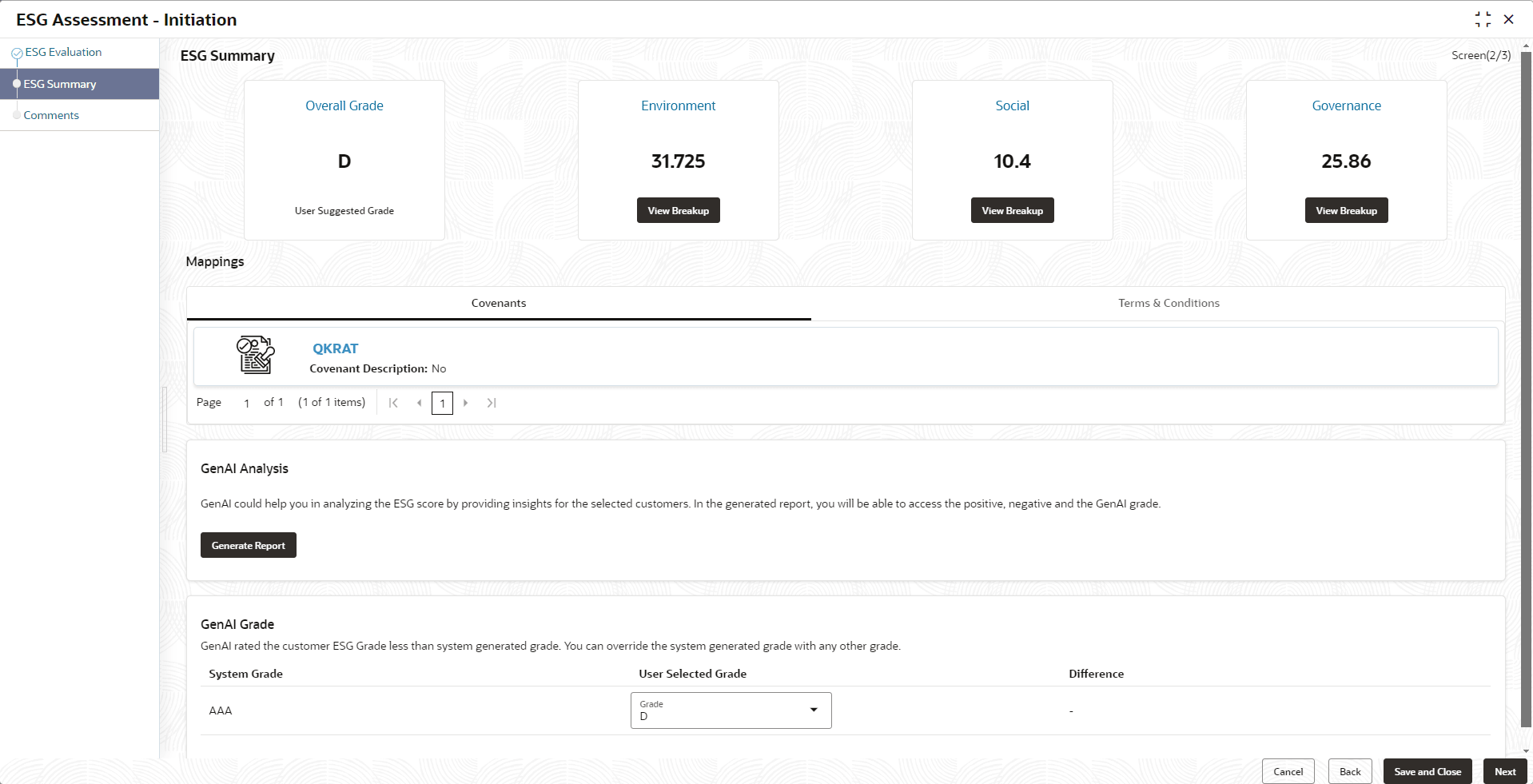
ESG Summary
- Click on Next in the ESG
Initiation screen after successfully capturing the data to view
the ESG Summary screen. The ESG Summary screen displays. For more information on fields, refer to the field description table.
Table 6-2 ESG Summary
Field Description Overall Grade Displays the Overall Grade. Environment Displays the Environment category score. Social Displays the Social category score. Governance Displays the Governance category score. Covenant Displays the Covenant only if that answer is added to it. Terms & Conditions Displays the Terms & Conditions only if that answer is added to it. System Grade Displays the System Grade refered by the Gen AI. User Selected Grade Displays the Grade selected by the user.
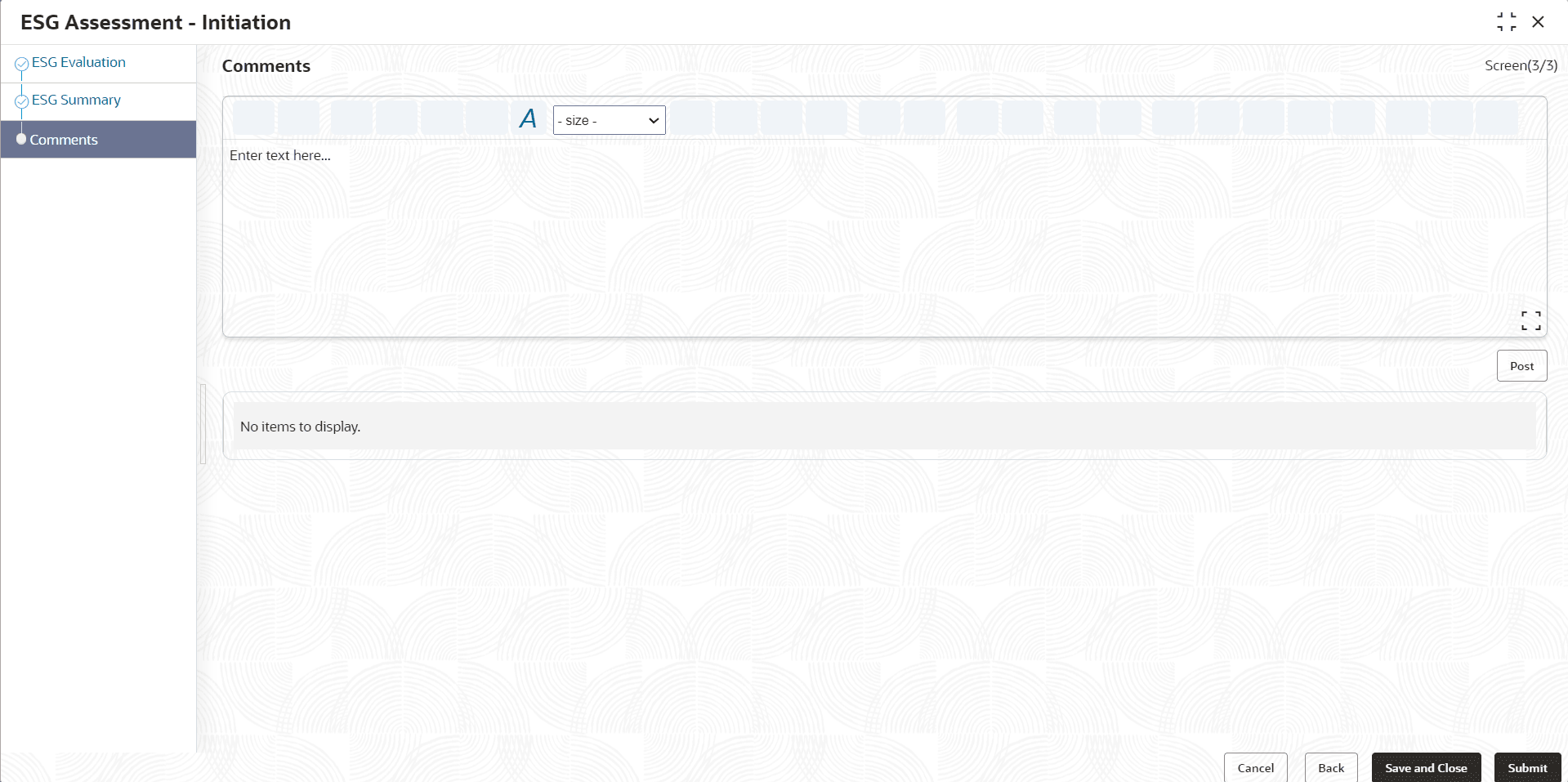
Comments
- Click Next in the ESG Summary
screen.The Comments screen displays. For information on fields in the Comments screen, refer the below table.
Table 6-3 Comments
Field Description Post Enter the necessary comments in the text box and click Post. The comment is posted. Hold Click Hold, to hold the ESG Assessment Initiation process. Back Click Back, to go back to the previous Data Segment. Save and Close Click Save and Close, to save the process for future edit. Submit Click Submit, to submit the enriched application for evaluation. Cancel Click Cancel, to exit the process without saving the information.
Parent topic: ESG Assessment