3.3 Collateral Summary
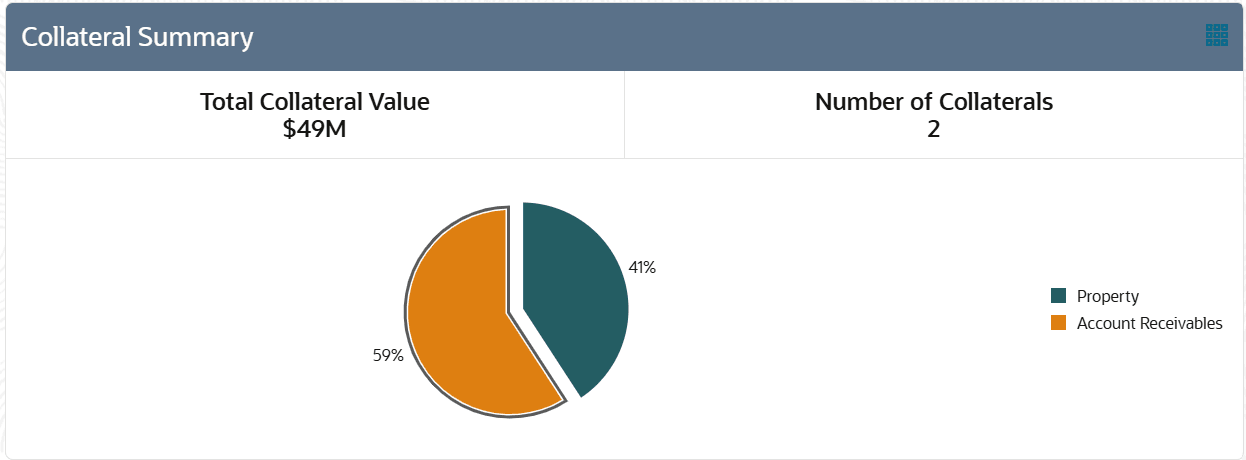
Information on Collateral Summary tile in Credit 360 interface.
The Collateral Summary tile displays details about the collaterals
provided by the customer for availing facility.
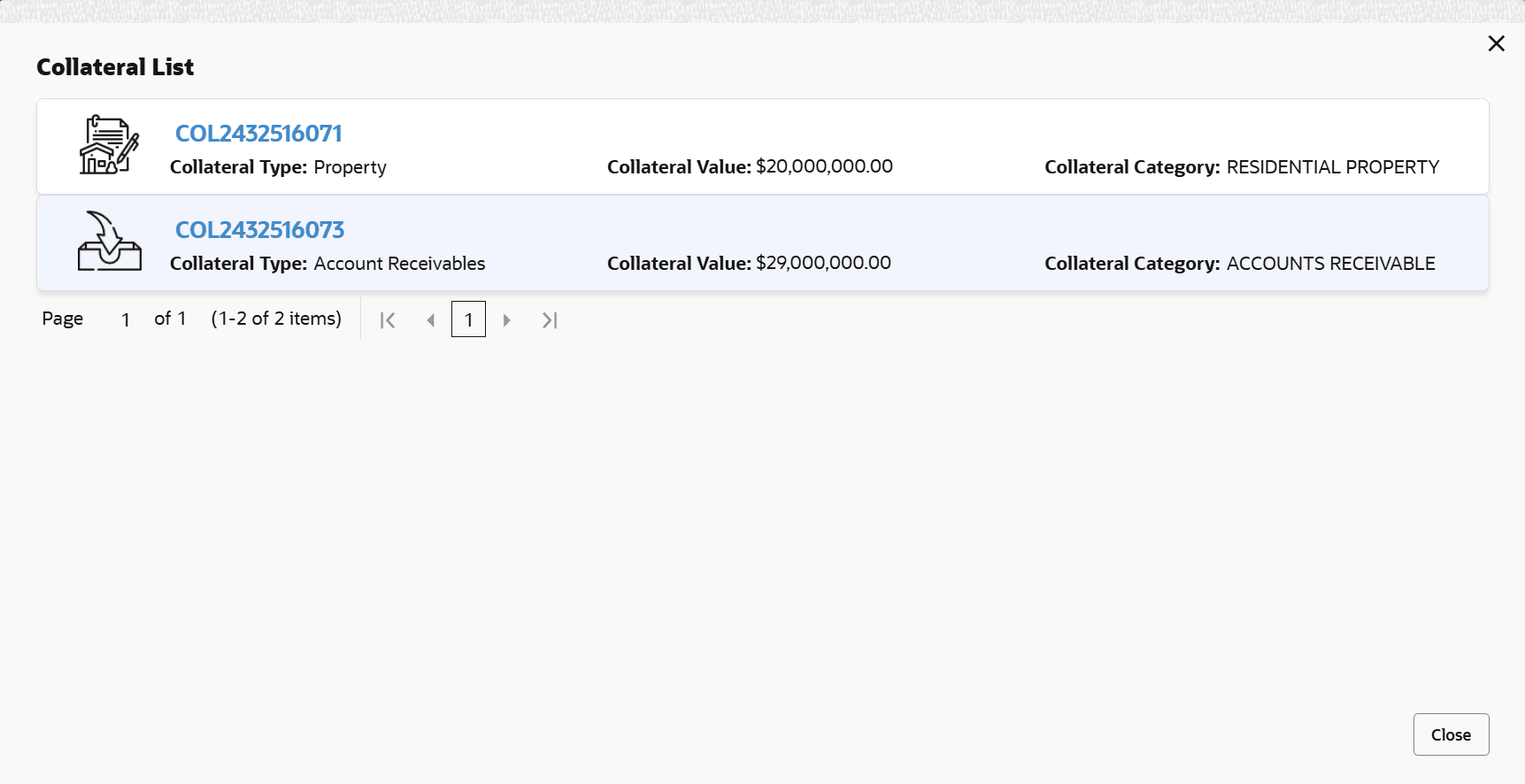
- To view the collateral list, click the Table View icon.The Collateral List window is displayed.
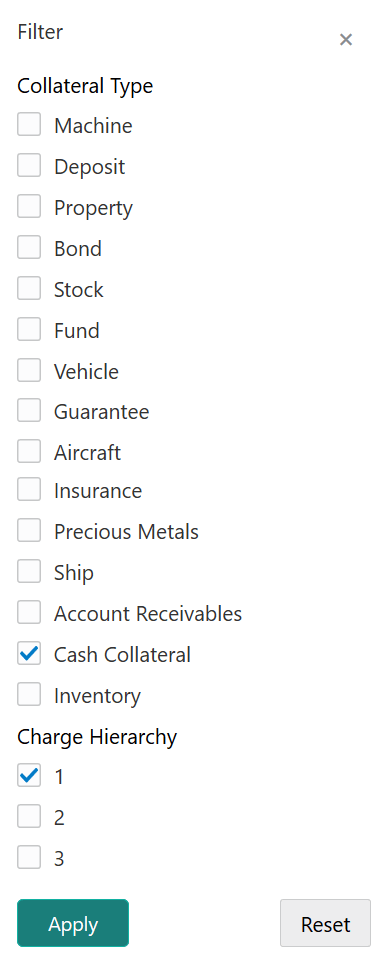
- To filter the required collateral, click the Filter icon
or directly type the first three characters of filter parameter in the
Type to filter text box. Upon clicking the Filter icon, the Filter window is displayed as shown below.
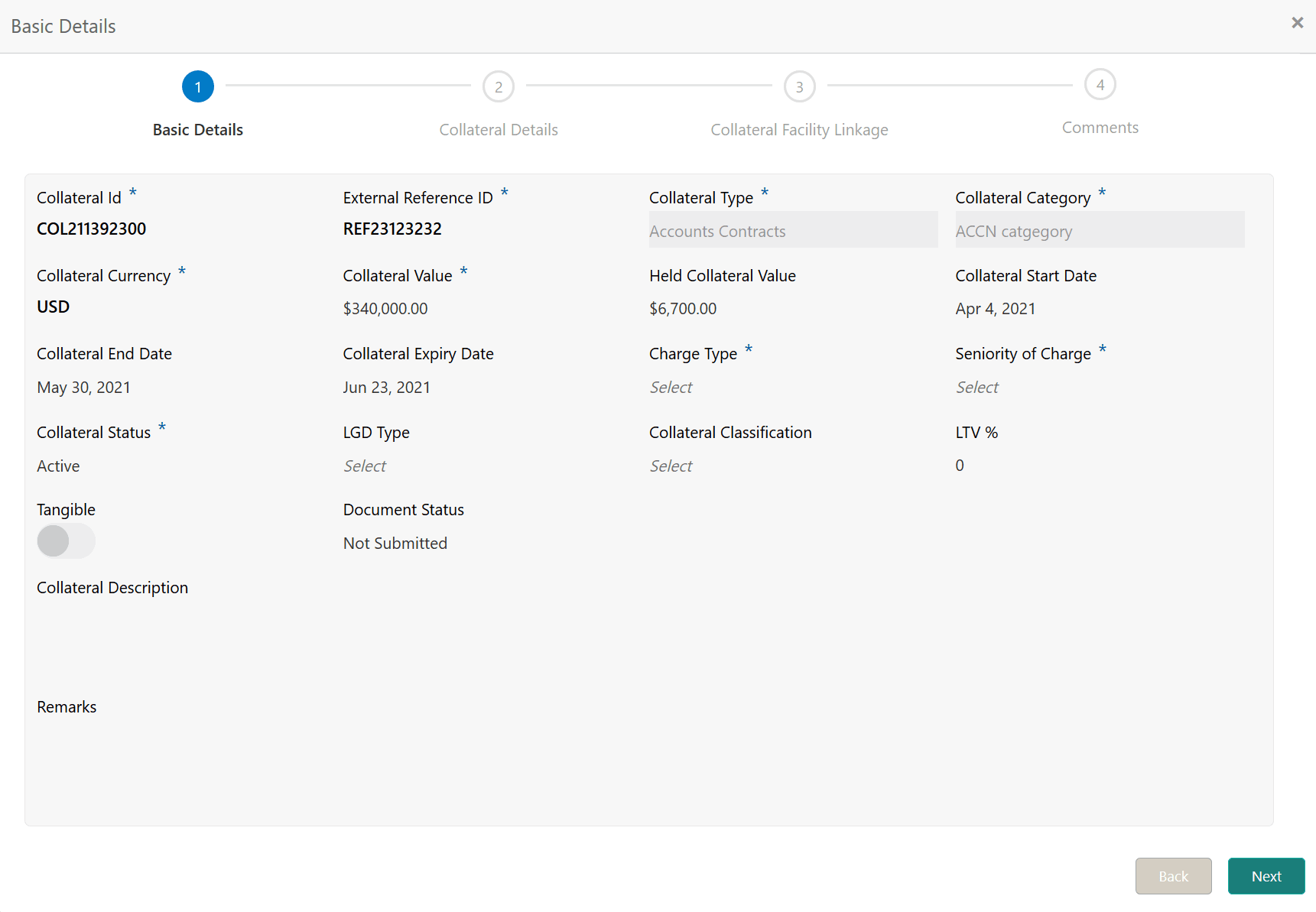
- To view the collateral details, click the action icon in the required
collateral record and select View.The Collateral Basic Details window is displayed.
For information on adding or releasing collaterals and Collateral Facility Linkage data segment, refer Credit Proposal User Guide.