2.2 Covenant Maintenance Feature
Steps to create covenant master details
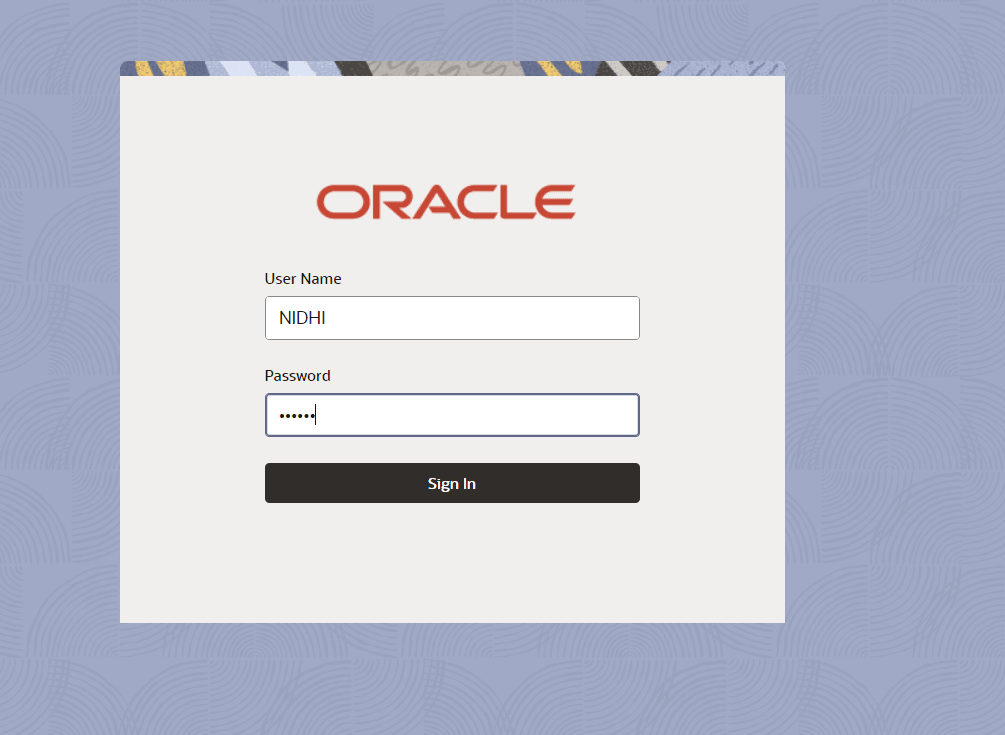
- Login to OBCFPM. Enter your User Name, Password and click
Sign In.
Figure 2-1 Login Screen
- Navigate to Credit Facilities > Maintenance > Covenant
Maintenance > Create Covenant Master Details from the left
menu.The Create Covenant Master Details - Covenant Details screen is displayed.
Figure 2-2 Create Covenant Master Details - Covenant Details- Financial
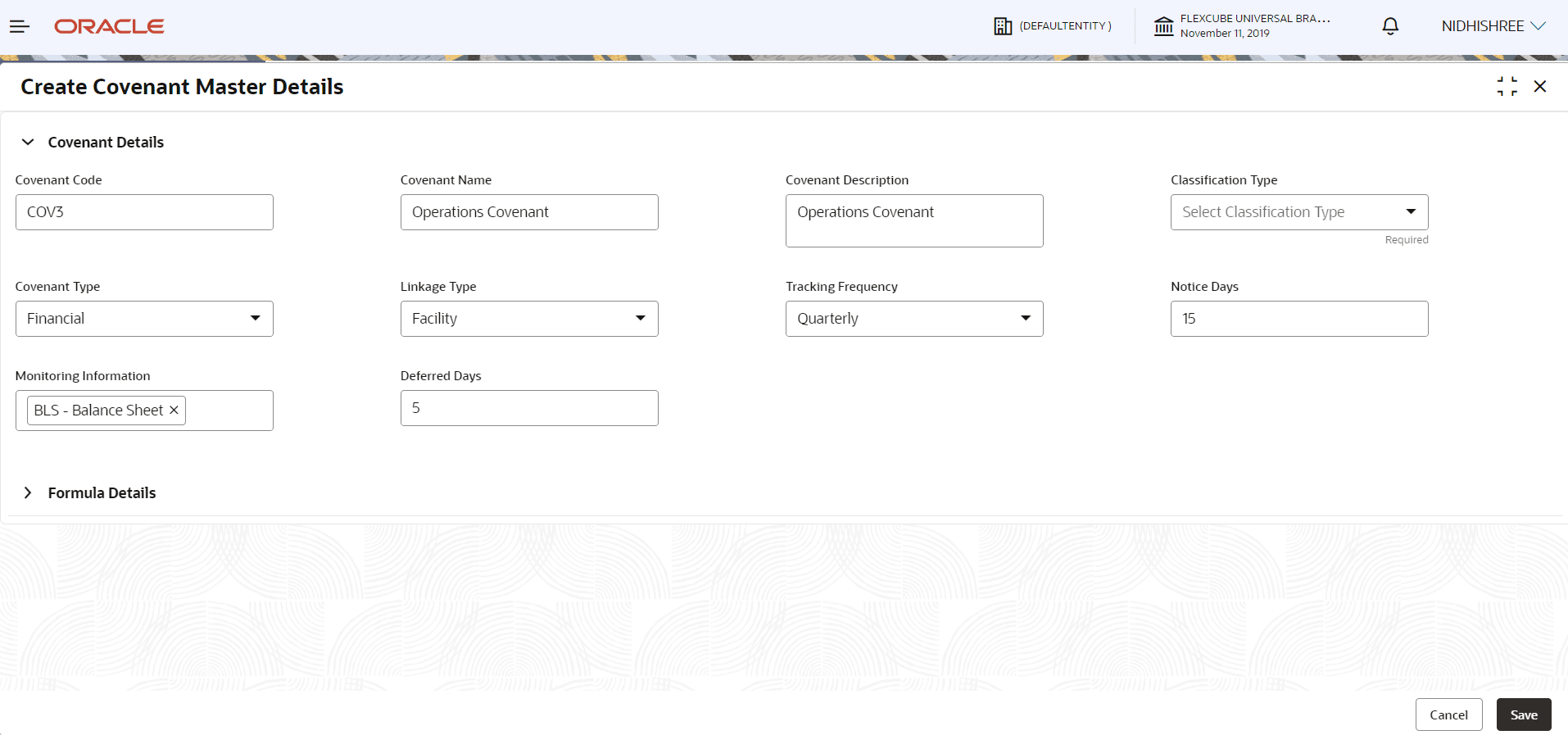
Figure 2-3 Create Covenant Master Details - Covenant Details- Financial - Tracking Custom Days
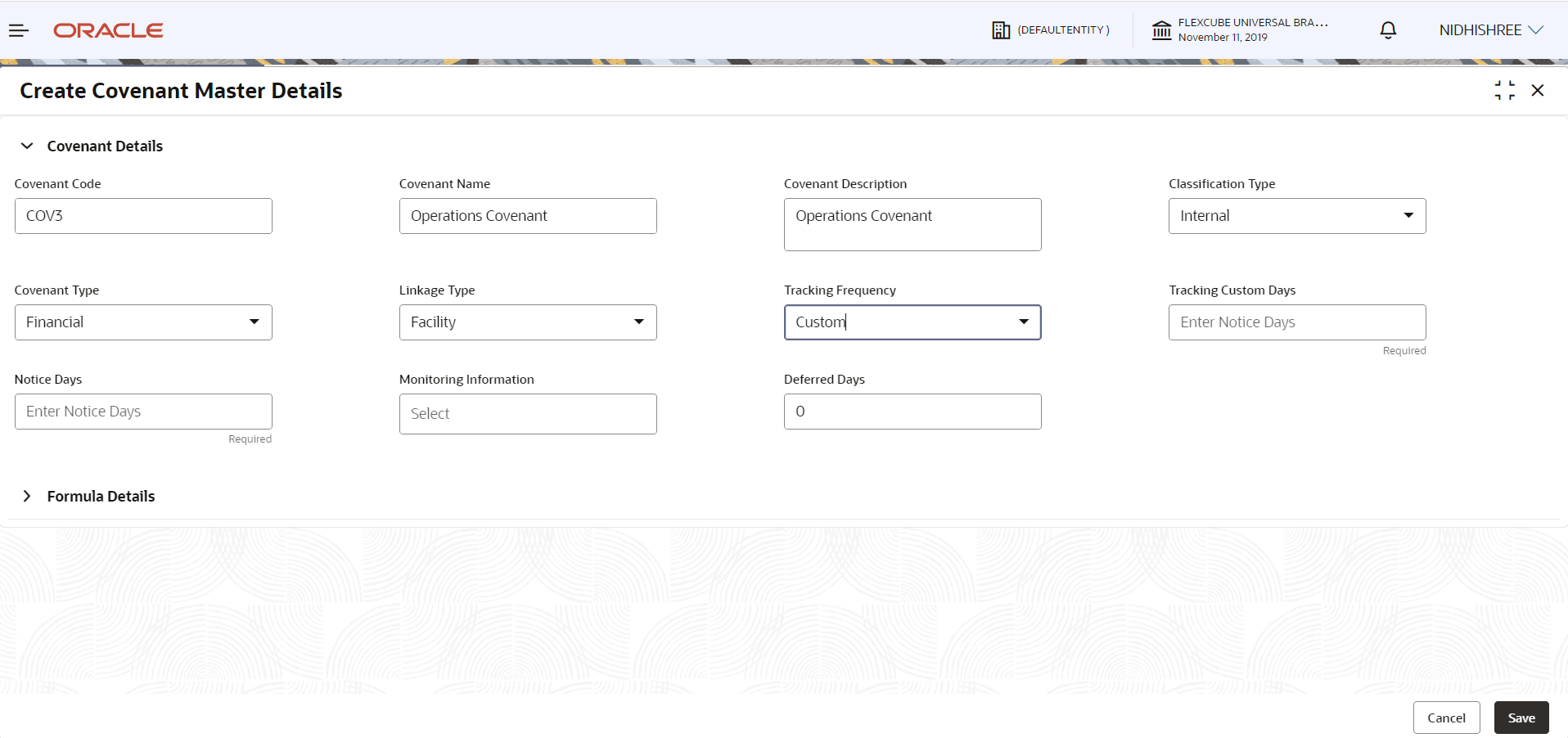
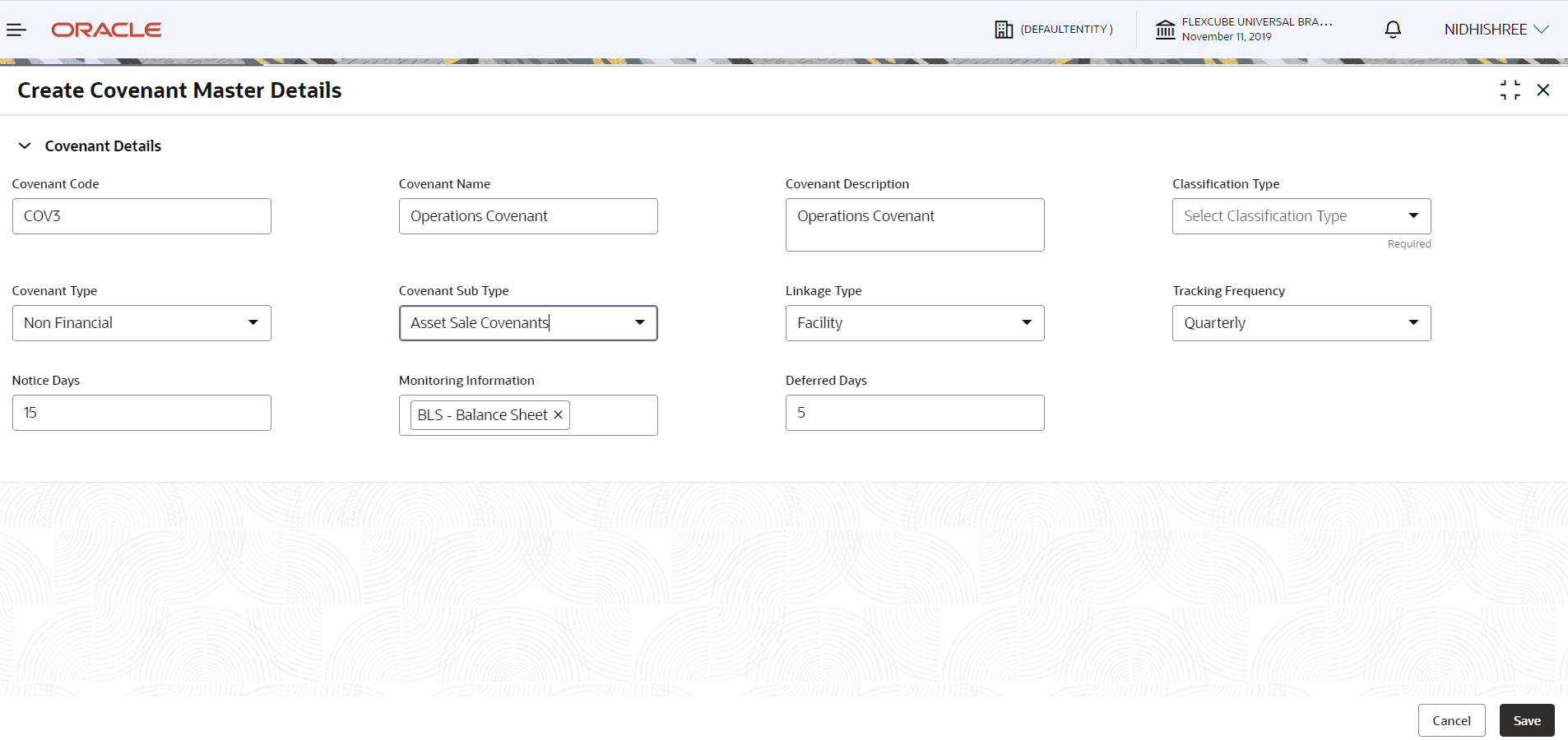
Figure 2-4 Create Covenant Master Details - Covenant Details- Non Financial
- Specify all the details in Create Covenant Master Details - Covenant
Details screen.For field level information, refer the below table.
Table 2-1 Create Covenant Master Details - Covenant Details - Field Description
Field Description Covenant Code Specify a unique code for the covenant. Covenant Name Specify the name for covenant. Covenant Description Provide a brief description about the covenant. Classification Type Select Classification Type for the covenant. The options available are: - External- External covenants are informed to the customer.
- Internal- Internal covenants are not informed to the customer and are tracked internally by the bank.
Covenant Type Select Covenant Type from the drop-down list. The options available are: - Financial-The compliance of these covenant generally is determined by the financial performance of the customer as documented in the periodic financial documents like P&L, Balance Sheet, etc.
- Non Financial- Non Financial compliance is determined from non financial documents like Insurance premium document, work order, etc.
Covenant Sub Type If Non-Financial is selected as Covenant Type , the Covenant Sub Type field is displayed. Select Covenant Sub Type from the drop-down list. The options available include but are not limited to:- Asset Sale Covenants
- Cash Payout Covenants
- Investment Expenditure
- Management, control and ownership
- Operating Activity
- Others
- Preservation of Collateral/Seniority
- Reporting and Disclosure
- Stock Statement
Linkage Type Select Linkage Type from the drop-down list. The options available include but are not limited to: - Collateral
- Customer
- Facility
Tracking Frequency Select Tracking Frequency for the covenant. The options available include but are not limited to: - Custom
- Fort Nightly
- Half Yearly
- Monthly
- Quarterly
- Weekly
- Yearly
Tracking Custom Days Enter Tracking Custom Days. Note: Tracking Custom Days field is displayed only if Tracking Frequency is selected as Custom .
Notice Days Specify Notice Days for the Covenant. The system will generate the covenant tracking task before the specified notice days from covenant due date. Monitoring Information Click and select Monitoring Information from the list of information defined in the Monitoring Information Maintenance. The system will use the selected Monitoring Information to derive covenant compliance status.
Deferred Days Enter Deferred Days. By deferring the user can defer the compliance check of the covenant by a specified number of days. - Expand Formula Details section. The Formula Details screen is
displayed.
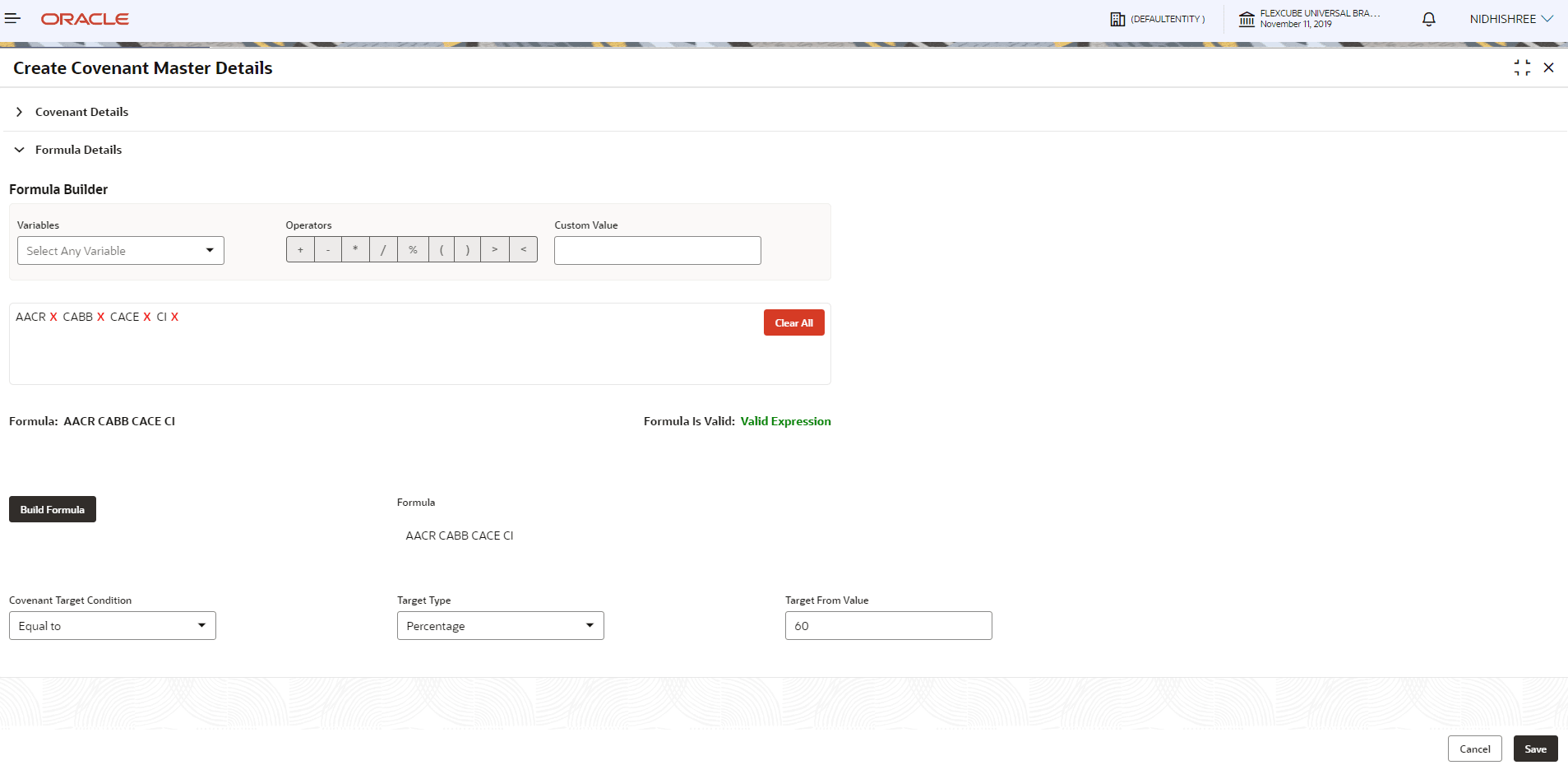
Figure 2-5 Formula Details
- Specify all the details. For field level information, refer the below
table.
Table 2-2 Create Covenant Master Details - Formula Details - Field Description
Field Description Variables Select Variables from the drop-down list. It takes the elements of monitoring information selected. Operators Select the Operation to be performed on the selected variable. Custom Value Specify Custom Value or select another Variable. Formula The Formula Panel dynamically builds the Formula based on the selected / provided Variables, Operators and Custom Value. Clear All To clear the built formula, click Clear All. Formula Is Valid To check if the formula is valid, view Formula Is Valid value. Build Formula After adding the required operators and variables, click Build Formula to confirm the built formula. Covenant Target Condition Select Covenant Target from the drop-down list. The options are: - Between
- Equal to
- Greater than
- Greater than or equal to
- Less than
- Less than or equal to
Target Type Select Target Type from the drop-down list. The options are: - Amount
- Percentage
- Ratio
Note: If Target Type is selected as Amount, then Currency field is displayed by default and it takes the Branch currency as its value.
For Percentage and Ratio option, Currency field is not displayed.Target From Value Specify Target From Value. For example: If 100 is entered in Target From Value field and Percentage is selected as Target Type, then the target from value is considered as 100 %.
The result of calculation performed using the built formula must satisfy the Covenant Target Condition with respect to the Target From Value.
The covenant is breached, if the calculation result does not satisfy the Covenant Target Condition with respect to the Target From Value.
- To save the master details, click Save in the Create Covenant Master Details - Covenant Details screen.
- To view the added covenant master details, navigate to Credit Facilities
> Maintenance > Covenant Maintenance > View Covenant
Master Details from the left menu.
Figure 2-6 View Covenant Master Details
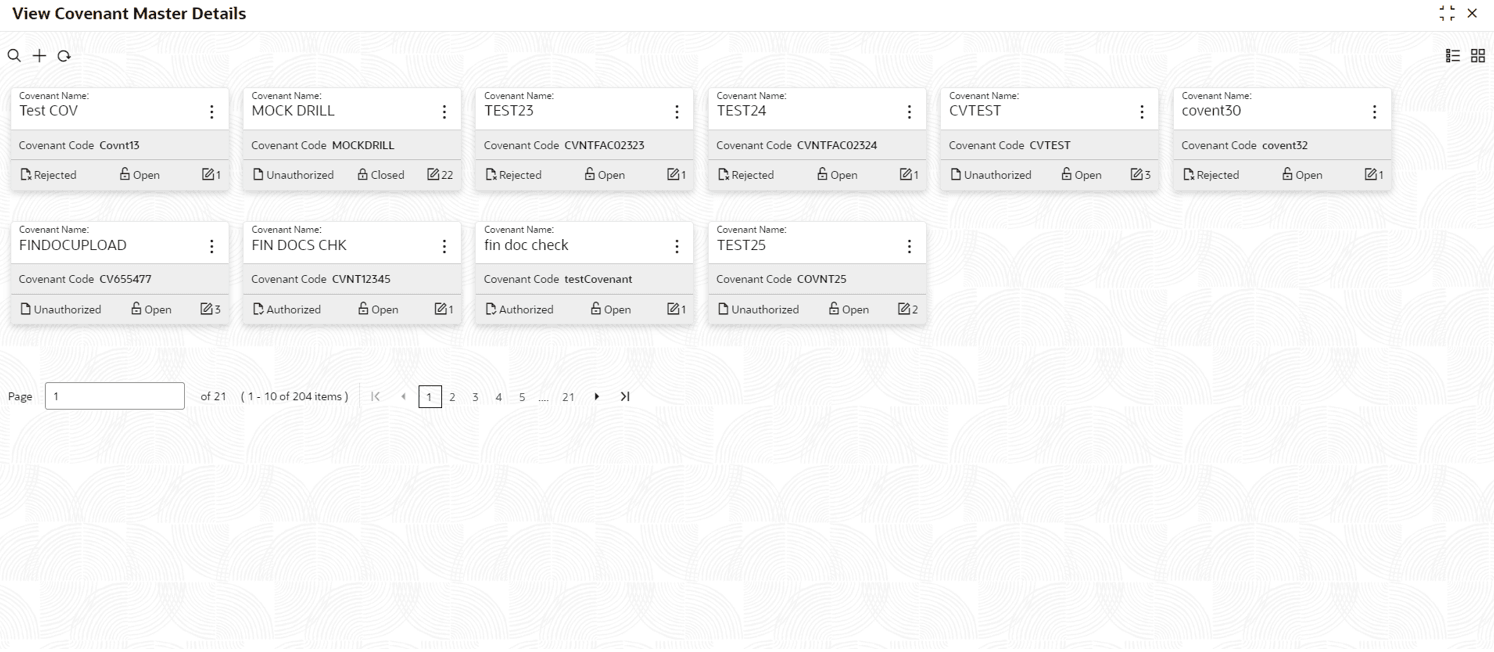
- Double click on the required tile.The Covenant Master Details screen is displayed.
Figure 2-7 Covenant Master Details
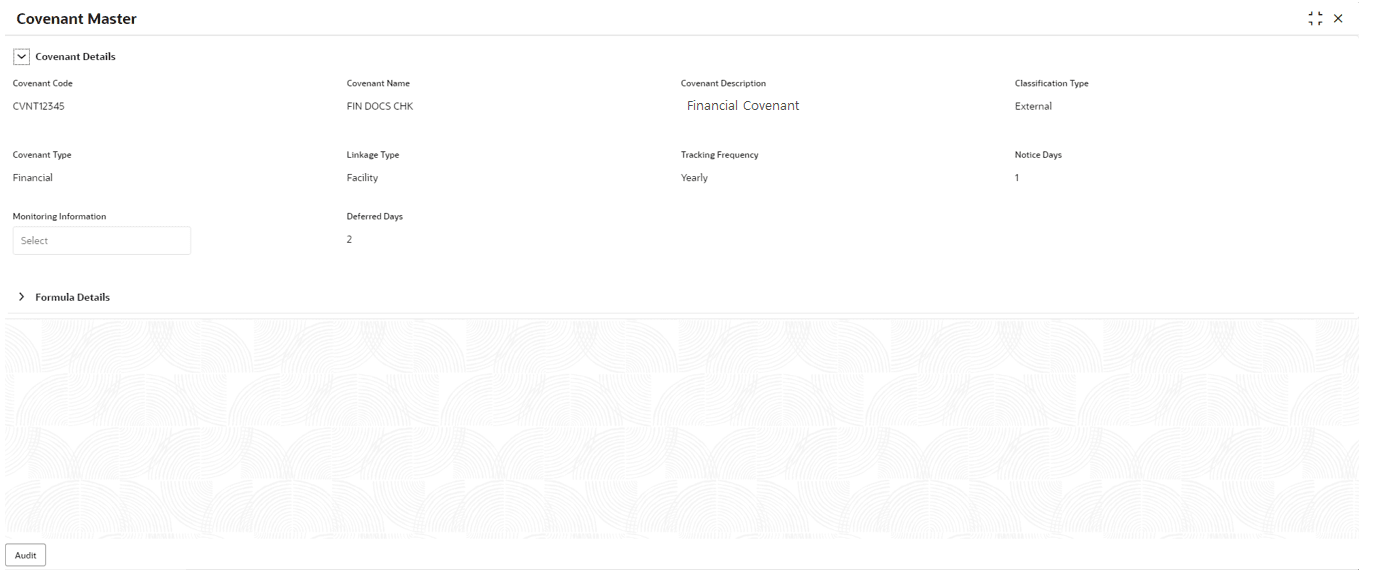
- To edit the covenant details, click Unlock and modify the necessary
details.
Note:
In order to link a covenant with an application, the covenant must be authorized by the Approver by clicking Authorize.
Parent topic: Maintenance