14.3 Create Event Mapping

This topic provides systematic instructions about the procedure to create an event mapping record in OBCFPM.

The Create Event Mapping screen provides an option to create new event mapping record. You can link the event mapping created here with an E-mail template to trigger E-mail notification whenever the event occurs.
  1. From Home screen, select Credit Facilities. Under Credit Facilities, select Maintenance.
  2. Under Maintenance, select Notifications. Under Notifications, select Create Event Mapping.
    The Create Email Mapping screen is displayed.

    Figure 14-5 Create Event Mapping


  3. Provide or select the event mapping details based on description in the following table.

    Table 14-3 Create Email Mapping - Field Description

    Field Description
    Event Code Specify a unique Event Code.
    Event Name Specify a name for the event to be added.
  4. Click Add.
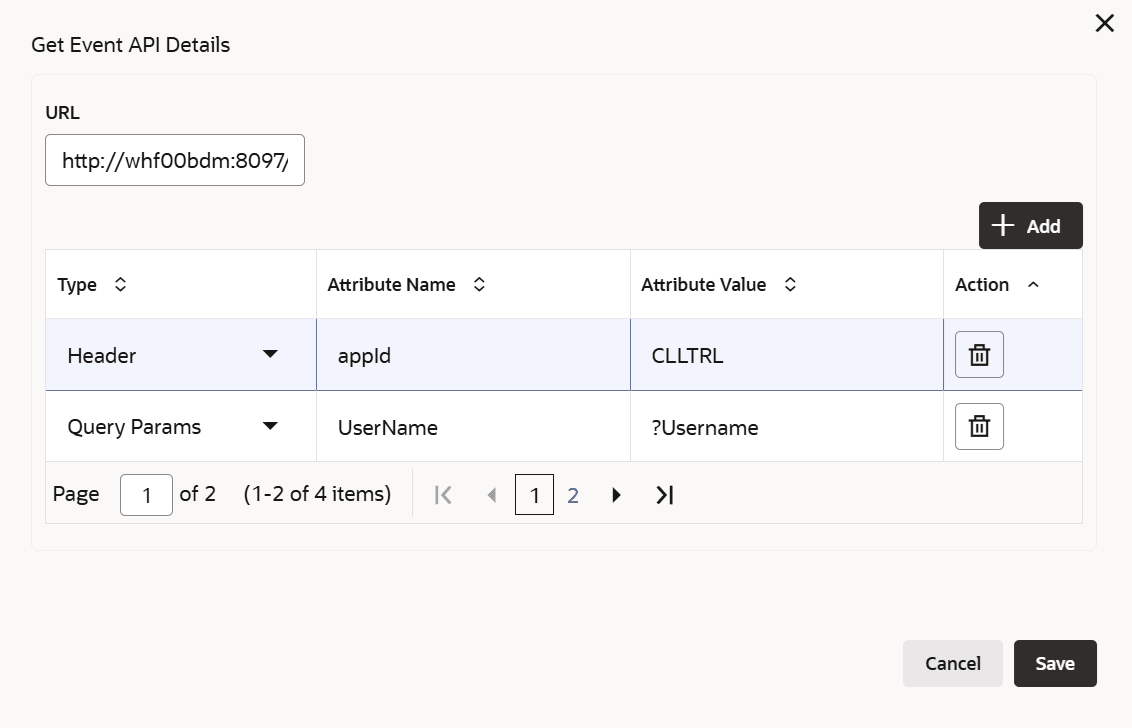
    The Get Event API Details window is displayed.

    Figure 14-6 Get Event API details


  5. Specify the event API details based on description in the following table.

    Table 14-4 Get Event API Details - Field Description

    Field Description
    URL Specify the API endpoint URL.
    Type Select the required Type from the drop down list. The options available are: Header, Query Params, and Path Param.
    Attribute Name Specify the Attribute Name for the selected Type.
    Attribute Value Specify value for the attribute provided in the Attribute Name field.
    Action Click the delete icon in this column to delete the entire row. To add new row, click Add.
  6. Click Save.
    The event API details are added and displayed as shown below.
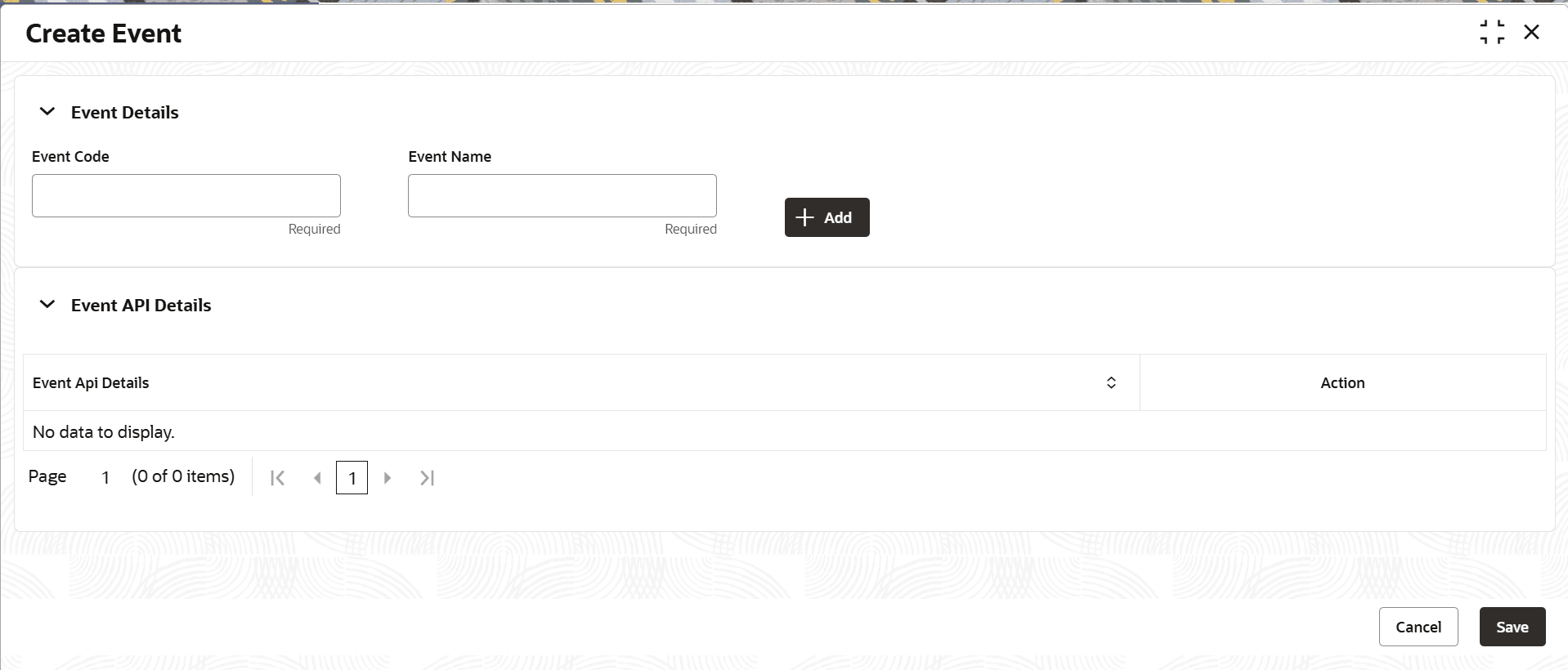
    Figure 14-7 Create Event Mapping


  7. To View, Modify, or Delete the API details, click the corresponding option in the Action column.
  8. Click Save.
    The event mapping record will be created upon authorization.