13.1 Create Mask Management Record

This topic provides systematic instructions about the procedure to create a mask management record in OBCFPM.

The Create Mask Management screen provides an option to create new mask management record.
  1. From Home screen, select Credit Facilities. Under Credit Facilities, select Maintenance.
  2. Under Maintenance, select Mask Management. Under Mask Management, select Create Mask Management.
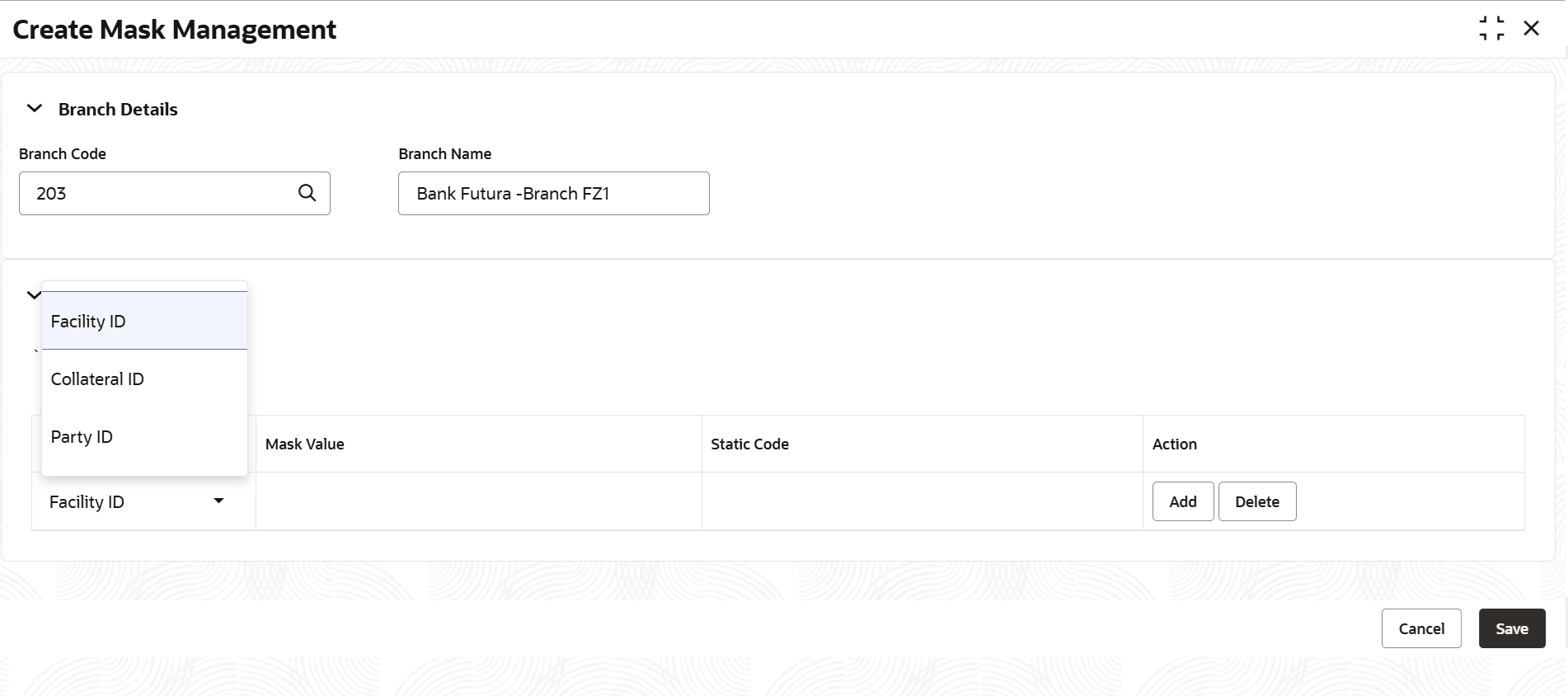
    The Create Mask Management screen is displayed.

    Figure 13-1 Create Mask Management


  3. Provide or select the mask details based on description in the following table.

    Table 13-1 Create Mask Management - Field Description

    Field Description
    Branch Code Search and select the bank Branch Code. Branch codes maintained in the system are displayed in the option list.
    Branch Name The bank Branch Name is defaulted based on the selected branch code.
    Mask Type Upon clicking Add in the Branch Details section, a new mask record is created in the Mask Details section. Select the entity ID for which the mask management record must be created. The options available in the drop down list are Facility Id, Collateral Id, and Party Id.
  4. Click Add in the Action column.
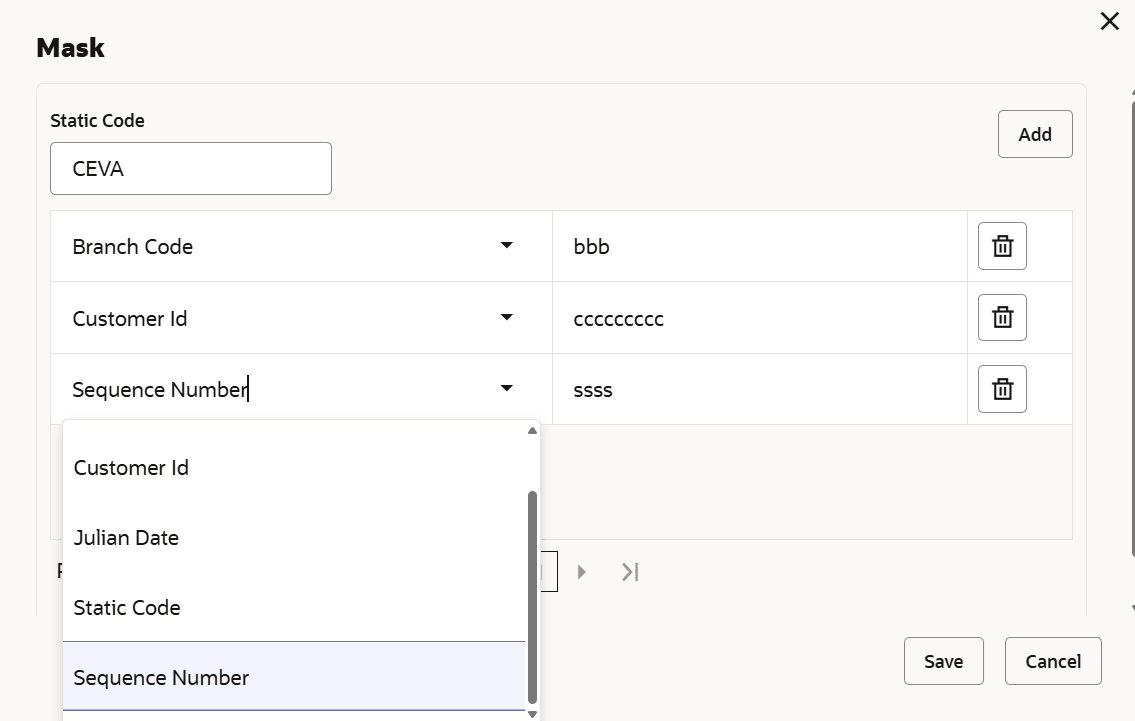
    The following screen is displayed:
  5. Select the parameter that must be included in the mask code format.
  6. Click Add to add new parameter.
  7. Provide Static Code in case Static Code option is selected from the drop down.
  8. Click Save.
    The Mask Value and Static Code are displayed in the Create Mask Management screen.
  9. To View, Edit, or Delete the mask management record, click the required options in the Actions column.
  10. Click Save in the Create Mask Management screen.
    The mask management record will be created upon authorization.

    Note:

    The system will display an error message in case the total length of mask code exceeds the allowed limit (sixteen characters). You must delete some parameters and try again.