7.8 Proposal Structuring - Conditions
To go to the Conditions page, click the Conditions tab in Proposal Structuring screen.
Figure 7-51 Proposal Structuring - Conditions
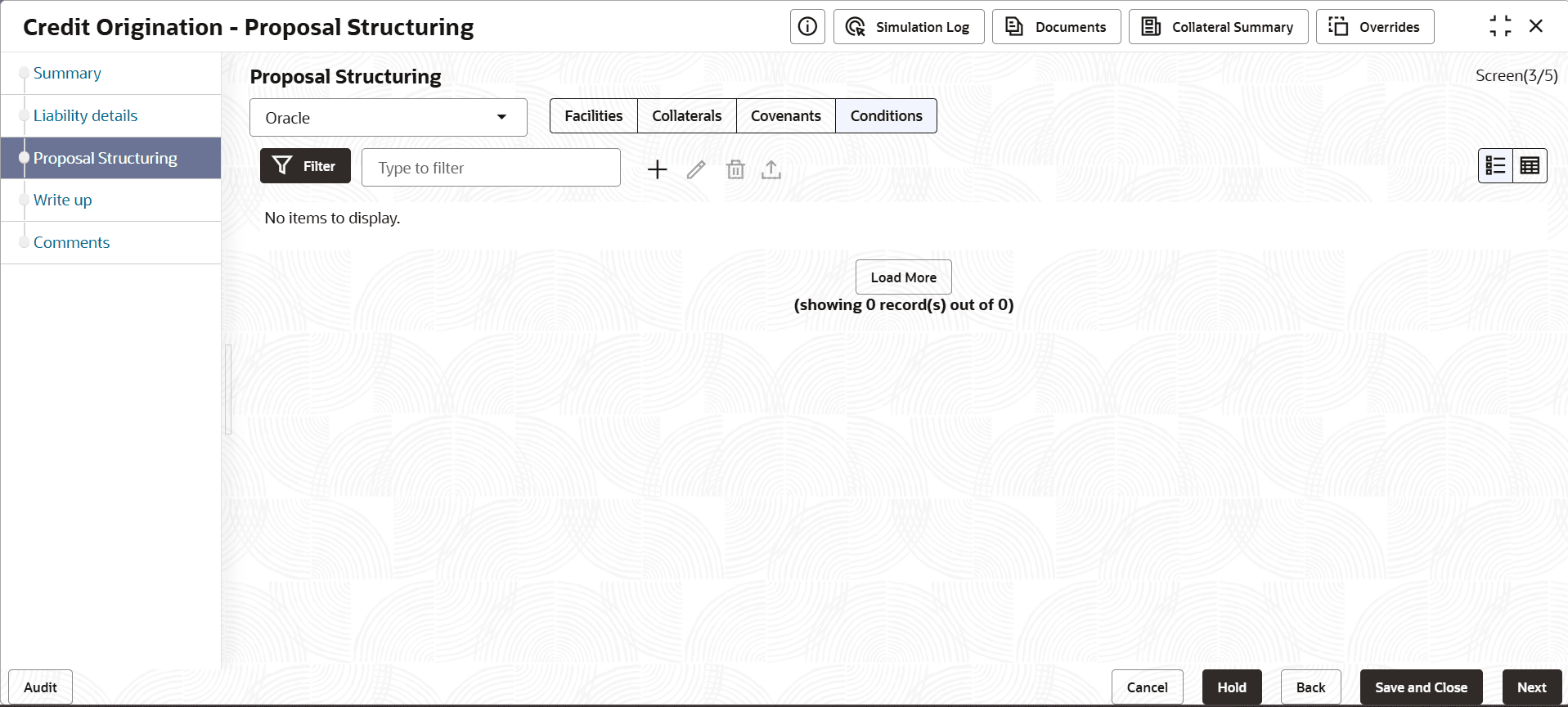
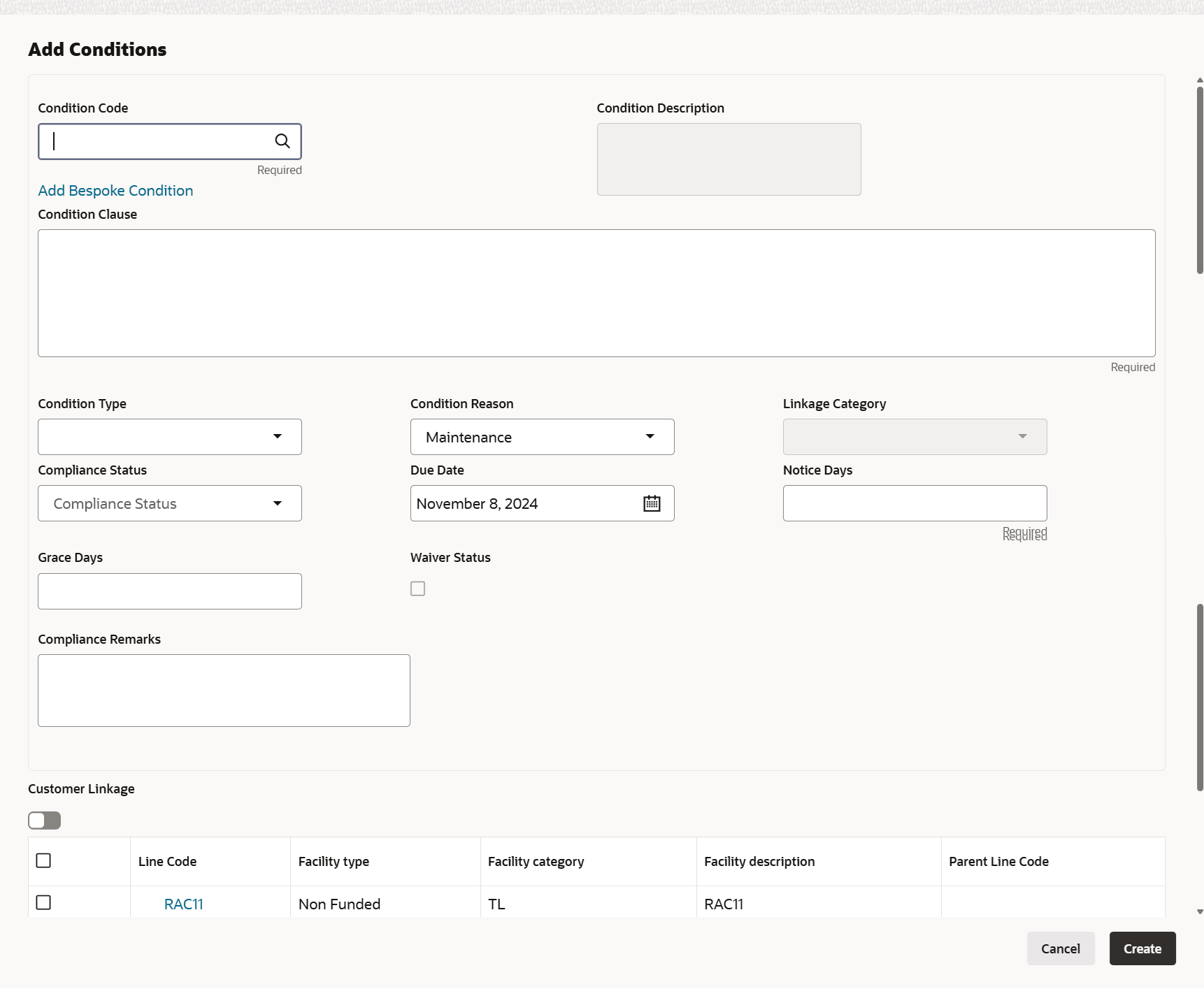
- To add new Conditions, click + icon.The Add Conditions window is displayed.
Note:
- Click Add Existing Condition, all fields are auto populated on selecting a condition code which is fetching from existing condition.
- Click Add Bespoke Condition, the user has to specify all the fields manually.
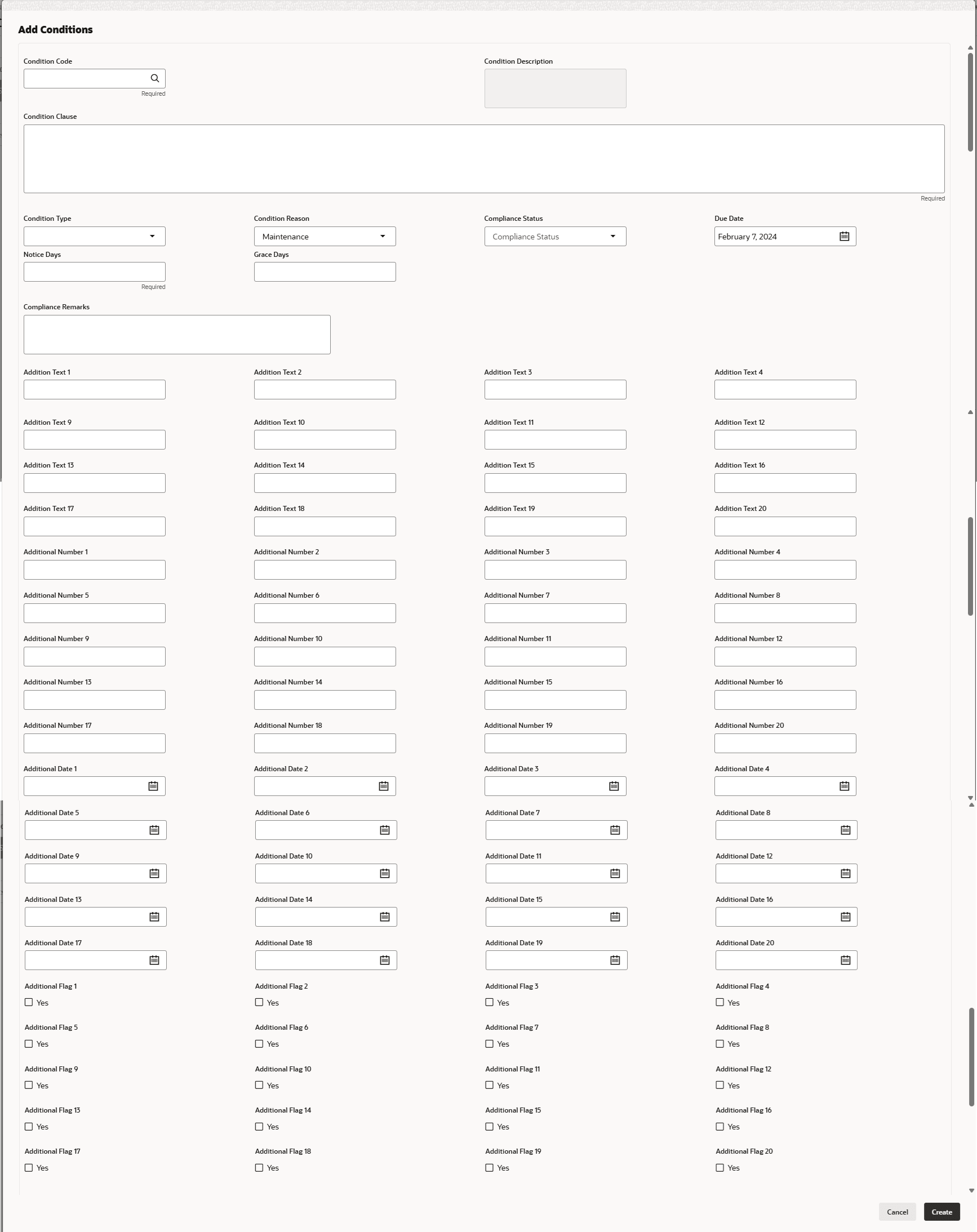
For process Conditions Details, user can set up extra placeholder fields in the Maintenance screen. For more information on managing these placeholders, refer to the Maintenance User Manual. The system supports configuration of up to 20 fields each for the following data types:- Text
- Numeric
- Boolean
- Date
Each field type allows a minimum of 0 and a maximum of 20 fields per Conditions details, based on the requirements. These fields displays in the Conditions Details screen only if they are configured. If no additional fields are defined, the screen will display only the standard Conditions details fields. For example, we maintained 20 additional fields each for text, numeric, boolean, and date.
The Add Conditions screen displays.For information on fields in the Add Conditions screen, refer the table below.
Table 7-23 Add Conditions
Fields Description Conditions Code Search and Select Conditions Code. Conditions Description and Conditions are defaulted based on the selected Conditions code. Conditions Description Display the Conditions description. The Conditions description will be defaulted from Conditions maintenance based on the selected Conditions Code and cannot be modified. Conditions Clause Specify the Conditions clause. This field defaulted based on the selected Conditions code. The user can input up to 250 characters. Conditions Type Select the conditions type from the drop-down list. The available options are: - Post-Disbursement
- Pre- Disbursement
- Pre- Sanction
Conditions Reason Select the conditions type from the drop-down list. The available options are: - Maintenance
- Restrictive
Compliance Status Select Compliance Status when application date is same as due date. The available options are: - Met
- Breached
Due Date Select the due date. Notice Days Specify the number of notice days are the number of days before the Due date of a Conditions for the Conditions tracking. Grace Days Specify the grace days. The user must update the compliance status within grace days after the due date. If not complied, the status will be marked as breached and the compliance date will be updated to the current date during the end-of-day process using the batch “tncTrackingOverdueBreachJob”. Linkage Category Displays the linkage category. Note: This field displays if Add Bespoke Condition is selected.
Compliance Remarks Enter Compliance Remarks, if required. Customer Linkage Customer Linkage details are displayed by default based on selected Conditions code. Facility Linkage Select the facility linkage. Create Click Create. Conditions are linked to the party and displayed in the Conditions tab. Cancel Click the Cancel to cancel and exist the screen. Note:
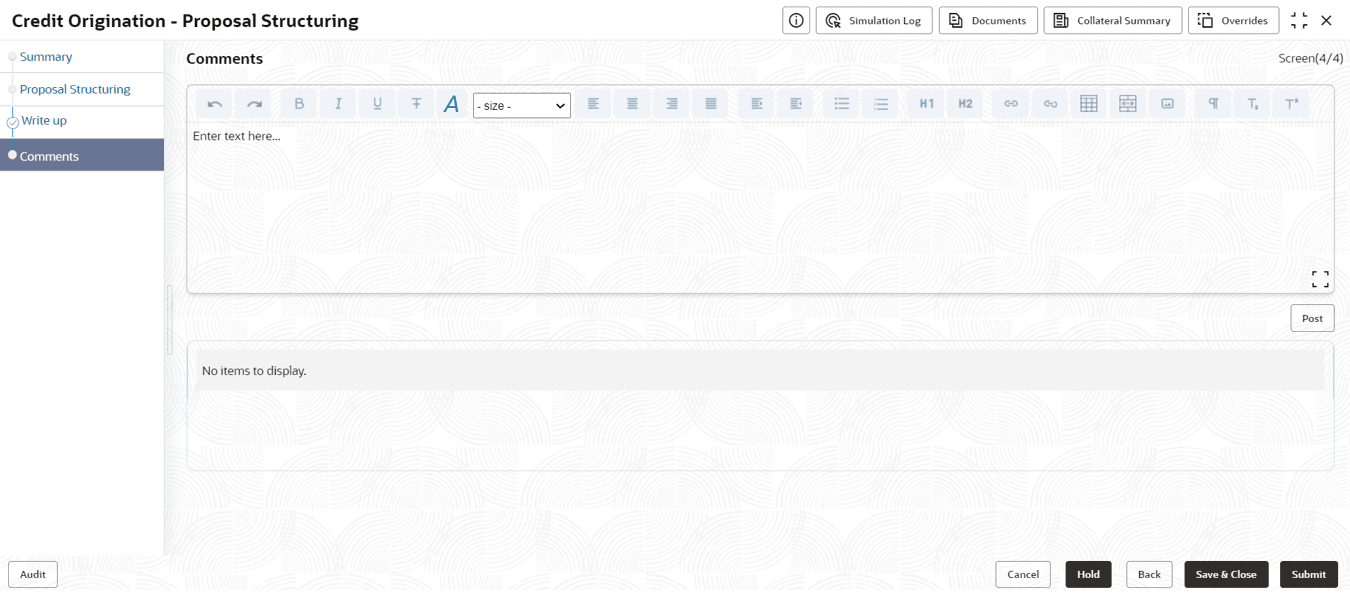
For information about filter, edit, delete, and layout options, refer any section in Proposal Initiation Chapter.Click Next. The Comments page is displayed.
-
Post comments, if required. The posted comment is displayed below the
Comments box.
Click Submit, the Policy exceptions window is displayed.
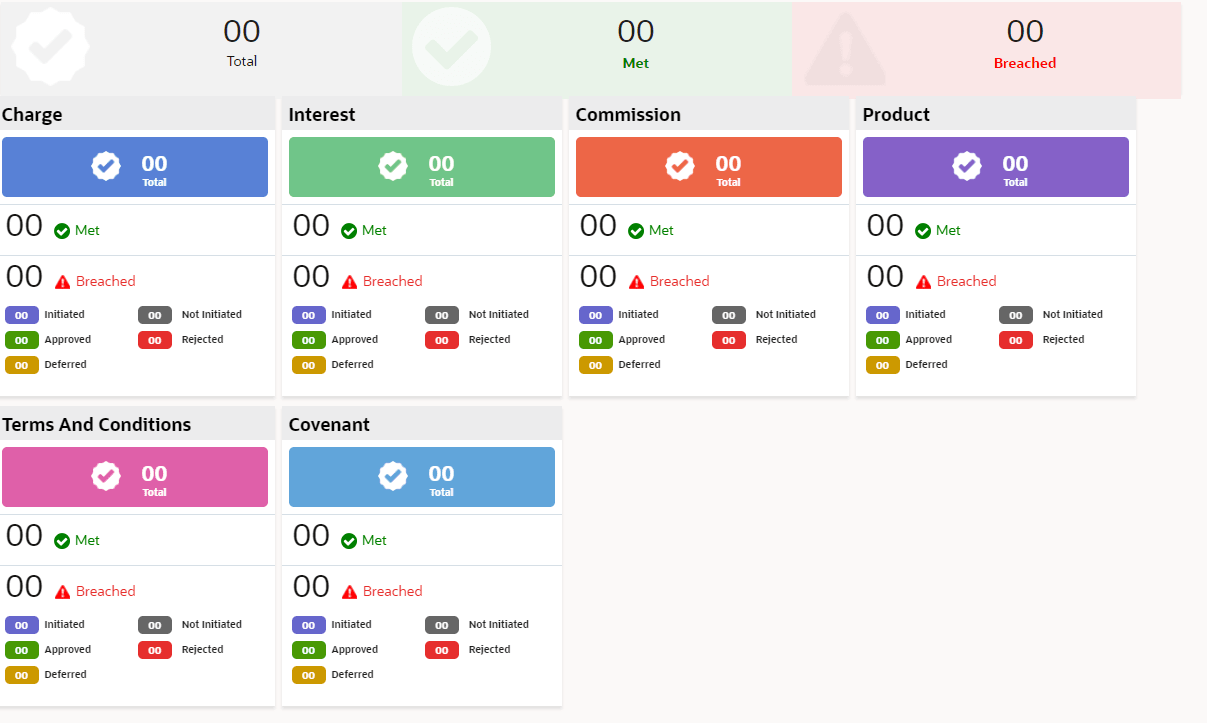
By default, Policy Exceptions are displayed for both the party and its child party.
To view the Policy Exception detail specific to party or child party, select the party from the drop-down list at top left corner.
Click Next, the Business page is displayed.
- Click the Business data segment.
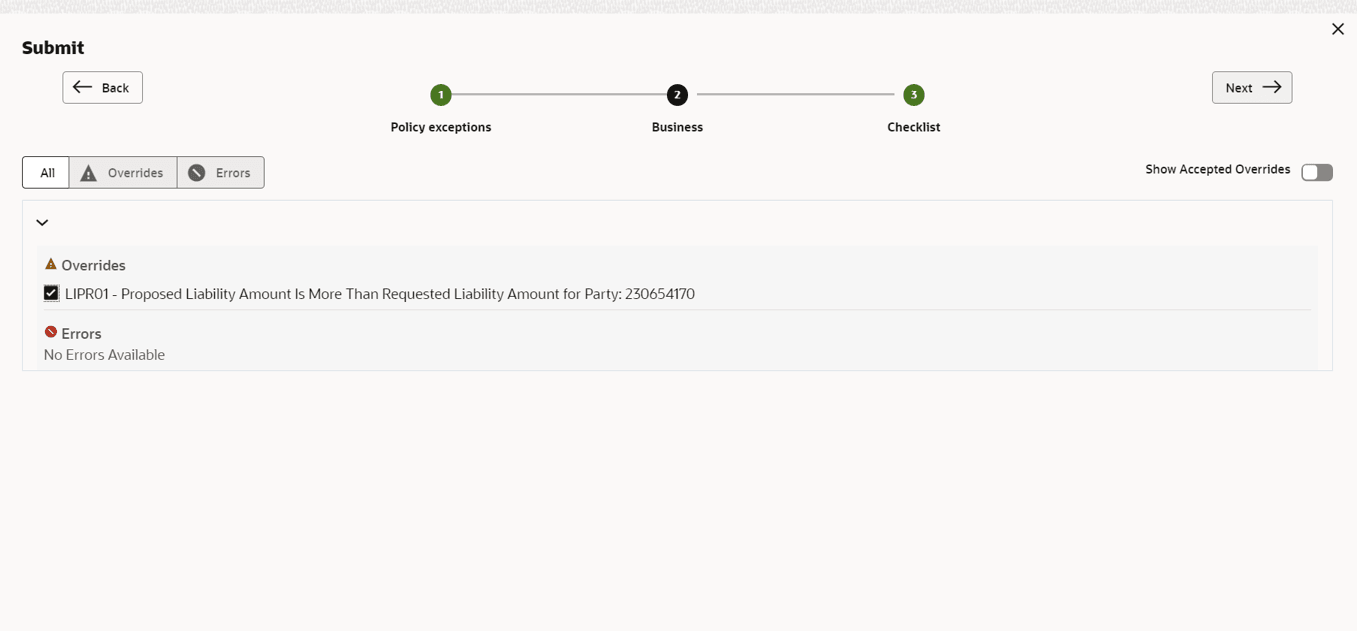
The Business page is displayed. If there are any overrides, then it will display the details as shown in the below image.
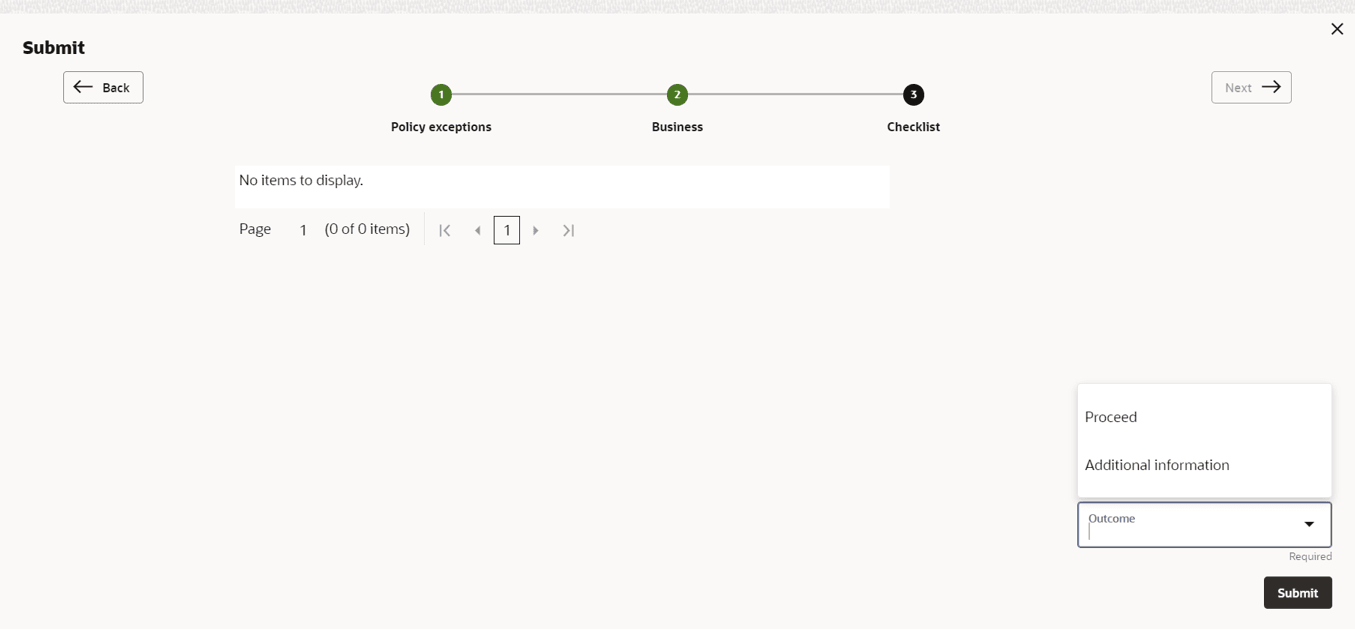
Click Next, the Checklist page is displayed.
- Click the Checklist data segment.
For field level information on Checklist screen refer the table below.
For information on Write up data segment, refer Write Up section.Table 7-24 Checklist
Fields Description Outcome Select Outcome as Proceed if additional information is not required. Else, select the Outcome as Additional Info. Submit Click Submit. The proposal is sent to the Proposal Review stage.
Parent topic: Proposal Structuring