7.7 Proposal Structuring - Covenant Details
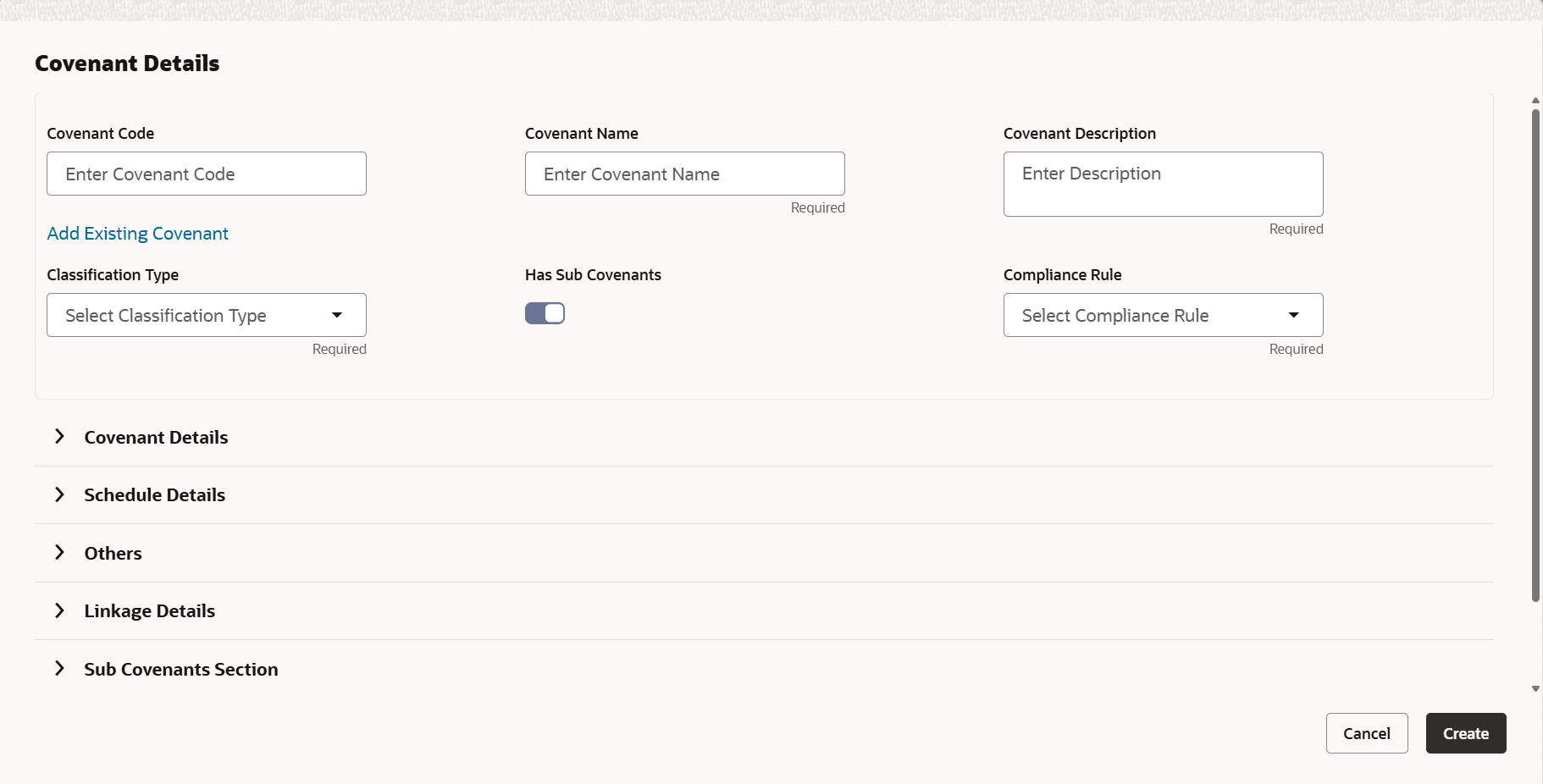
- Click + icon, to add new covenant.The Covenant Details screen displays.
Note:
- Click Add Existing Covenant, all fields are auto populated on selecting a covenant code which is fetching from existing covenant.
- Click Add Bespoke Covenant, the user has to specify all the fields manually.
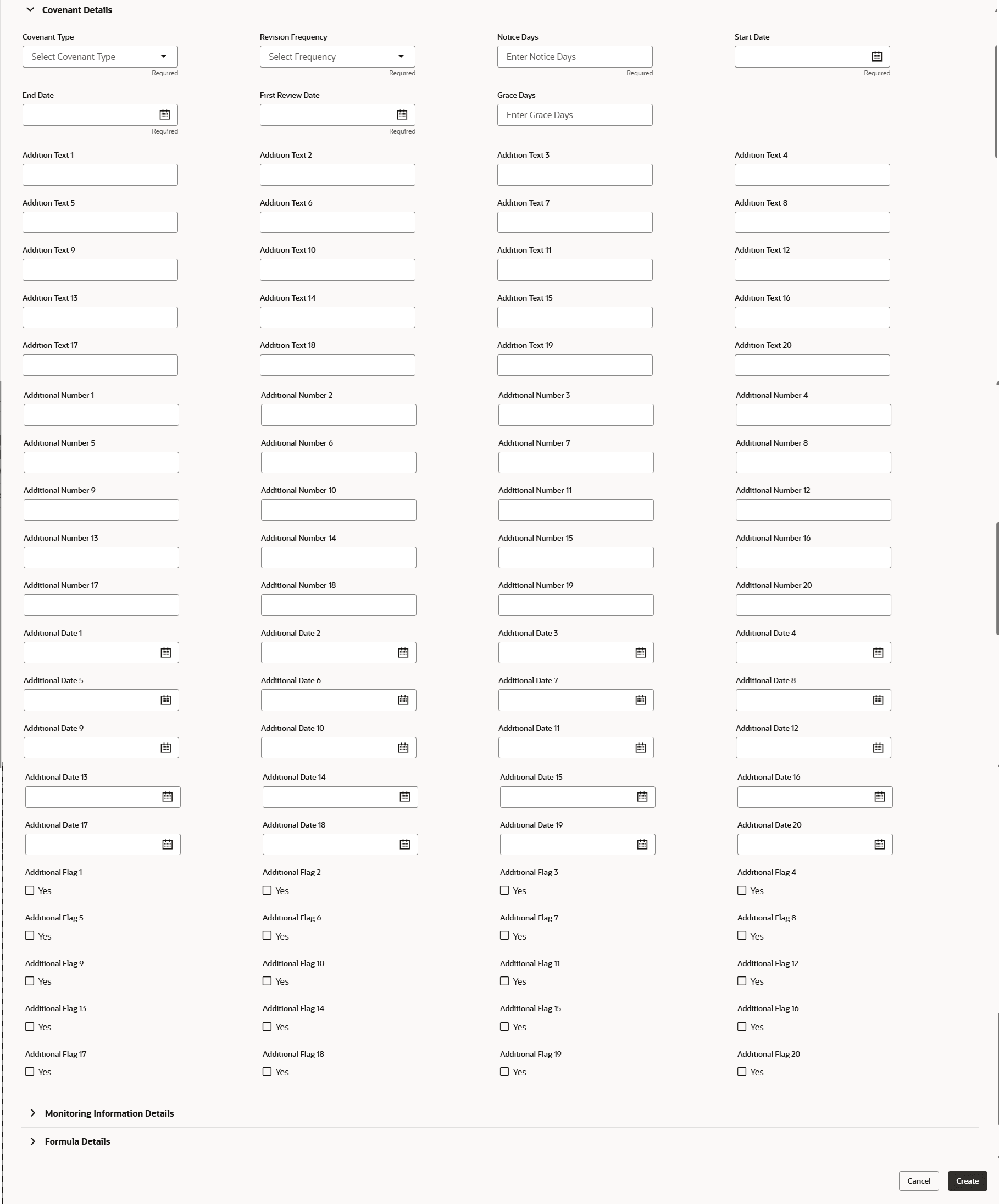
For process Covenant Details, user can set up extra placeholder fields in the Maintenance screen. For more information on managing these placeholders, refer to the Maintenance User Manual.
The system supports configuration of up to 20 fields each for the following data types:- Text
- Numeric
- Boolean
- Date
Each field type allows a minimum of 0 and a maximum of 20 fields per Covenant details, based on the requirements. These fields displays in the Covenant Details screen only if they are configured. If no additional fields are defined, the screen will display only the standard covenant details fields.
For example, we maintained 20 additional fields each for text, numeric, boolean, and date.
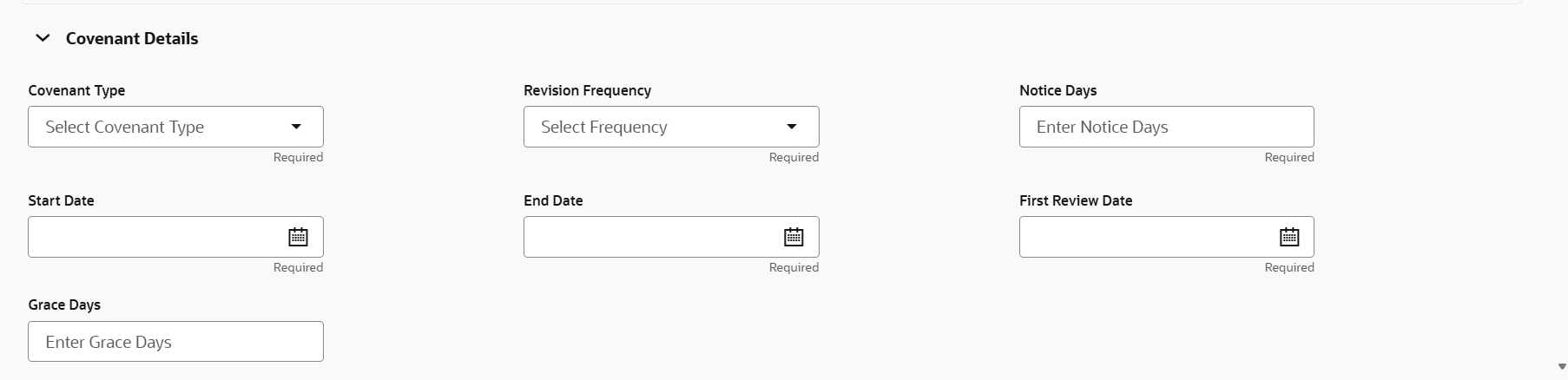
The Covenant Details screen displays. - To set the covenant condition, click and expand Covenant Details
section.For more information on fields, refer to the field description table below.
Table 7-17 Covenant Details
Field Description Covenant Code Select the LOV to get the covenant from maintenance. Covenant Name Displays the name of the covenant. This field is auto populated on selecting covenant. Covenant Description Specify the covenant description.This field is auto populated on selecting a covenant, user can modify the description for the current linkage. Classification Type Display the classification type of the covenant. This field is auto populated on selecting a covenant. The available options are: - Internal
- External
Has Sub Covenants Enable the toggle to add the sub covenants inline. Note: This field is displayed only if Add Bespoke Covenants is selected.
Compliance Rule Select the covenant reason from the drop-down list. The available options are: - All Met
- Any Met
- Majority Met
Note:- This field is populated if Has Sub Covenants toggle is enabled.
Covenant Type Display the type of the covenant. The available options are: - Financial
- Non-Financial
Note: If Add Bespoke Covenant selected, by default Non-Financial option displays only if Has Sub Covenants toggle enables.
Covenant Reason Select the covenant reason from the drop-down list. The available options are: - Maintenance
- Restrictive
Linkage Category Displays the linkage category. Note: This field displays if Add Bespoke Covenant is selected.
Tracking Frequency Select the covenant type from the drop-down list. The available options are: - Custom
- Fortnightly
- Half yearly
- Monthly
- Quarterly
- Weekly
- Yearly
Notice Days Specify the notice days. Start Date Select the start date of the covenant. End Date Select the end date of the covenant. First Review Date Select the first review date of the covenant. Grace Days Specify the grace days. Mandatory Select the mandatory from the drop-down list. The available options are: - Mandatory
- Non-Mandatory
- To capture the monitoring information for the covenant, click and expand
Monitoring Information Details section.
Figure 7-43 Monitoring Information Details
Note:
The Monitoring Information Details section displays, if Covenant Type is selected as Financial from the drop-down list. - Click and expand Formula Details section.For more information on fields, refer to the field description table.
Table 7-18 Formula Details
Field Description Formula Displays the formula for the tracking of financial covenant. This field is auto populated from maintenance on selecting a covenant code. Target Type Specify the target type of the values.This field is auto populated from maintenance on selecting a covenant code.The available options are: - Ratio
- Percentage
- Amount
Covenant Check Condition Specify the target condition. This field is auto populated from maintenance on selecting a covenant code. The available options are:
- Greater than
- Greater than or equal to
- Less than
- Less than or equal to
- Equal to
- Between
Currency Displays the currency of target value.This field is applicable if Target Type is Amount. Target Value 1 Specify the target value. This field is auto populated from maintenance on selecting a covenant code. Target Value 2 Specify the target value. This field is auto populated from maintenance on selecting a covenant code. This field is applicable only if check condition is Between. Note:
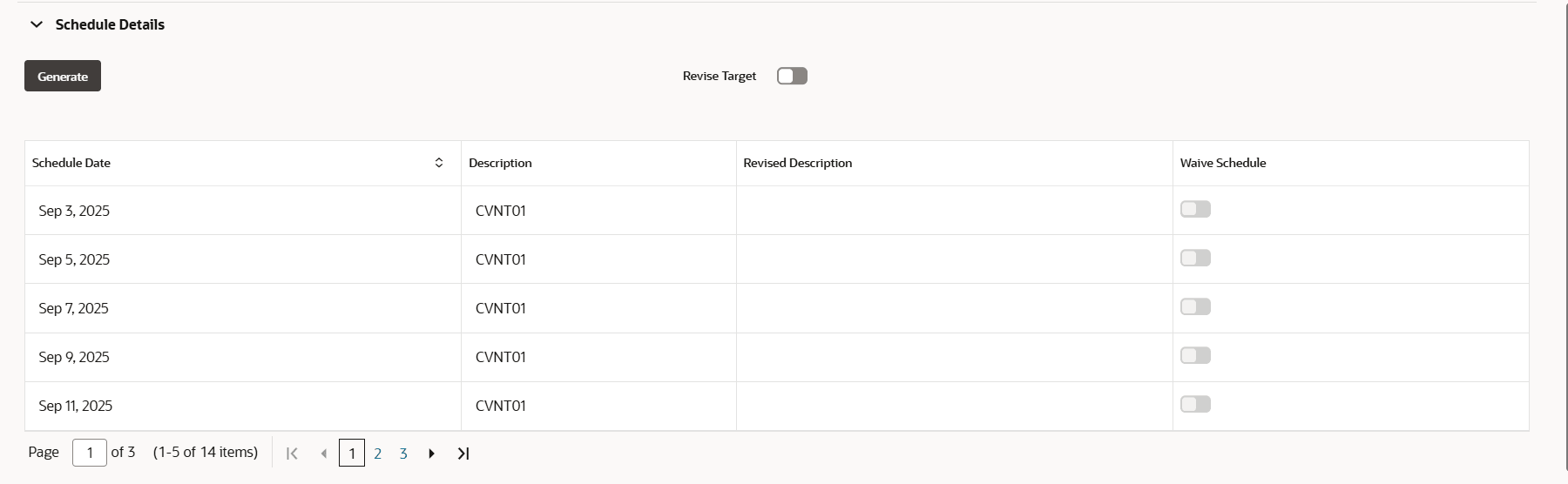
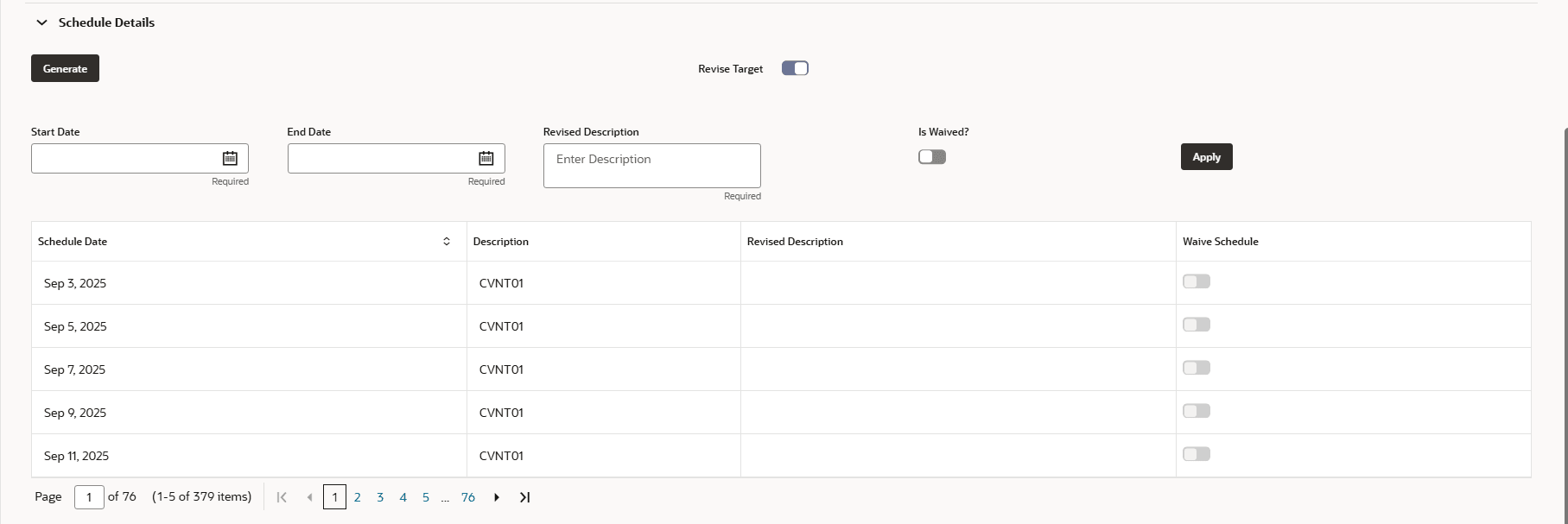
The Formula Details section displays, if Covenant Type is selected as Financial from the drop-down list. - Click and expand Schedule Details section.If Revised Target is enabled, the following screen displays.For more information on fields, refer to the field description table below.
Table 7-19 Revised Target
Field Description Start Date Specify the end date. End Date Specify the start date. Revised Target Value Specify the revision target value to be revised for the selection revision period. Is waived? Specify the waive to schedules which is under the given revision date range. - Click and expand Others section.
For field level information on Others screen refer the table below.
Table 7-20 Others
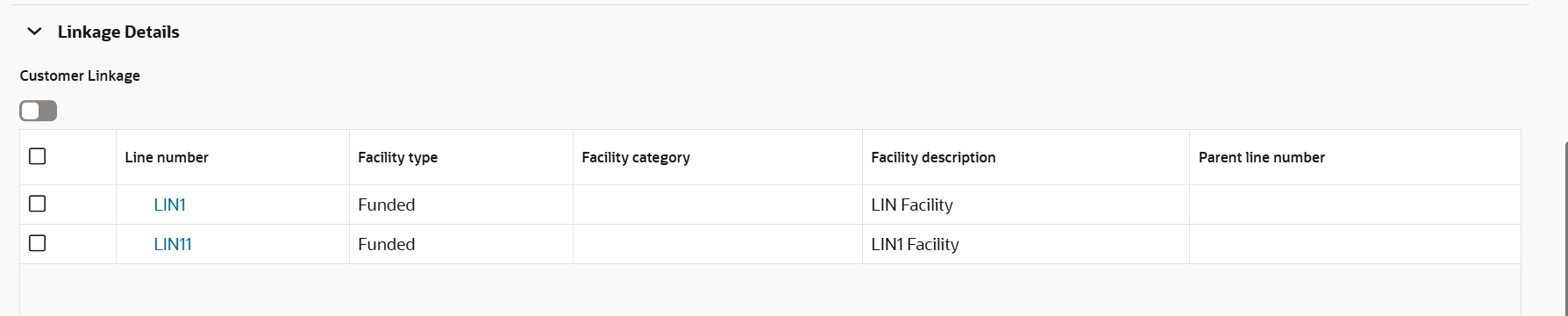
Fields Description Compliance Status Select Compliance Status and Covenant Status for the covenant. Last Check Value Enter Last Check Value for the covenant. Deferred Due Date Select Date from Calendar icon and specify Deferred Due Date. - To link the covenant with the facility, click and expand Linkage Details
section.For more information on fields, refer to the field description table.
Table 7-21 Linkage Details
Field Description Customer Linkage Enable the customer linkage toggle. Customer Number Specify the customer number. Customer Name Specify the customer Name Linkage Type Select the linkage type from the drop-down list. The available options are: - Customer
- Facility
- Collateral
Customer ID Select the customer ID. If it is a customer linkage, the customer ID is directly assigned to this field and the field is disabled. Facility ID Specify the Facility Id ad Linkage Entity Id of the linkage. The facility can be filtered in the LOV using Line code of the facility. Collateral ID Specify the Collateral Id as Linkage Entity Id of the linkage. The Collateral can be filtered in the LOV using Collateral Id. Collateral Asset ID Specify the Collateral Asset Id as linkage subtype Id. Note:
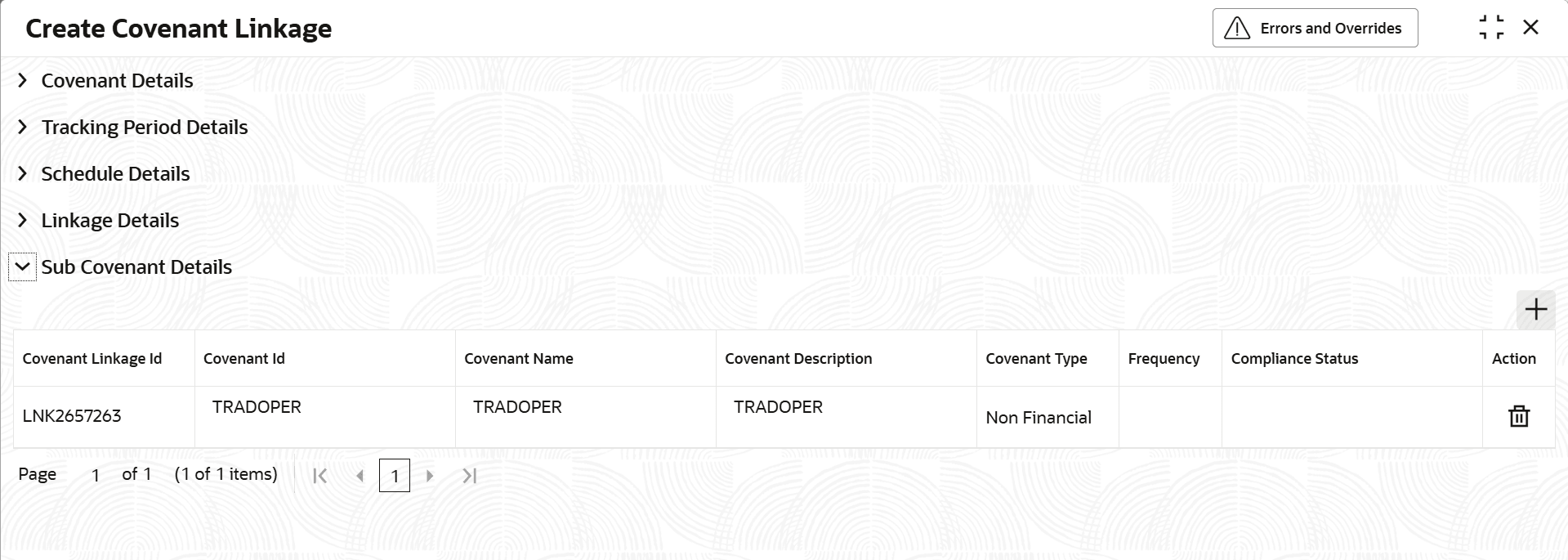
For information about filter, add, edit, delete, and layout options, refer any section in Proposal Initiation Chapter. - Click Sub Covenant Section.The Sub Covenant Section screen displays.For more information on fields, refer to the field description table below.
Table 7-22 Sub Covenant Details
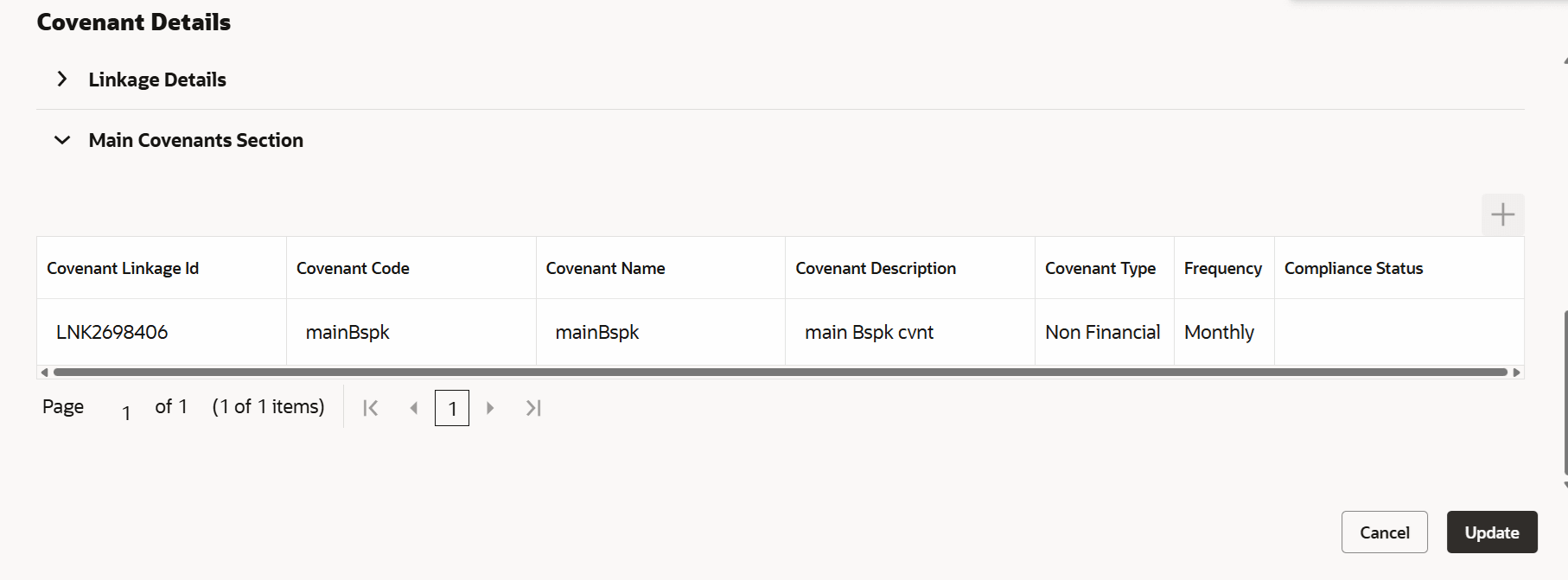
Field Description Covenant Linkage ID Click search and fecth the linkage ID of the covenant. Covenant Code Displays the covenant ID. Covenant Name Displays the covennat name. Covenant Description Displays the covenant description. Covenant Type Displays the covenant type. Frequency Displays the frequency. Compliance Status Displays the status of the covenant. - The main covenants section displays in subcovenants after linking the
subcovenants to main covenant.The Main Covenant screen displays.



Parent topic: Proposal Structuring