16.2 View Forex Deal
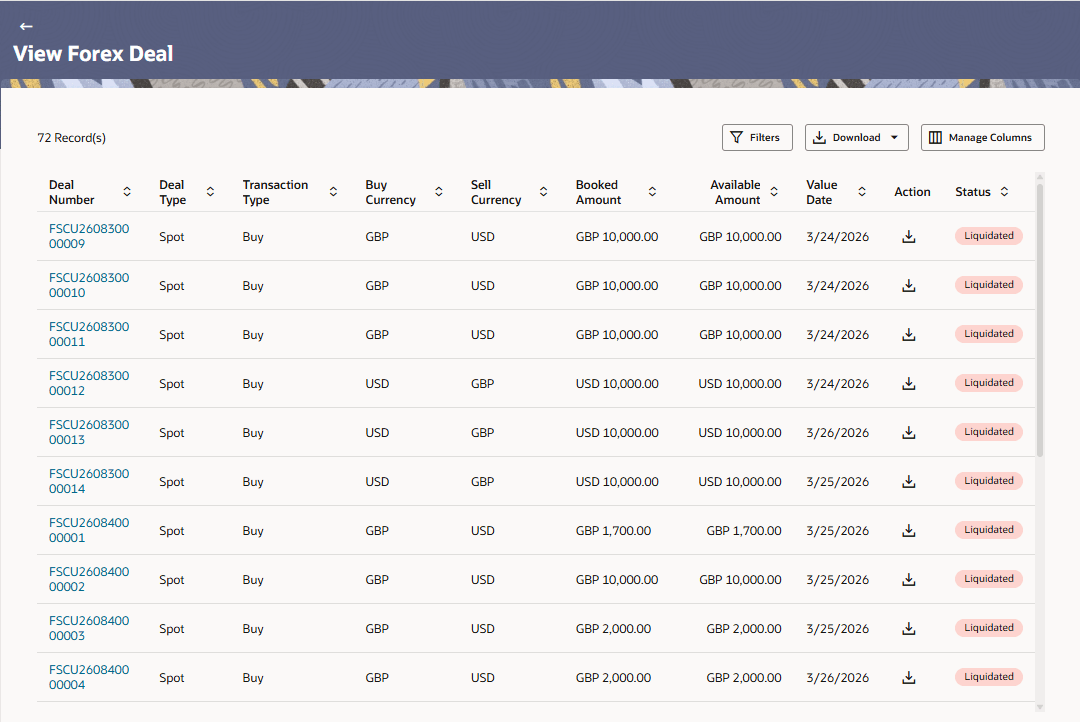
This topic provides information of booked forex deals, including rates, amounts, and status.
- Click View Forex Deal to view a forex deal for the
selected currency pair and amount.The View Forex Deal screen is displayed.
For more information on fields, refer to the field and description table.
Table 16-2 View Forex Deal - Field Description
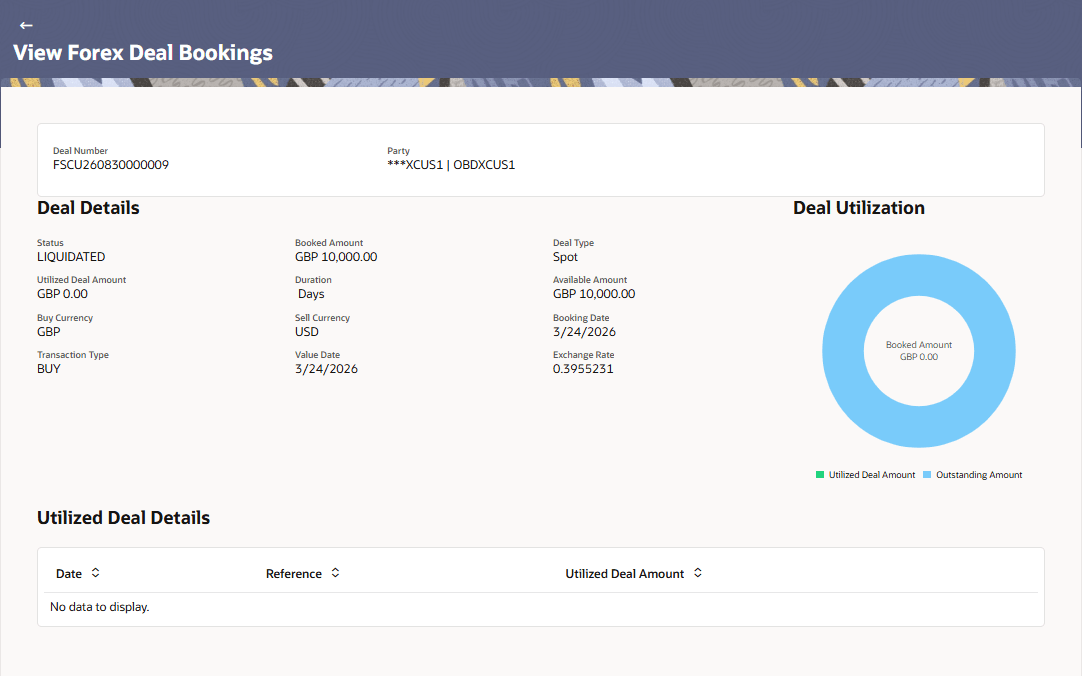
Field Name Description Deal Number Displays the unique reference number of the forex deal. Deal Type Displays the type of forex deal such as Spot, Forward, or Swap. Transaction Type Displays whether the deal is a Buy or Sell transaction. Buy Currency Displays the currency being purchased in the forex deal. Sell Currency Displays the currency being sold in the forex deal. Booked Amount Displays the total amount booked for the forex deal. Available Amount Displays the remaining amount available for utilization. Value Date Displays the settlement date of the forex deal. Action Provides available actions such as downloading deal details using the Download option. Status Displays the status of the forex deal. - Click Deal Number for the specific forex deal to view
its details and associated information.The View Forex Deal Bookings screen is displayed.
- Click
 to change filter criteria. The Filter overlay screen appears.
Table 16-3 View Forex Deal - Filters Field Description
Field Name Description Party Select the corporate entity to filter forex deals. Reference Number Enter the reference number to search for a specific forex deal. Deal Number Enter the Deal Number to filter and view a specific forex deal. Deal Type Select the type of deal to filter results. Buy Currency Select the currency being purchased to filter the deals. Sell Currency Select the currency being sold to filter the deals. Status Select the deal status to refine the results. Booking Date Specify the date range using From and To to filter deals based on booking date. Perform one of the following action.- Click Reset to clear all applied filters.
- Click Apply to apply the selected filters and view the results.
- Click on the
 icon to setup a column preference by rearranging or
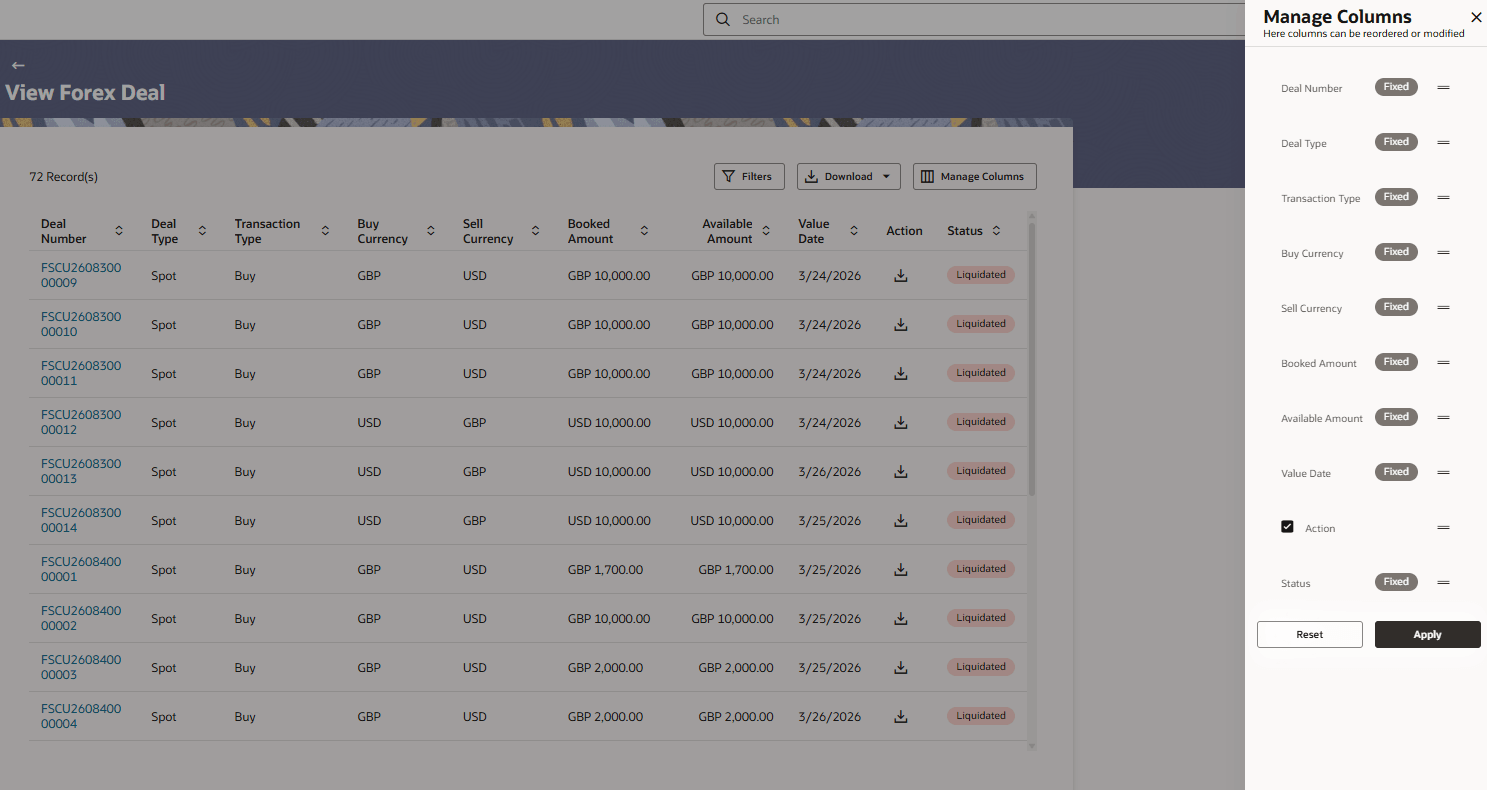
removing columns.The Manage Columns screen is displayed.
icon to setup a column preference by rearranging or
removing columns.The Manage Columns screen is displayed.Figure 16-6 View Forex Deal - Manage Columns
Table 16-4 View Forex Deal - Manage Columns - Field Description
Field Name Description Column Setup Information specified below is related to column configuration. Deal Number Displays the deal number. This is a fixed column and cannot be modified. Deal Type Displays the type of forex deal. This is a fixed column. Transaction Type Displays whether the deal is Buy or Sell. This is a fixed column. Buy Currency Displays the currency being purchased. This is a fixed column. Sell Currency Displays the currency being sold. This is a fixed column. Booked Amount Displays the booked amount of the deal. This is a fixed column. Available Amount Displays the available amount for utilization. This is a fixed column. Value Date Displays the settlement date of the deal. This is a fixed column. Action Select the Action checkbox to show or hide the Action column. Status Displays the status of the deal. This is a fixed column. Perform one of the following action.- Click Reset to revert to the default column configuration.
- Click Apply to save and apply the selected column settings.

Parent topic: Forex Deal