4.1.4 Edit Expected Cash Flow
This topic describes about the Edit Expected Cash Flow in Oracle Banking Digital Experience.
To edit an expected cash flow transaction record:- Perform the following navigation to access the Edit Expected Cash Flow
screen.
From the Dashboard, click Toggle Menu. Under Toggle Menu, click Cash Management . Under Cash Management, click Cash Flow. Under Cash Flow, click View/Edit Expected Cash Flow Details.
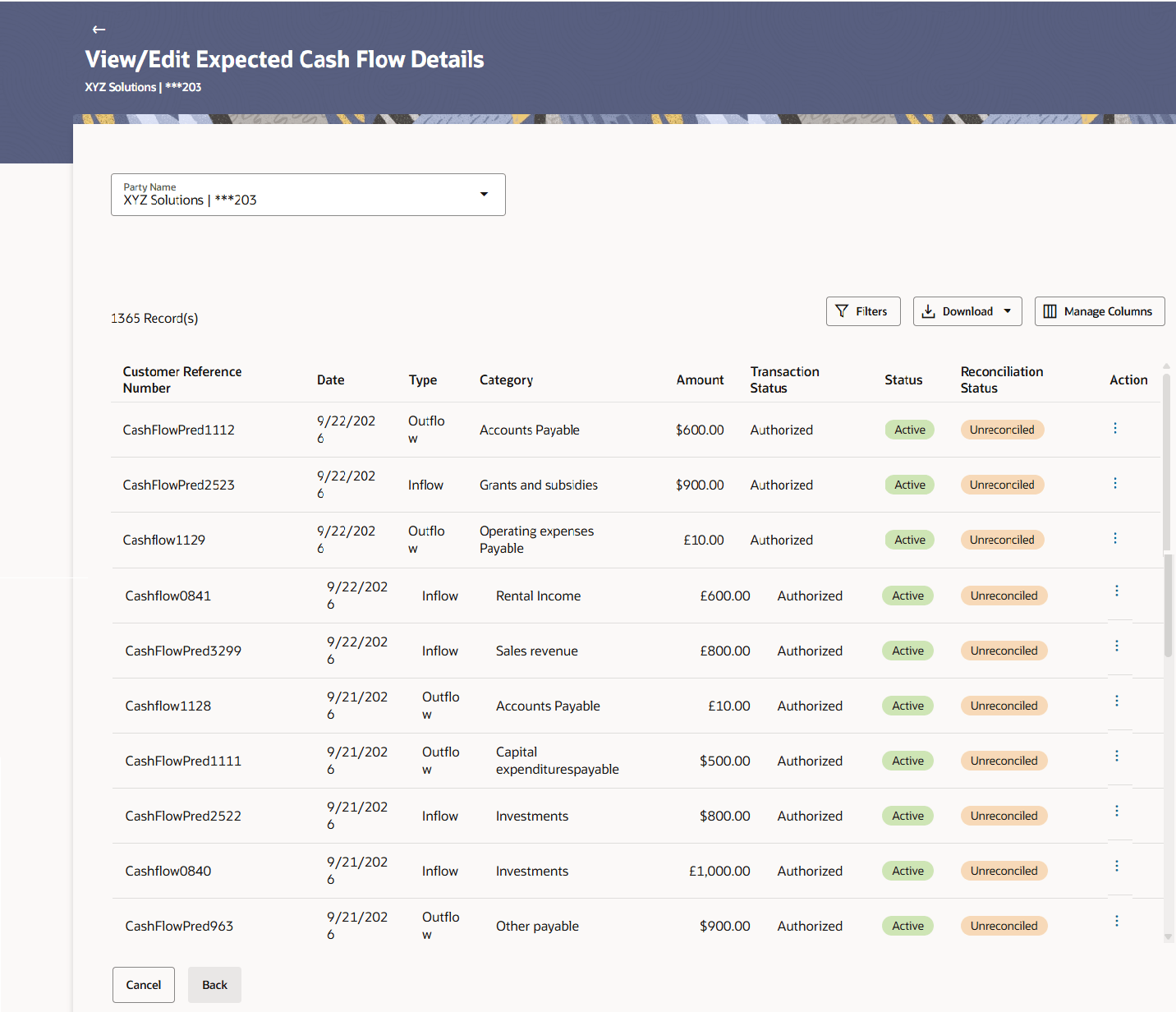
The View/Edit Expected Cash Flow Details screen displays.
Figure 4-23 View/Edit Expected Cash Flow Details
- In the Expected Cash Flow Details screen, click
 against the cash flow record to be edited.
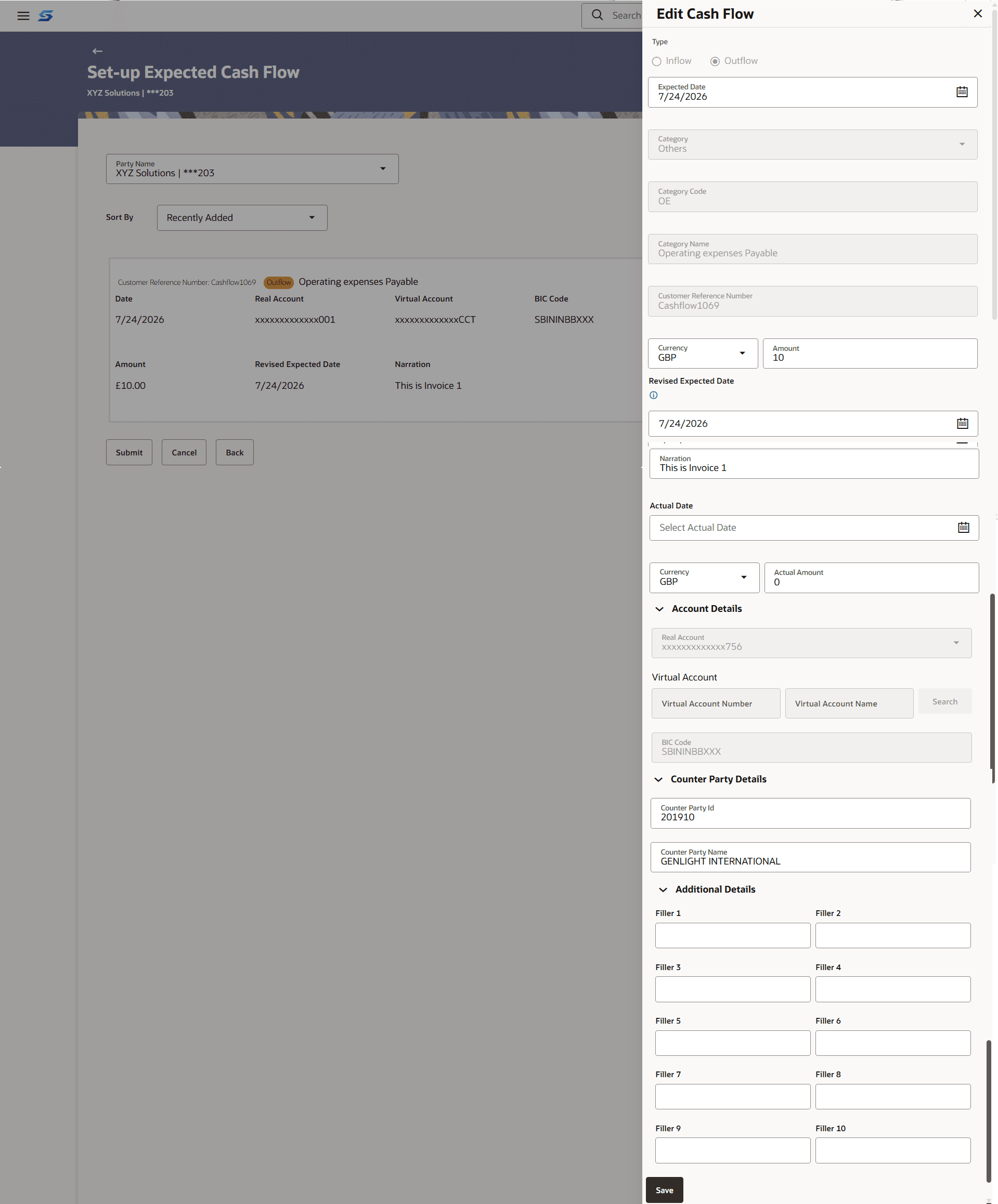
 - Select the Edit option. The Modify Expected Cash Flow overlay window appears.
Table 4-15 Edit Cash Flow - Field and Description
Field Description Type Displays whether the cash flow is an inflow or an outflow. This field is not editable. Expected Date Indicates the expected date of expected cash flow transaction. This field is editable. Category Displays the category of the cash flow transaction. This field is not editable. Category Code Displays the code for the category. This field appears when Create New Custom Category toggle is enabled.
This field is not editable.
Category Name Displays a description for the category. This field appears when Create New Custom Category toggle is enabled.
This field is not editable.
Customer Reference Number Displays the customer’s reference number for the transaction. This field is not editable. Currency Indicates the currency for the expected cash flow transaction. This field is editable. Amount Indicates the amount of the expected cash flow transaction. This field is editable. Revised Expected Date Indicates the revised date when the transaction is expected to occur. This field is editable. Narration Indicates the narration of the expected cash flow transaction. This field is editable. Actual Date Indicates the actual date for the expected cash flow transaction. This field is editable.
Currency Indicates the actual currency for the expected cash flow transaction. This field is editable.
Actual Amount Indicates the actual amount of the expected cash flow transaction This field is editable.
.Account Details Indicates the Bank Account details. Account Number Displays the own bank account number. Account Name Displays the own bank account name. Real Account Indicates the account number of the corporate party for the expected cash flow transaction. This can be either the real account number or the International Bank Account Number (IBAN), based on the configuration set by the bank. This field is not editable.
Virtual Account Number Indicates the virtual account of the corporate party for the expected cash flow transaction. The account number and name of the virtual account are displayed. This field is editable. Virtual Account Name Indicates the virtual account of the corporate party for the expected cash flow transaction. The account number and name of the virtual account are displayed. This field is not editable.
Search Click Search button to fetch the virtual account details of the corporate party for the expected cash flow transaction. This field is not editable.
BIC Code Indicates the BIC code. This field is not editable.
Counter Party ID Displays the ID of the counter party associated with the transaction. This field is editable. Counter Party Name Displays the name of the counter party associated with the transaction. This field is editable. Additional Details- Filler 1-10 Displays the additional details in the fileds Filler 1 to 10. This field is editable.
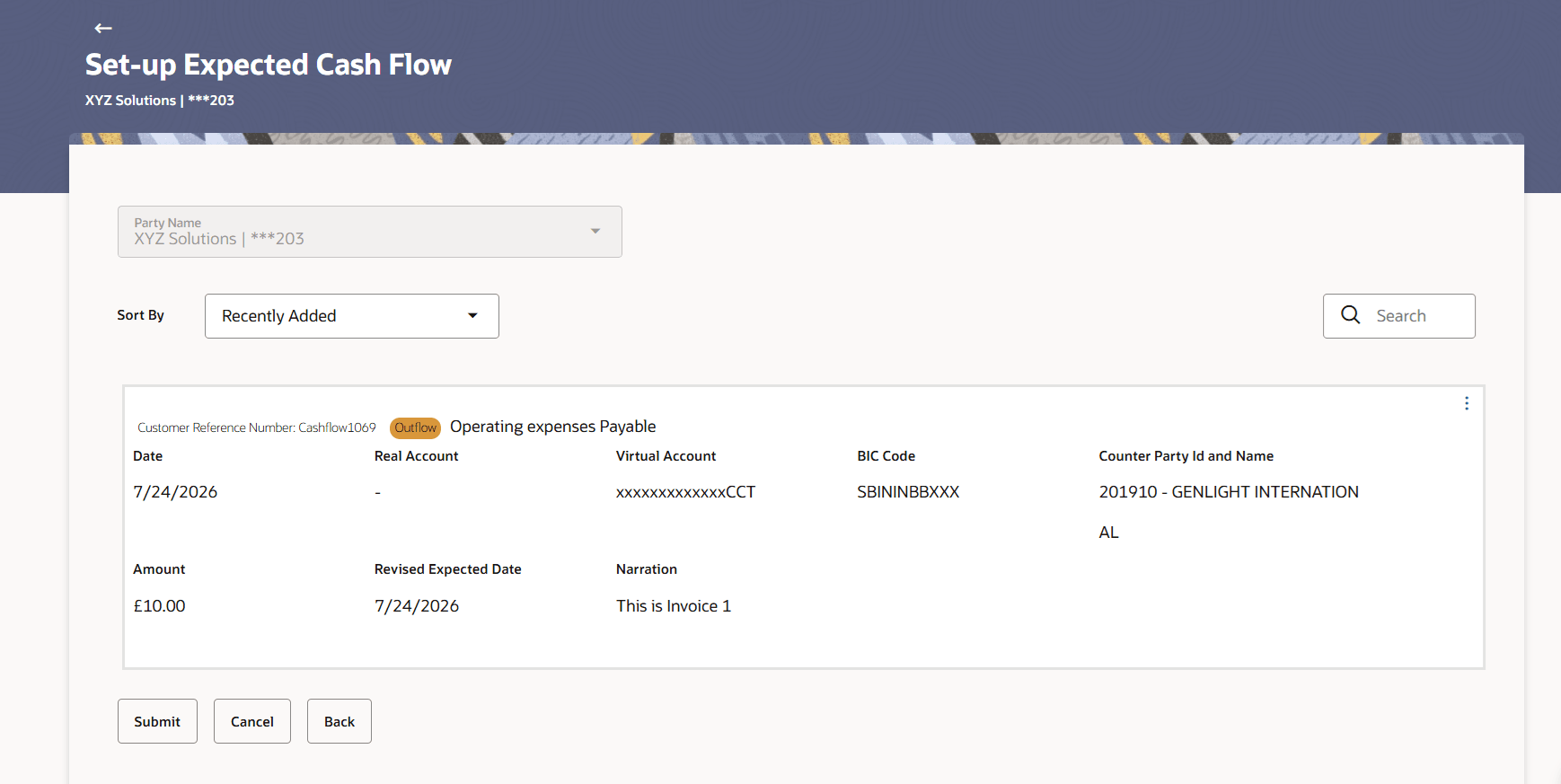
- Click Save. The record appears in the list with the ‘Edited’ indicator against it.To revert the changes made, click against the edited record and select Undo.
Parent topic: Expected Cash Flow