4.1.3 View Recurring Cash Flow
- Perform the following navigation to access the View/Edit Recurring Cash Flow
Details screenFrom the Dashboard, click
Toggle Menu. Under Toggle Menu, click Cash
Management . Under Cash Management, click Cash
Flow. Under Cash Flow, click View/Edit Recurring Cash
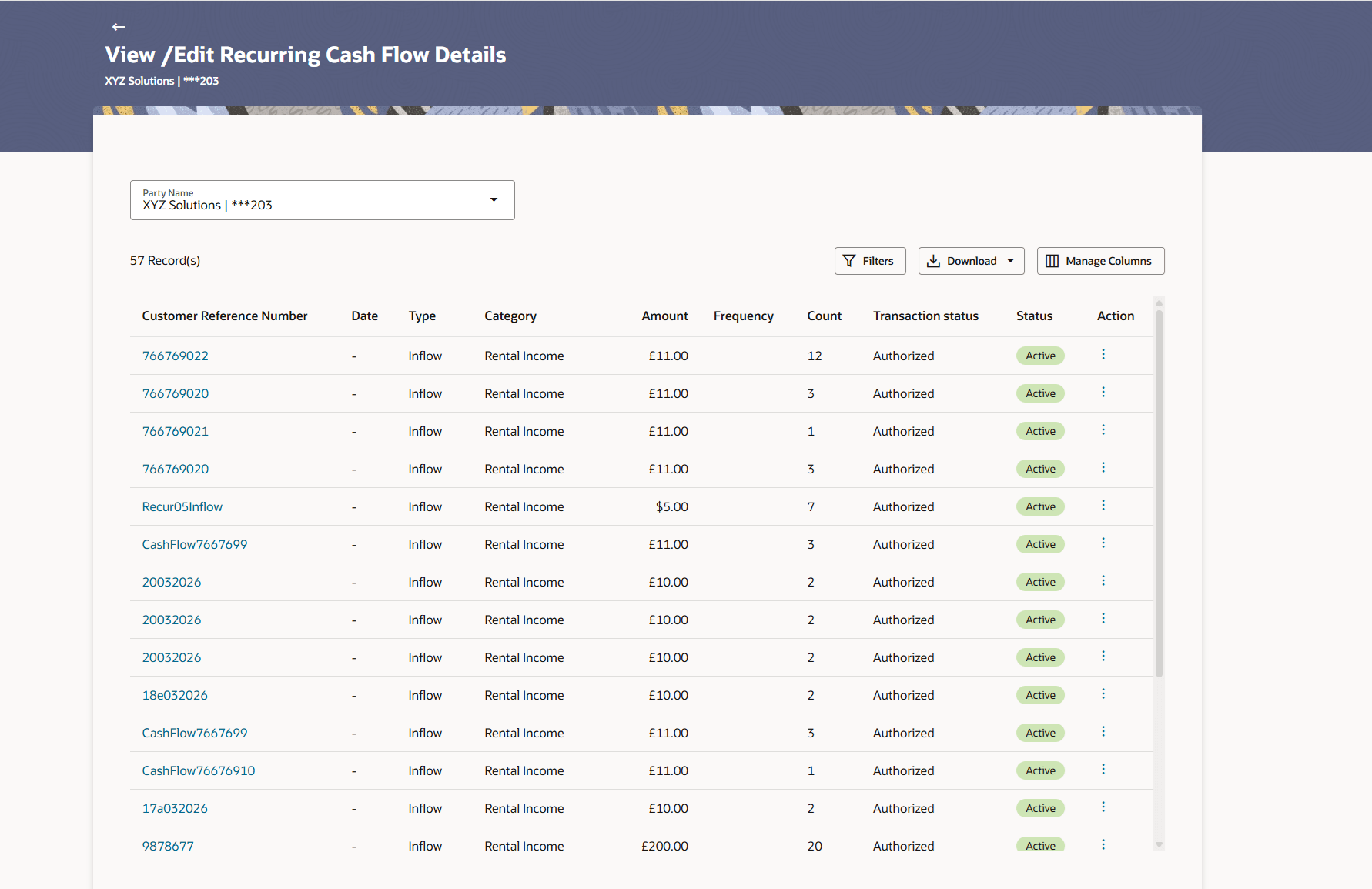
Flow Details.The View/Edit Recurring Cash Flow Details screen displays.
Figure 4-19 View/Edit Recurring Cash Flow Details
Note:
The View/Edit Recurring Cash Flow Details screen can also be viewed on a mobile device. The features, data, search filters, hyperlinks, download option, and so on that are available on the web browser on desktop computers, are also available on the mobile device.For more information on fields, refer to field description table below:
Table 4-13 View/Edit Recurring Cash Flow Details - Field and Description
Field Description Party Name Select the Party Name from the dropdown list to view the cash flow details. By default, the primary party/gcif of the logged-in user is selected. Note: Only accessible parties are displayed to the user. Based on the party/gcif selection, the list of cash flow is displayed.
Period from <date> to <date> Displays the period for which the cash flow records have been fetched. Search Indicates an option to search for specific cash flow records, based on the search text entered. 
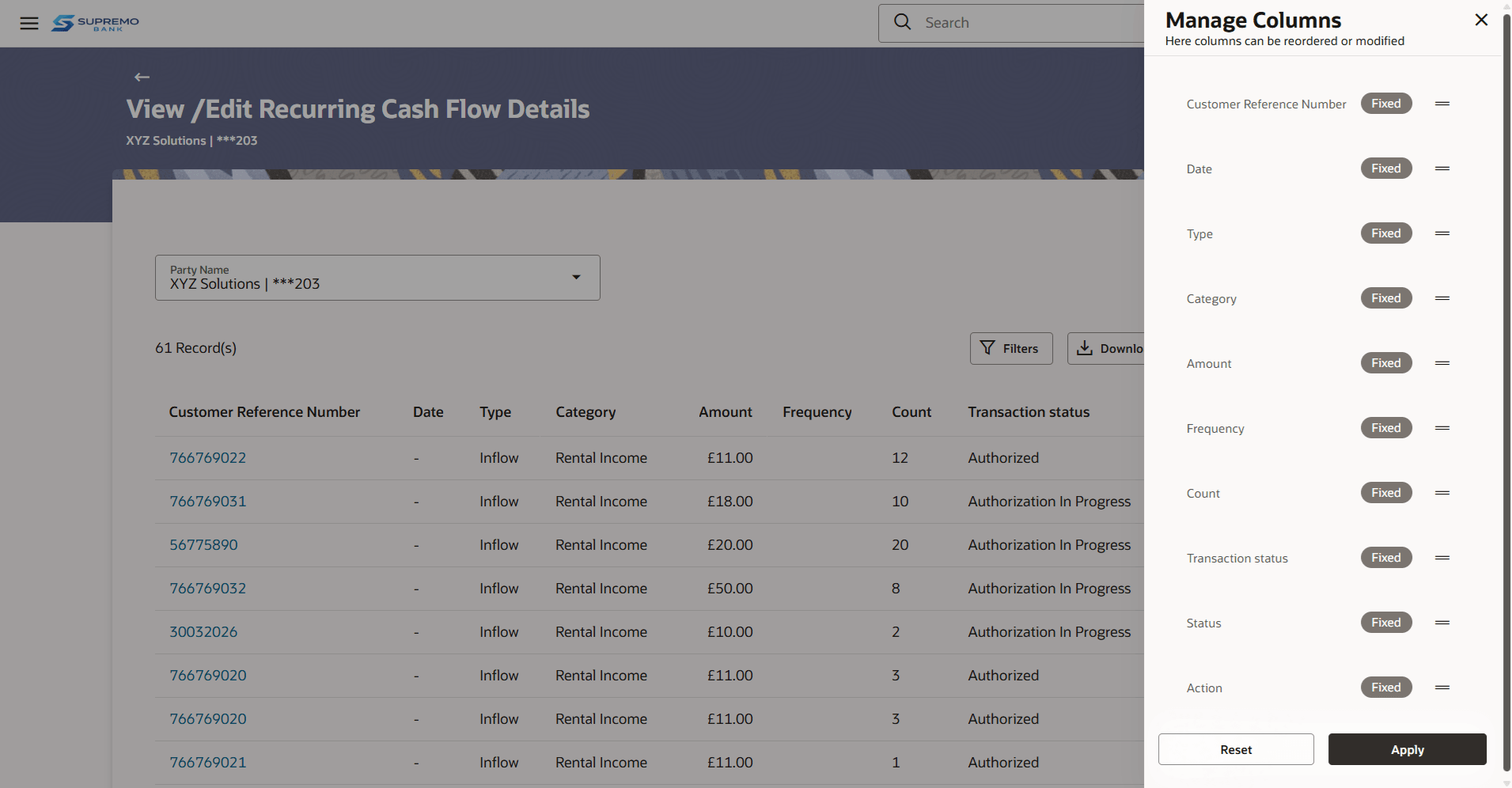
Indicates a set of options to filter the cash flow transaction records. For more details, refer to the fields in the Filter section below. Download Indicates an option to Download the expected cash flow records in CSV formats. Manage Columns Click Manage columns to modify columns preferences. For more details, refer to the fields in the Manage Columns section below. Customer Reference Number Displays the customer’s own reference number for the recurring cash flow record. Date Displays the date of the recurring cash flow transaction. Type Displays whether the cash flow transaction is of inflow type or outflow type. Category Displays the category of the cash flow transaction. Amount Displays the amount of the cash flow transaction. Transaction Status Displays the transaction status of the recurring cash flow record, whether Authorized, Authorization In Progress or Deleted. Status Displays the status of the recurring cash flow record, whether Active, Deleted. More Options Click  to view additional details of the record. This icon
is only present beside future dated transaction records. Any
transaction records for the present day cannot be edited or
deleted.
to view additional details of the record. This icon
is only present beside future dated transaction records. Any
transaction records for the present day cannot be edited or
deleted.
- Click

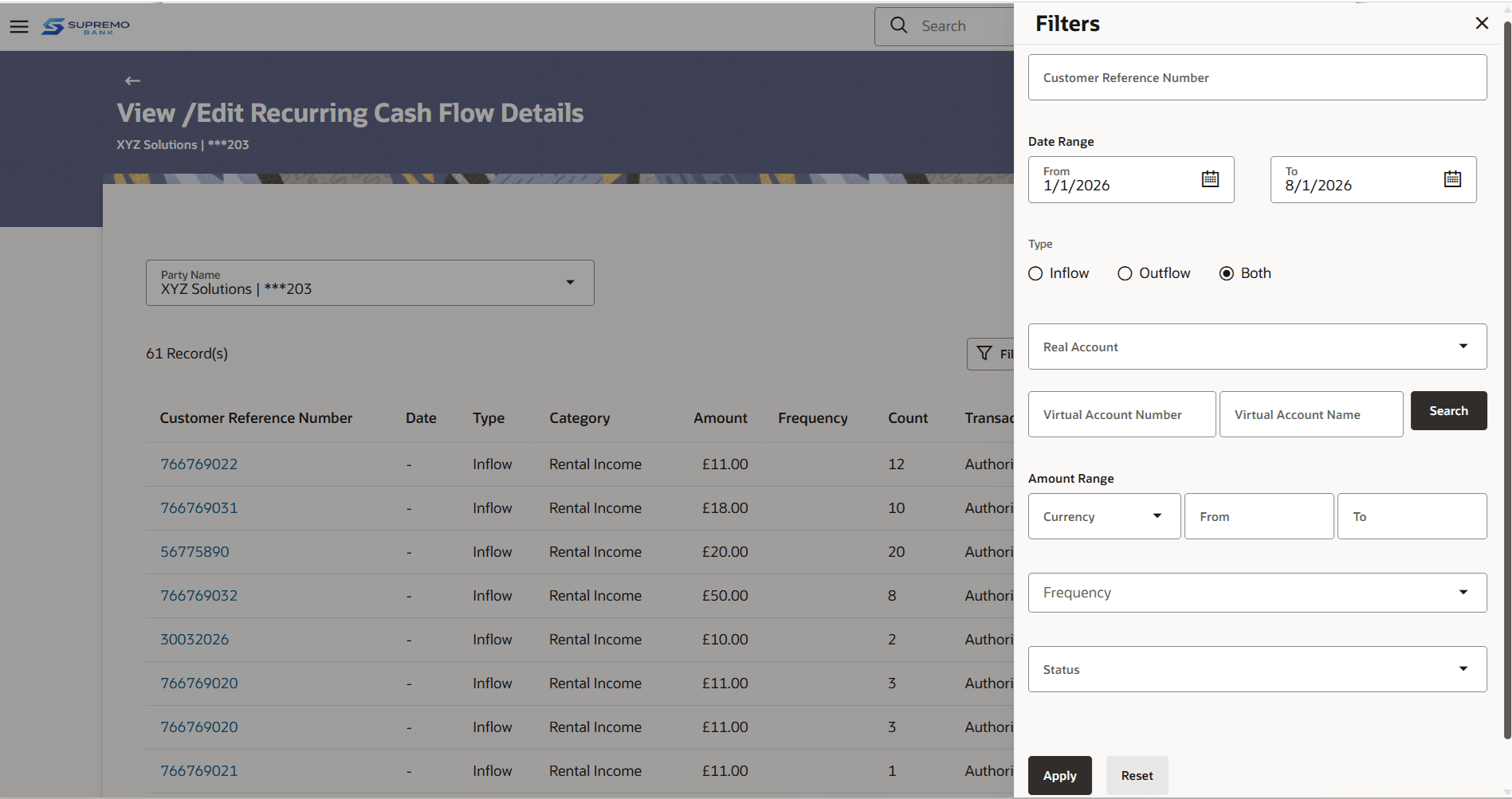
to filter the records using search parameters.This overlay window appears on clicking in the View/Edit Recurring Cash Flow screen.Figure 4-20 View/Edit Recurring Cash Flow - Filters
For more information on fields, refer to field description table below:
Table 4-14 View/Edit Recurring Cash Flow - Filters - Field and Description
Field Description Customer Reference Number Indicates the option to search for recurring cash flow transactions using customer’s own reference number. Date Range From/To Indicates the option to search for recurring cash flow transactions using a date range. Click the calendar icon to enter the dates in the From and To fields. Type Indicates the option to filter the expected cash flow transactions based on type. The options are: Inflow, Outflow, and Both. Real Account Indicates the option to filter the expected cash flow transactions based on the account to be debited/credited. This list can either display the real account numbers or the International Bank Account Number (IBAN), based on the configuration set by the bank. Virtual Account Number Indicates the option to filter the expected cash flow transactions based on the virtual account number selected. Virtual Account Name Indicates the option to filter the expected cash flow transactions based on the virtual account name selected. Amount Range Currency From/To Indicates the option to filter the expected cash flow transactions based on an amount range. Enter the required amounts in the From and To fields. Frequency Indicates the option to filter the expected cash flow transactions based on the frequency. The options are: - Daily
- Weekly
- Fortnightly
- Monthly
- Quarterly
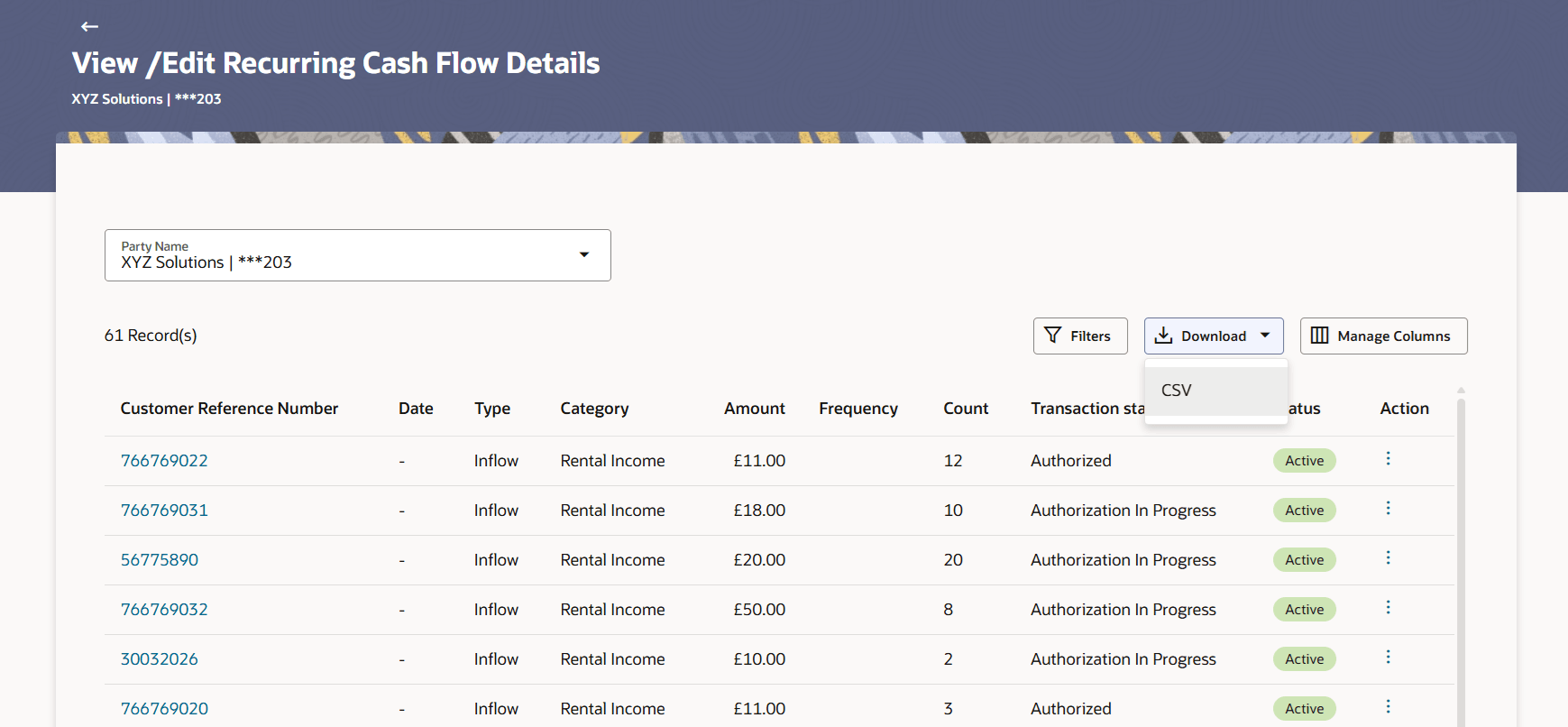
Status Indicates the option to filter the expected cash flow transactions based on the status. The Status can be: Active, Delete. - Click Download to download the search results in csv format with
selected columns.
- Click Manage Columns button in the View/ Edit
Expected Cash Flow Details screen.
Parent topic: Expected Cash Flow