13.1 Direct Debits – Summary
This topic describes the systematic instruction to Direct Debits – Summary screen.
To view / search for direct debits records:
- Select the account from the drop-down list to view its recurring
payments.The system displays a summary of all the recurring payments in the selected account.
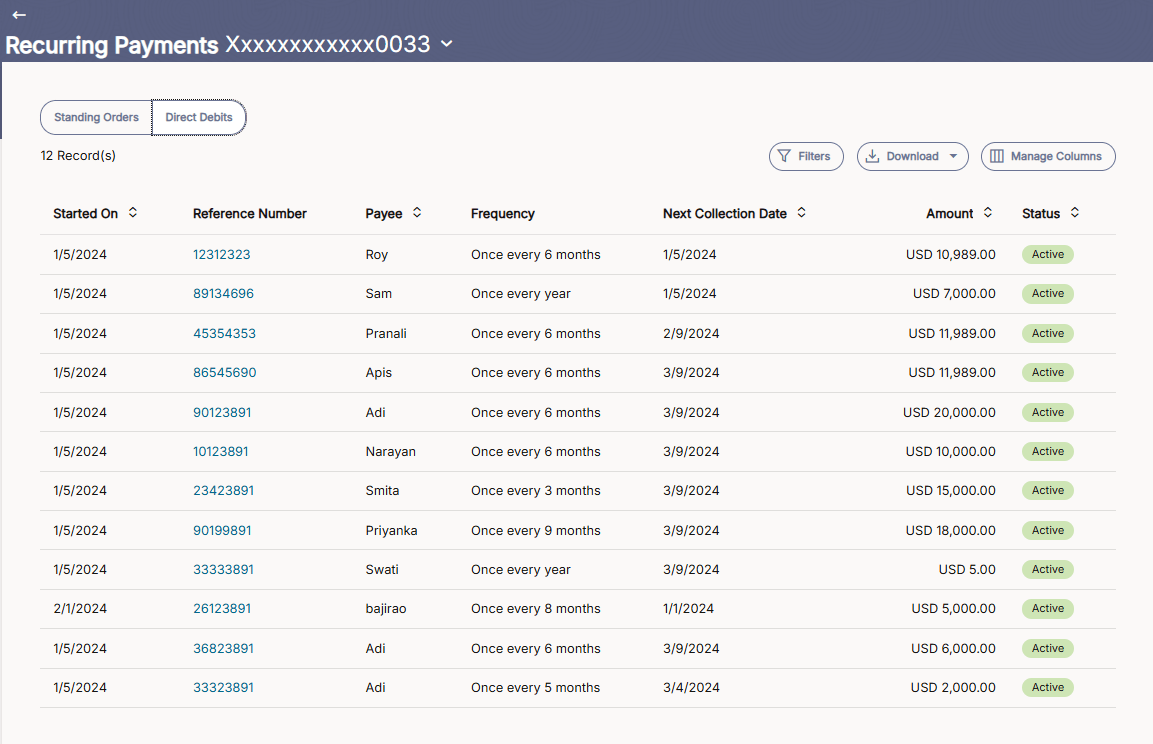
- Click on Direct Debits to displays details on
direct debits orders.The Direct Debits - Summary screen is displayed.
For more information on fields, refer to the field description table.
Table 13-1 Recurring Payments - Direct Debits - Summary - Field Description
Field Description Select Account To view the transfers based on the account from which money will be debited. Search Results
The following fields are displayed for each transaction. Started On Displays the date on which the recurring payment was initiated. Reference Number Display the reference number assigned to the transaction by the host system. Click on the link to view the details of the recurring payment.
Payee Displays the beneficiary to whom the recurring payment is made. Frequency Indicates how often the payment is scheduled (for example, monthly, yearly, or every few months). Next Collection Date Displays the next scheduled date on which the payment will be processed. Amount Displays the payment amount along with the applicable currency. Status The status of the payment transfer record. It could be:
- Active
- Closed
- Click on Direct Debits to displays details on
direct debits orders.
- Click
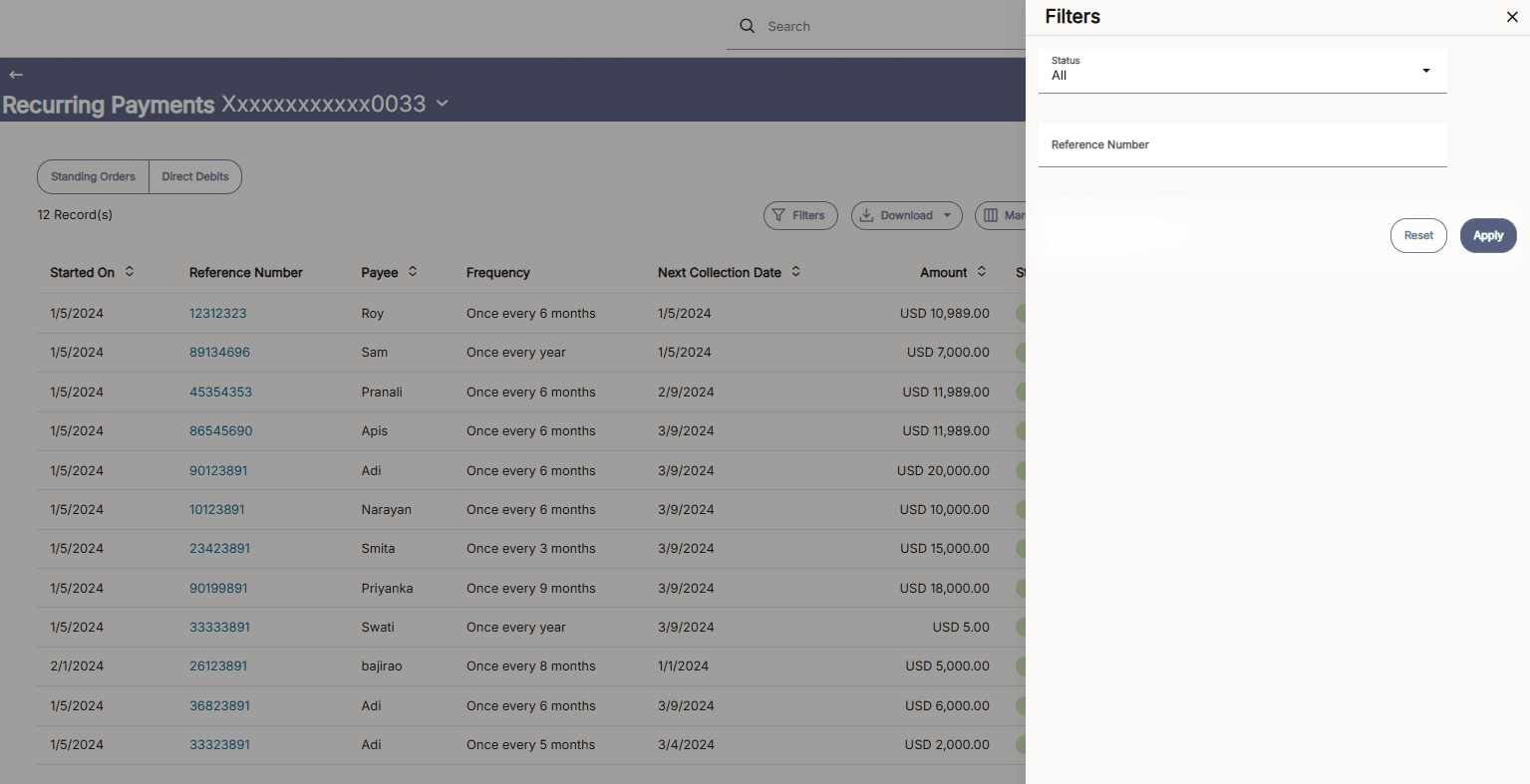
 to change filter criteria. The Filter overlay screen appears.
- Enter the filter criteria.
- Click Apply to search the records.
Transaction records appears based on the updated criteria. Click on the
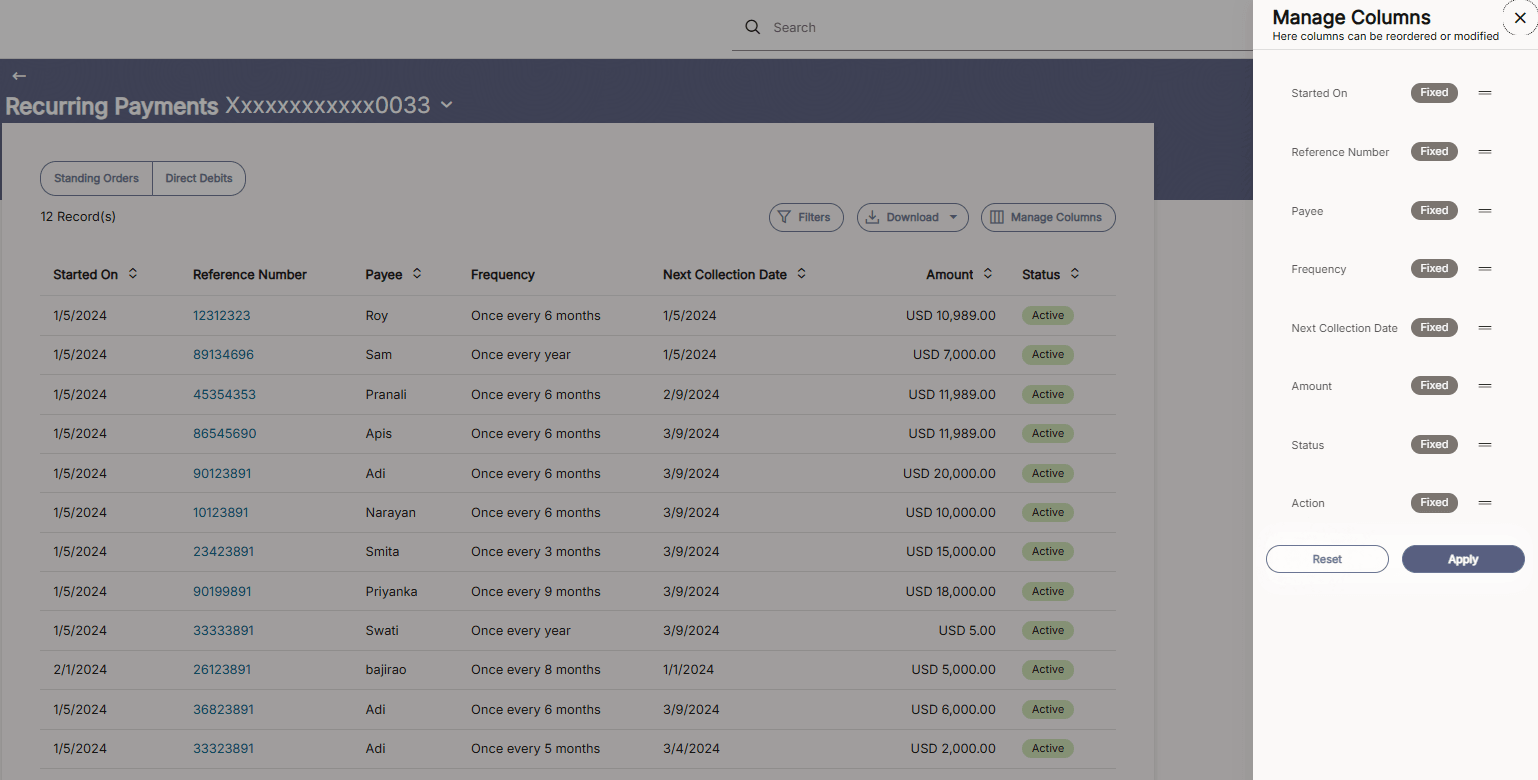
 icon to setup a column preference by rearranging or removing columns.
Figure 13-3 Direct Debits - Manage Column setup
For more information on fields, refer to the field description table.
Table 13-2 Direct Debits - Manage Column setup - Field Description
Field Name Description Filter Criteria Information specified in below fields are related to filter criteria. Started On Search the transfers based on the date on which the Direct Debit instruction was initiated. Reference Number Search by Reference Number. Searching by this field will render all other search criteria ineffective. Other search criteria will be ignored if one searches by this field.
Payee Search the transfers based on the payee name. Frequency Search the transfers based on the frequency defined for the Direct Debit instruction. Next Collection Date Search the transfers based on the next scheduled collection date of the Direct Debit instruction. Amount Search for transfers that have been initiated with an amount equal to or greater than the specified start amount. Status Payment can be searched based on the status.
Parent topic: Direct Debits