4.1 Accept/Reject
This topic provides systematic instructions to accept receivables/payables to convey the agreement to pay the receivable/payable amount.
Note:
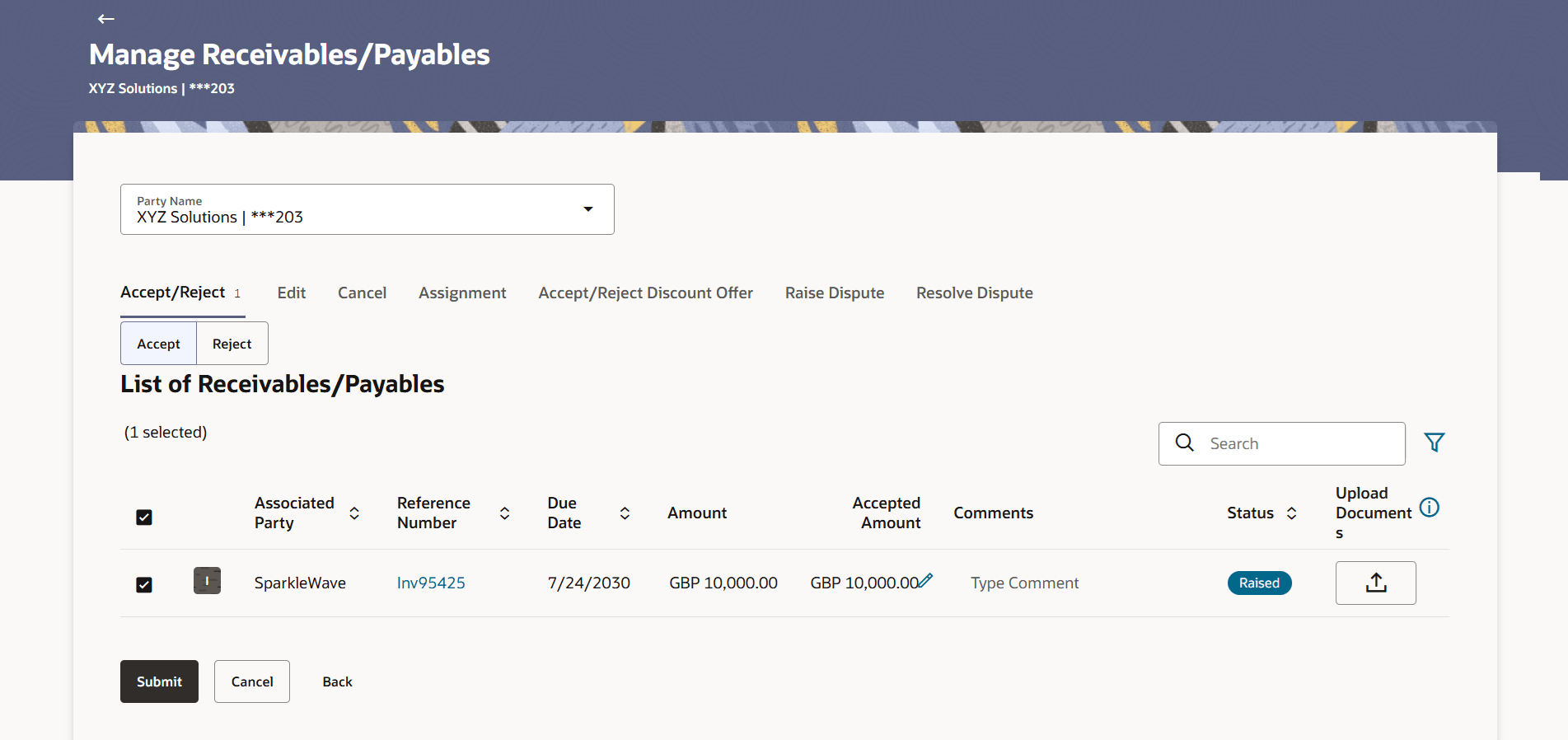
Only the corporate party with the role of Buyer, can accept receivables/payables. Also, only those receivables/payables with status as Raised, and payment status as Unpaid, can be accepted.- In the Manage Receivables/Payables screen, click the Accept tile. A list of receivables/payables that are in the Raised status, appears.
Figure 4-2 Manage Receivables/Payables – Accept action selected
Table 4-2 Manage Receivables/Payables – Accept
Field Name Description List of Receivables/Payables (number selected) This section displays a list of receivables/payables against which the ‘Accept’ action can be effected. Once you select one or more receivables/payables to accept, the number of receivables/payables selected appears in brackets. Search Specify the partial or full receivable/payable reference number / associated party name / status to search for specific receivable/payable. The results appear as and when you enter the data. 
Click this icon to filter the receivables/payables, based on certain criteria. For more information, refer the Search (overlay window for Manage Receivables/Payables) section below. Check Box To select all the receivables/payables in the list, select the main check box. To select specific receivables/payables, select the check boxes beside those receivables/payables. If you select more than one receivable/payable, the following message appears:  You may add comments for all selected
receivables/payables. Click Here.
You may add comments for all selected
receivables/payables. Click Here.
Note:
To add comments for all selected receivables/payables:- Click the Click Here link. A pop-up window appears.
- Add relevant comments.
- Click Apply to apply the same. Or, click Cancel to cancel adding the comments.
Indicator Displays ‘I’ for invoice. Associated Party User can search the receivables/payables by providing the associated party. The drop-down lists all the on-boarded associated parties and the list of on-boarded associated party is categorized by: - Anchor Buyer
- Anchor Supplier
- Counter Party Buyer
- Counter Party Supplier
Reference Number Displays the customer reference number of the receivable/payable. The reference number is a hyperlink, which when clicked, displays the receivable/payable details in an overlay window. Due Date Displays the date on which the receivable/payable must be fully paid. Amount Displays the total receivable/payable amount. Accepted Amount Indicates the receivable/payable amount that is acceptable to the buyer. By default, the total receivable/payable amount is displayed in this field. Once you select a receivable/payable, this field becomes editable. Note:
The receivable/payable can be fully or partially accepted. To partially accept a receivable/payable:- Select the check box beside the receivable/payable to be partially accepted.
- Click
 and enter the amount that you wish to
accept.
and enter the amount that you wish to
accept.
- Click
 to save the entered amount.
Comments Specify the remarks if any, while accepting the receivable/payable. Once you select a receivable/payable, this field becomes editable. Note:
Remarks are mandatory in case of partially accepting the receivable/payable.Status Displays the status of the receivable/payable. Upload Documents Click  to upload relevant documents. Once you select a
receivable/payable, this icon becomes clickable.
to upload relevant documents. Once you select a
receivable/payable, this icon becomes clickable.
The following document formats are supported: JPEG, JPG, PNG, and PDF. A maximum of 5 documents can be uploaded.
Once you upload documents, the number of documents uploaded appears as a hyperlink in brackets, beside this icon. On clicking this hyperlink, a pop-up window appears with the names of the documents uploaded. To delete an uploaded document, click
 beside the document in the pop-up
window.
beside the document in the pop-up
window.
Note:
These documents can also be viewed and downloaded by the approver/checker. - Once you select the required receivables/payables, update the Accepted
Amount field if required, and add relevant comments.
- You can also click and upload relevant documents, if required.
- You can also click
To Reject receivables/payables:
- In the Manage Receivables/Payables screen, click the Reject tile. A list of receivables/payables that are in the Raised status, appears.
Figure 4-3 Manage Receivables/Payables – Reject action selected
Table 4-3 Manage Receivables/Payables – Reject
Field Name Description List of Receivables/Payables (number selected) This section displays a list of receivables/payables against which the ‘Reject’ action can be effected. Once you select one or more receivables/payables to accept, the number of receivables/payables selected appears in brackets. Search Specify the partial or full receivable/payable reference number / associated party name / status to search for specific receivable/payable. The results appear as and when you enter the data. Click this icon to filter the receivables/payables, based on certain criteria. For more information, refer the Search (overlay window for Manage Receivables/Payables) section below. Check Box To select all the receivables/payables in the list, select the main check box. To select specific receivables/payables, select the check boxes beside those receivables/payables. If you select more than one receivable/payable, the following message appears: You may add comments for all selected
receivables/payables. Click Here.
Note:
To add comments for all selected receivables/payables:- Click the Click Here link. A pop-up window appears.
- Add relevant comments.
- Click Apply to apply the same. Or, click Cancel to cancel adding the comments.
Indicator Displays ‘I’ for invoice. Associated Party Displays the name of the associated party linked with the receivable/payable. Reference Number Displays the customer reference number of the receivable/payable. The reference number is a hyperlink, which when clicked, displays the receivable/payable details in an overlay window. Due Date Displays the date on which the receivable/payable must be fully paid. Amount Displays the total receivable/payable amount. Accepted Amount Indicates the receivable/payable amount that is acceptable to the buyer. By default, the total receivable/payable amount is displayed in this field. Once you select a receivable/payable, this field becomes editable. Note:
The receivable/payable can be fully or partially accepted. To partially accept a receivable/payable:- Select the check box beside the receivable/payable to be partially accepted.
- Click and enter the amount that you wish to
accept.
- Click to save the entered amount.
Comments Specify the remarks if any, while accepting the receivable/payable. Once you select a receivable/payable, this field becomes editable. Note:
Remarks are mandatory in case of partially accepting the receivable/payable.Status Displays the status of the receivable/payable. Upload Documents Click to upload relevant documents. Once you select a
receivable/payable, this icon becomes clickable.
The following document formats are supported: JPEG, JPG, PNG, and PDF. A maximum of 5 documents can be uploaded.
Once you upload documents, the number of documents uploaded appears as a hyperlink in brackets, beside this icon. On clicking this hyperlink, a pop-up window appears with the names of the documents uploaded. To delete an uploaded document, click
beside the document in the pop-up
window.
Note:
These documents can also be viewed and downloaded by the approver/checker. - You can also click and upload relevant documents, if required.
Parent topic: Manage Receivables/Payables