6.2.3.1 Bulk Purchase Order Creation
This topic provides systematic instructions to corporates can create purchase orders in bulk by uploading a file. The file must contain the purchase order details in a specific format and sequence.
- From the Dashboard, click the Toggle Menu, then click
Receivables/Payables, then Purchase Order Management, and then
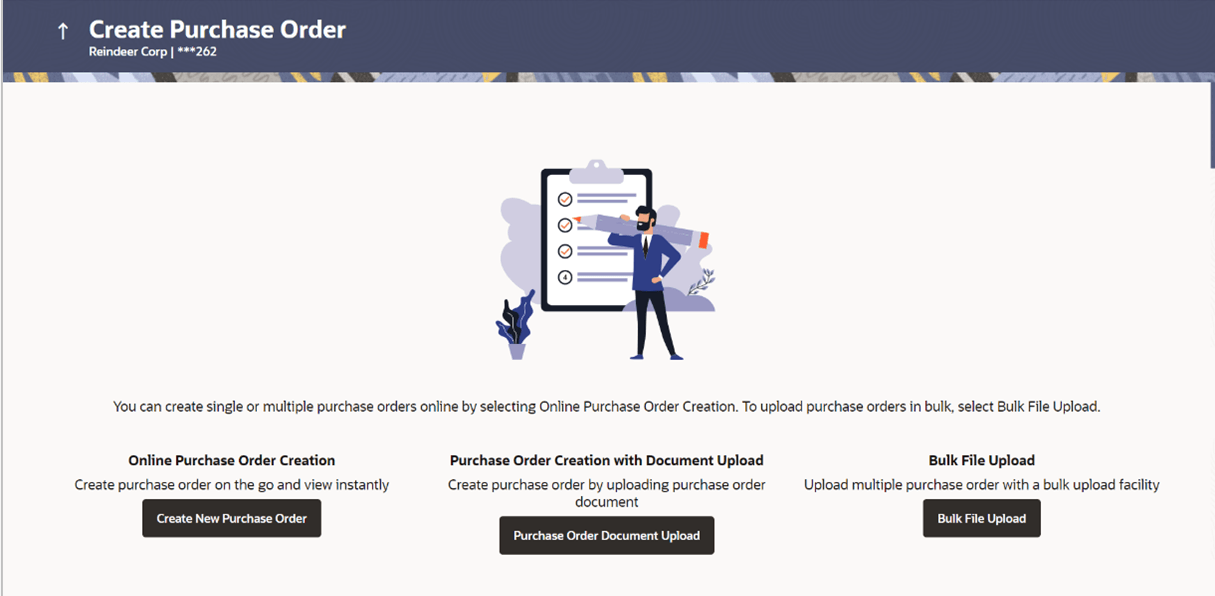
Create Purchase Orders.The Create Purchase Order screen displays.
Table 6-9 Create Purchase Order - Field Description
Field Name Description Party Name Displays the name and ID of the logged-in corporate party. Online Purchase Order Creation Indicates the option to create purchase order records by manual entry of purchase order details. Purchase Order Creation with Document Upload Indicates the option to create a purchase order record by uploading the actual purchase order document. Bulk File Upload Indicates the option to create purchase order records in bulk, through file upload.
For each purchase order, there must be a top row with indicator ‘P’ which specifies purchase order level parameters. For each commodity under the purchase order, there must be a row with indicator ‘C’ which specifies the commodity-level parameters. Refer this file for the sequence: Bulk Purchase Order Upload Template.
Table 6-10 Bulk PO Upload Template - Field Description
| Field Name | Description |
|---|---|
| Bulk PO Upload Template | The following fields are specific to the purchase order as a whole. This row must be present for each purchase order being added. |
| Indicator | Specify the indicator. Enter P for a row at the purchase order level. |
| Customer Purchase Order Number | Specify the customer’s own purchase order number. |
| Purchase Order Date | Specify the date of creation of the purchase order. |
| Requested Shipment Date | Specify the date of shipment. This should be greater than PO date. |
| Currency | Specify the currency of the purchase order amount. |
| Gross Purchase Order Amount | Specify the total purchase order amount. |
| Buyer Id | Specify the ID associated with the buyer. |
| Supplier Id | Specify the ID associated with the supplier. |
| Buyer Name | Specify the name of the buyer. |
| Supplier Name | Specify the name of the supplier. |
| Discount Amount | Specify the total discount amount applicable for all commodities being purchased. |
| Tax Amount | Specify the total tax amount applicable, on all commodities being purchased. |
| Miscellaneous Charge 1 Description | Specify the description of any miscellaneous charge, if any. |
| Miscellaneous Charge 1 Amount | Specify the miscellaneous charge amount, if any. |
| Miscellaneous Charge 2 Description | Specify the description of any miscellaneous charge, if any. |
| Miscellaneous Charge 2 Amount | Specify the miscellaneous charge amount, if any. |
| Net Purchase Order Amount | Specify the net purchase order amount.
Net PO Amount = Gross Purchase Order Amount – Discount Amount + Tax Amount |
| Acceptance Amount | Specify the purchase order amount that has been accepted. |
| Buyer Division Code | Specify the division code associated with the buyer. |
| Supplier Division Code | Specify the division code associated with the supplier. |
| Shipment Address 1 | Specify address line 1 of the shipment address. |
| Shipment Address 2 | Specify address line 2 of the shipment address. |
| Shipment Address 3 | Specify address line 3 of the shipment address. |
| City | Specify the city of the shipment address. |
| Country | Specify the country of the shipment address. |
| Zip | Specify the pin code of the shipment address. |
| Program Code | Specify the program code associated with the purchase order. This field is applicable only if the Oracle Banking Supply Chain Finance application is implemented by the bank. |
| Promised Shipment Date | Click the calendar icon and select the date agreed by the supplier to send the shipment. |
| Country of Origin | Specify the country from where the shipment will originate. |
| Phone Number | Specify the contact number of the person who will receive the shipment. |
| Tax Id | Specify the unique tax ID if the shipment charge includes tax amount. |
| Reason for Export | Specify the reason for exporting the shipment. |
| Terms of Sale | Select the relevant terms of sale:
|
| Payment Terms | Specify terms of payments, if any. |
| Funding Request Date | Click the calendar icon and select the date on which funding for the purchase order is requested. |
| Filler 1 to 6 | This section displays the Filler Label Fields.
The bank can configure these fields on Day 0, based on their
requirement.
The following fields are specific to a commodity. You must add a row for each commodity being purchased, under the respective purchase order. |
| Disbursement Credit Account | Enter account number to receive the finance disbursement proceeds to PO finance. payment. It can be a CASA or a GL account or of the account is in some another country even through the number should be mentioned in the same field. Disbursement credit account will be hereafter referred as DCA. |
| Account Name for DCA | Enter the account name of the Disbursement Credit Name |
| Payment Mode for DCA | Enter the payment mode whether it is an internal account transfer or EFT or Cross Border Transfer. |
| Bene_Addr1_for_DCA | Acceptable values are AC/EFT/CBT. For internal account transfer, domestic account, or cross border account respectively. Enter the beneficiary's address line1 for Disbursement Credit Account. Applicable only for CBT. |
| Bene_Addr2_for_DCA | Enter the beneficiary's address line2 for Disbursement Credit Account. |
| Bene_Addr3_for_DCA | Enter the beneficiary's address line3 for Disbursement Credit Account. |
| Bene_Addr2_for_DCA | Enter the beneficiary's address line4 for Disbursement Credit Account. |
| Bene_cntry_for_DCA | Enter the beneficiary's country for Disbursement Credit Account. |
| Bene_Phone_for_DCA | Enter the beneficiary's Phone number for Disbursement Account. |
| Bene_Email_for_DCA | Enter the beneficiary's email id for Disbursement Credit Account. |
| Bank_Name_For_DCA | Enter the Name of the Bank. |
| Branch_Name _For_DCA | Enter the Branch code of the DCA. |
| Bank _Dentifier_Code _For_DCA | Enter the IFSC code here if Payment Credit Mode if EFT and can enter the swift BIC if the Payment credit mode is CBT. |
| Intermediary_Bank_C ode_For_DCA | Enter the Intermediary bank swift code here if Payment Credit Mode is CBT. |
| Intermediary_Bank_N ame_For_DCA | Enter the Intermediary Bank Name. |
| Intermediary_Bank_A ddr1_For_DCA | Enter the Intermediary Bank Address. |
| Intermediary_Bank_A ddr1_For_DCA | Enter the Intermediary Bank Address. |
| Intermediary_Bank_A ddr1_For_DCA | Enter the Intermediary Bank Address. |
| Intermediary_Bank_A ddr1_For_DCA | Enter the Intermediary Bank Address. |
Parent topic: Create Purchase Order with Document Upload