6.2.3 Create Purchase Order with Document Upload
This topic provides systematic instructions to a corporate user to create purchase orders online by uploading scanned copies of the physical purchase order document.
Using this option, corporate users can create purchase orders online by uploading scanned copies of the physical purchase order document.
The Banks have the option to choose the extraction tool for extracting the details of the uploaded instrument. Before uploading the purchase order document, make sure the maintenance Invoice/PO Data Extraction Tool is defined in the System Configuration screen, which can either be selected as NLP or Cohere. For more information, refer to Oracle Banking Digital Experience System Configuration manual.
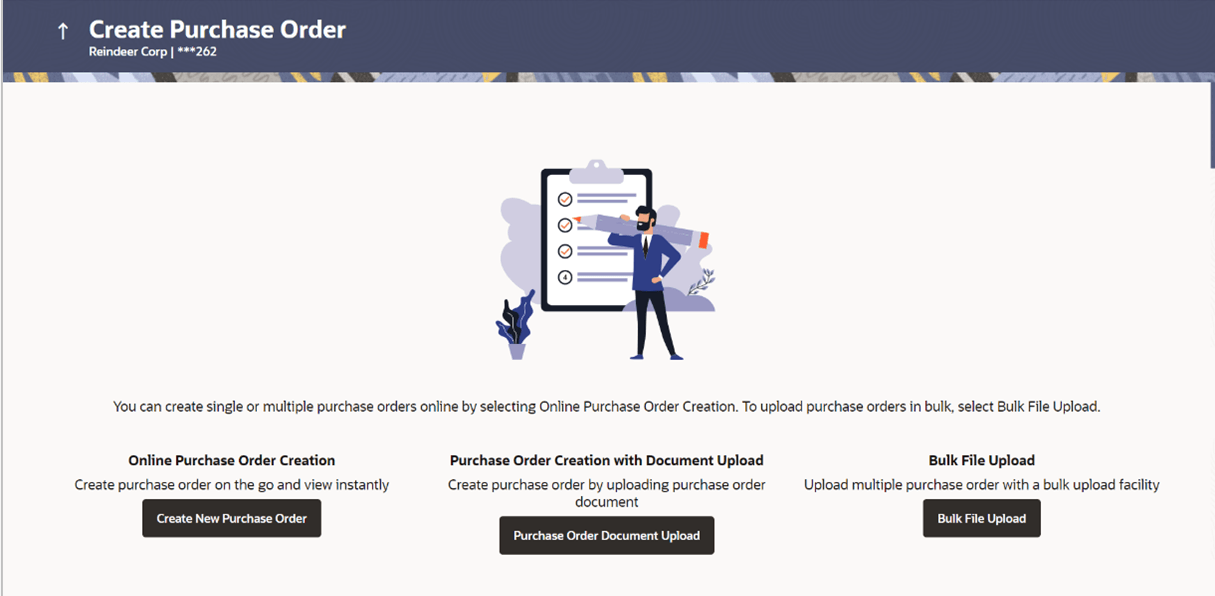
- From the Dashboard, click the Toggle Menu, then click
Receivables/Payables, then Purchase Order Management, and then
Create Purchase Orders.The Create Purchase Order screen displays.
Table 6-6 Field Description
Field Description Party Name Displays the name of the logged-in corporate party. Online Purchase Order Creation Indicates the option to create purchase order records by manual entry of purchase order details. Purchase Order Creation with Document Upload Indicates the option to create a purchase order record by uploading the actual purchase order document. Bulk File Upload Indicates the option to create purchase order records in bulk, through file upload. - In the Create Purchase Order screen, click the Purchase Order
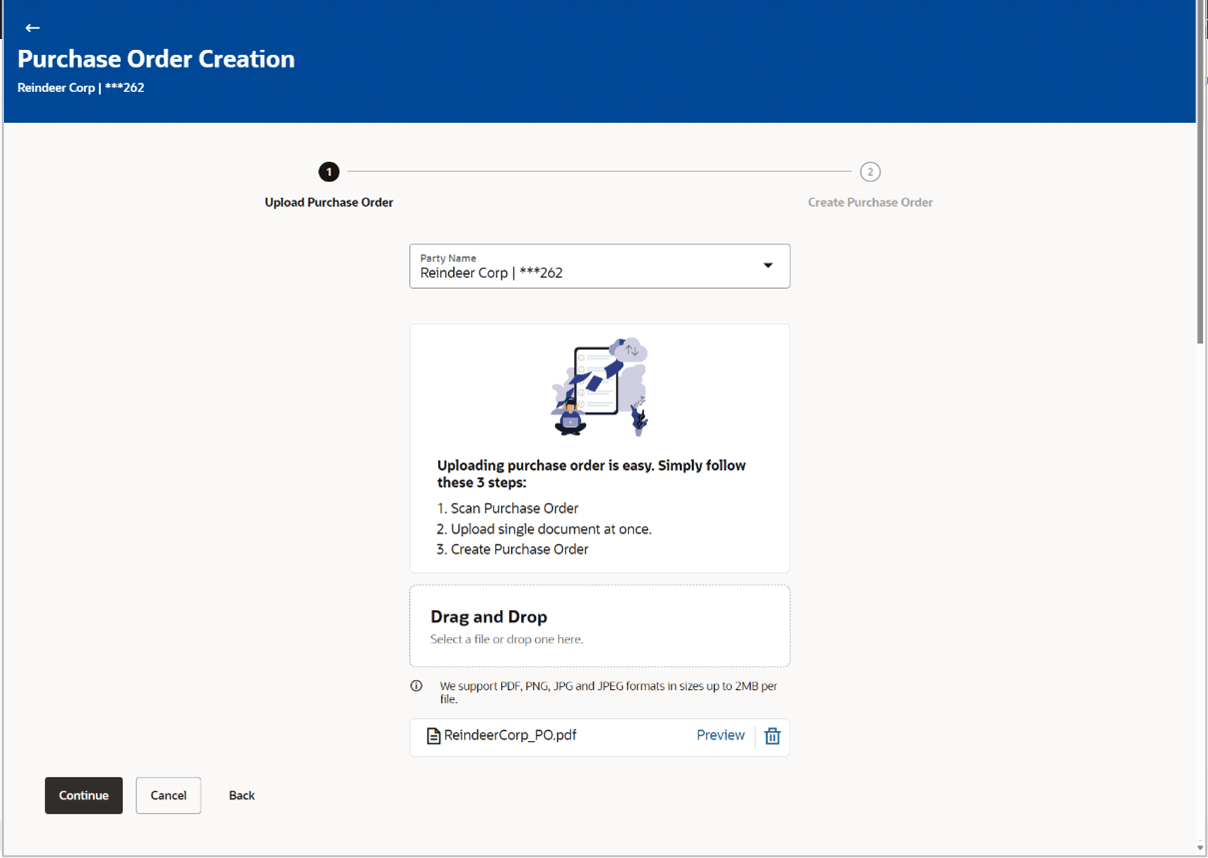
Document Upload button.The Automatic Purchase Order Creation screen appears starting with the Upload Purchase Order step.
Figure 6-11 Automatic Purchase Order Creation
- In the Upload Purchase Order step, either click
 to browse and select the required file, or, drag and drop the file in
the space provided.
to browse and select the required file, or, drag and drop the file in
the space provided.Note:
To preview an uploaded file, click the link beside it. To remove an uploaded file, click
  .
.
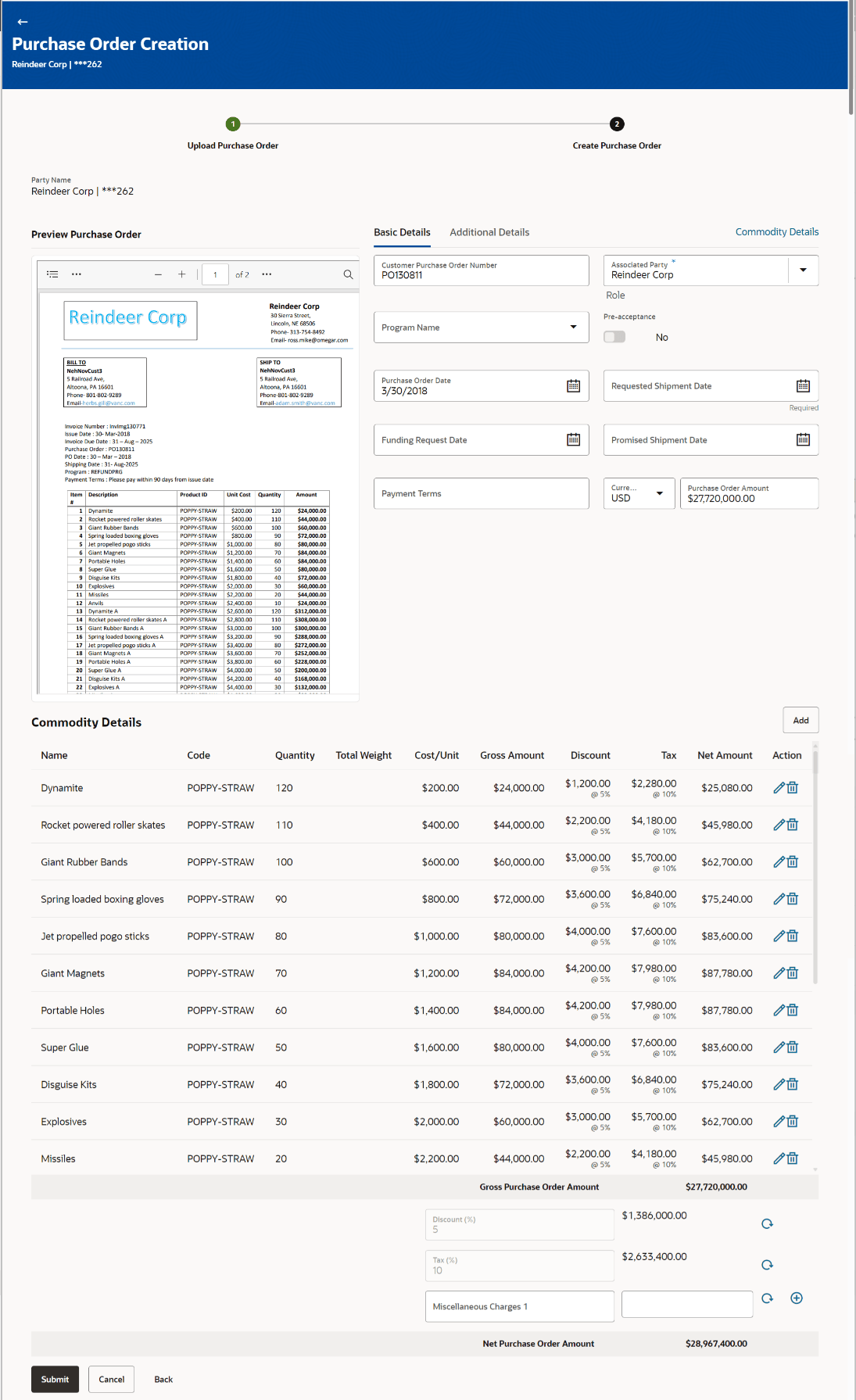
- The data from the purchase order is automatically read and populated in the
relevant fields. Check the details and add or modify any field, if
required.
Figure 6-12 Automatic Purchase Order Creation
Table 6-7 Automatic Purchase Order Creation - Field Description
Field Name Description Party Name Displays the name and ID of the logged-in corporate party. Create Purchase Order step The values that have been extracted from the invoice image (except for commodity details) are automatically populated in the respective fields. You can edit these values, if required. Basic Details This section displays the Basic tab details. Customer Purchase Order Number Indicates the customer’s own reference number of the purchase order. Associated Party Indicates the associated party with whom the purchase order is to be linked. A list of all on-boarded associated parties is available for selection. On selecting an associated party, the role of the party as Buyer or Supplier, appears below this field.
Program Name Indicates the program to which the purchase order needs to be linked. Programs linked to the selected associated party are listed. This field is visible only if the Oracle Banking Supply Chain Finance application is implemented by the bank. Auto Accept Displays whether the purchase order will be auto accepted or not. It is populated based on the auto acceptance setting in the program definition and is non-editable. For more information, refer the Create Program section in User Manual Oracle Banking Digital Experience Corporate Supply Chain Finance. Auto Finance Displays whether the purchase order will be auto financed or not. It is populated based on the auto finance setting in the program definition and is non-editable. For more information, refer the Create Program section in User Manual Oracle Banking Digital Experience Corporate Supply Chain Finance. Pre-acceptance This toggle is set to ‘Yes’ and is disabled if the logged-in party is the supplier. It is set to ‘No’ and is disabled if the logged-in party is the buyer. Purchase Order Date Indicates the date of creation of the purchase order. Requested Shipment Date Indicates the date when the shipment is expected to take place. The Shipment Date should be greater than the Purchase Order Date.
Funding Request Date Click the calendar icon and select the date on which funding for the purchase order is requested. Promised Shipment Date Click the calendar icon and select the date agreed by the supplier to send the shipment. Payment Terms Indicates the terms agreed for the payment of the purchase order. Purchase Order Amount Indicates the total purchase order amount of all commodities being purchased, along with the currency. Additional Details Click the Additional Details tab to add additional details such as shipment address, reason of export, payment terms, country of origin, and terms of sale. Shipment Address Line 1 to 3 Specify the complete address to send the shipment to. City Specify the city to send the shipment to. Country Specify the country to send the shipment to. Zip Code Specify the pin code to send the shipment to. Phone Number Specify the contact number of the person who will receive the shipment. Tax Id Specify the unique tax ID if the shipment charge includes tax amount. Reason for Export Specify the reason for exporting the shipment. Payment Terms Specify terms of payments, if any. Country of Origin Specify the country from where the shipment will originate. Terms of Sale Select the relevant terms of sale: - CFR – Cost and Freight
- CIF – Cost, Insurance and Freight
- CIP – Carriage and Insurance Paid To (Insert place of destination)
- CPT – Carriage Paid To (Insert place of destination)
- DAF – Delivered At Frontier
- DDP – Delivered Duty Paid (Insert place of destination)
- DDU – Delivered Duty Unpaid
- DEQ – Delivered Ex Quay
- EXW – Ex Works (Insert place of delivery)
- FAS – Free Alongside Ship (insert name of port of loading)
- FCA - Free Carrier (Insert named place of delivery)
- FOB – Free On Board
Filler Details This section displays the Filler Details. Filler 1 to 6 This section displays the Filler Label Fields. The bank can configure these fields on Day 0, based on their requirement. - The commodity details are extracted automatically and added in the Commodity
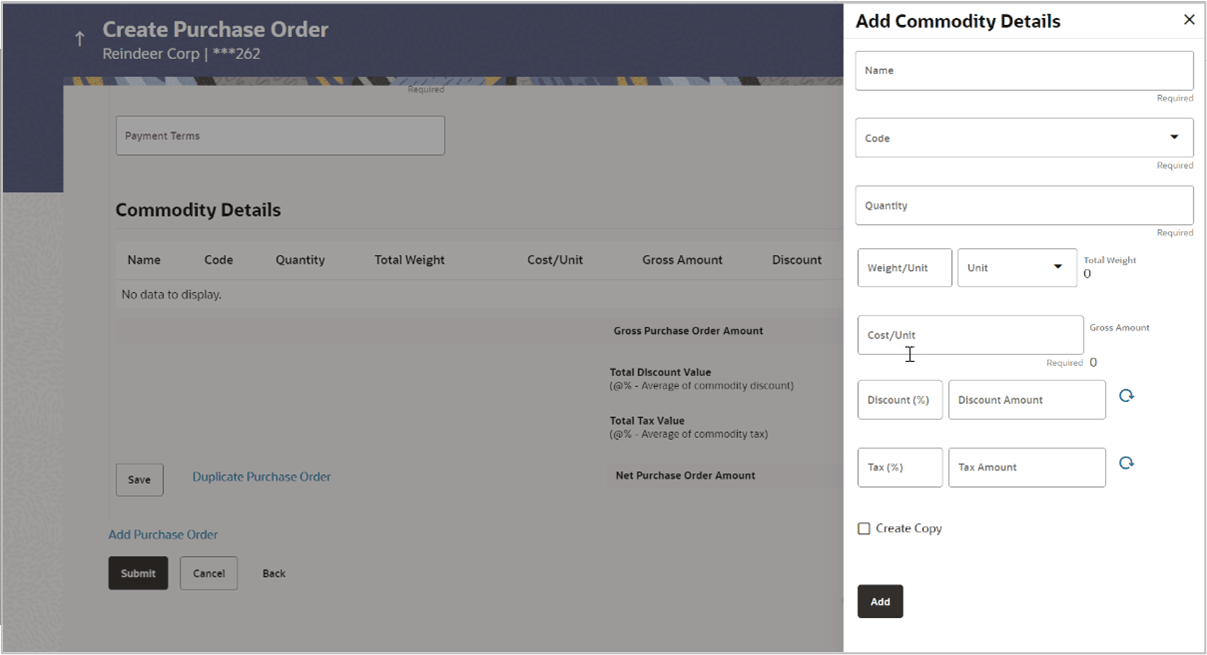
section. To add more commodities, click Add in the Commodity
Details section.The Add Commodity Details overlay window appears.
Table 6-8 Add Commodity Details - Field Description
Field Name Description Name Specify the name of the commodity being purchased. Code Select the code of the commodity. This value should be selected from the commodity code dropdown list. Note: This dropdown field displays the list of commodity code(s) maintained for the selected supplier party.
Quantity Specify the commodity quantity required. Weight/Unit Specify the weight per unit of the commodity. Also select the unit of measurement to be used for weight. Total Weight Displays the total weight of the commodity. This value is automatically calculated and displayed. It is the product of the values in the Quantity and Weight/Unit fields. Cost/Unit Enter the cost per unit of the commodity. Gross Amount Displays the total cost of the commodity. This value is automatically calculated and displayed. It is the product of the values in the Quantity and Cost/Unit fields. Discount Specify any discount being offered on the purchase. You can either enter the percentage of discount (in the first field) or the actual discount amount (in the second field). When you enter any one of these values, the other value is automatically calculated and displayed. Click
 to reset the values.
Tax Specify any tax being charged on the purchase. You can either enter the percentage of tax (in the first field) or the actual tax amount (in the second field). When you enter any one of these values, the other value is automatically calculated and displayed. Click
to reset the values.
Net Amount Displays the net amount (after application of discount and tax) of the commodity being purchased. Note: The Net Amount gets auto calculated as follows: Net Amount = Gross Amount - Discount amount + Tax amount
Create Copy Select this check box, to make a copy of the commodity details entered. - Once the commodity details are recorded in the overlay window, click
Add. A record is created in the Commodity Details section.
Field Name Description Commodity Details This section displays the commodity details, once you add them. Multiple commodities can be added. Name Displays the name of the commodity. Code Displays the code of the commodity. Quantity Displays the required quantity of the commodity. Total Weight Displays the total weight of the commodity, along with the weight per unit. Cost/Unit Displays the cost per unit of the commodity. Gross Amount Displays the gross amount of the commodity. Discount Displays the discount amount applicable, along with the discount percentage. Tax Displays the tax amount applicable, along with the tax percentage. Net Amount Displays the net amount of the commodity, after application of discount and tax. Action Indicates the actions that can be performed on the commodity record.  : Click this icon to edit the commodity
details.
: Click this icon to edit the commodity
details.
- : Click this icon to remove the commodity
details entered.
Gross Purchase Order Amount Displays the total gross amount of the purchase order. This is the sum of the gross amounts of all added commodities. This value should be equal to the value in the Purchase Order Amount field. If not, you must adjust the value in the Purchase Order Amount field accordingly.
Discount (%) / Discount Amount Displays the total discount amount of all the commodities added. The average discount percentage of all added commodities is also displayed. Click to reset the values.
Discount % = (Total discount amount / Total gross purchase order amount) *100
Note: When commodity records are added, the discount value of each commodity is aggregated and populated here. This value cannot be modified.However, if commodity records are not added, then this field is editable, and the discount value or percentage can be entered here.
Tax (%) / Tax Amount Displays the total tax amount of all the commodities added. The average tax percentage of all added commodities is also displayed.Click to reset the values.
Tax % = (Total tax amount / Total purchase order amount) *100
Note: When commodity records are added, the tax value of each commodity is aggregated and populated here. This value cannot be modified.However, if commodity records are not added, then this field is editable, and the tax value or percentage can be entered here.
Miscellaneous Charges and Amount Add the name and amount of any other miscellaneous charge applicable. - Use
 to add another charge. A maximum of two
miscellaneous charges can be added.
to add another charge. A maximum of two
miscellaneous charges can be added.
- Click to reset the values.
Net Purchase Order Amount Displays the total net amount, after deducting the discount value and then applying the tax value. Net Purchase Order Amount = Gross Purchase Order Amount – Total Discount amount + Total Tax amount
- Click Submit to submit the purchase order. The
Review screen appears. Or, do one of the following:
- Click Cancel to cancel the transaction.
- Click Back to go to the previous screen.
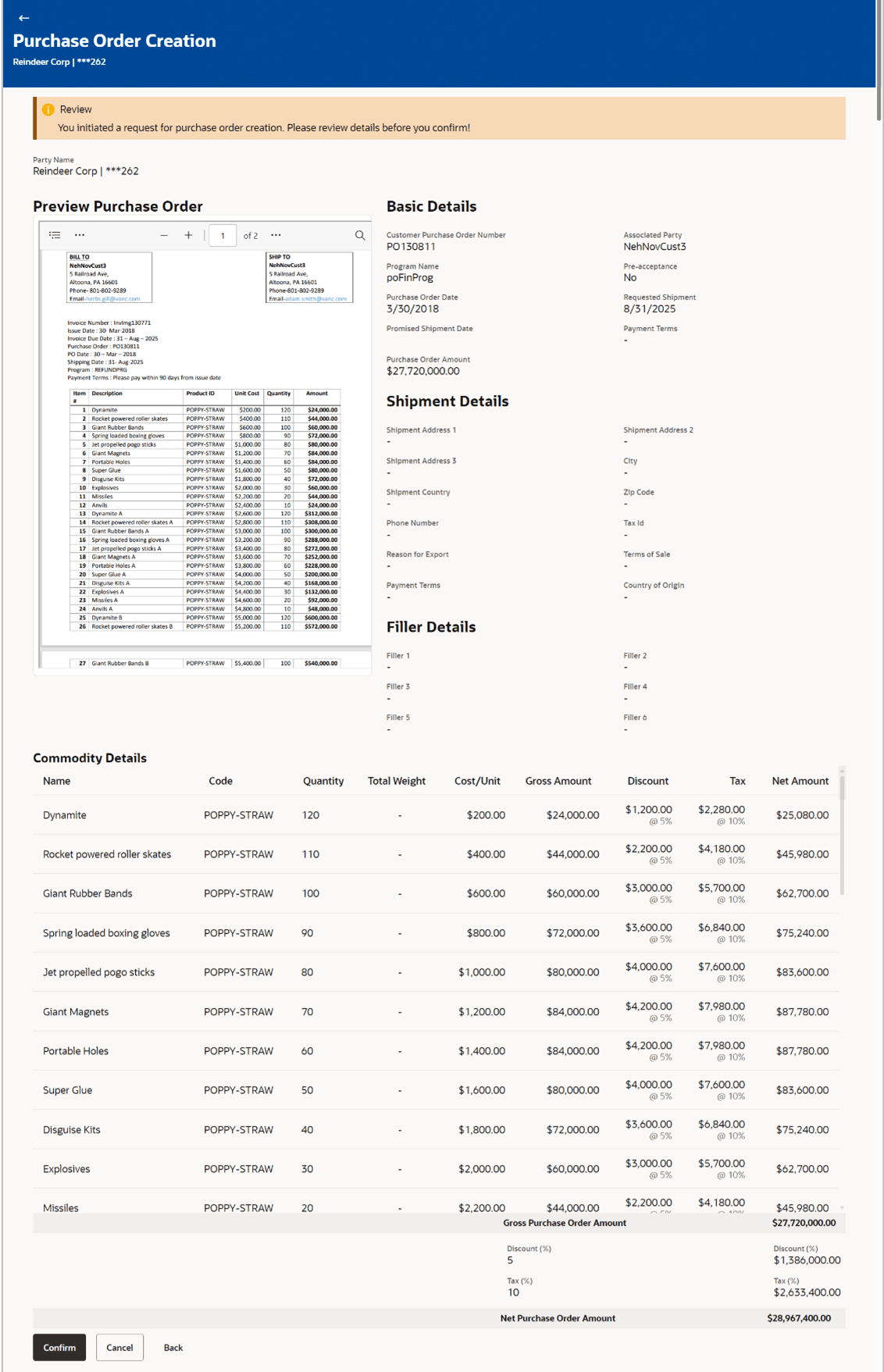
Figure 6-14 Create Purchase Order – Review Screen
- In the Review screen, verify the details and click
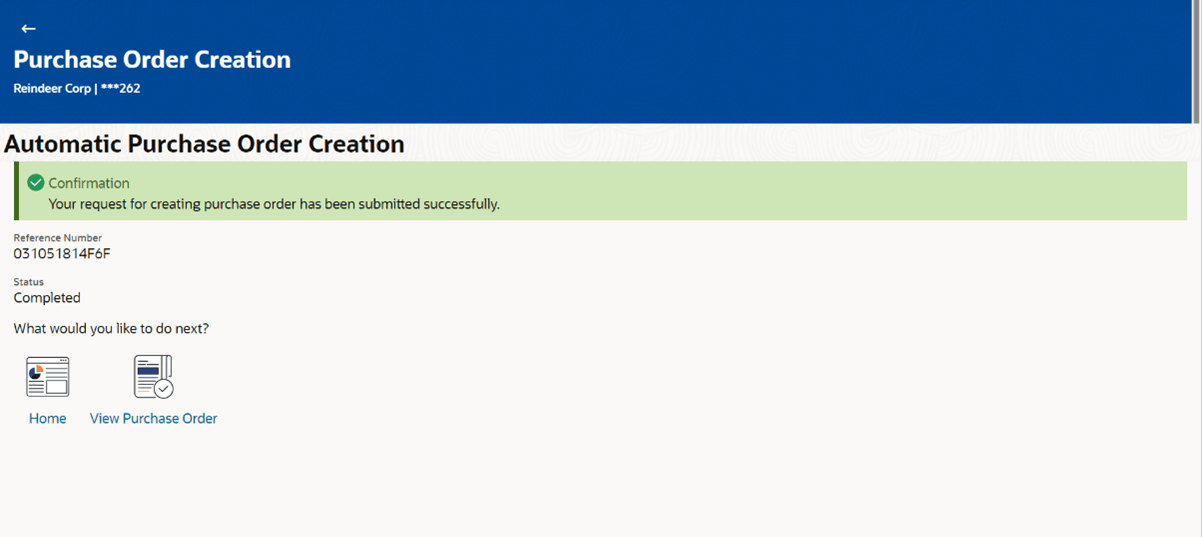
Confirm. A confirmation message appears, with the
reference number and status of the transaction. Or, do one of the
following:
- Click Cancel to cancel the transaction.
- Click Back to go to the previous screen.
Figure 6-15 Create Purchase Order – Confirmation Screen
- Bulk Purchase Order Creation
This topic provides systematic instructions to corporates can create purchase orders in bulk by uploading a file. The file must contain the purchase order details in a specific format and sequence.
Parent topic: Create Purchase Order Online