6.2 Create Purchase Order Online
This topic provides systematic instructions to create purchase orders manually by entering the data, or by uploading a file with the bulk purchase-order entries.
The data entered manually can be saved as a template for future use. Once the user creates purchase order(s), they must be approved by an approver (if the approval flow has been set). The designated corporate approver is notified. The approver can either approve or reject the transaction. In case of rejection, the approver can send the transaction back to the corporate user (maker) to make the required modifications and re-submit for approval.
To create purchase orders manually:
- From the Dashboard, click the Toggle Menu, then click
Receivables/Payables, then Purchase Order Management, and then
Create Purchase
Orders.
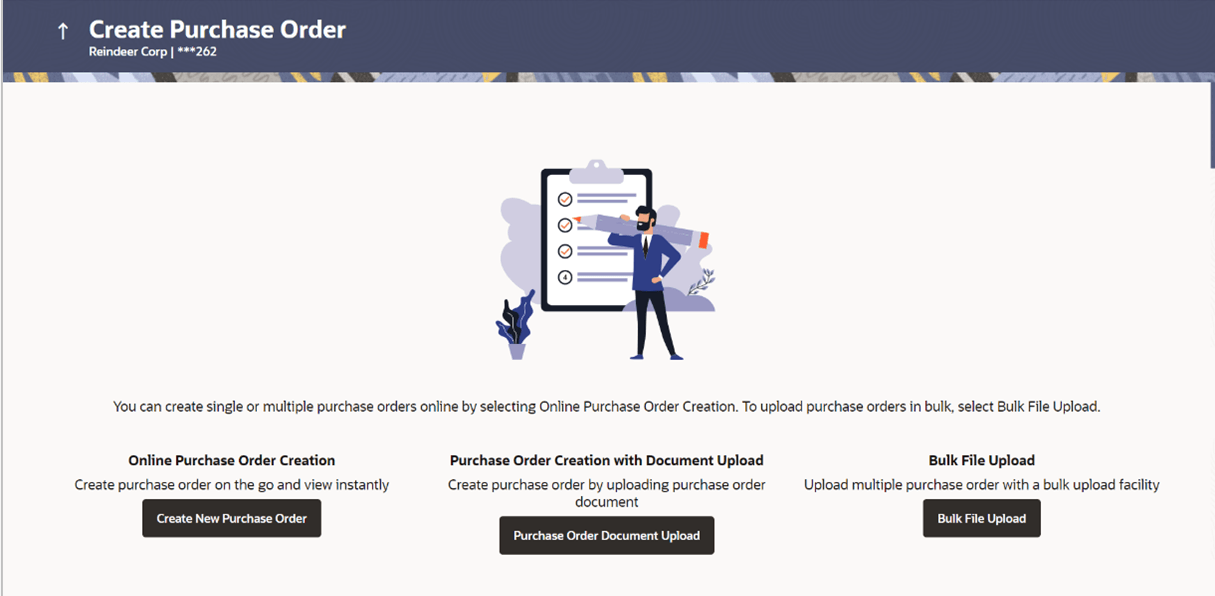
The Create Purchase Order screen displays.
Table 6-1 Create Purchase Order - Field Description
Field Name Description Party Name Displays the name and ID of the logged-in corporate party. Online Purchase Order Creation Indicates the option to create purchase order records by manual entry of purchase order details. Purchase Order Creation with Document Upload Indicates the option to create a purchase order record by uploading the actual purchase order document. Bulk File Upload Indicates the option to create purchase order records in bulk, through file upload.
- Online Purchase Order Creation (manual entry)
This topic provides systematic instructions to a corporate user to create one or more purchase orders in one single transaction, based on their role. - Create Purchase Order using Template
This topic provides systematic instructions to a corporate user to create one or more purchase orders using a template. - Create Purchase Order with Document Upload
This topic provides systematic instructions to a corporate user to create purchase orders online by uploading scanned copies of the physical purchase order document.
Parent topic: Purchase Order Management