6.2.2 Create Purchase Order using Template
This topic provides systematic instructions to a corporate user to create one or more purchase orders using a template.
You can save the data entered during purchase order creation, as a template. This option is available upon successful creation of a purchase order. You can use this template in the future to create purchase orders for the same party. This saves the efforts of re-entering the data.
User must have valid corporate login credentials.
To view and use templates for creation of purchase orders:
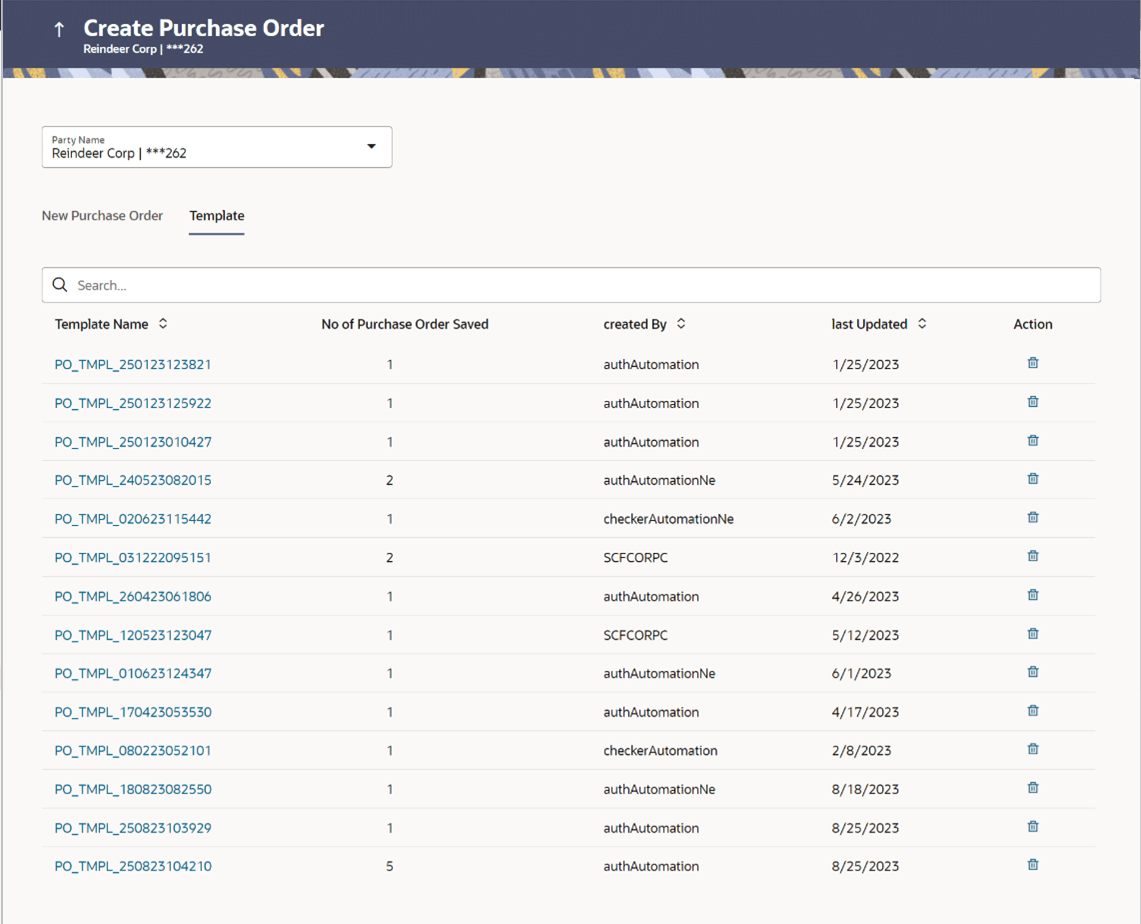
- In the Create Purchase Order screen, click the Template tab. A list of existing templates appears.
Figure 6-9 Create Purchase Order - Template
Table 6-5 Create Purchase Order - Template - Field Description
Field Name Description Search Indicates an option to search for specific purchase orders. Template Name Displays the name of the purchase order template. No. of Purchase Orders Saved Displays the number of purchase orders saved under the template. Created By Displays the name of corporate user who created the template. Last Updated Displays the last updated date of the purchase order template. Actions Click the  icon to delete the purchase order template.
- Optionally: Click against the template to delete the existing purchase order template. A
popup message appears to confirm the deletion. Do one of the following:
- Click Yes to delete the template.
- Click No to cancel the deletion.
- Click
 and select the Edit option.The template details are populated in the New Purchase Order screen.
Parent topic: Create Purchase Order Online