5.1.2 Create Credit Notes using Templates
This topic provides systematic instructions to create a credit using a template.
You can save the data entered during credit note creation, as a template. This option is available upon successful creation of a credit note. You can use this template in the future to create credit notes for the same program and associated party. This saves the efforts of re-entering the data.
User must have valid corporate login credentials.
To view and use templates for creation of credit notes:
- From the Dashboard, click the Toggle
Menu, then click Receivables/Payables,
Receivables/Payables Management, and
Create Credit Note.The Create Credit Note screen appears.
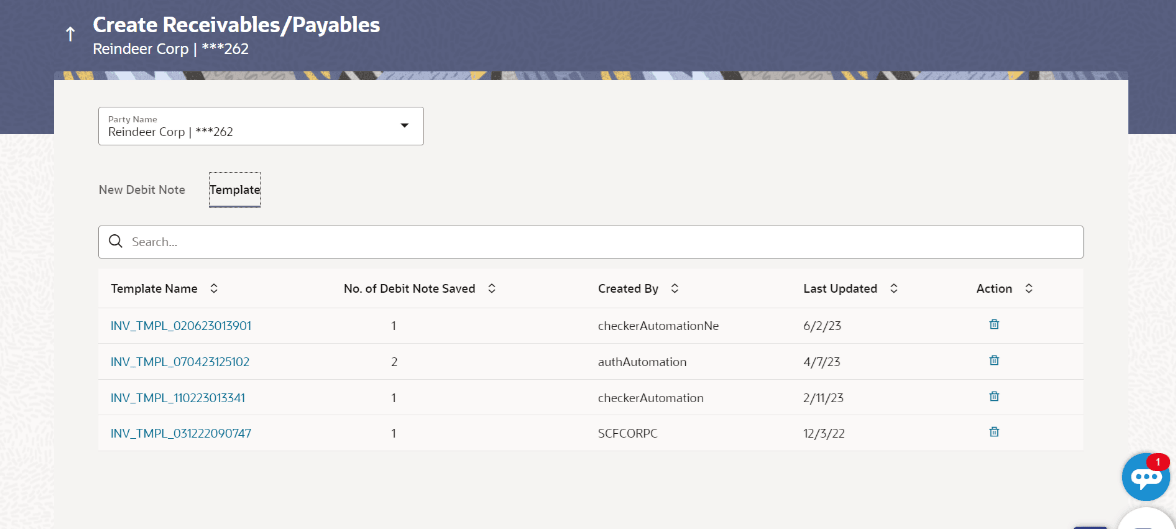
- Click the Template tab. A list of existing templates appear.
Figure 5-9 Create Credit Note – Template tab
Table 5-5 Create Credit Note – Template - Field Description
Field Name Description Party Name Select the party name from the dropdown list in which the credit note must be created. By default, the primary party/gcif of the logged-in user is selected. Note: Only accessible parties are displayed to the user.
Search Specify the partial or full name of the template to search for specific templates. As you type the name, the relevant templates appear in the list. Template Name Displays the name of the credit note template, as a hyperlink. Click this hyperlink to open the New Credit Note screen, with the template details populated in the respective fields. No. of Credit Note Saved Displays the number of credit notes saved under the template. Created By Displays the name of the corporate user who created the template. Last Updated Displays the last updated date of the credit note template. Action Click  to delete the credit note template.
- Optionally: Click against the template to delete the existing credit note template. A
popup message appears to confirm the deletion.
- Click Yes to delete the credit note template.
- Click No to cancel the deletion of the credit note template.
- Click Save to save the credit note. Or, do one of the
following:
- Click the Save and Copy link to create a copy of the credit note in editable mode.
- Click the Add Credit Note link at the bottom of the screen, to add another credit note.
- Click at the top right corner of a credit note, to delete it.
- Click
 at the top right corner of a credit note, to clear the existing
data.
at the top right corner of a credit note, to clear the existing
data.
Parent topic: Create Online Credit Note