5.1.3 Bulk Credit Note Creation
This topic provides systematic instructions to create Credit note records in bulk through file upload.
- Perform any of the following actions:
- From the Dashboard, click the Toggle Menu, then click File Upload, and then File Upload.
- From the Dashboard, click the Quick Links, then click File Upload.
- From the Dashboard, click the Toggle Menu, then click Receivables/Payables, Receivables/Payables Management, and then Create Credit Note.
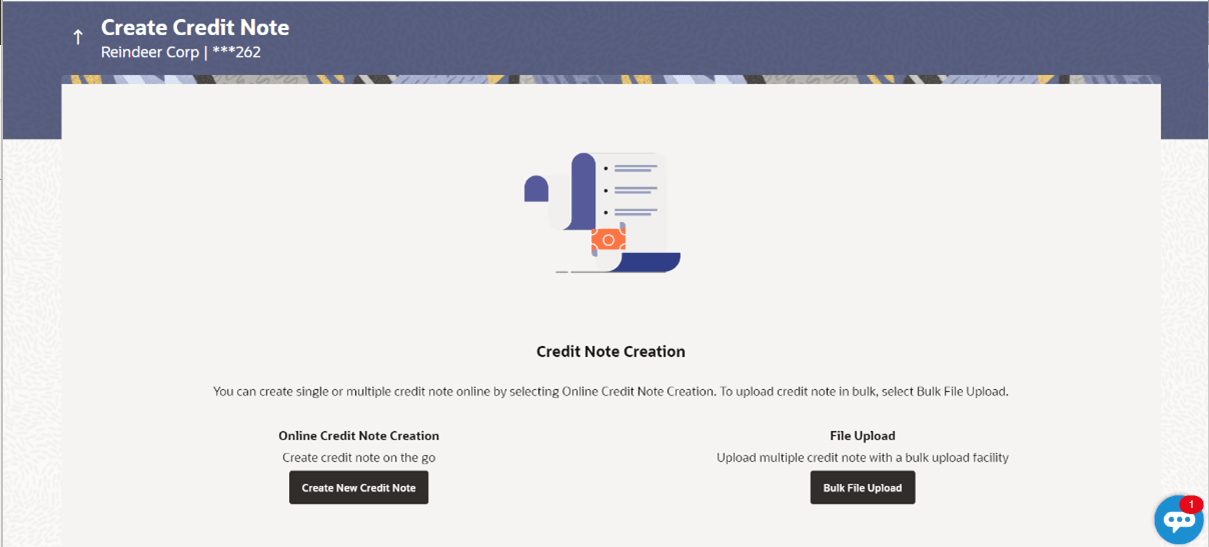
The Create Credit Note screen appears.Table 5-6 Create Credit Note - Field Description
Field Name Description Party Name Displays the name of the logged-in corporate party. Online Credit Note Creation Indicates the option to create credit note records by manual entry of the details. File Upload Indicates the option to create bulk credit note records through file upload.
Bulk Credit Note File Template
The file to be uploaded should have data in a specific sequence. For each credit note, there must be a top row with indicator ‘CN’, which specifies credit-note-level parameters. For each commodity under the credit note, there must be a row with indicator ‘C’, which specifies the commodity-level parameters. Refer this file for the upload file format: Bulk Credit Note Upload Template
Table 5-7 Bulk Credit Note File Template - Field Description
| Field Name | Description |
|---|---|
| Bulk Credit Note File Template | The following fields are specific to a credit note. You must add a row for each credit note record. |
| Indicator | Specify CN in this field. This is a mandatory field. |
| Cr. Note Reference Number | Specify the customer’s reference number for the credit note. This is a mandatory field. |
| Link Invoice Number | Specify the invoice reference numbers to be
associated with the credit note. You can provide multiple
invoice numbers using the pipe separator.
Note: The
invoice numbers provided here should belong to the same
party ID for which the credit note is being
uploaded.
The invoice numbers provided here should also belong to the same buyer-supplier combination, as that of the credit note. The invoices specified in this field should not have been cancelled. Credit notes cannot be raised against cancelled invoices. |
| Cr Note Date | Specify the date of creation of the credit note. This date should not be greater than the current business date. It should also not be less than the invoice date. This is a mandatory field. |
| Cr Note Expiry Date | Specify the expiry date of the credit note. |
| Buyer Code** | Specify the code associated with the buyer. |
| Supplier Code** | Specify the code associated with the supplier. |
| Currency* | Specify the credit note currency. A 3-digit currency code as per ISO standards is acceptable. This is a mandatory field. |
| Base Cr Note Amount* | Specify the gross credit note amount. |
| Discount Amount | Specify the discount amount applicable on the base credit note amount. |
| Tax Amount | Specify the applicable tax amount. |
| Net Cr Note Amount* | Specify the net credit note amount, post
application of discount and tax. This is a mandatory field.
Net Cr Note Amount = Base Cr Note Amount – Discount Amount + Tax Amount |
| Buyer Division Code | Specify the division code of the buyer. |
| Supplier Division Code | Specify the division code of the supplier. |
| Buyer ID* | Specify the party ID of the buyer. |
| Supplier ID* | Specify the party ID of the supplier. |
| Buyer Name | Specify the name of the buyer. |
| Supplier Name | Specify the name of the supplier. |
| Program ID | Specify the ID of the program associated with the credit note. This ID should be the same as the program ID associated with the linked invoices. This field is applicable only if the Oracle Banking Supply Chain Finance application is implemented by the bank. |
| Adjustment Reason | Specify the reason for adjustment. The available
values are:
|
| Remarks | Specify any remarks, if applicable.
The following fields are specific to a commodity. You must add a row for each commodity in the credit note. |
| Indicator** | Specify C for a commodity row. |
| Credit Note reference number | Specify the reference number of the credit note. This is a mandatory field. |
| Invoice Number** | Specify the invoice reference number of the
commodity. This number should also be listed in the Linked
Invoice Number field of the credit note.
Note: Only one invoice number is allowed in this field. If the commodity is linked with multiple invoices, then a commodity row should be added for each invoice. |
| Commodity Code** | Specify the unique code of the commodity. This code should be the same as that present in the linked invoice in the credit note. |
| Commodity Name | Specify the name of the commodity. This name should be the same as that present in the linked invoice in the credit note. |
| Quantity** | Specify the quantity of the commodity. |
| Unit Cost | Specify the cost per unit of the commodity. |
| Gross Total of Commodity | Specify the total cost of the commodity.
Gross Amount = Unit Cost * Quantity |
| Discount Amount | Specify the discount amount applicable to the commodity. |
| Tax Amount | Specify the tax amount applicable to the commodity. |
| Net Amount** | Specify the net amount of the commodity.
Net Amount = Gross Total of Commodity – Discount Amount + Tax Amount |
Parent topic: Create Online Credit Note