5.2 View Credit Note
This topic provides systematic instructions to the corporate users to view the credit notes, with respect to the corporate’s role as buyer or supplier.
- From the Dashboard, click the Toggle
Menu, then click Receivables/Payables,
Receivables/Payables Management, and
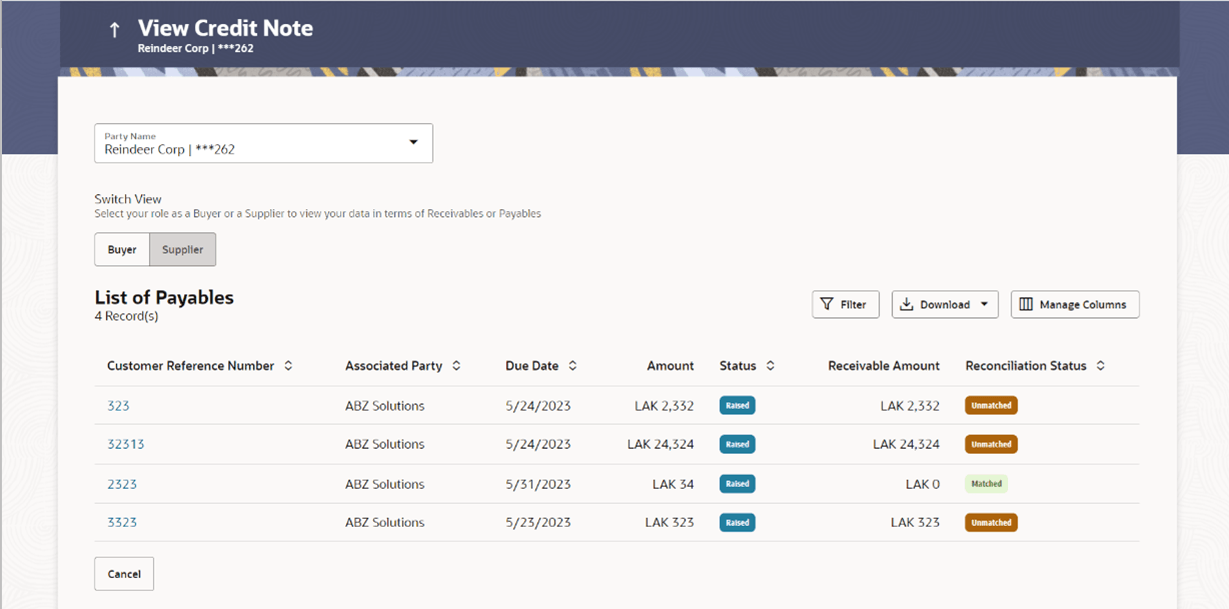
thenView Credit Note.The View Credit Note screen appears.
Table 5-8 View Credit Note – Field Description
Field Name Description Party Name Select the party name from the dropdown list to view the applicable list of credit notes. By default, the primary party/gcif of the logged-in user is selected. Note: Only accessible parties are displayed to the user. Based on the party selection, the list of credit notes is displayed.
Switch View Indicates the option to view the credit notes based on the corporate party’s role. The options are:
- Buyer
- Supplier

Click this icon to filter the credit notes, based on certain criteria. For more information, refer the Search (overlay window for View Credit Note) section below. Download Click this link to download the list of finances in CSV or PDF format. Manage Columns Click this link to personalize the columns i.e., rearrange/remove columns in the search result grid. The Manage Columns overlay window appears. For more information, refer the Manage Columns (overlay window for View Credit Notes) section below. List of Receivables/Payables Displays a list of credit notes based on the entered search criteria, for the party’s role as supplier or buyer. The credit notes are displayed as: - Receivables, if the role of the logged-in party is selected as ‘Buyer’ in the Switch View field.
- Payables, if the role of the logged-in party is selected as ‘Supplier’ in the Switch View field.
Customer Reference Number Displays the customer’s reference number for the credit note as fetched from the Host. This is a hyperlink which when clicked displays the details of the credit note. For more information, refer the View Credit Note Details section, in this document. Associated Party User can search the receivables/payables by providing the associated party. The drop-down lists all the on-boarded associated parties and the list of on-boarded associated party is categorized by: - Anchor Buyer
- Anchor Supplier
- Counter Party Buyer
- Counter Party Supplier
Expiry Date Displays the expiry date of the credit note as fetched from the Host. Amount Displays the credit note amount along with the currency as fetched from the Host. Status Displays the status of the credit note. This can be one of the following: - Raised
- Expired
- Cancelled
Payable Amount / Receivable Amount Displays the amount payable / receivable depending on the role selected. If the role is of a buyer, then it is the receivable amount, else it is the payable amount. Reconciliation Status Displays the payment status of the credit note. This can be one of the following: - Matched
- Partially Matched
- Reconciliation in Process
- Unmatched
Search (overlay window for View Credit Note)
Figure 5-12 View Credit Note - Filter (overlay window for View Credit Note)
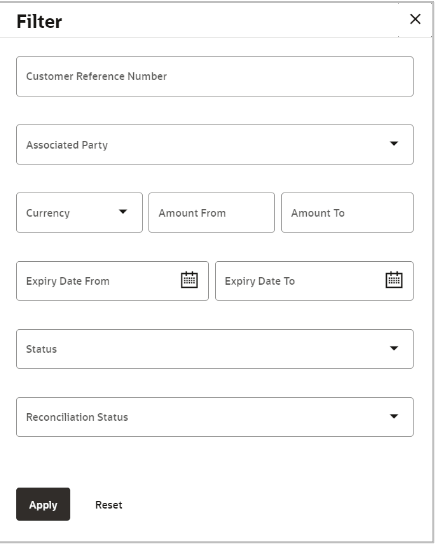
This window appears on clicking in the View Credit Note screen.
Table 5-9 View Credit Note - Filter - Field Description
| Field Name | Description |
|---|---|
| Customer Reference Number | Indicates an option to search for a credit note using the reference number. |
| Associated Party | Indicates an option to search for credit notes based on the associated party. |
|
Amount Range Currency From-To |
Indicates an option to search for credit notes based on a particular currency and amount range. |
|
Expiry Date From-To |
Indicates an option to search for credit notes that expire in a specific period. |
| Status | Indicates an option to search for credit notes
based on the status. The options available are:
|
| Reconciliation Status | Indicates an option to search for credit notes
based on the reconciliation status. The options available
are:
|
On clicking Apply, a list of relevant credit notes is displayed. On clicking Reset, the data entered in the Filter overlay window is cleared.
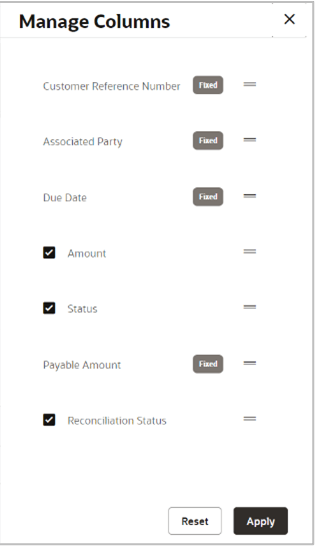
- Click Manage Columns to reorder or modify or save column preferences in
View Credit Note screen.
Figure 5-13 Manage Columns (overlay window for View Credit Note)
- Click Apply to apply the modified columns preferences.
- Click Reset to reset the columns preferences.
View Credit Note Details
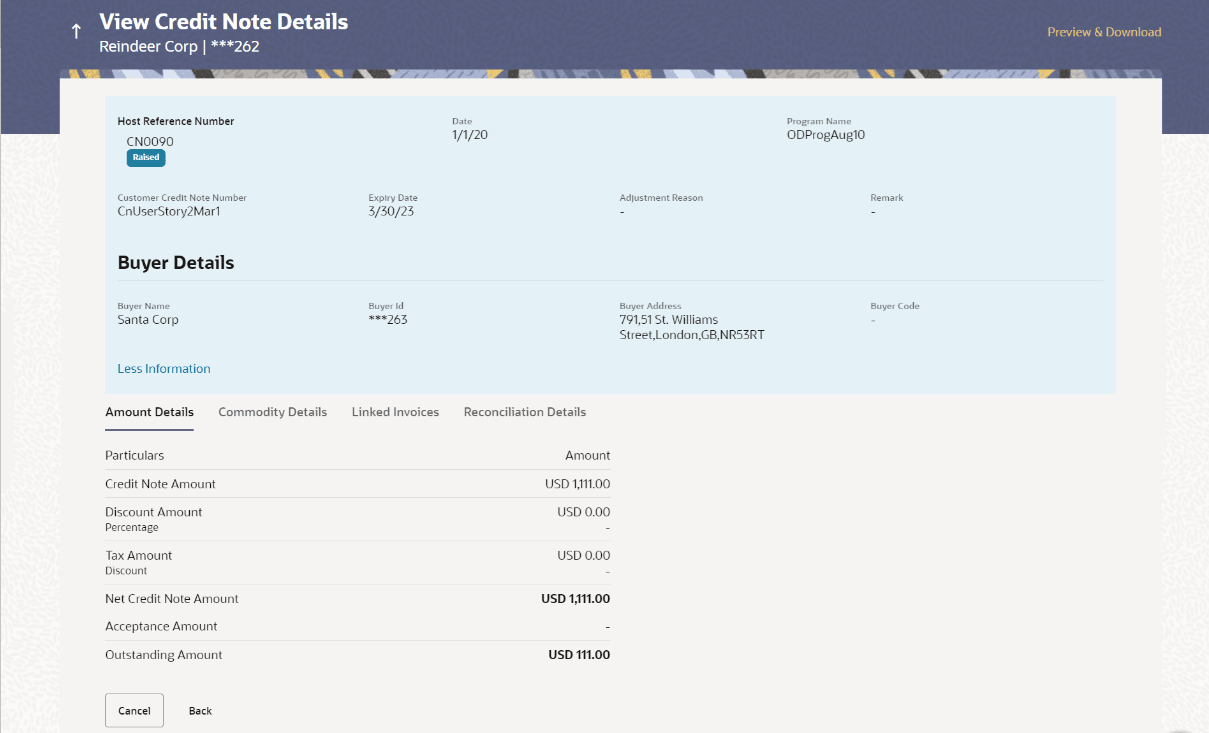
- Click the Customer Reference Number link of a particular credit note in
the View Credit Note screen, to view its details.
Note:
The View Credit Note Details screen can also be viewed on a mobile device. The credit note details present in the desktop version, are also available on the mobile device.Table 5-10 View Credit Note Details - Field Description
Field Name Description View Credit Note Details It displays the detailed information of the credit note. You can view the following details: - Itemized amount details
- Commodity details, if they have been added during creation.
- Linked invoices
- Reconciliation details, if reconciled.
Party Name Displays the name and ID of the logged-in corporate party. Preview & Download Click the link to download the credit note details in PDF format. This file is password protected. The password is a combination of the first four letters of the corporate user name in UPPERCASE followed by the date of birth/establishment in DDMM format.
Host Reference Number Status
Displays the unique reference number of the credit note fetched from the host.
The status of the credit note is also displayed.
Date Displays the date on which the credit note has been created. Program Name Displays the name of the program linked with the credit note. The following fields appear if you click the More Information link. You can hide the fields by clicking the Less Information link.
Customer Credit Note Number Displays the customer’s credit note reference number. Expiry Date Displays the date on which the credit note expires. Payment Terms Displays the terms agreed for the payment of the credit note. Adjustment Reason Displays the reason for adjustment of the initial invoice amount. Remark Displays the entered remarks. Buyer Details / Supplier Details If the associated party is the supplier, then the supplier details are displayed. If the associated party is the buyer, then the buyer details are displayed. Buyer Name/ Supplier Name Displays the name of the associated party. Buyer Id / Supplier Id Displays the ID of the associated party. Buyer Address / Supplier Address Displays the address of the associated party. Buyer Code / Supplier Code Displays the code of the associated party. The following tabs are present in the View Credit Note Details screen:
- Amount Details
- Commodity Details
- Linked Invoices
- Reconciliation Details
Note:
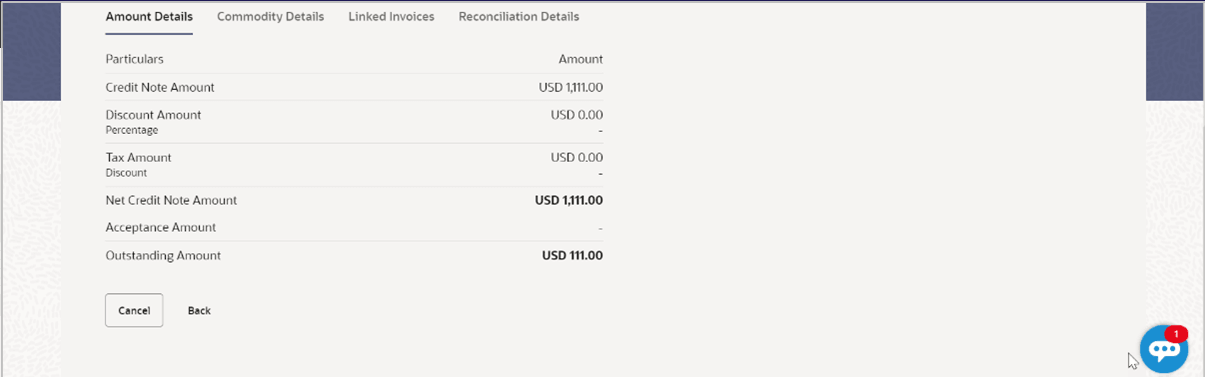
These tabs can also be viewed on a mobile device. - Click the Amount Details tab to view the amount details of the credit
note.The View Credit Note Details – Amount Details screen appears.
Figure 5-15 View Credit Note Details – Amount Details tab
Table 5-11 View Credit Note Details – Amount Details - Field Description
Field Name Description Amount Details tab The itemized categories appear under Particulars and the respective amounts appear under Amount. Credit Note Amount Displays the credit note amount along with the currency. Discount Amount Percentage
Displays the discount amount based on the discount percentage, along with the percentage value. Tax Amount Percentage
Displays the tax amount based on the tax percentage, along with the percentage value. Net Credit Note Amount Displays the net calculated value on the basis of discount and tax values that are entered. Note: The Net Credit Note Amount gets auto calculated as follows: Net Credit Note Amount = Credit Note Amount - Discount Amount + Tax Amount.
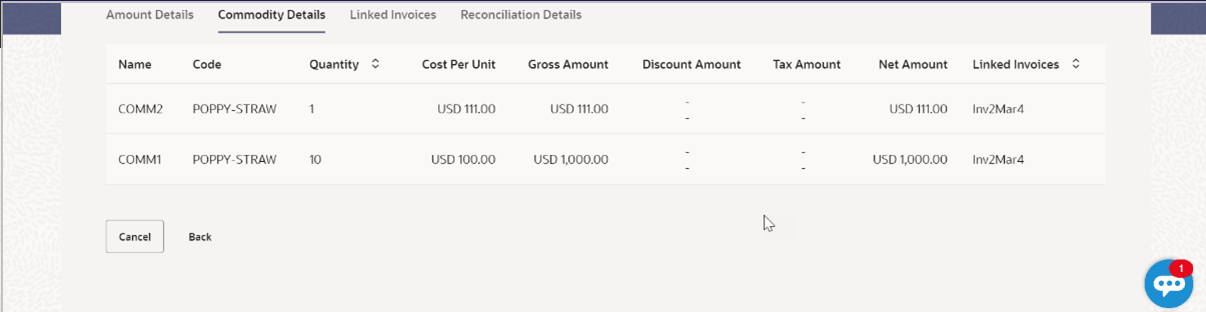
Acceptance Amount Displays the credit note amount that has been accepted. Outstanding Amount Displays the credit note amount that is outstanding. - Click the Commodity Details tab to view the commodity details of the
credit note.The View Credit Note Details – Commodity Details screen appears.
Figure 5-16 View Credit Note Details – Commodity Details
Table 5-12 View Credit Note Details – Commodity Details - Field Description
Field Name Description Commodity Details tab This tab appears only if the commodity details have been entered during creation of credit note. Name Displays the name of the commodity. Code Displays the code of the commodity. Quantity Displays the quantity of commodity. Cost Per Unit Displays the cost per unit of the commodity. Gross Amount Displays the total amount of the commodity. This is the product of quantity and cost per unit. Discount Displays the discount amount and percentage offered on the commodity. Tax Displays the tax amount and percentage charged on the commodity. Net Amount Displays the net amount for the commodity. Net Amount = Gross Amount – Discount + Tax.
Linked Invoice Number Displays the reference number of the linked invoice. - Click the History tab to view the commodity details of the credit
note.
This History tab will be visible to show the changes in invoice lifecycle, along with any comments added during each event in the process.
The View Credit Note Details – History screen appears.Table 5-13 View Credit Note Details – History - Field Description
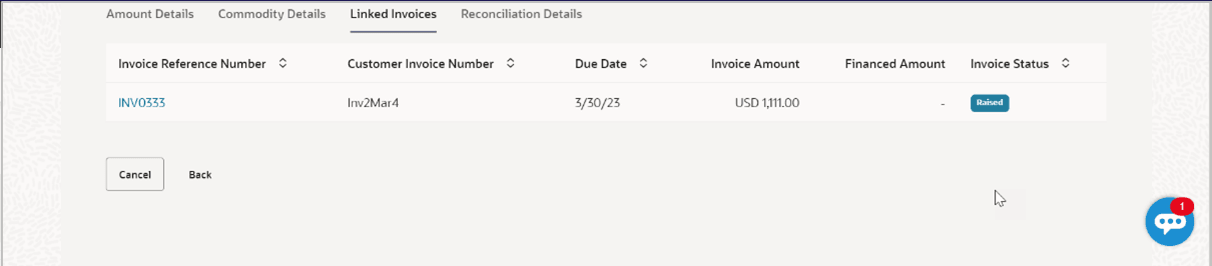
Field Name Description Date Displays the date of the invoice order. Action Displays the action, which needs to be performed. Action Owner Displays action owner. Comments Displays comments provided by the user during processing the transaction. - Click the Linked Invoices tab to view the linked invoices of the credit
note.The View Credit Note Details – Linked Invoices screen appears.
Figure 5-17 View Credit Note Details – Linked Invoices tab
Table 5-14 View Credit Note Details – Linked Invoices - Field Description
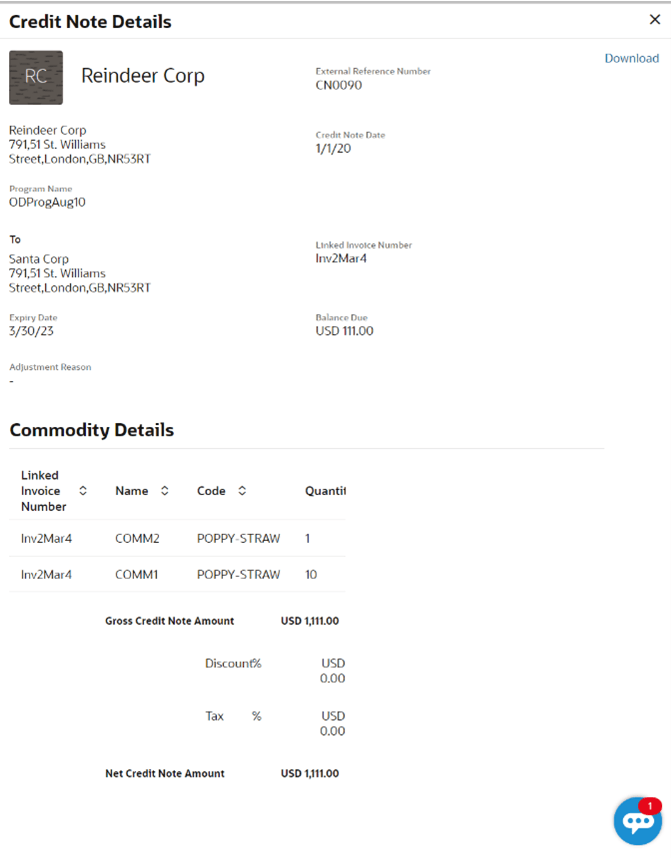
Field Name Description Linked Invoices tab This tab appears if the credit note has been linked with invoices. Invoice Reference Number Displays the reference number of the invoice. This is a hyperlink which when clicked displays the details of the invoice. Customer Invoice Number Displays the customer’s reference number of the invoice. Due Date Displays the due date of the invoice. Invoice Amount Displays the invoice amount. Financed Amount Displays the invoice amount that has been financed. Invoice Status Displays the status of the invoice. - In the View Credit Note Details screen, click Preview and
Download.The credit note details overlay window appears. The credit note fields displayed here are the ones entered during the creation of the credit note.
Figure 5-18 View Credit Note Details - Credit Note Details
Table 5-16 View Credit Note Details - Credit Note Details - Field Description
Field Name Description Credit Note Details overlay window This section displays the credit note details overlay window fields. Download Click to download the debit note in PDF format. External Reference Number Displays the customer’s own reference number. Party name & address Displays the name and address of the supplier. Credit Note Date Displays the date on which the credit note has been raised. Program Name Displays the program linked to the credit note. To Displays the name and address of the buyer. Linked Invoice Number Displays the reference numbers of the invoices linked to the credit note. Balance Due Displays the balance credit note amount to be paid. Expiry Date Displays the expiry date of the credit note. Adjustment Reason Displays the reason for adjusting the initial invoice amount. Commodity Details This section displays the Commodity Details related fields. Linked Invoice Number Displays the reference number of the invoice linked to the specific commodity. Name Displays the name of the commodity. Code Displays the code of the commodity. Quantity Displays the quantity of the commodity. Cost/Unit Displays the cost per unit of the commodity. Gross Amount Displays the gross amount of the commodity along with the currency. It is the product of the entered quantity and the cost per unit. Gross Amount = Quantity * Cost/Unit
Discount Amount Displays the discount applicable to the commodity. Tax Amount Displays the tax applicable to the commodity. Net Amount Displays the net amount of the commodity. Net Amount = Gross Amount – Discount Amount + Tax Amount
Gross Credit Note Amount Displays the total amount of all the commodities (gross amount). Discount Displays the total discount amount of all the commodities added. The average discount percentage of all added commodities is also displayed. Total Discount % = (Sum of discount amount of all commodities / Sum of gross amount of all commodities) *100
Tax Displays the total tax amount of all the commodities added. The average tax percentage of all added commodities is also displayed. Total Tax % = [Sum of tax amount of all commodities / (Sum of gross amount of all commodities - Sum of discount amount of all commodities)] *100
Net Credit Note Amount Displays the calculated value on basis of discount and tax values entered. Note: The Net Credit Note Amount gets auto calculated as follows: Net Credit Note Amount = Gross Credit Note Amount - Discount + Tax
- Click Download to download the credit note details in PDF format. Or
click
 to close the window.

- Search (overlay window for View Credit Note)
This window appears when you click in the View Credit Notes screen.
Parent topic: Credit Notes