6.3.2 Edit Purchase Order
This topic provides systematic instructions to the buyer to edit the required details in the purchase order, and submit for approval, if the approval flow has been set.
Note:
- A supplier can only create purchase orders, but cannot edit them once created.
- If a purchase order has been accepted by the supplier, then only the Shipment Date can be edited by the buyer. If a purchase order is in the ‘Raised’ status, and yet to be accepted by the supplier, then all parameters can be modified, except for Customer Purchase Order Number, Associated Party, and Program.
- From the Dashboard, click the Toggle Menu, then click
Receivables/Payables, then Purchase Order Management, and then
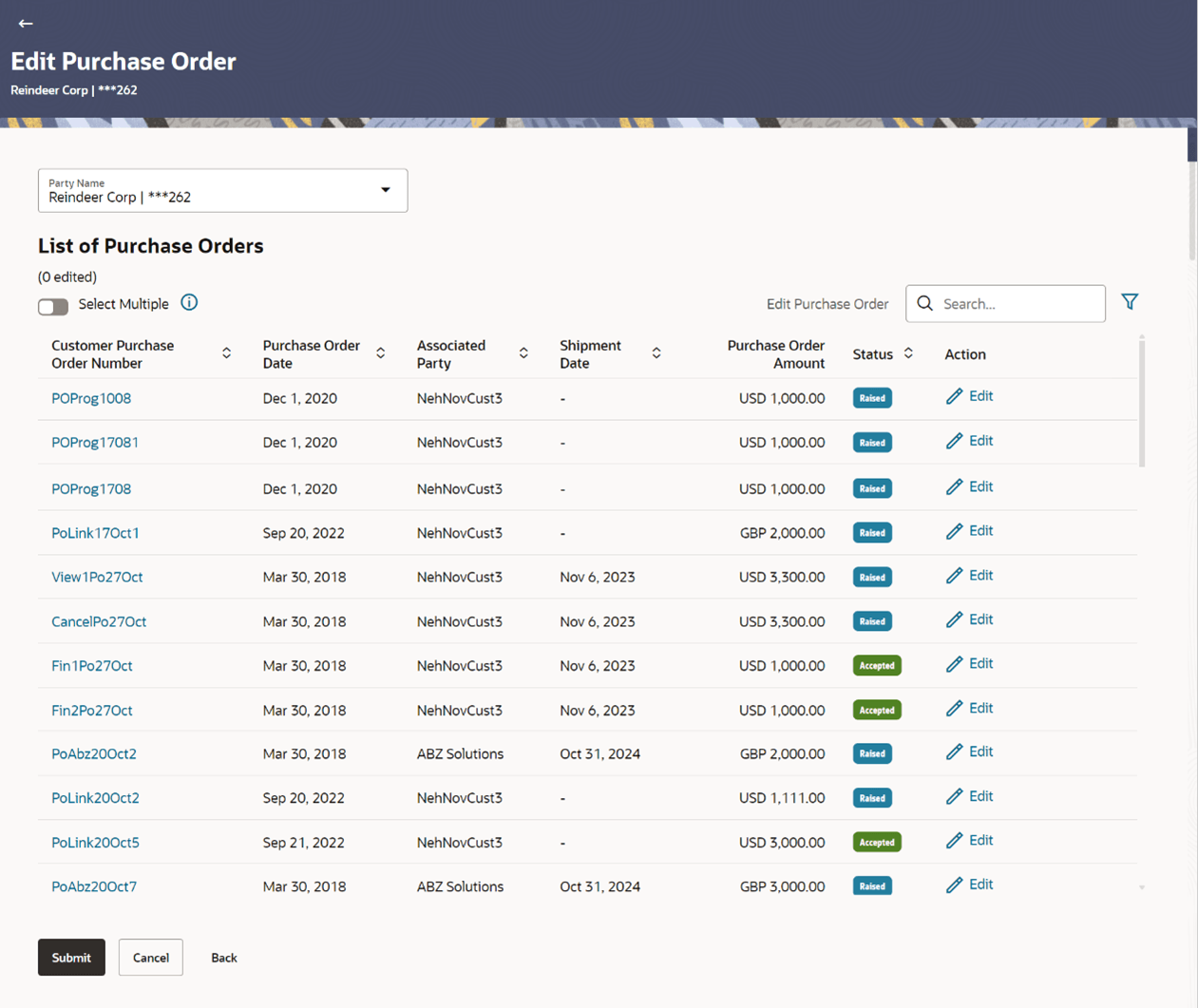
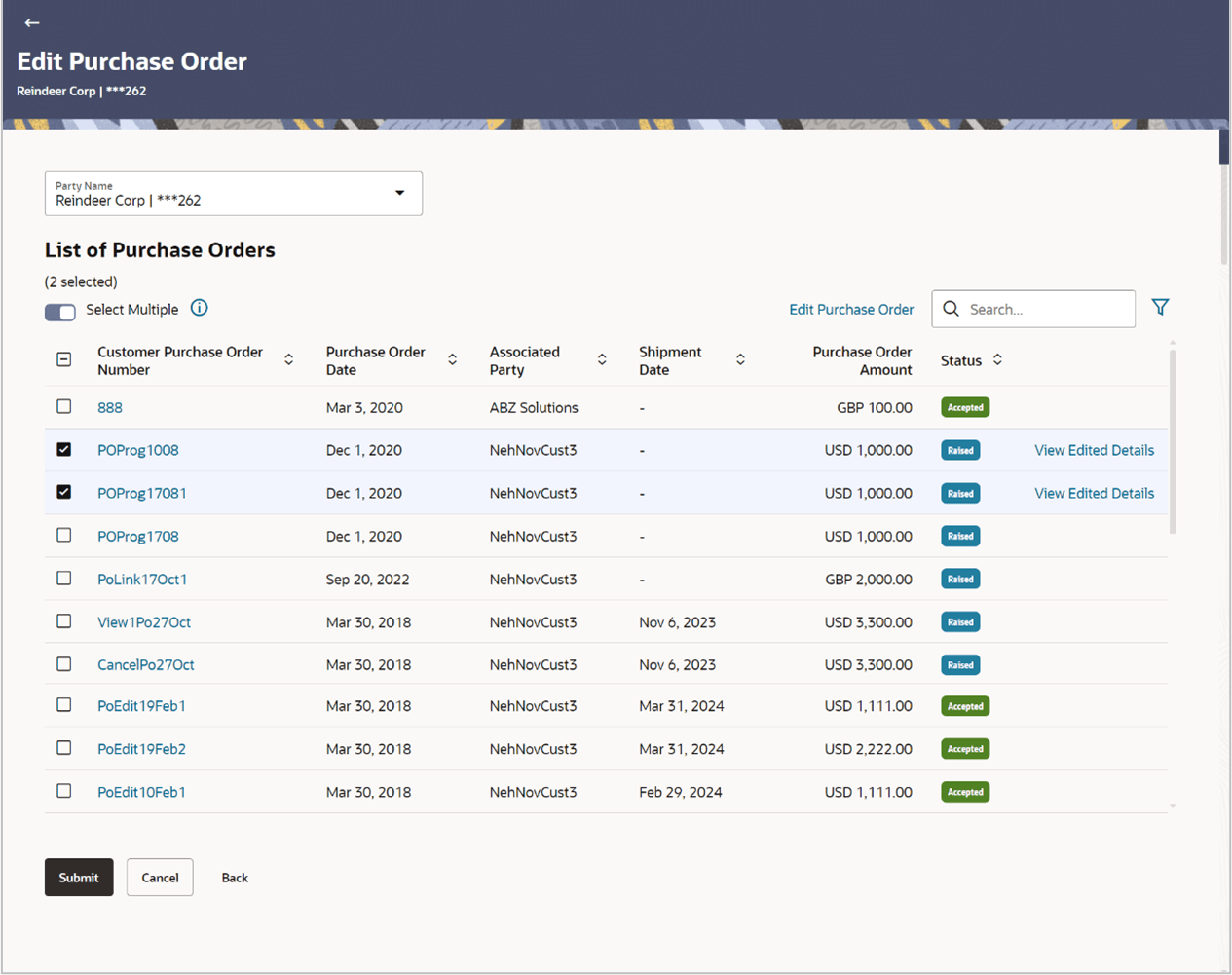
Edit Purchase Orders.The Edit Purchase Orders screen appears.
Table 6-21 Edit Purchase Orders - Field Description
Field Name Description Party Name Select the party name from the drop-down list to view the applicable list of purchase orders. By default, the primary party/gcif of the logged-in user is selected. Note: Only accessible parties are displayed to the user. Based on the party selection, the list of purchase orders is displayed.
List of Purchase Orders This section displays a list of purchase orders that can be edited. Number of Record(s) edited / selected This field displays the number of purchase orders edited. If Select Multiple toggle is switch is On, then this field displays the number of purchase orders selected for editing.
Search Specify the partial or full purchase order reference number / associated party name / status to search for specific purchase orders. The results appear as and when you enter the data. 
Click this icon to filter the purchase orders, based on certain criteria. For more information, refer the Search (overlay window for Purchase Orders)section below Select Multiple Switch this toggle On, to edit multiple purchase orders records together. Check Box To select all the purchase orders in the list, select the main check box. To select specific purchase orders, select the check boxes beside those purchase orders. This check box becomes visible only if Select Multiple toggle switch is On.
Edit Purchase Order Click Edit Purchase Order to edit multiple purchase order records. This link becomes clickable only if both Select Multiple toggle switch is On and multiple purchase order records are selected.
Customer Purchase Order Number Displays the reference number of the purchase order as fetched from the Host. This is a hyperlink which when clicked displays the details of the purchase order. Purchase Order Date Displays the date of the purchase order has been created. Associated Party User can search the receivables/payables by providing the associated party. The drop-down lists all the on-boarded associated parties and the list of on-boarded associated party is categorized by: - Anchor Buyer
- Anchor Supplier
- Counter Party Buyer
- Counter Party Supplier
Shipment Date Displays the date on which the purchased commodity is shipped. Purchase Order Amount Displays the purchase order amount. Status Displays the status of the purchase order. Action Click Edit to edit the individual purchase order record. View Edited Details Click this link to view the edited details of a purchase order.
Search Filter (overlay window for Edit Purchase Order)
This overlay window appears when you click the icon in the Edit Purchase Order screen.
Figure 6-25 Edit Purchase Order - Search Filter (
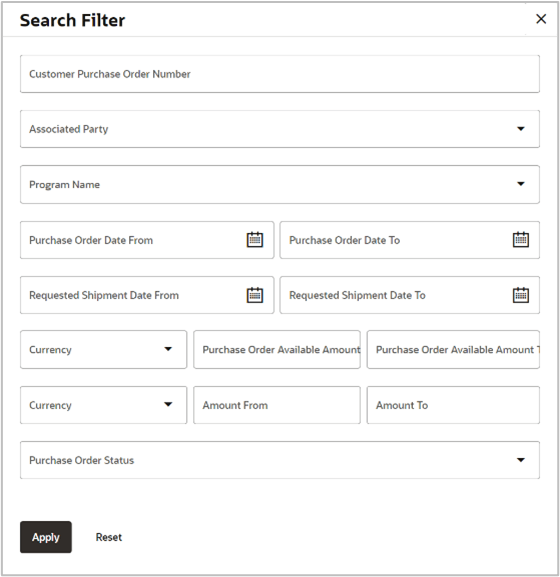
Table 6-22 Edit Purchase Order - Field Description
| Field Name | Description |
|---|---|
| Customer Purchase Order Number | Indicates an option to filter for purchase orders using the customer’s own reference number. |
| Associated Party Name | Indicates an option to filter for purchase order(s) based on the counter party associated with the purchase order(s). |
| Program Name | Indicates an option to filter purchase orders associated with a particular program. This field is visible only if the Oracle Banking Supply Chain Finance application is implemented by the bank. |
| Purchase Order Date From - To | Indicates the option to search for purchase
orders that have been raised within a specific date range.
You can select the dates by clicking the |
| Request Shipment Date From - To | Indicates the option to filter for purchase
orders that are shipped within a specific date range.
You can select the dates by clicking the |
| Purchase Order Available Amount From - To | Indicates the option to filter purchase order available amount with amounts in a specific range. You can select the required currency from the Currency list, and enter the amount range in the From and To fields. |
| Purchase Order Amount From - To | Indicates the option to filter purchase orders with amounts in a specific range. You can select the required currency from the Currency list, and enter the amount range in the From and To fields. |
| Purchase Order Status | Indicates an option to search for purchase
orders based on their status.
The options are:
|
 icon in the From and To fields.
Edit Purchase Order/s – Edit Overlay Window
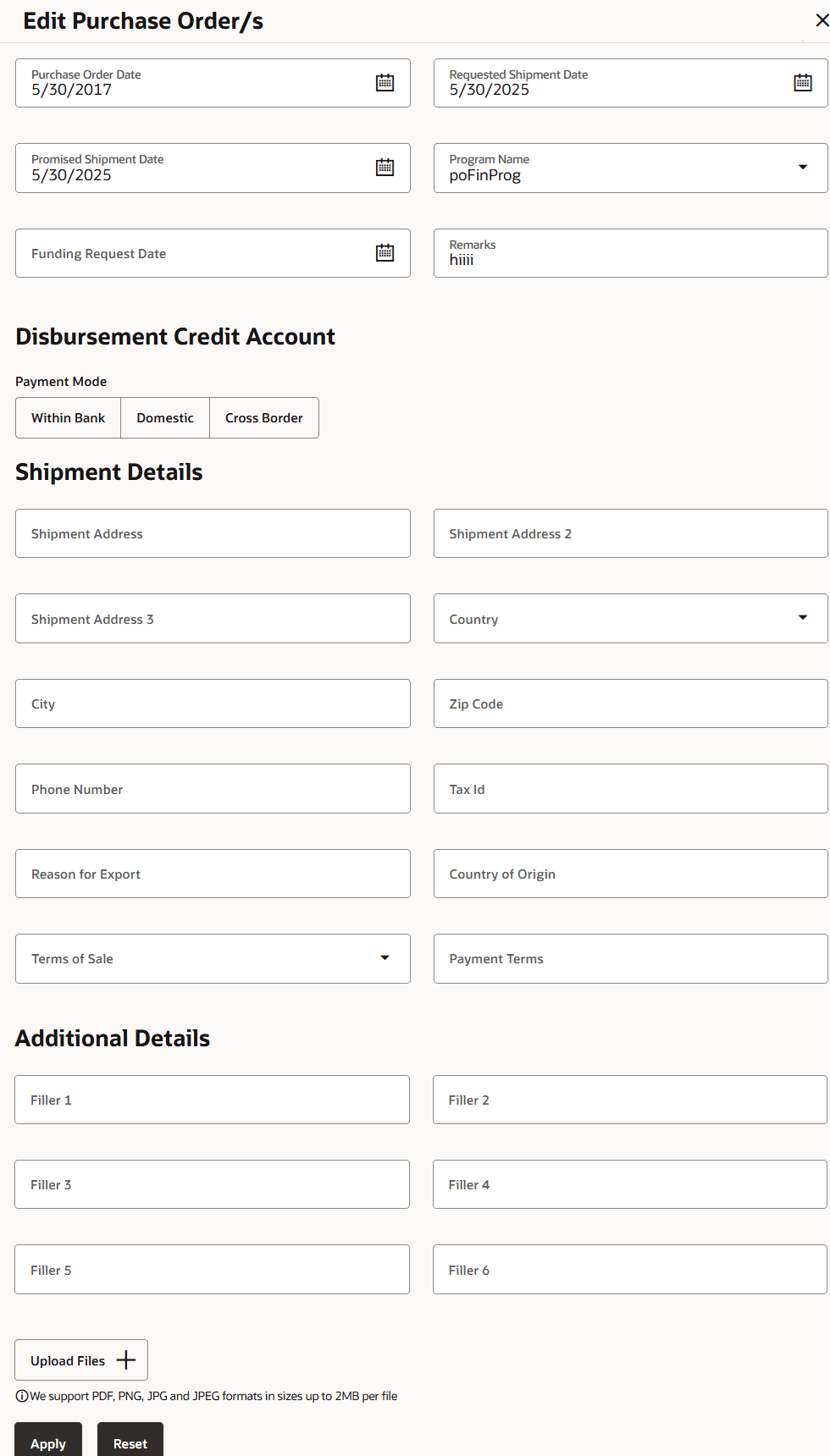
Figure 6-26 Edit Purchase Order/s – Edit Overlay Window
Description of the illustration edit-purchase-orders_edit-overlay-window.png
Table 6-23 Edit Purchase Order/s – Edit Overlay Window - Field Description
| Field Name | Description |
|---|---|
| Purchase Order Date | Click the calendar icon and select the date of creation of the purchase order. |
| Requested Shipment Date | Click the calendar icon and select the requested shipment date. This date cannot be earlier than the Current Business Date. |
| Promised Shipment Date | Click the calendar icon and select the date agreed by the supplier to send the shipment. This date cannot be earlier than the Current Business Date. |
| Program Name | Select the program to which the purchase order
should be linked. Programs linked to the selected associated
party are listed.
This field cannot be edited once an purchase order is financed. |
| Funding Request Date | Click the calendar icon and select the date when
the funding for the purchase order is requested.
This date cannot be greater than the Invoice Due Date, and cannot be lesser than the Invoice Date or the Invoice Value Date whichever is earlier. This field cannot be edited once the PO is financed. |
| Remarks | Specify any remarks, if applicable. |
| Disbursement Credit Account | This section displays the following
fields.
Note: The edit of Disbursement Credit Account is restricted if the purchase order is financed. |
| Payment Mode |
The user needs to choose the payment mode on the basis the account is present in the same bank, different bank or outside country to receive the finance proceeds. |
| Within Bank | If the Payment Mode is
selected as Within Bank. The
Account Number drop-down will be
displayed. The drop-down will list all the accounts as fetched
from the internal account mapping maintenance of host system.
These accounts are maintained to credit the finance proceeds.
The accounts fetched will be listed in the drop-down only if
user has OBDX access to accounts. The following details will
display.
Note: These details will be displayed only when the New Account switch is Off. |
| Domestic | If the Payment Mode is
selected as Domestic. The drop-down will list the accounts from
external account mapping maintenance of the host system. The
account details belong to some other bank in the country and
maintained in the host system to receive the finance proceeds
when the purchase is financed. The following details will
display.
Note: These details will be displayed only when the New Account switch is Off. |
| Cross Border | If the Payment Mode is
selected as Cross Border. The drop-down
will list all the corporate accounts as fetched from the
external account mapping maintenance of the host system. The
account details belong to the bank in another country and mapped
in the host system to receive the finance proceeds when the
purchase order is financed. The following details will
display.
Note: These details will be displayed only when the New Account switch is Off. |
| Shipment Details | This section displays the Shipment Details. |
| Shipment Address Line 1 to 3 | Displays the address lines of the shipment address. |
| City | Specify the city of the shipment address. |
| Country | Displays the country of the shipment address. |
| Zip Code | Displays the pin code of the shipment address. |
| Phone Number | Displays the phone number of the shipment address. |
| Shipment City | Specify the city to ship the goods to. |
| Zip Code | Specify the zip code to ship the goods to. |
| Phone Number | Specify the contact number of the person who will receive the shipment. |
| Tax Id | Specify the unique tax ID if the shipment charge includes tax amount. |
| Reason for Export | Specify the reason for exporting the shipment. |
| Country of Origin | Specify the country of origin of the shipment. |
| Payment Terms | Specify the relevant terms of sale. |
| Additional Details | This section displays the Additional Details. |
| Filler Fields | Specify the required information in the filler fields. |
| Upload Files | Click  to upload relevant documents. to upload relevant documents.
The following document formats are supported: JPEG, JPG, PNG, and PDF. A maximum of 5 documents can be uploaded. Once you upload documents, the number of documents uploaded appears as a hyperlink in brackets, beside this icon. On clicking this hyperlink, a pop-up window appears with the names of the documents uploaded. To delete an uploaded document, click beside the document in the pop-up window. This field is visible only if you edit the records individually. Note: These documents can also be viewed and downloaded by the approver/checker. |
- To edit multiple records, switch the Select Multiple toggle switch to
On. Select the required purchase order records and click the Edit Purchase
Order link.
Note:
- Bulk edit can be executed only if the Associated Party, Purchase Order Status, and Finance Status values of the purchase orders are same.
- If you edit multiple records, data modified will be applied across the selected records. If any record was modified using edit link of individual record, then the previously modified data will get overridden on clicking Apply.
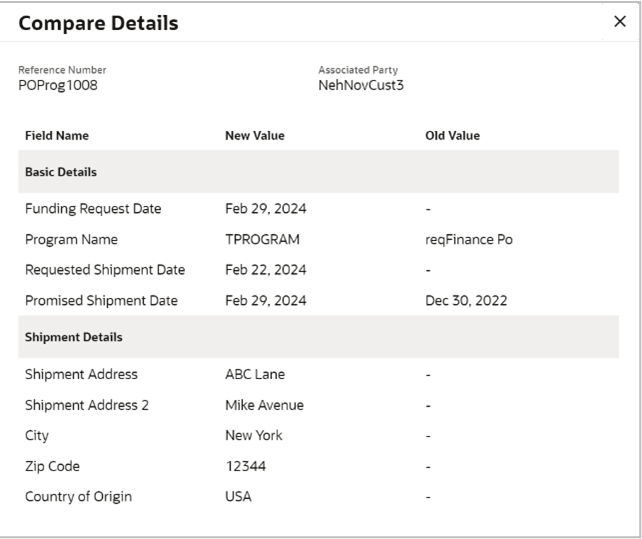
- Click View Edited Details link. The Compare Details overlay window appears. Compare all the edited details and modify if required.
Edit Purchase Order - Compare Details
Description of the illustration edit-purchase-orders_compare-details.png - Click Submit. Or, do one of the following:
- Click Cancel to cancel the transaction.
- Click Back to go to the previous screen.
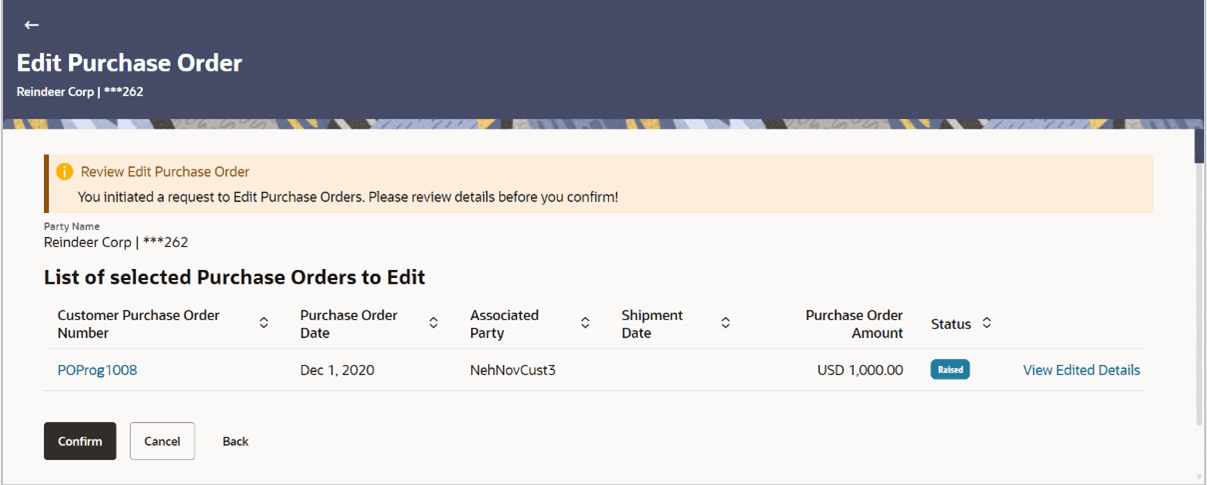
The Review screen appears.Figure 6-28 Edit Purchase Order – Review Screen
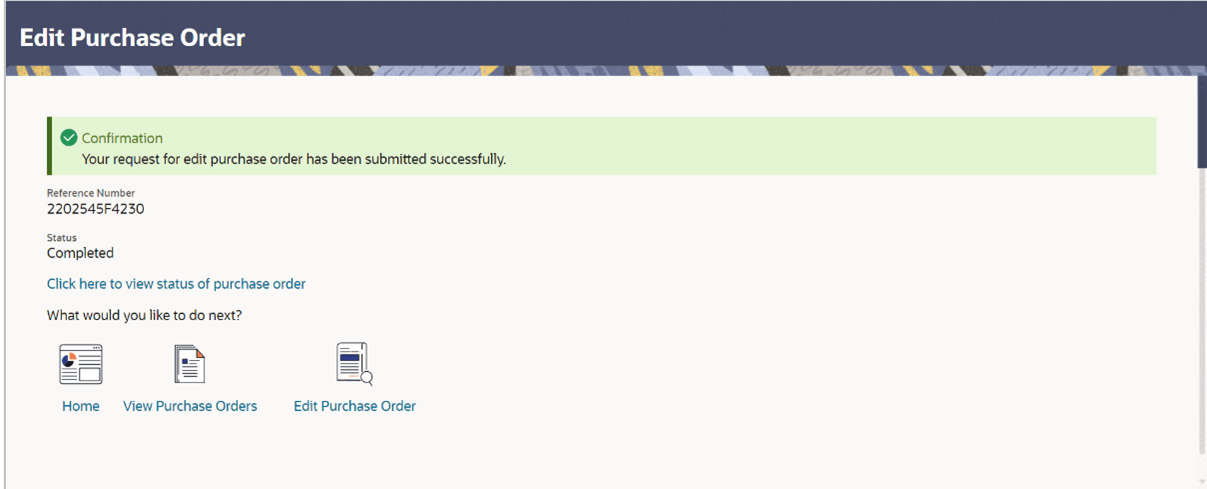
- Review the details and click Confirm. A confirmation
message appears with the reference number and status of the transaction. Or, do
one of the following:
- Click Cancel to cancel the transaction.
- Click Back to go to the previous screen.
Figure 6-29 Edit Purchase Order – Confirmation
Parent topic: View / Edit Purchase Order