6.3.3 Cancel Purchase Order
This topic provides systematic instructions to a the buyer to cancel a purchase order. This action can only be performed on purchase orders in the RAISED status.
Note:
A supplier can only create purchase orders, but cannot cancel them once created.User must have valid corporate login credentials.
To cancel a purchase order:
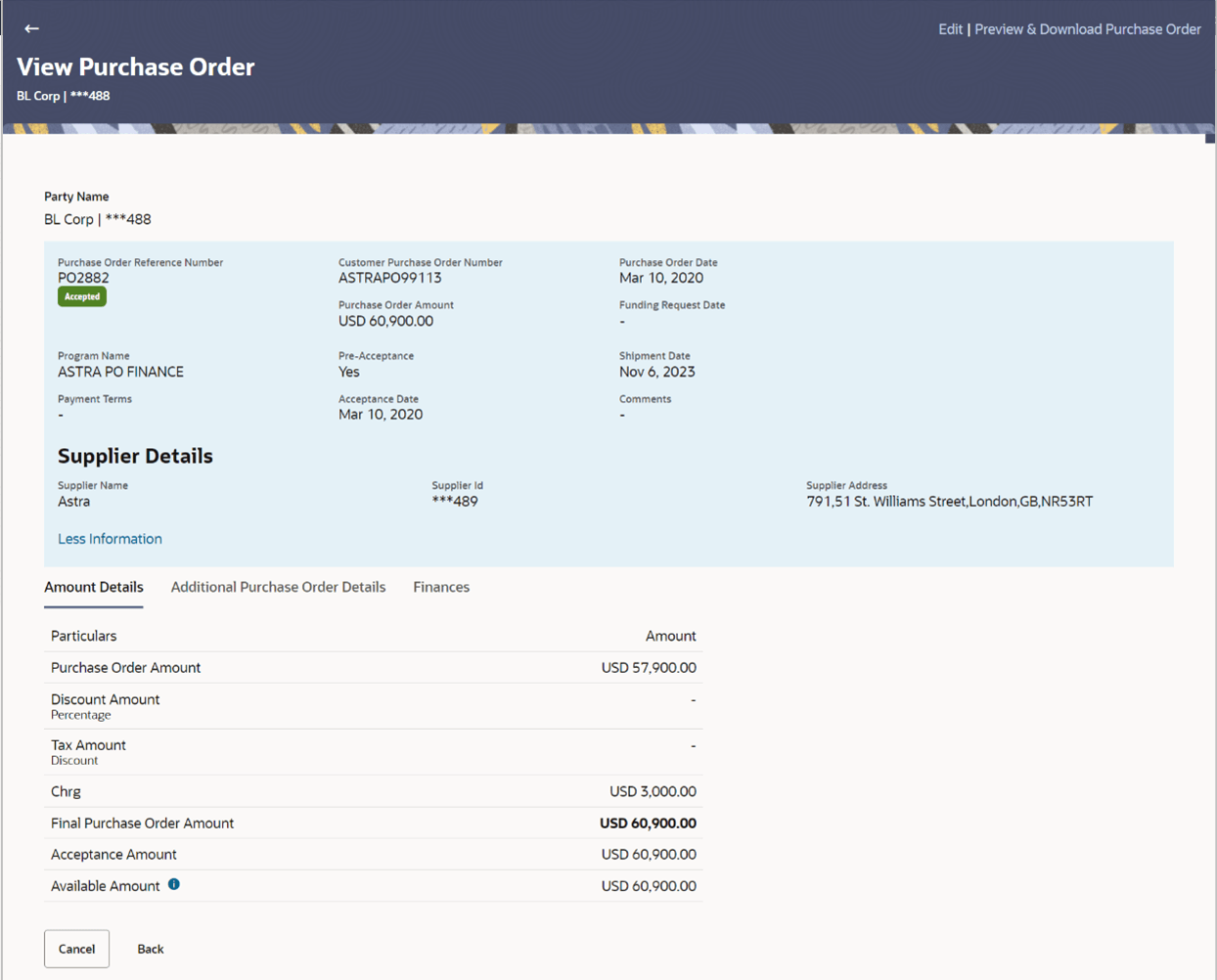
- Click the Customer Purchase Order Number of the purchase order record
(in RAISED status) to be cancelled. The details of the specific purchase order
appear in the View Purchase Order screen.
Figure 6-30 View Purchase Order Details – for Buyer role
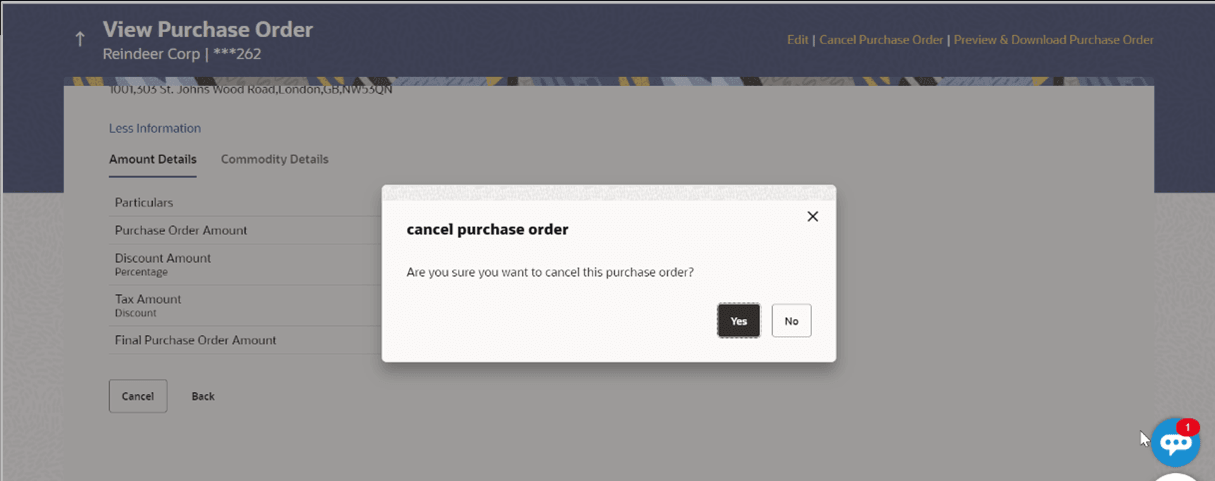
- Click Cancel Purchase Order to cancel the purchase order
and stop it from being accepted by the supplier. The cancel purchase order
pop-up window appears. Or, do one of the following:
- Click Edit to modify the purchase order. The Edit Purchase Order screen appears.
- Click Preview & Download Purchase Order, to view the purchase order details and download a copy.
- Click Cancel to cancel the transaction.
- Click Back to navigate back to the previous screen.
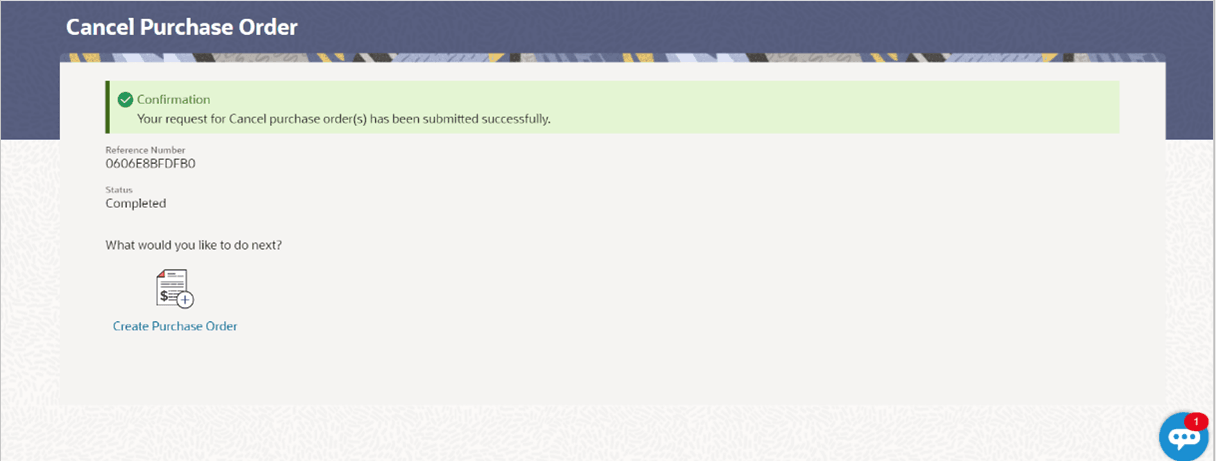
- Click Yes to cancel the purchase order. A Confirmation message appears with the reference number and status of the transaction. Or, click No to stay on the View Purchase Order details screen.
Parent topic: View / Edit Purchase Order