8.1 Overview
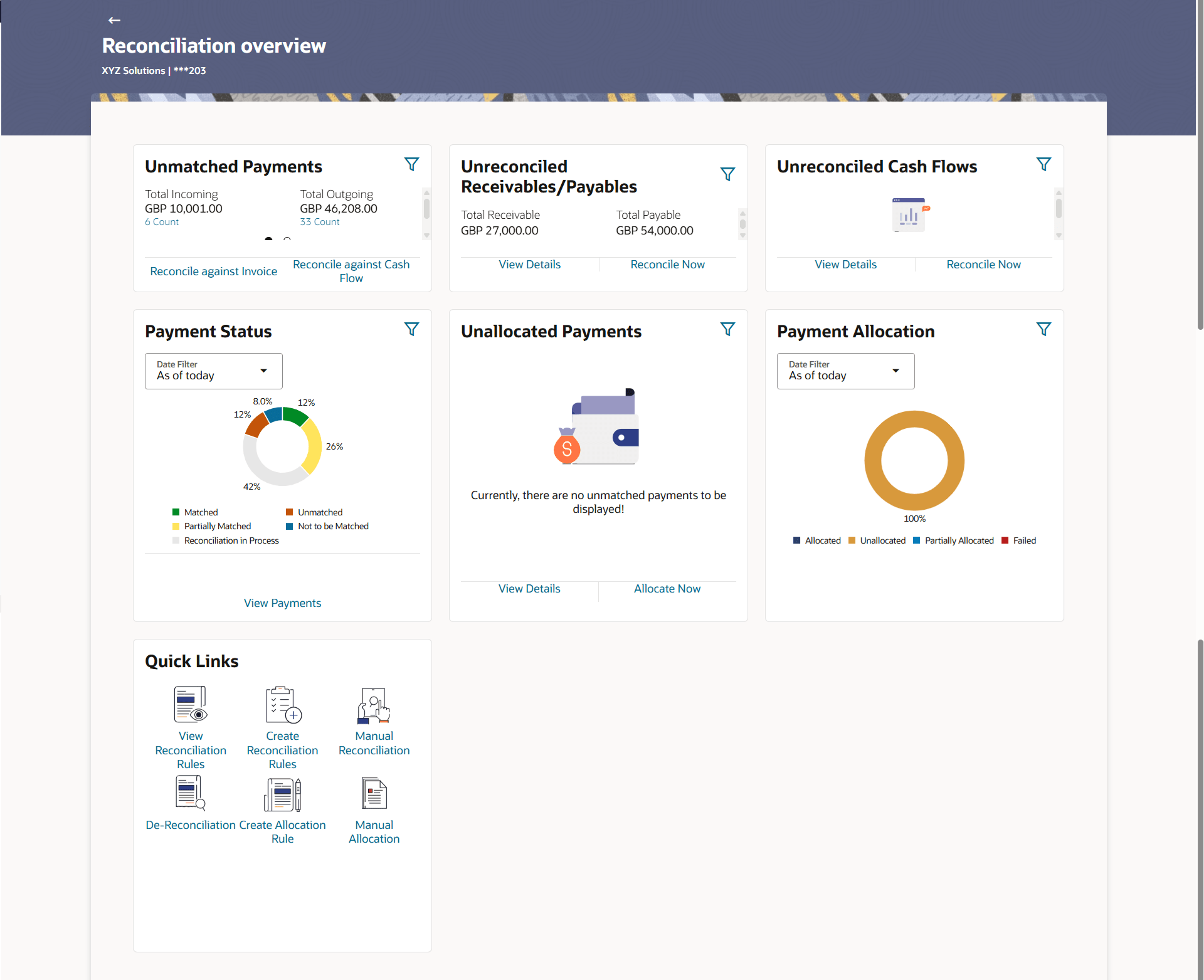
The Reconciliation Overview screen consists of the following widgets:
- Unmatched Payments
- Unreconciled Receivables/Payables
- Unreconciled Cash Flows
- Payment Status
- Payment Allocation
- Unallocated Payments
- Quick Links
To view the Reconciliation Overview
- From the Dashboard, click the Toggle Menu, then click Receivables/Payables, Reconciliation and then Overview.
-
Unmatched Payments – This widget gives the total incoming and outgoing payment amounts that have not been matched under a specific currency. Swipe across the widget to view the data for other supported currencies. The count of payments for both incoming and outgoing is also displayed for each currency. The count for each type (incoming and outgoing), is a hyperlink which when clicked, displays the View Payments screen with the list of unmatched payments of the respective type. On clicking the Reconcile against Invoice link, the Manual Reconciliation screen appears where the unreconciled invoices can be reconciled. For more information on this screen, refer the Invoices/Debit Notes against Payments/Credit Notes section under Manual Reconciliation, in this document. On clicking the Reconcile against Cash Flow link, the Manual Reconciliation screen appears where the unreconciled cash flow records can be reconciled. For more information on this screen, refer the Cash Flow against Payment section under Manual Reconciliation, in this document
-
Unreconciled Receivables/Payables – This widget gives the unreconciled amount details for receivables and payables. The receivables/payables can include both invoices and debit notes. The counts of invoices and debit notes for each type (receivables and payables) are also displayed. Swipe across the widget to view the data for other supported currencies. On clicking the View Details link, the View Receivables/Payables screen appears. For more information on this screen, refer the View/Edit Receivables/Payables screen in this document. On clicking the Reconcile Now link, the Manual Reconciliation screen appears where the unreconciled receivables/payables can be reconciled. For more information on this screen, refer the Invoices/Debit Notes against Payments/Credit Notes section under Manual Reconciliation, in this document.
-
Unreconciled Cash Flows – This widget gives the total inflow and outflow cash flow amounts that are unreconciled. The number of cash flows for each type (inflow and outflow) is also displayed. Swipe across the widget to view the data for other supported currencies. On clicking the View Details link, the View/Edit Expected Cash Flow Details screen appears. For more information on this screen, refer the respective section in User Manual Oracle Banking Digital Experience Corporate Cash Management. On clicking the Reconcile Now link, the Manual Reconciliation screen appears where the unreconciled cash flow records can be reconciled. For more information on this screen, refer the Cash Flow against Payment section under Manual Reconciliation, in this document.
-
Payment Status – This widget displays a donut graph that depicts the percentage of payments in various status with respect to payments matching. This data can be viewed for both incoming and outgoing payments, as of current date, last month, last quarter, and a custom date range. On clicking the View Payments link, the View Payments screen appears. For more information on this screen, refer the View Payments section in this document.
-
Payment Allocation – This widget displays a donut graph that depicts the percentage of payments in various status with respect to payments allocation. This data can be viewed for both incoming and outgoing payments, as of current date, last month, last quarter, and a custom date range.
-
Unallocated Payments – This widget displays a donut graph that depicts the percentages of unallocated payments, for incoming and outgoing payments. The total payment amounts and the count of payments that are unallocated are also displayed for the incoming and outgoing payments. Swipe across the widget to view the data for other supported currencies. On clicking the View Details link, the View Payments screen appears with the list of unallocated payments. For more information on this screen, refer the View Payments section in this document. On clicking the Allocate Now link, the Manual Allocation screen appears. For more information on this screen, refer the Manual Allocation section in this document.
-
Quick Links – The most commonly used transactions are provided as quick links for quick access. Following transactions are provided as quick links:
- Create Reconciliation Rules
- Create Allocation Rule
- View/Edit Reconciliation/Allocation Rules
- Manual Reconciliation
- Manual Allocation
- De-Reconciliation
Parent topic: Reconciliation