8.2 Create Reconciliation Rule
This topic provides systematic instructions to create reconciliation rules from the portal using the 'Create Reconciliation Rule' transaction.
These transactions enable them to create rules to reconcile their cash flows/invoices against the payments or to allocate payments to virtual accounts. While defining reconciliation rules, user would also be able to specify allocation parameters required to allocate the matched payment to virtual account. Thus, the OBCM application can perform allocation post successful reconciliation of payment with expected cash flows/invoices or can perform stand-alone allocation on unreconciled payment records, provided the allocation rules are set up. Two types of reconciliation rules can be configured: Exact and Generic.
Generic Rules
These rules are applicable to all invoices/cash flows that are reconcilable. A corporate party can have only one generic rule per reconciliation-type (one rule for invoices and payments reconciliation, and one rule for expected cash flows and payments reconciliation). Generic rules are applied as per generic criteria such as, FIFO, LIFO, HAFO, and LAFO.
- FIFO – (first in, first out) Oldest invoice/cash-flow, will get reconciled first.
- LIFO – (last in, first out) Latest invoice/cash-flow, will get reconciled first.
- HAFO – (highest amount, first out) Invoice/Cash-flow with highest amount, will get reconciled first.
- LAFO – (lowest amount, first out) Invoice/Cash-flow with lowest amount, will get reconciled first.
Exact Rules
An Exact rule is a customized rule defined by the corporate to match cash-flow/invoice attributes and payment attributes for reconciliation. Both single sided and double sided conditions can be configured in an exact rule. A single sided condition includes defining a single attribute of either payment or expected-cash-flow/invoice entity along with the pattern explained below; whereas a double sided condition includes defining both cash-flow/invoice and payment attributes with operator conditions along with the specific patterns on their respective matching attributes.
Below patterns are provided to the corporate in order to define exact rules. They can be used in combination with the available operators:
For double-sided conditions:
- 'Text Between Two Positions' – where the text or string between defined signs/positions will be used for reconciliation.
- Exact Attribute – Where exact value of the attributes selected would be used for reconciliation.
Example of using exact attributes in a double-sided rule: Payment Ref No {operator such as =/</>} Cash Flow Ref No OR Payment Narration = Cash Flow Narration
For single-sided conditions:
- Using operators ‘<’, ‘>’, or ‘=’. For example: Payment Ref No = ABC464664
- Starts with* – Where a value following the entered string will be used for reconciliation. For example, Cash flow narration starts with XYZ
- Ends with* – Where a value preceding the entered string will be used for reconciliation. For example, Cash flow narration ends with XYZ
An exact rule enables the corporate to add rule conditions with AND/OR operators based on attributes of a cash-flow/invoice record and/or a payment record. A facility to create groups of conditions with the AND/OR operators is also available.
The complete rule creation is a three-step process, where in the first step the corporate can create a generic or exact rule. The second step involves defining an allocation rule and the final step involves setting a priority for the rule.
To create a reconciliation rule:
- Perform any of the following actions:
- From the Dashboard, click the Toggle Menu, then click Receivables/Payables, Reconciliation and Create Reconciliation Rule.
- From the Dashboard, click the Toggle Menu, then click Receivables/Payables, Reconciliation, Overview, Quick Links and Create Reconciliation Rules.
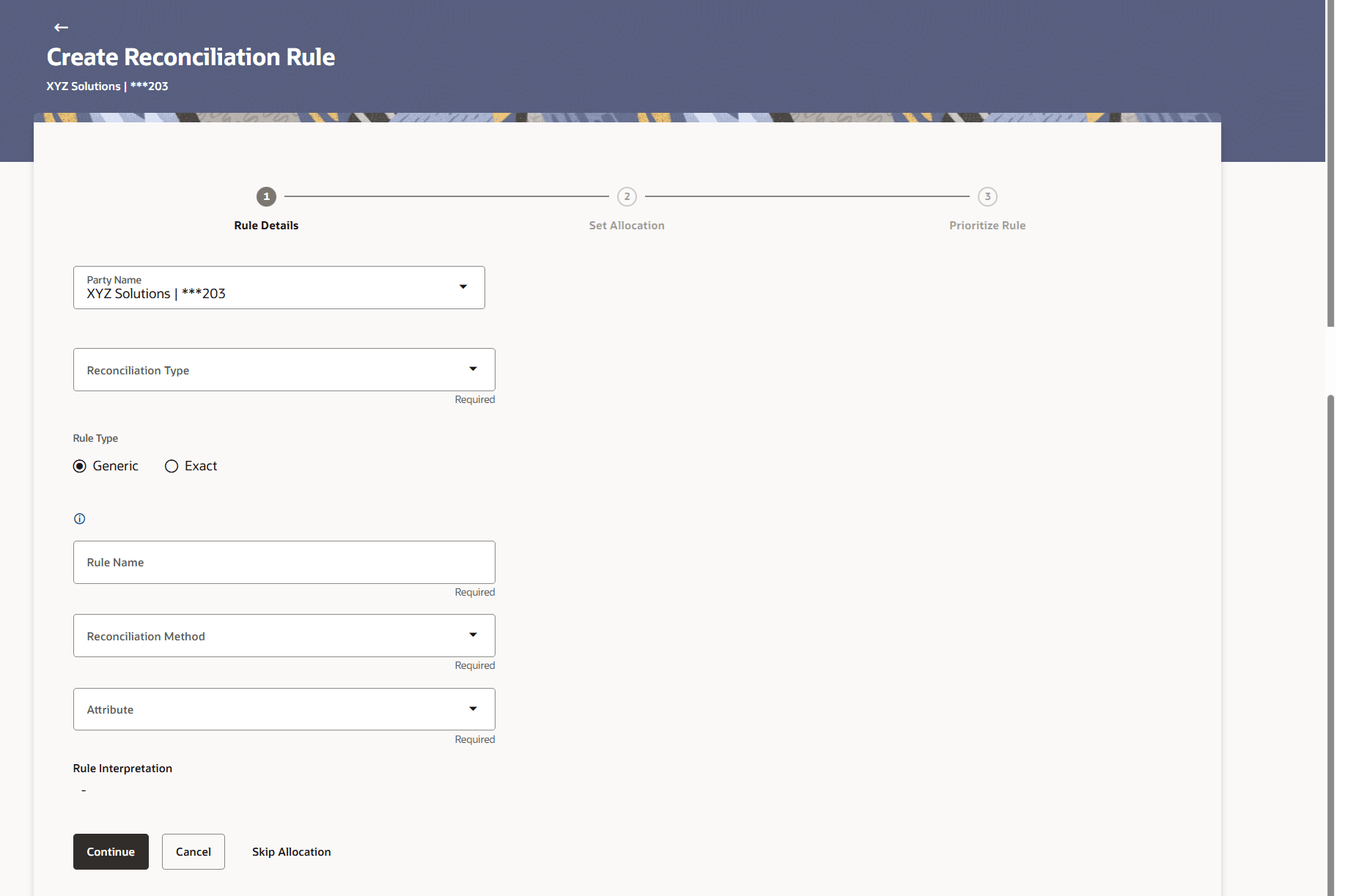
The Create Reconciliation Rules screen appears with Step1 Rule Details.
- In the Rule Details step of the Create Reconciliation Rule screen,
specify the required details.
Figure 8-2 Create Reconciliation Rule - Rule Details
Table 8-1 Create Reconciliation Rule - Field Description
Field Name Description Party Name Select the party name from the dropdown list in which the reconciliation rule must be created. By default, the primary party/gcif of the logged-in user is selected. Note: Only accessible parties are displayed to the user.
Rule Details This section displays Rule details related fields. Reconciliation Type Select the reconciliation type. The options are: - Invoices/Debit Notes to Credit Notes Recon
- Invoices/Debit Notes to Payment Recon
- Expected Cashflow to Payment Recon
Rule Type Select whether the rule being created is a generic one or an exact one. The options are: - Generic
- Exact
Rule Name Specify the name to be assigned to the rule being created. Apply Generic Rule This switch appears if you select the Exact option from the Rule Type field. Enable this switch to apply the corresponding generic rule on the remaining unreconciled records, post execution of the exact rule. - Based on the option you select in the Rule Type field (Generic or Exact), enter further details.
- Generic Rule
This topic provides systematic instructions to create generic rule. - Exact Rule
This topic provides systematic instructions to create Exact rule. - Recon Rule overlay window
This topic provides systematic instructions to view the recon rule details. This window appears when you click the Rule Id link in the Prioritize Rule step when creating a reconciliation rule.
Parent topic: Reconciliation