8.2.1 Generic Rule
This topic provides systematic instructions to create generic rule.
- Perform any of the following actions:
- From the Dashboard, click the Toggle Menu, then click Receivables/Payables, Reconciliation and Create Reconciliation Rule.
- From the Dashboard, click the Toggle Menu, then click Receivables/Payables, Reconciliation, Overview, Quick Links and Create Reconciliation Rules.
The Create Reconciliation Rule screen appears.Table 8-2 Create Reconciliation Rule - Generic Rule - Field Description
Field Name Description Generic option These fields appear if you select the Generic option. Reconciliation Method Select how the rule is applied to the invoice/cash-flow records for reconciliation. This field appears if you select the Generic option in the Rule Type field. The options are: - FIFO – Oldest invoice/cash-flow to be reconciled first
- LIFO – Latest invoice/cash-flow to be reconciled first
- HAFO – Invoice/Cash-flow with highest amount to be reconciled first
- LAFO – Invoice/Cash-flow with lowest amount to be reconciled first
Attribute Select the attribute to be used for applying the reconciliation method. This field appears if you select the Generic option in the Rule Type field. For Invoice and Payments reconciliation:
- For FIFO and LIFO, the options are: Invoice Date; Invoice Due Date.
- For HAFO and LAFO, the options are: Invoice Amount; Outstanding Invoice Amount.
For Cash Flow and Payments reconciliation:
- For FIFO and LIFO, the options are: Expected Date; Revised Expected Date.
- For HAFO and LAFO, the option is: Amount.
Rule Interpretation Displays the rule that is set, based on the options you select in the Reconciliation Method and Attribute fields. This field appears if you select the Generic option in the Rule Type field.
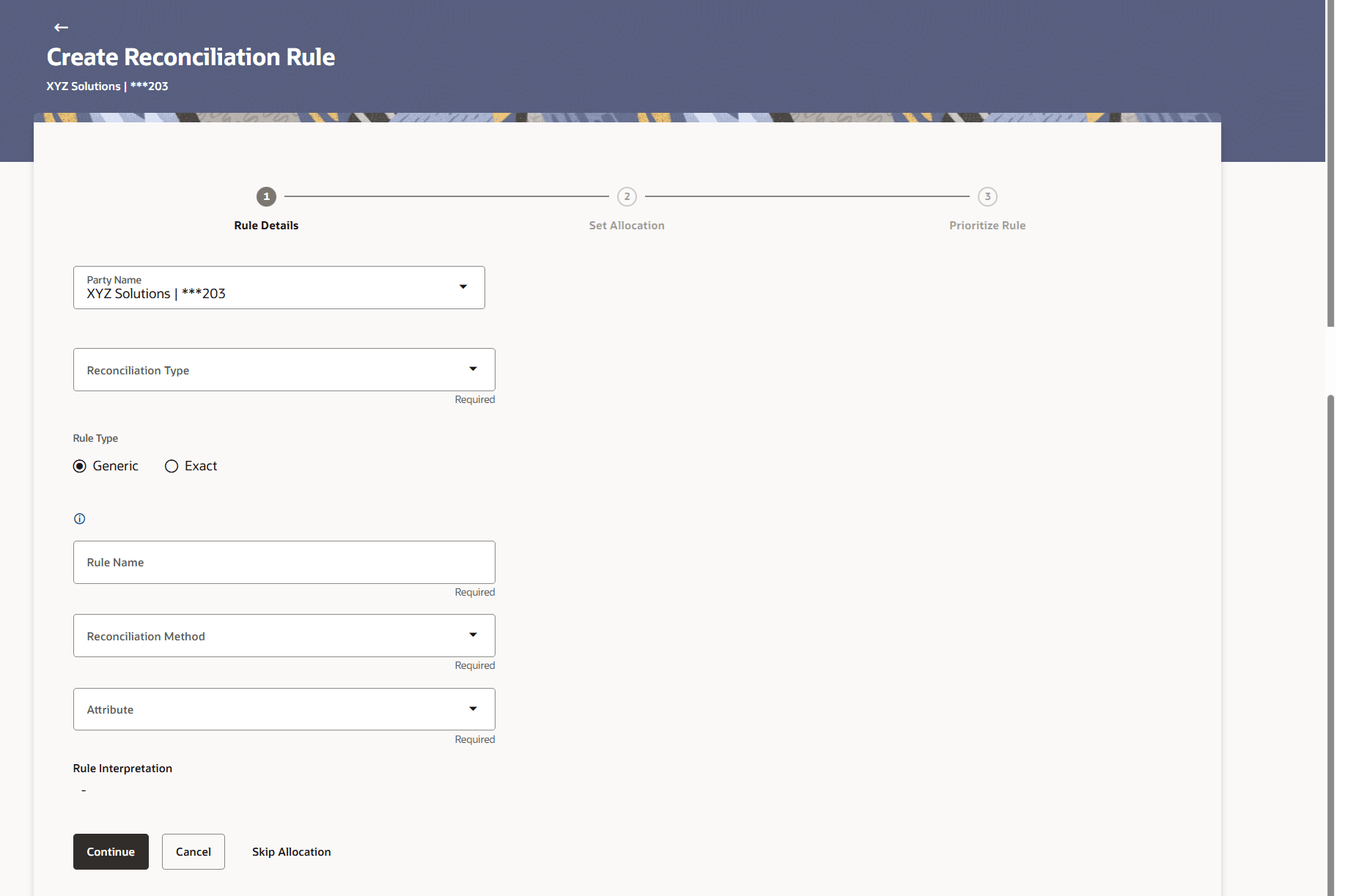
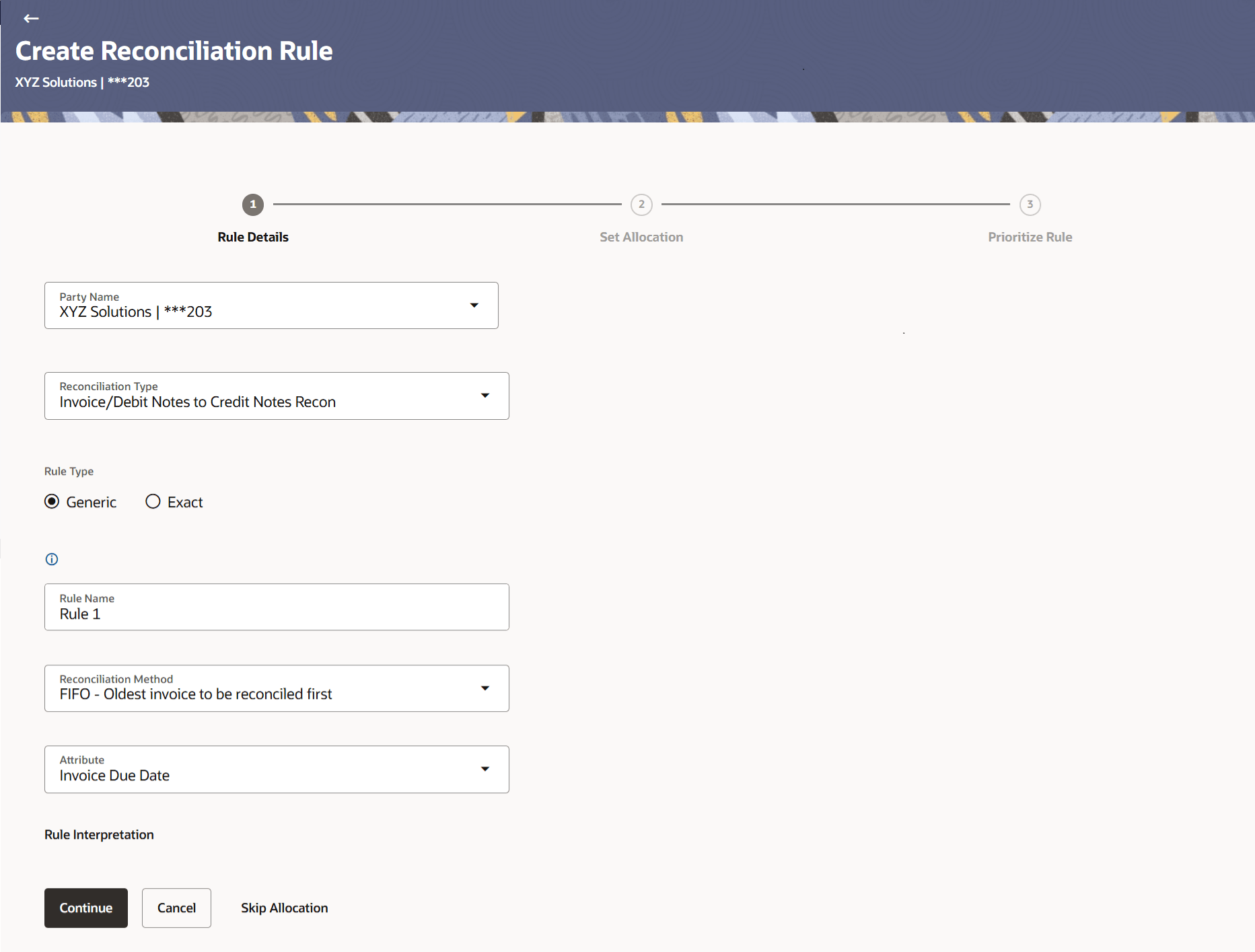
Figure 8-5 Set Allocation – Account
Based Figure 8-6 Set Allocation – Attribute
Based Table 8-3 Set Allocation Field Description Note: Set Allocation step is not applicable for Reconciliation
type Invoice/Debit Note and Credit Note. Please skip the step to proceed
to Prioritize Rule step.
Field Name
Description
Party Name
Displays the name and ID of the logged-in corporate
party.
Set Allocation
In this step, you can set the percentages to be allocated to specific virtual
accounts. You must ensure that the sum of the allocated percentages should be
100.
Allocation Basis
Select whether allocation should be virtual accounts-based or
attributes-based.
Narration
Specify the narration for reconciliation rule creation.
Account Based Allocation
This section appears if you select the Account Based option in the
Allocation Basis field.
Serial Number
Displays the serial number of the allocation account.
Allocation Account
Select a virtual account to assign an allocation
percentage.
Percentage
Specify the percentage of payment to be allocated to the virtual
account.
Action
Click
 to add further virtual accounts. Or click
  to delete an added account.
Attribute Based Allocation
This section appears if you select the Attribute Based option in the
Allocation Basis field. This option can be used to allocate specific
percentages of the payment towards specific attributes. The amount corresponding
to the payment percentage set, is allocated to the virtual accounts mapped to
these attributes.
Serial Number
Displays the serial number of the attribute.
Allocation Entity
Select the entity whose attribute should be considered for
setting an allocation percentage.
Allocation Attributes
Select the attribute for which the allocation percentage should
be set.
Percentage
Specify the percentage of payment to be allocated to the
attribute.
Action
Click
to add further attributes. Or click to delete an added attribute.
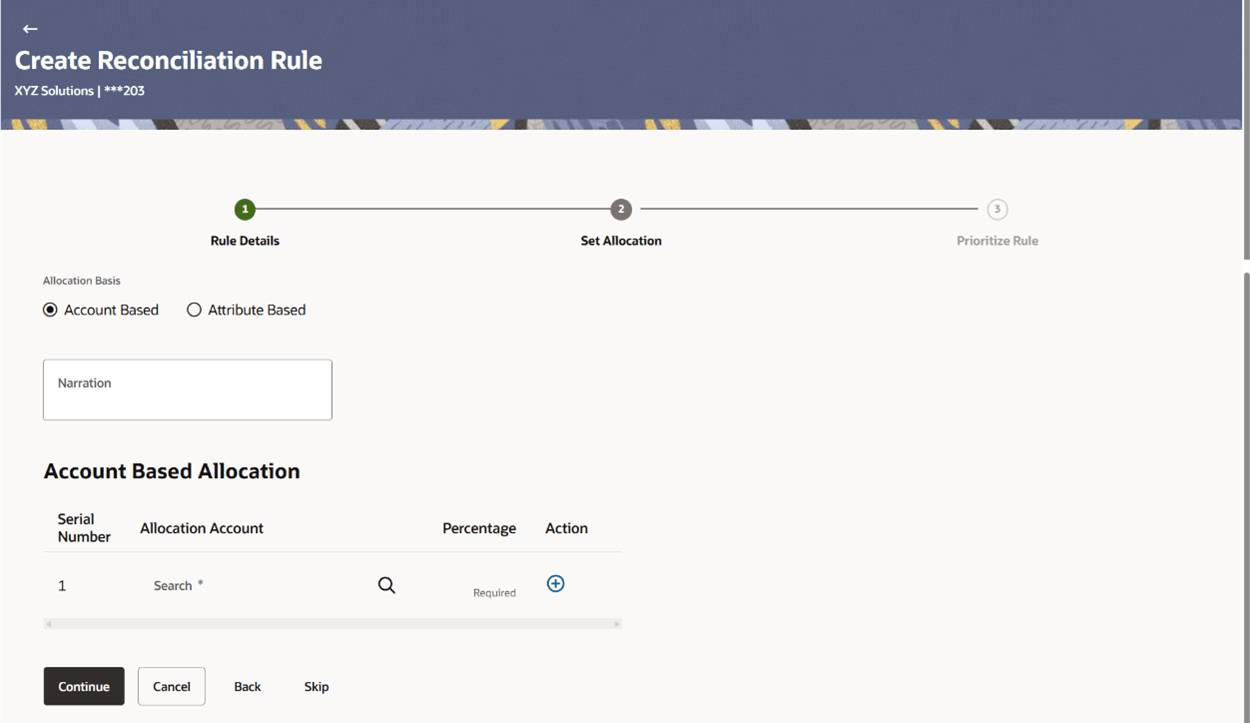
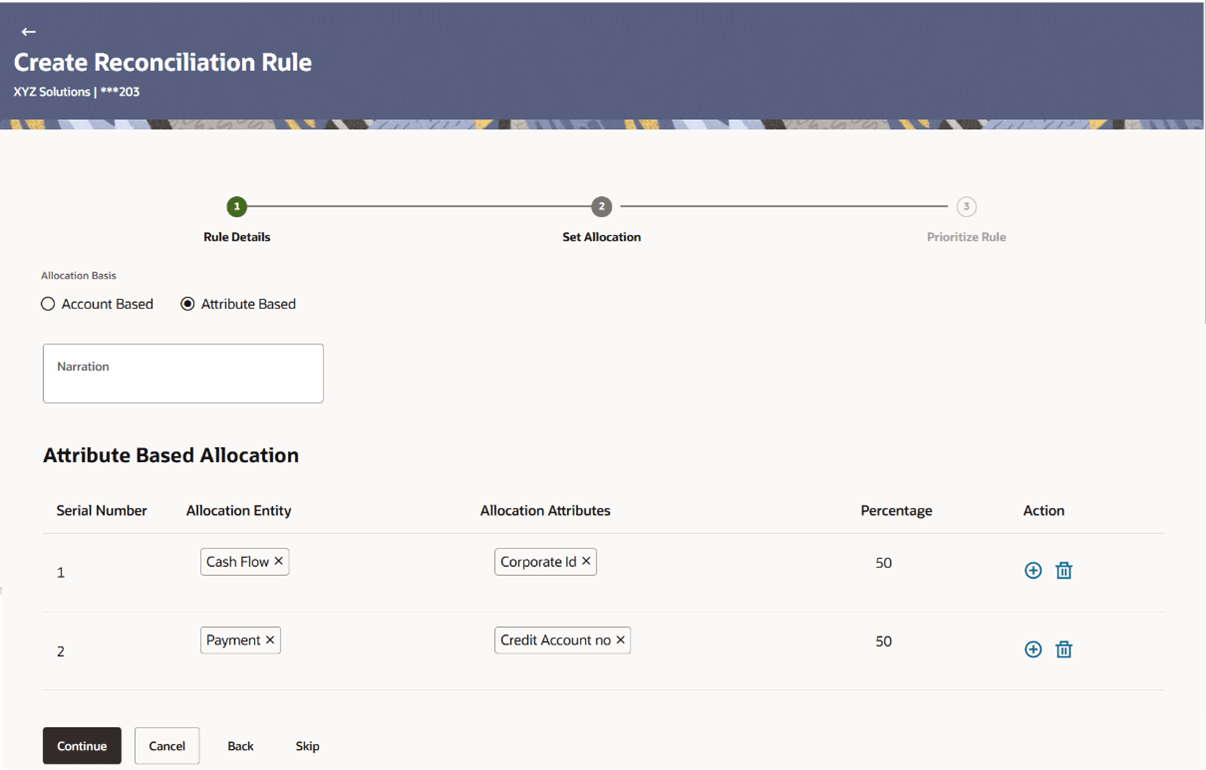
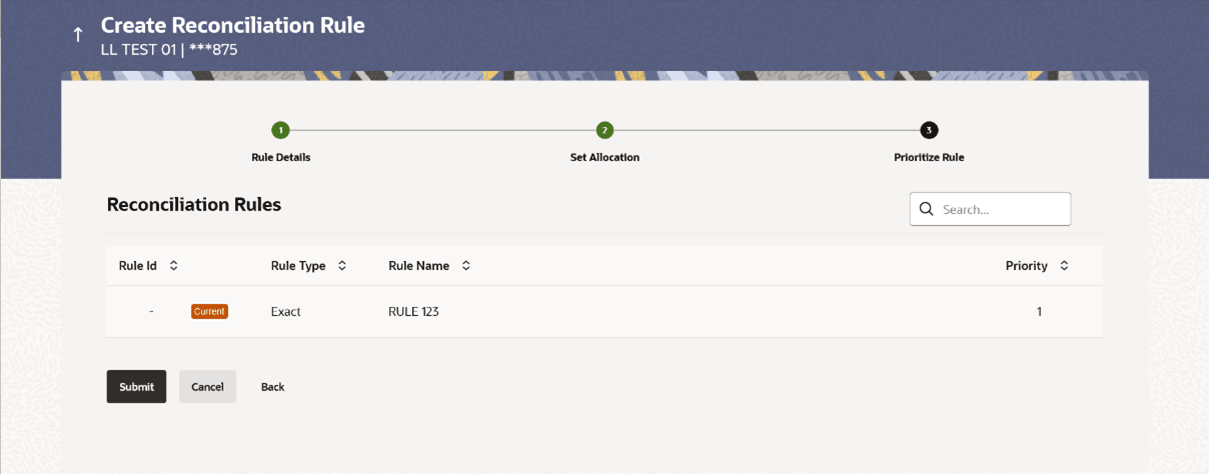
Figure 8-7 Prioritize Rule Table 8-4 Prioritize Rule - Field Description The keyword “Current” is
displayed beside the rule being created. The keyword
“Modified” is displayed beside any rule whose priority has been
changed. Note: For an existing rule, click Edit icon to edit and modify the priority, if required.
Field Name
Description
Party Name
Displays the name and ID of the logged-in corporate
party.
Prioritize Rule
This section displays Prioritize Rule details related
fields.
Reconciliation Rules
A list of existing rules is displayed. You can set the priority on the rule
being created, and also modify the priority on an existing rule, if required. For
the rule being created, the keyword ‘Current’ is displayed beside it. For a
rule whose priority is modified, the keyword ‘Modified’ is displayed beside
it.
Search
Indicates an option to search for a specific reconciliation
rule.
Rule Id
Displays the unique rule ID. For the rule being created, this
field appears blank. An ID is assigned once the rule is created. The IDs of the
other rules in this column are hyperlinks, which when clicked display the rule
details in an overlay window. For more information, refer the Recon Rule
overlay window section below.
Rule Type
Displays whether the rule is a generic or an exact one.
Rule Name
Displays the name assigned to the rule.
Priority
Indicates the priority assigned to the rule.
- Click Submit to submit the transaction. The Review screen
appears. Or, do one of the following:
- Click Cancel to cancel the transaction.
- Click Back to go to the previous screen.
Figure 8-8 Create Reconciliation Rule - Review Screen (Exact)
Figure 8-9 Create Reconciliation Rule - Review Screen (Generic)
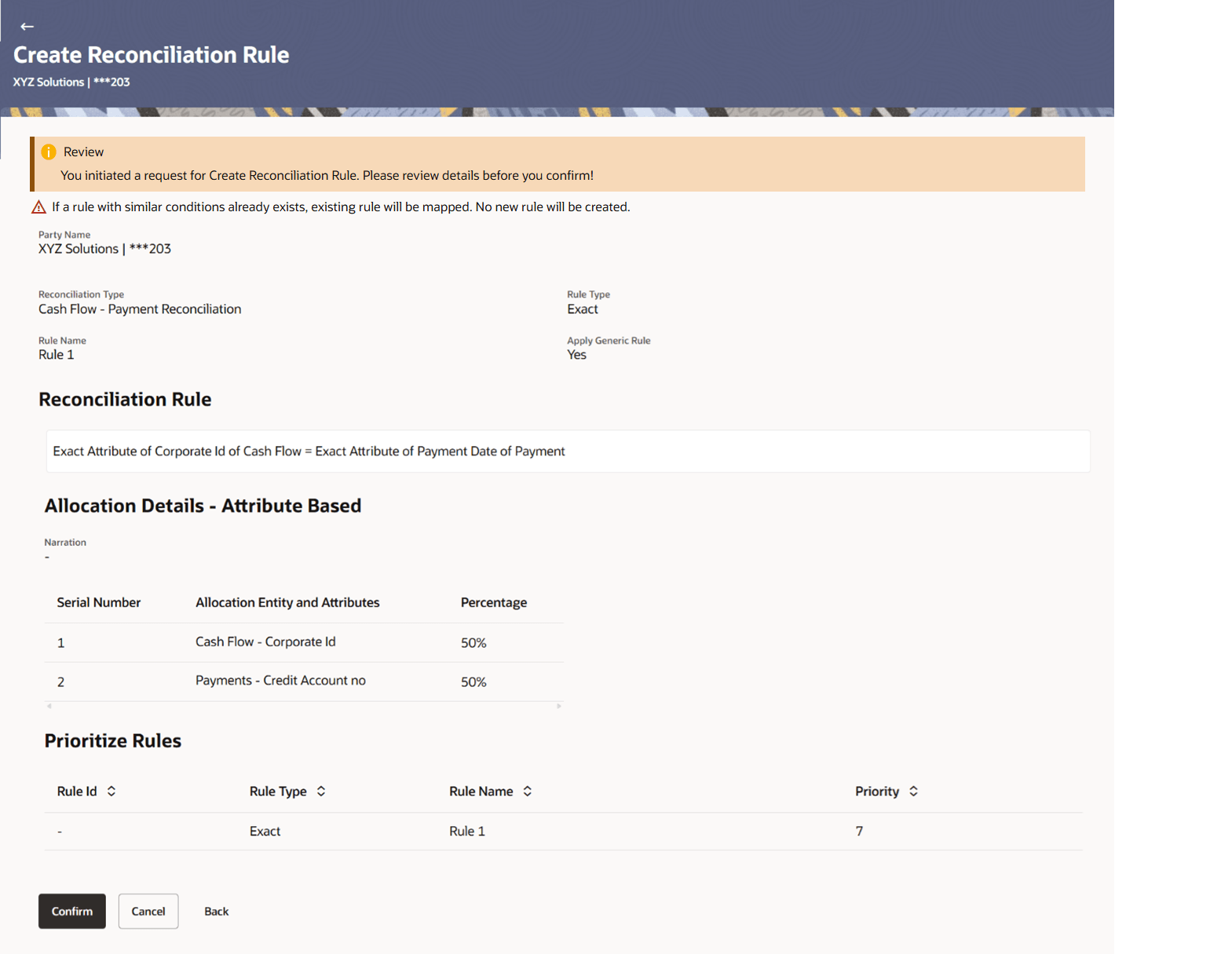
Figure 8-10 Create Reconciliation Rule
- Review Screen 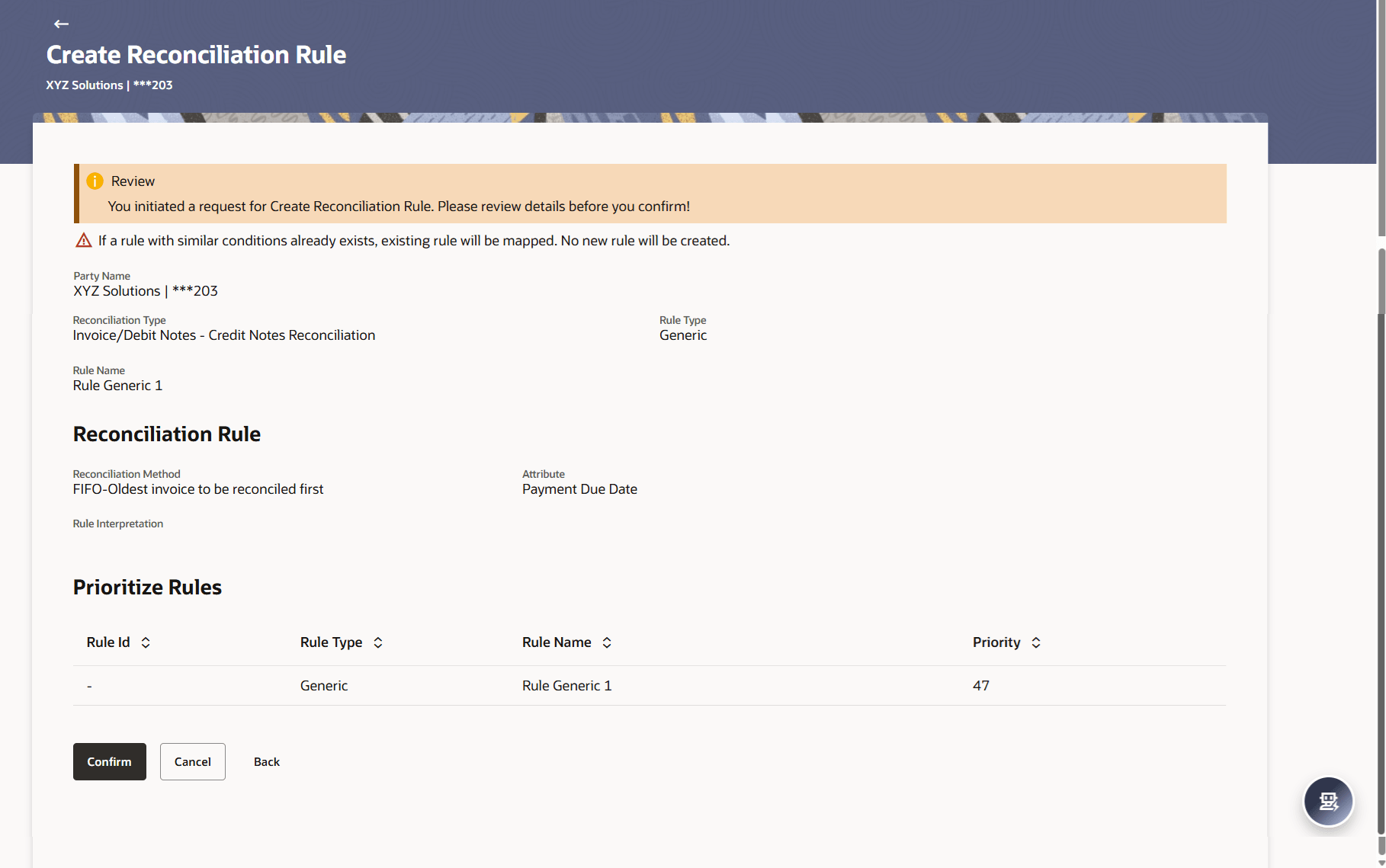
- In the Review screen, verify the details and click Confirm. A
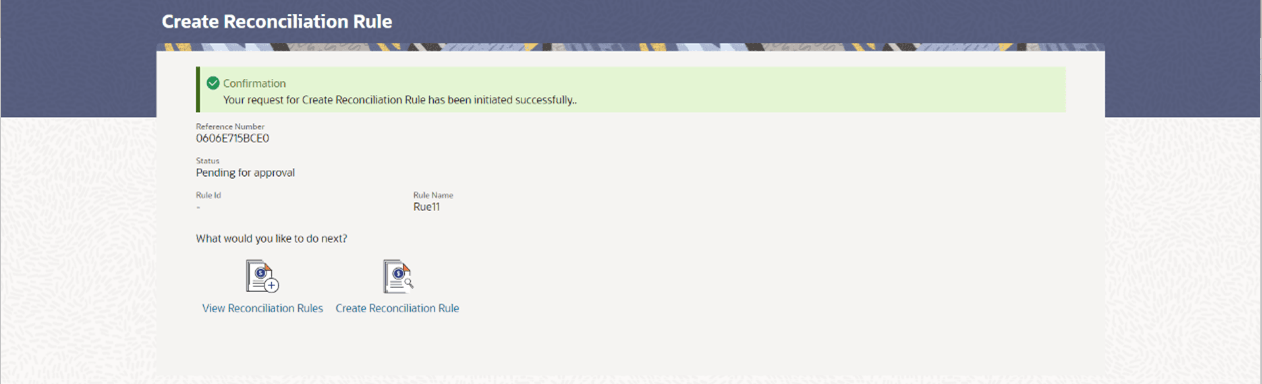
Confirmation message appears, with the reference number and status of the transaction. Or,
do one of the following:
- Click Cancel to cancel the transaction.
- Click Back to go to the previous screen.
Figure 8-11 Create Reconciliation Rule – Confirmation
Parent topic: Create Reconciliation Rule