4.8 Search (overlay window for Manage Receivables/Payables)
This topic provides systematic instructions to search for receivables/payables based on the filter criteria.
This overlay window appears when you click the  icon in the Manage Receivables/Payables screen.
Figure 4-20 Search (overlay window for Manage Receivables/Payables)
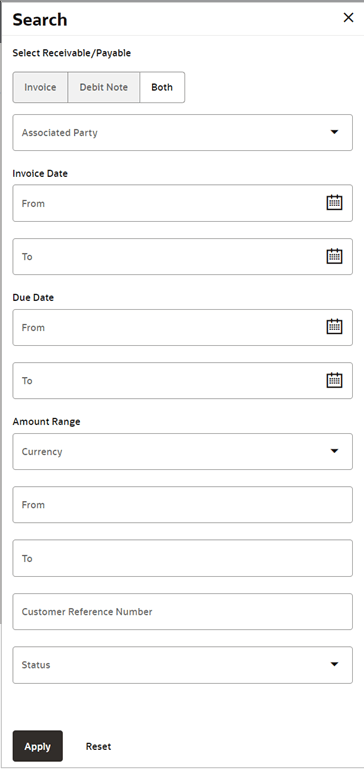
Table 4-11 Search (overlay window for Manage Receivables/Payables) - Field Description
| Field Name | Description |
|---|---|
| Select Receivable/Payable | Select the type of receivable/payable to take action on.
The options are:
|
| Associated Party | Select the associated party to link the
Receivables/Payables from all on-boarded associated parties. The list of
on-boarded associated party is categorized by:
On selecting an associated party, the role of the party as Buyer or Supplier, appears below this field. |
| Discount Offer | Indicates an option to search for receivables/payables
based on the discount offer linked to them. This list displays all
discount offers that have been created. You can select a specific
discount offer to view specific receivables/payables, or the ‘All
Offers’ option to view all receivables/payables.
This field appears only for the Accept/Reject Discount Offer option. |
| Date From - To | Indicates an option to search for receivables/payables created within a specific date range. Click the calendar icon and select the From and To dates. |
| Due Date From - To | Indicates an option to search for receivables/payables that are due in a specific date range. Click the calendar icon and select the From and To dates. |
| Amount Range Currency From/To | Indicates an option to search for receivables/payables based on an amount range. Select the required currency from the Currency list, and enter the From and To amounts. |
| Customer Reference Number | Indicates an option to search for receivables/payables based on the reference number. |
| Status |
Indicates an option to search for receivables/payables based on their status.
|
Parent topic: Manage Receivables/Payables