8.5.1.1 Single Invoice/Debit Note to Multiple Payments/Credit Notes
This topic provides systematic instructions to select an invoice or a debit note and one or more payments/credit notes to reconcile with.
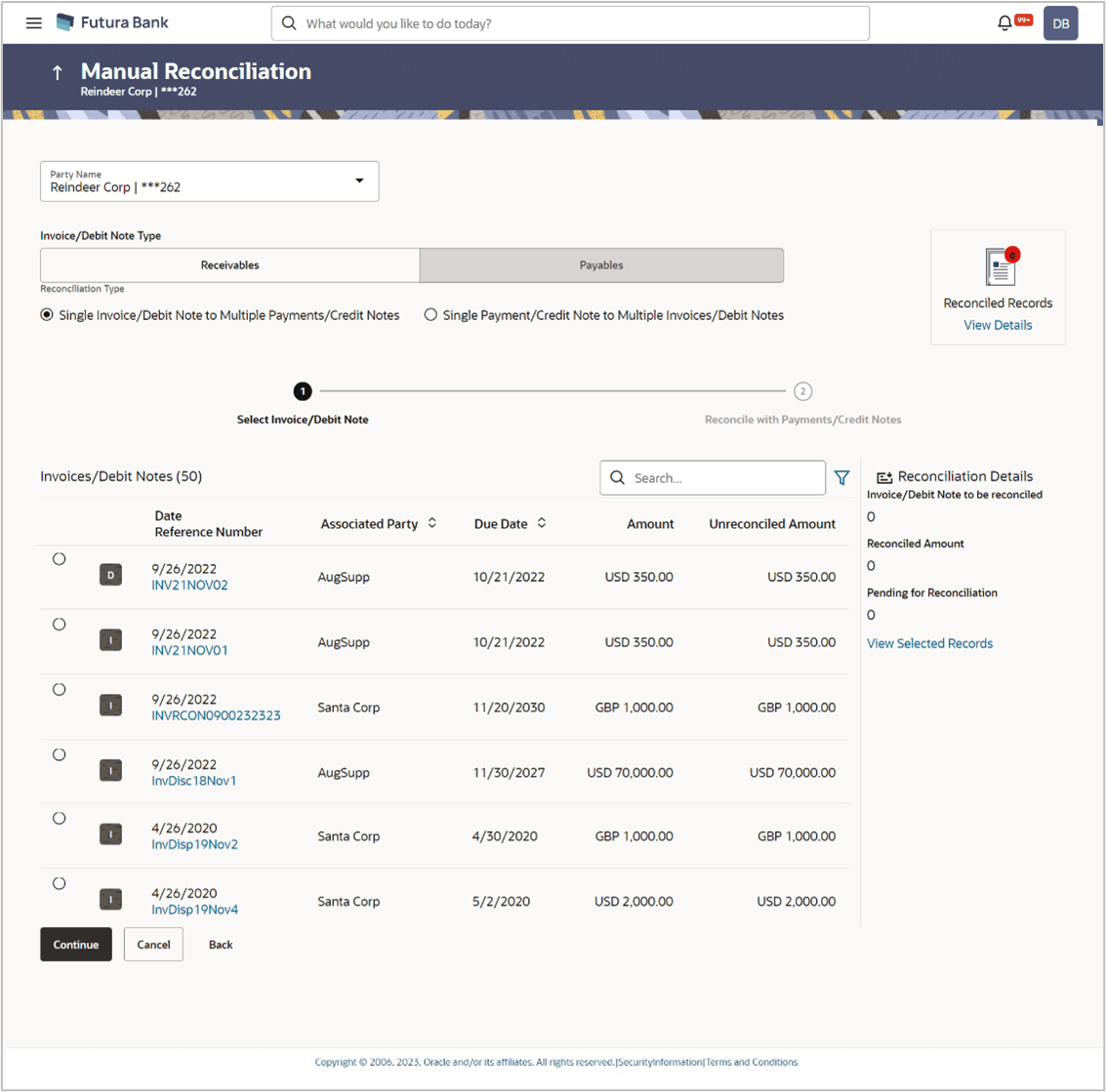
If you select this option, then a list of invoices and debit notes appears. These invoices and debit notes are unreconciled or partially reconciled. You can select an invoice or a debit note and one or more payments/credit notes to reconcile with. Upon selection, you can save these details, and add another record to be reconciled in the same transaction.
- From the Dashboard, click the
Toggle Menu, then click
Receivables/Payables,
Reconciliation,
Manual Reconciliation, and
Receivables/Payables against
Payment/Credit Note.The Manual Reconciliation screen appears.
Table 8-26 Manual Reconciliation - Field Description
Field Name Description Select Invoice/Debit Note This step appears if you select the Single Invoice/Debit Note to Multiple Payments/Credit Notes option from the Reconciliation Type field. A list of unreconciled / partially-reconciled invoices and debit notes is displayed. You can select either an invoice or a debit note from the list. Invoice/Debit Note Type Displays the total number of invoices and debit notes available in the list. Search Indicates an option to search for specific invoices/debit notes. 
Click this icon to filter the invoices/debit notes based on certain criteria. The Invoice/Debit Note Search overlay window appears. For more information on the fields in this window, refer the Invoice/Debit Note Search section in this document. Selector Indicates the option to select the invoice/debit note. Indicator Displays ‘I’ for invoice and ‘D’ for debit note. Date Reference Number Displays the date of the invoice/debit note and its reference number as a hyperlink. You can click this link to view the invoice/debit note details in an overlay window. The fields displayed in the overlay window are the same as those present in the View Invoice Details screen / View Debit Note Details screen in this document. Associated Party Displays the name of the associated or counter party. Due Date Displays the due date of the invoice/debit note. Amount Displays the total invoice/debit note amount. Unreconciled Amount Displays the unreconciled invoice/debit note amount. Reconciliation Details section This section, present on the right hand side of the Manual Reconciliation screen, is automatically updated when you select the invoice/debit note and payments/credit notes for reconciliation. Invoice/Debit Note to be reconciled Displays the invoice/debit note amount to be reconciled, once you select an invoice/debit note in the 1st step of manual reconciliation. Reconciled Amount Displays the total payments/credit notes amount. This field is updated once you select the payments and/or credit notes in the 2nd step of manual reconciliation. Pending for Reconciliation Displays the difference between the amounts in the fields above. View Selected Records Click this link to view the details of the selected invoice/debit note and payments and/or credit notes. An overlay window appears with the details of the selected records. Reconciled Records This section (present on the top right side of the Manual Reconciliation screen) displays the number of records that you have saved for reconciliation by clicking Save and Add Another. You can click the View Details link to view the details of these saved records, which appear in an overlay window. To remove a saved record, click  beside it.
- Click Continue to proceed to the
Reconcile with Payments/Credit Notes step.
Or, do one of the following:
- Click Cancel to cancel the transaction.
- Click Back to go to the dashboard.
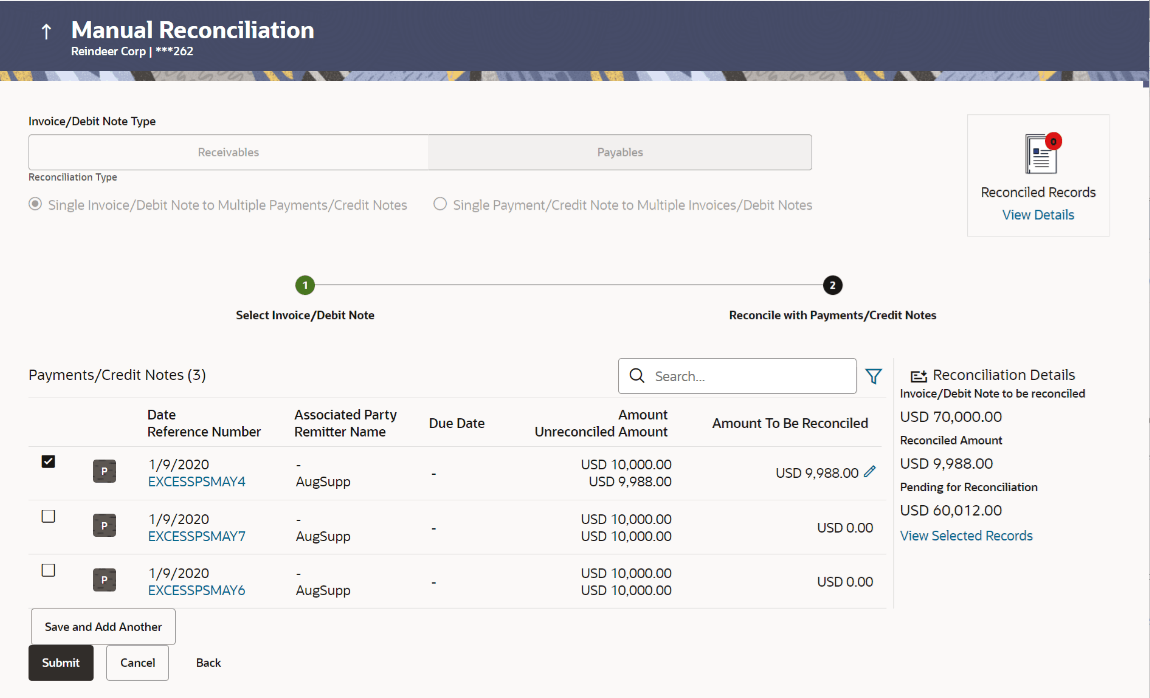
Figure 8-63 Reconcile with Payments/Credit Notes
Table 8-27 Reconcile with Payments/Credit Notes - Field Description table
Field Name Description Reconcile with Payments/Credit Notes This step appears when you select an invoice/debit note and click Continue. You can select multiple payments/credit notes for reconciliation. Payments/Credit Notes (number) Displays the total number of payment and credit note records available in the list. Search Indicates an option to search for specific payments/credit notes. 
Click this icon to filter the payments and credit notes based on certain criteria. The Payments/Credit Notes Search overlay window appears. For more information on the fields in this window, refer the Payments/Credit Notes Search section in this document. The following fields are present in the payments/credit notes grid.
Check box Indicates the option to select the payment/credit note record. Indicator Displays ‘P’ for payment and ‘C’ for credit note. Date Reference Number Displays the date of the payment/credit note and its reference number as a hyperlink. You can click this link to view the payment/credit note details in an overlay window. The fields displayed in the overlay window are the same as those present in the View Payment (details)screen / View Credit Note Details screen in this document. Associated Party Remitter Name Displays the name of the associated party and the remitter. Due Date Displays the expiry date in case of a credit note record. For a payment record, this field is blank. Amount Unreconciled Amount Displays the total payment/credit note amount and the unreconciled amount. Amount To Be Reconciled Indicates the payment/credit note amount that is yet to be reconciled. Once you select a payment/credit note record, you can edit and modify the amount to be reconciled, if required. Note:
To edit this field:- Select the required payment/credit note record.
- Click
 and modify the amount.
- Click
 to save the amount.
Reconciliation Details section Figure 8-64 Reconciliation Details
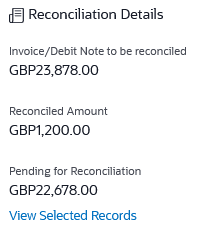
This section, present on the right hand side of the Manual Reconciliation screen, is automatically updated when you select the invoice/debit note and payments/credit notes for reconciliation. Payment/Credit Note to be reconciled Displaysthe payment/credit note amount to be reconciled, once you select an payment/credit note in the 1st step of manual reconciliation. Reconciled Amount Displays the total payments/credit notes amount. This field is updated once you select the payments and/or credit notes in the 2nd step of manual reconciliation. Pending for Reconciliation Displays the difference between the amounts in the fields above. View Selected Records Click this link to view the details of the selected invoice/debit note and payments and/or credit notes. An overlay window appears with the details of the selected records. - In the Amount To Be Reconciled field, click to edit the amount and then click to save the changes, if required.
- Click Save and Add Another to save the details and
select another invoice/debit note to reconcile against
payments/credit notes.
- To view a list of records that you have already
saved, click the View Details link in the
Reconciled Records section, on the top
right side of the Manual Reconciliation screen.
An overlay window appears with the saved records. To delete a record, click
.
- To view a list of records that you have already
saved, click the View Details link in the
Reconciled Records section, on the top
right side of the Manual Reconciliation screen.
Parent topic: Invoices/Debit Notes against Payments/Credit Notes