6 Link Purchase Orders to Program
This topic provides systematic instructions to link purchase orders to program.
Using this screen, a corporate user from the Anchor party can link purchase orders to programs. Purchase Orders must be linked to a program to be financed. Only the Anchor of the program will be able link the purchase orders to the program. A counter party who has login access to the channel will not be able to link the purchase orders.
- On Dashboard, click the Toggle
Menu, then click Supply Chain Finance.
From Supply Chain Finance, click Link Purchase
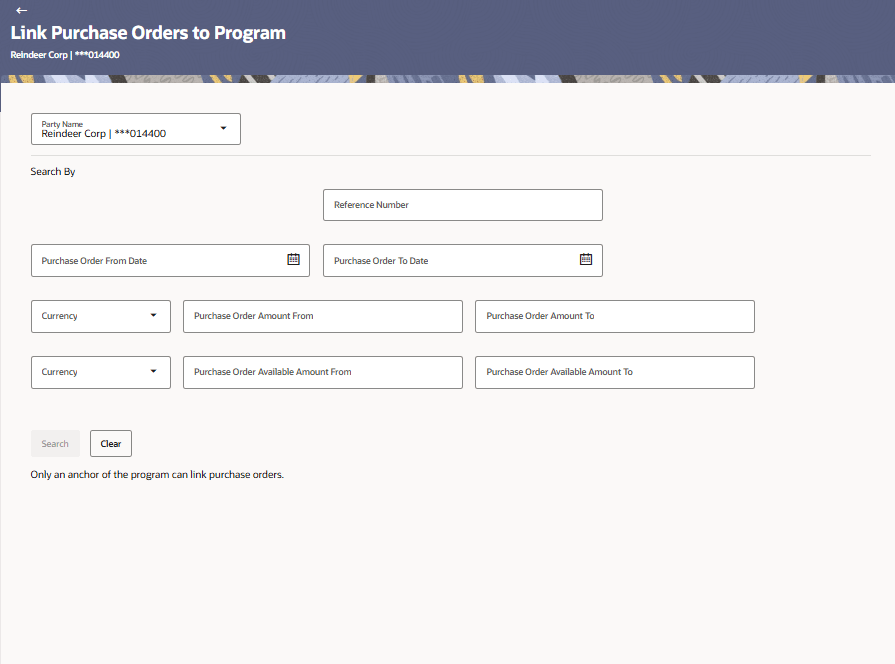
Orders to Program.The Link purchase orders to a program page displayed based on the search criteria, under the respective associated party(ies).
Figure 6-1 Link Purchase Orders to Program
For more information on fields, refer to field description table.
Table 6-1 Link Purchase Orders to Program - Field Description
Field Description Party Name and ID Select the party name and ID from the drop-down list for which the purchase orders must be linked to program. By default, the primary party of the logged-in user is selected. Note: Only accessible parties are displayed to the user.
Search By This section displays the Search by fields. Associated Party Name Indicates an option to search for purchase orders associated with a specific counter party. The drop-down displays values only if there are associated parties on boarded by the logged-in corporate customer. Reference Number Indicates an option to search for a purchase order using the reference number. Purchase Order Date Indicates an option to search for purchase orders that are due within a specific date range. Purchase Order Amoun Indicates an option to search for purchase order amount of a particular currency, with amounts in a specific range. Purchase Order Available Amount Indicates an option to search for purchase order available amount of a particular currency, with amounts in a specific range. - Click Search. Enter the required search criteria in the
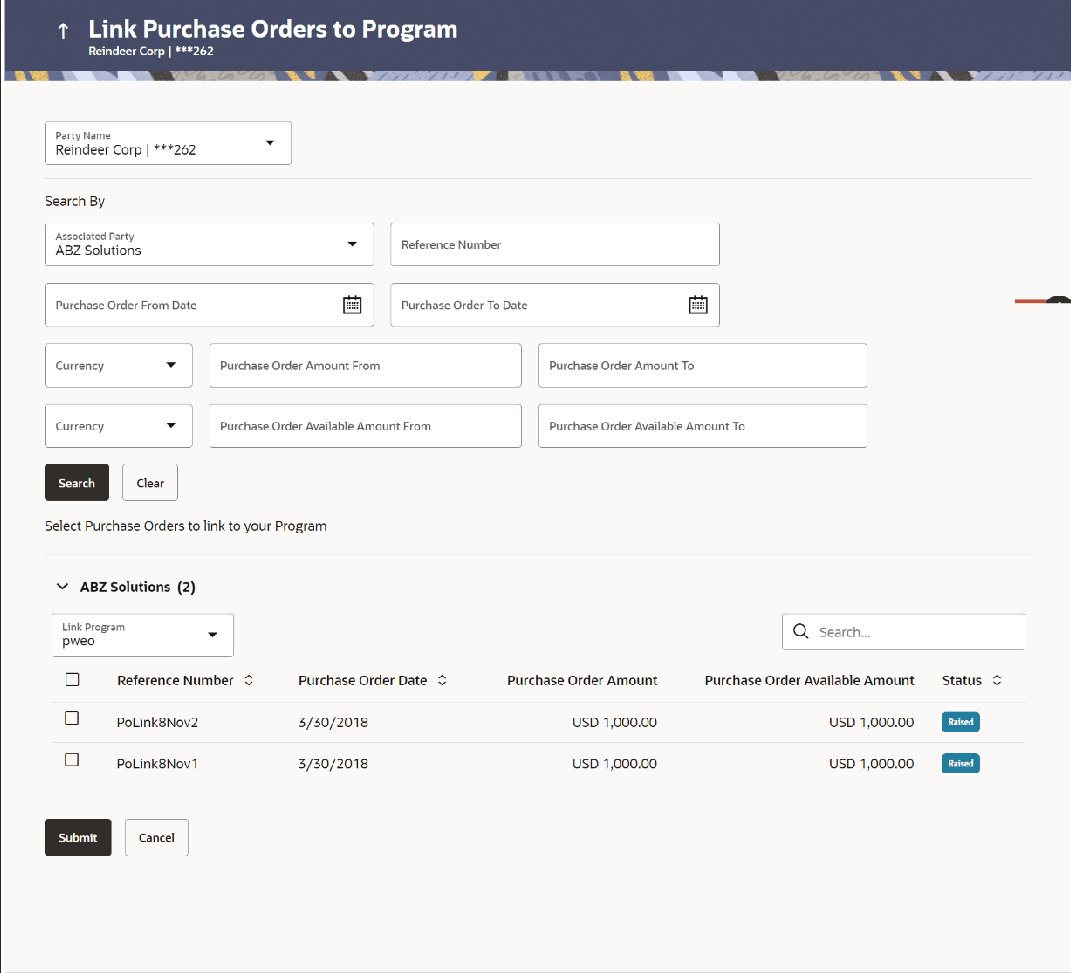
search fields.The Link Purchase Orders to Program screen is displayed on a associated-party basis.
Figure 6-2 Link Purchase Orders to Program – Search Results
For more information on fields, refer to field description table.
Table 6-2 Link Purchase Orders to Program
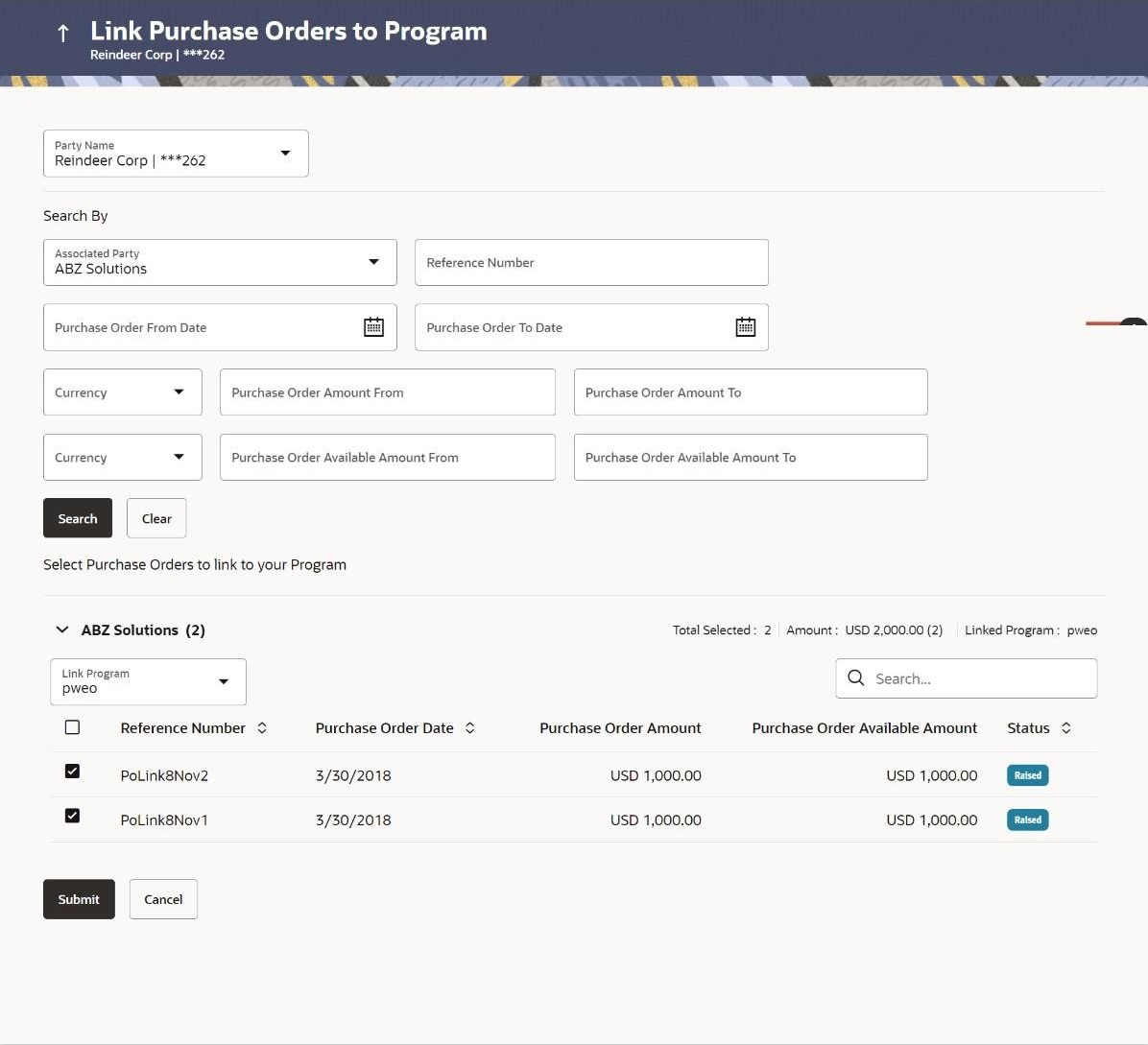
Field Description Link Purchase Orders to Program - Search Results The purchase orders are displayed on a associated-party basis. For each associated party, the following fields are displayed. Associated Party Name (number of purchase orders) Displays the name of the associated party along with the number of purchase orders related to that party. Total Selected Displays the total number of purchase orders that are selected for linking to a program. This field appears after you select at least one purchase order.
Amount Displays the total amount of all selected purchase orders, on a per currency basis. This field appears after you select at least one purchase order.
Linked Program Displays the name of the program selected for linking. This field appears after you select at least one purchase order.
Link Program Indicates a list of programs associated with the counter party. Select the required program from this list. If there are no programs between the corporate party and the associated party then a message indicating the same, is displayed. Search Indicates an option to search for specific purchase orders. You can enter the partial or whole reference number to search for the required purchase orders. Check box Provides the option to select the purchase order for linking to the program. Click the main check box to select all purchase orders in the list. Reference Number Displays the purchase order reference number. Purchase Order Date Displays the date of creation of the purchase order. Purchase Order Amount Displays the purchase order amount along with the currency. Purchase Order Available Amount Displays the purchase order amount available for allocation along with the currency. Status Displays the current status of the purchase order. Figure 6-3 Purchase Orders selected to link to Program
- Click Submit, once you select the required program and purchase order(s). Or Click Cancel to cancel the transaction.
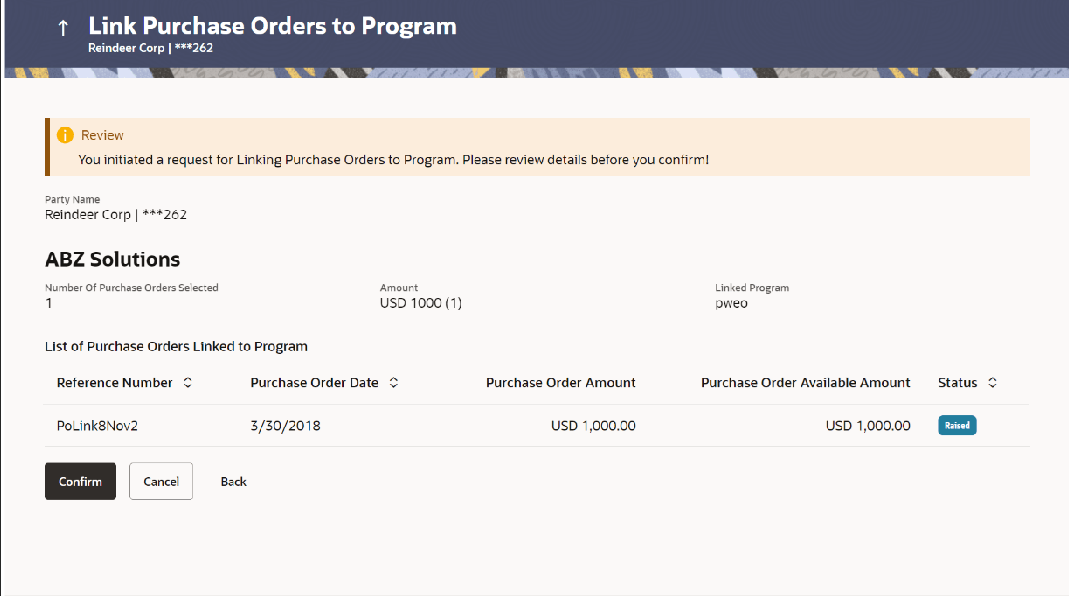
Figure 6-4 Link Purchase Orders to Program – Review screen
- On the Review screen, verify the details and click
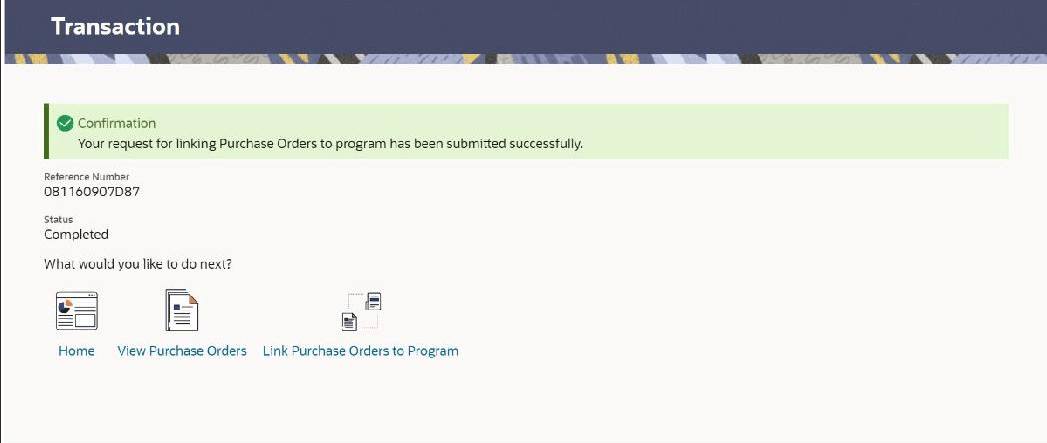
Confirm. A Confirmation message appears with the
reference number and status. Or, do one of the following:
- Click Cancel to cancel the transaction.
- Click Back to go to the previous screen
Figure 6-5 Link Purchase Orders to Program – Review screen