17.1 Single Product Application – View & Modify
Using this option, the Bank Administrator can view the retail or business workflow defined for a single/individual product application and if required, can also modify the workflow.
To view and/or modify the origination workflow of a single product category application:
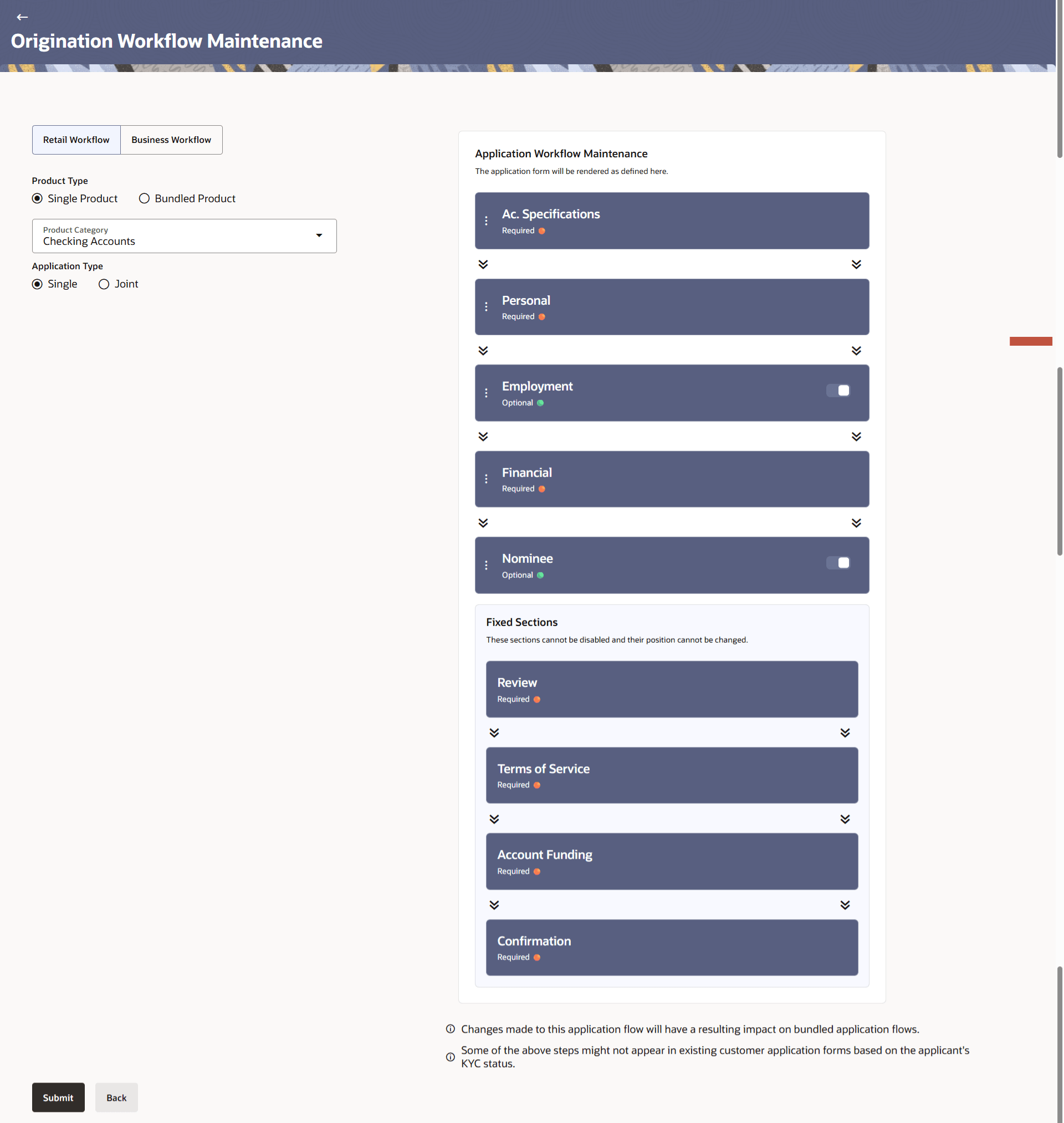
- On the landing page, select Workflow Type, Product Type, Product Category, and
Application Type (if applicable). On selecting values for these fields, the workflow for the selected Product Category and other selected parameters, appears on the screen.
Figure 17-1 Origination Workflow Maintenance
Note:
The fields which are marked as Required are mandatory.For more information on fields, refer to the field description table.
Table 17-1 Origination Workflow Maintenance – Single Product - Field Description
Field Name Description Workflow Type Workflows can be configured for Retail as well as Business products. Select the desired option. The options are:- Retail Workflow
- Business Workflow
Product Type Select the desired product application for which the workflow needs to be viewed or custom workflow is to be defined. The options are:- Single Product
- Bundled Product
Product Category Select the product category for which the workflow needs to be viewed or configured. The list will be populated based on the Day 0 configurations done in the application. The options available for Retail are:- Savings Accounts
- Checking Accounts
- Term Deposits
- Credit Cards
- Auto Loans
- Unsecured Personal Loans
- Wallets
- Home Loans
- Education Loans
The options available for Business are:
- Savings Accounts
- Checking Accounts
- Term Loans
- Working Capital Loans
This field appears only if the Single Product Application tab is selected in the Product Type field.
Application type Select whether this workflow is for a single or a joint account application. This option is available only for Retail Workflows and based on the product category selected, i.e. this option only appears if joint applications are supported for the product category selected.
Parent topic: Origination Workflow Maintenance