4.3 Loans Inquiry
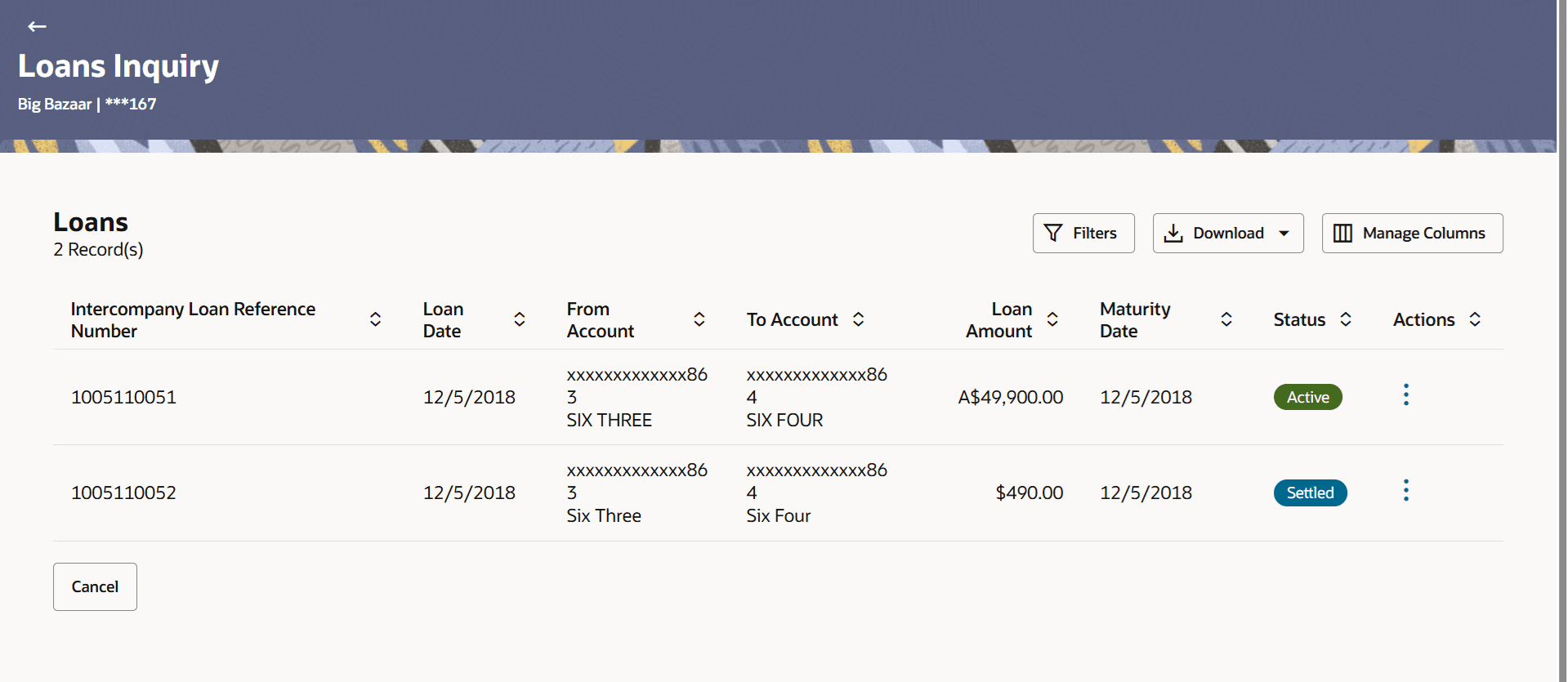
This topic provides systematic instructions to search and view the list of intercompany loans created among the parties which he has access. User can also view the loan details, loan transactions and initiate the loan settlement.
- From Menu, click Liquidity
Management, and then click Intercompany
Loan. From Intercompany Loan, click
Loans Inquiry screen.The Loan Inquiry screen displays. For more information on fields, refer to the field description table.
Table 4-10 Loans Inquiry – Field Description
Field Description Intercompany Loans Reference Number Displays the reference number for the intercompany loans. Loan Date Displays the loan booking date. To Account Displays the account number to which the loan amount is credited. Loan Amount Displays the loan amount. From Amount Displays the account number from which the loan amount is debited. Maturity Date Displays the date when the loan tenure gets completed. This field left blank for the open-ended loan.
- Click
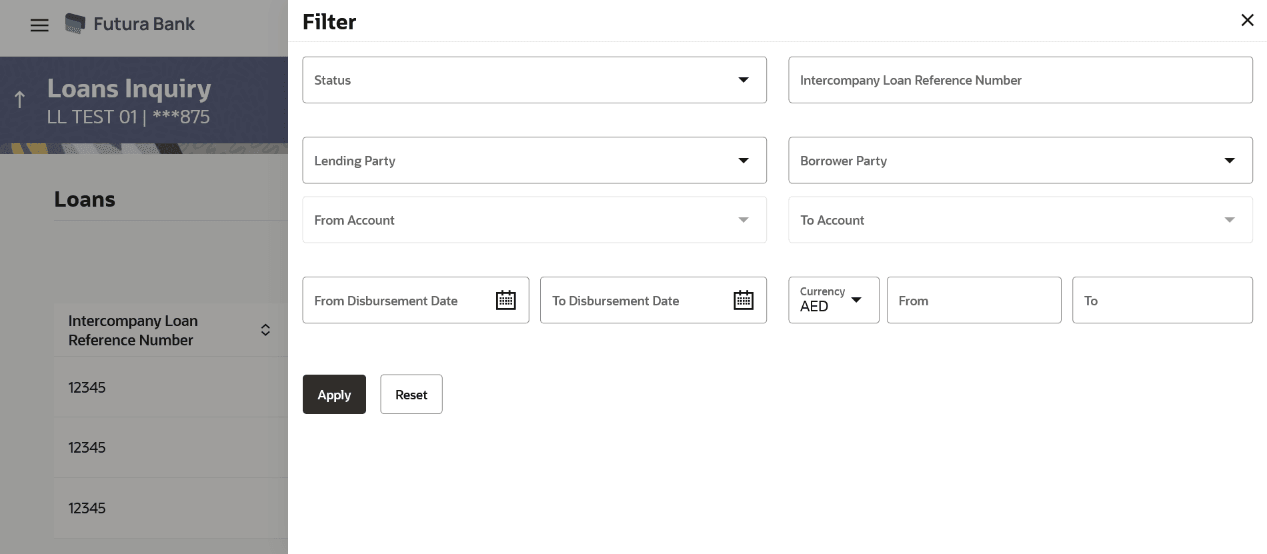
 to filter the loan details with the various criteria. The Loans Inquiry – Filter pop-up screen displays. For more information on fields, refer to the field description table.
Table 4-11 Loans Inquiry - Filter
Field Description Status Select the loan status to filter the loans. The available options are:- Active
- Closed
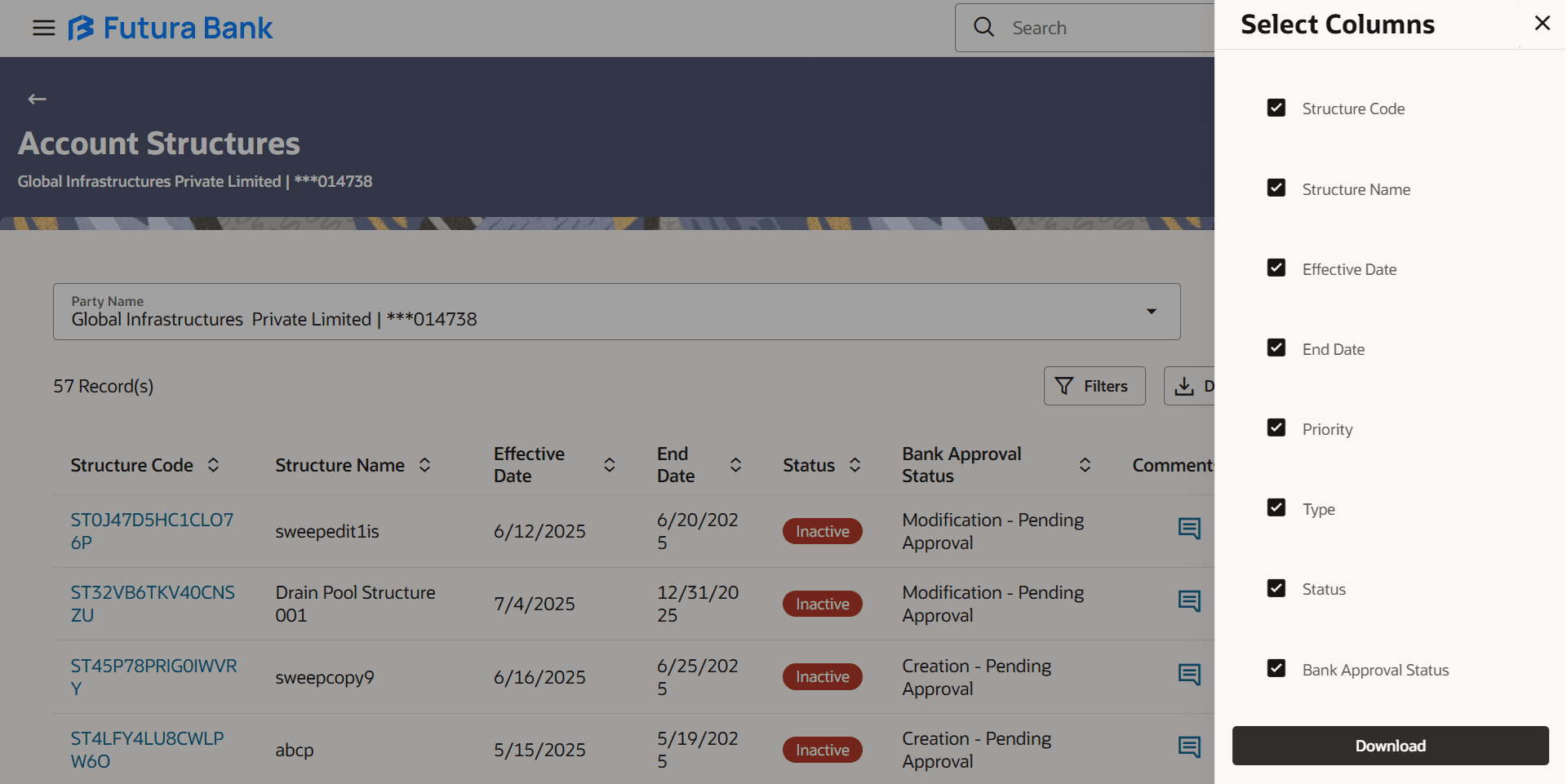
Intercompany Loan Reference Number Specify the intercompany loan reference number to filter the loans. Lending Party Select the lending party to filter the loans. Borrower Party Select the borrower party to filter the loans. From Account Select the account in which the loan amount is debited to filter the loans. To Account Select the account in which the loan amount is credited to filter the loans. From Disbursement Date Select the disbursement date from when the loans must be filtered. To Disbursement Date Select the disbursement date till when the loans must be filtered. Currency Select the currency to filter the loan details. From Specify the minimum amount from which the loans must be filtered. To Specify the maximum amount till which the loans must be filtered. - Click Download and select the option
PDF or CSV from the drop-down
list.The Select Columns overlay screen displays.
Figure 4-18 Account Structure – Select Columns
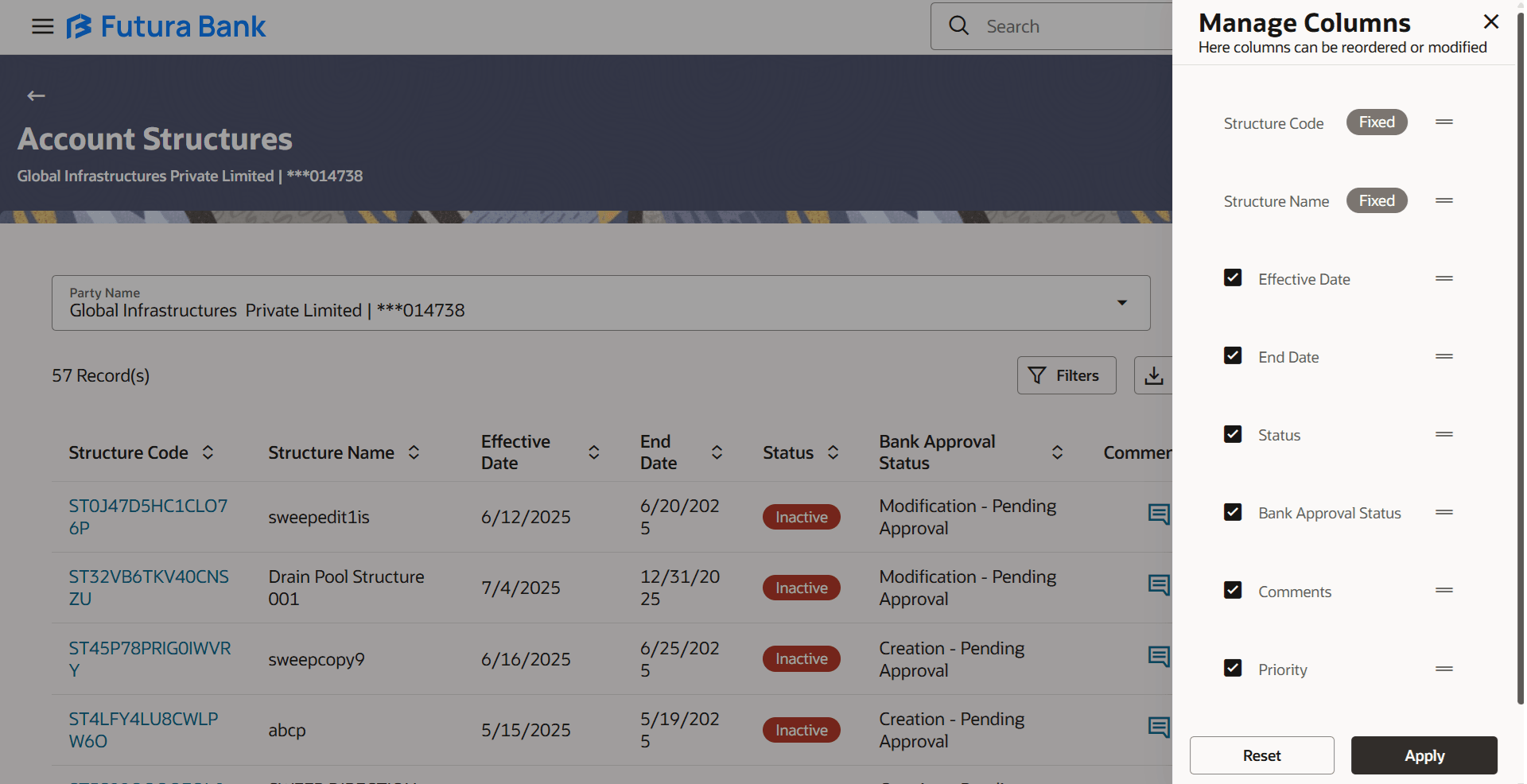
- Click Manage Columns to reorder or modify or save column
preferences in account structures screen.The Click Account Structure – Manage Columns overlay screen displays.Perform one of the following actions:
Figure 4-19 Account Structure – Manage Columns
- Click Apply to apply the modified columns preferences.
- Click Reset to reset the columns preferences.
- On Loan Inquiry screen, under
Action column, click
 and select View Transaction to view the transaction details for
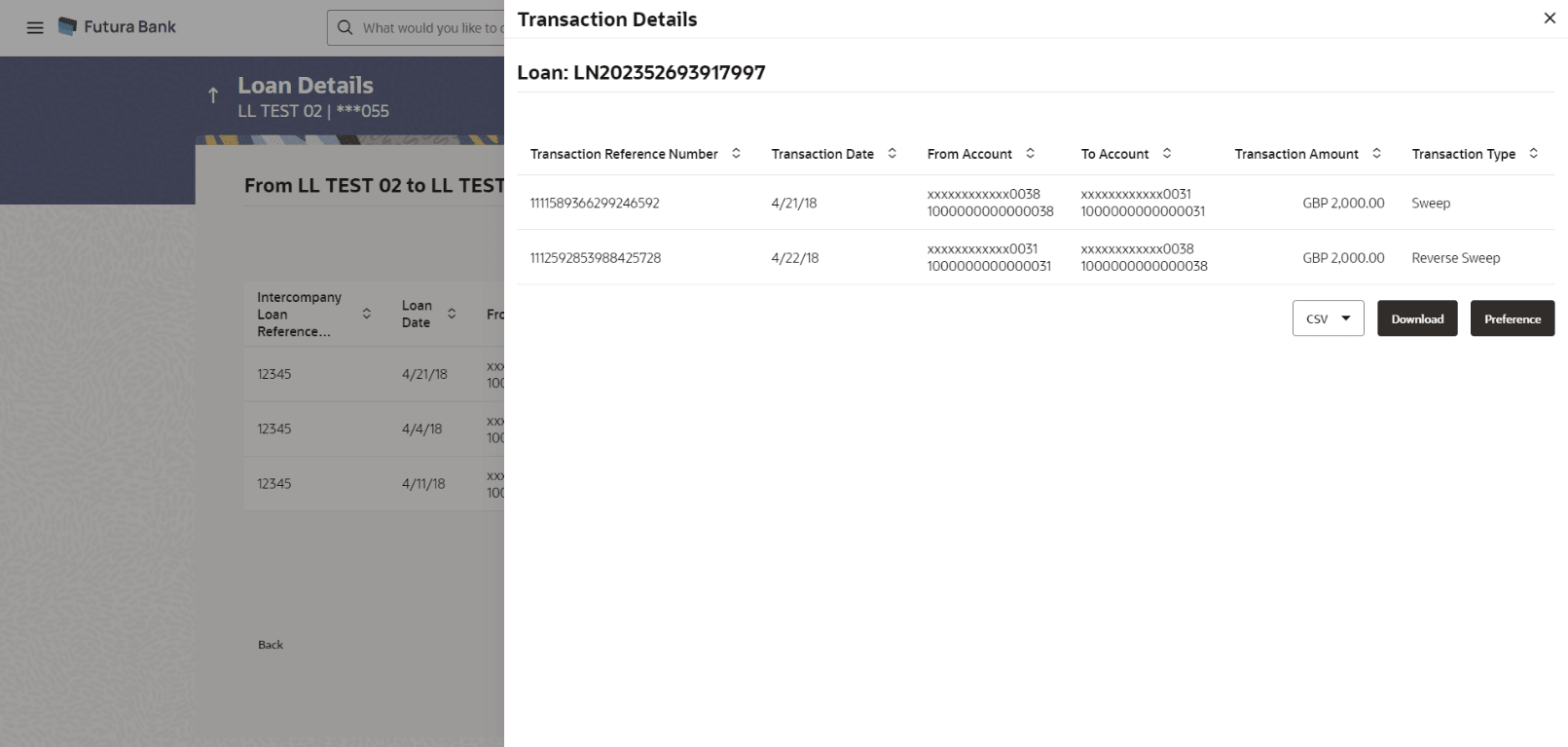
the respective intercompany loan.The Loan Details – Transaction Details overlay screen displays.For more information on fields, refer to the field description table.
and select View Transaction to view the transaction details for
the respective intercompany loan.The Loan Details – Transaction Details overlay screen displays.For more information on fields, refer to the field description table.Figure 4-20 Loan Details - Transaction Details
Table 4-12 Loan Details - Transaction Details - Field Description
Field Description Transaction Reference Number Displays the reference number of the loan transaction. Transaction Date Displays the date when the loan transaction is made. From Account Displays the account from which the loan amount is debited. To Account Displays the account to which the loan amount is credited. Transaction Amount Displays the transaction amount of the intercompany loan. Transaction Type Displays the type of the transaction. - On Loan Inquiry screen, click and select View Loan to view the details of the
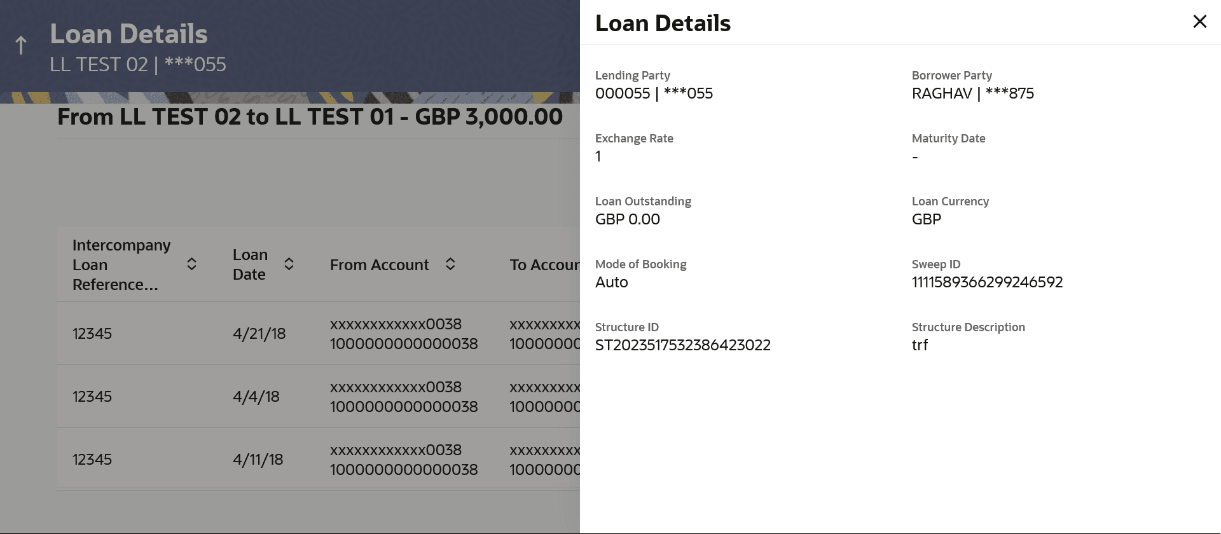
intercompany loan.The Loan Details - View Loan pop-up screen displays. For more information on fields, refer to the field description table.
Table 4-13 Loan Details – View Loan - Field Description
Field Description Lending Party Displays the lending party of the selected loan. Borrower Party Displays the borrower party of the selected loan. Exchange Rate Displays the exchange rate between the lending and borrower currency. Maturity Date Displays the date when the loan tenure gets completed. This field left blank for the open-ended loan. Loan Outstanding Displays the outstanding balance of the intercompany loan. Loan Currency Displays the currency of the intercompany loan. Mode of Booking Displays the mode of booking. Sweep ID Displays the unique ID for the sweep transaction of the loan. Structure ID Displays the unique ID of the sweep structure. Structure Description Displays the description of the sweep structure. - On Loan Inquiry screen, click and select Settle to initiate the settlement
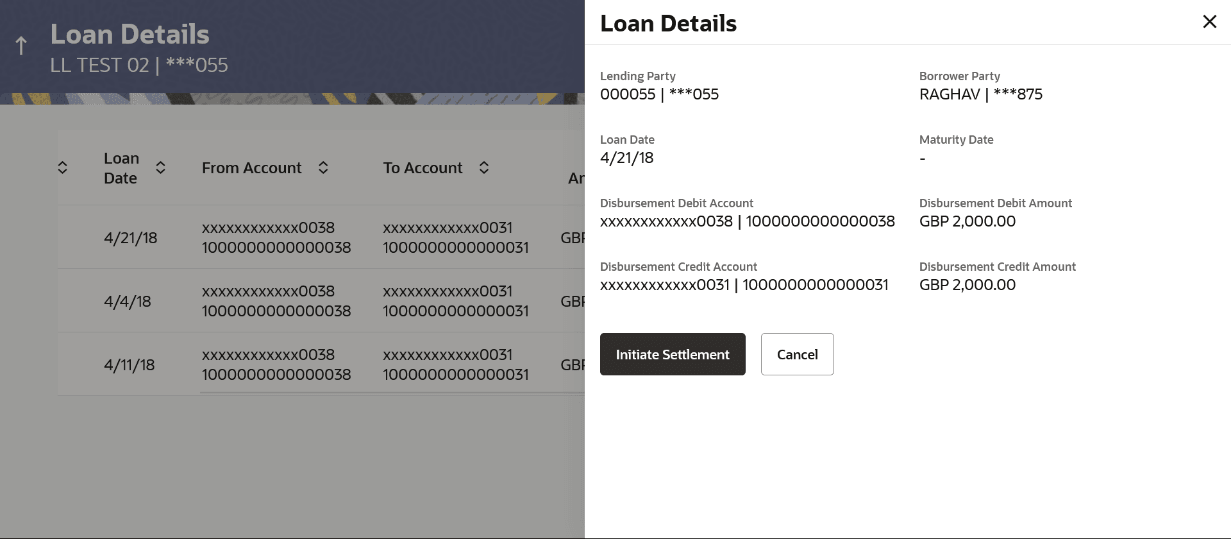
request for the intercompany loan on the booking date.The Loan Details - Settlement pop-up screen displays. For more information on fields, refer to the field description table.
Table 4-14 Loan Details – Settlement - Field Description
Field Description Lending Party Displays the lending party of the selected loan. Borrower Party Displays the borrower party of the selected loan. Loan Date Displays the loan booking date. Maturity Date Displays the date when the loan tenure gets completed. This field left blank for the open-ended loan. Disbursement Debit Account Displays the account from which the loan amount is debited. Disbursement Debit Amount Displays the debited loan amount. Disbursement Credit Account Displays the account to which the loan amount is credited. Disbursement Credit Amount Displays the credited loan amount. - On Loan Details - Settlement pop-up screen, click
Initiate Settlement to settle/close the loan.
Note:
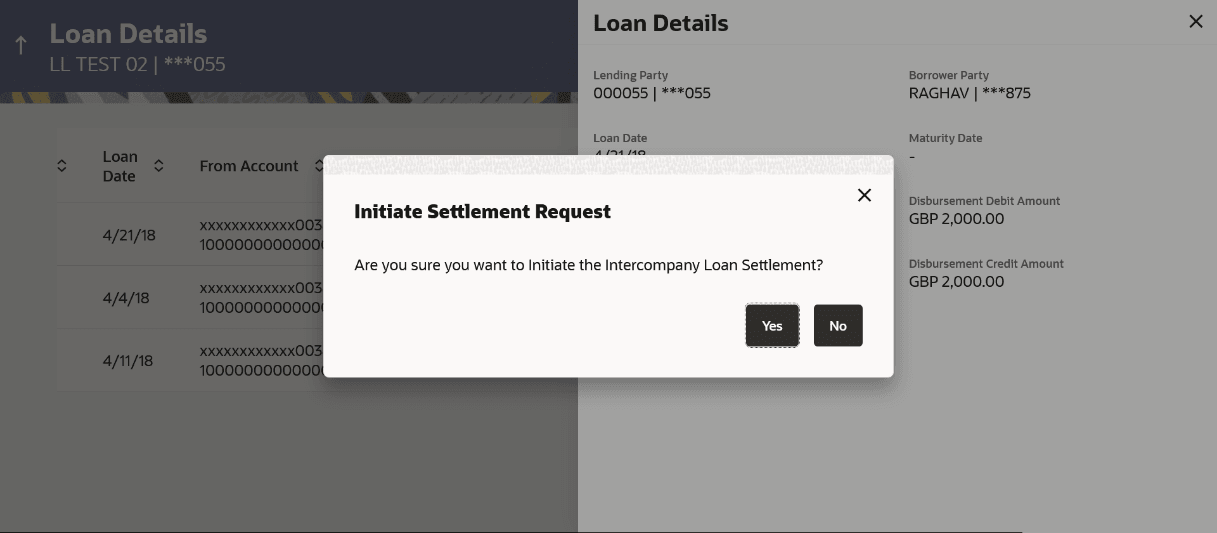
If the user does not have access to the account, an error message displaying "Access Denied" appears.The Initiate Settlement Request screen displays. - Perform one of the actions:
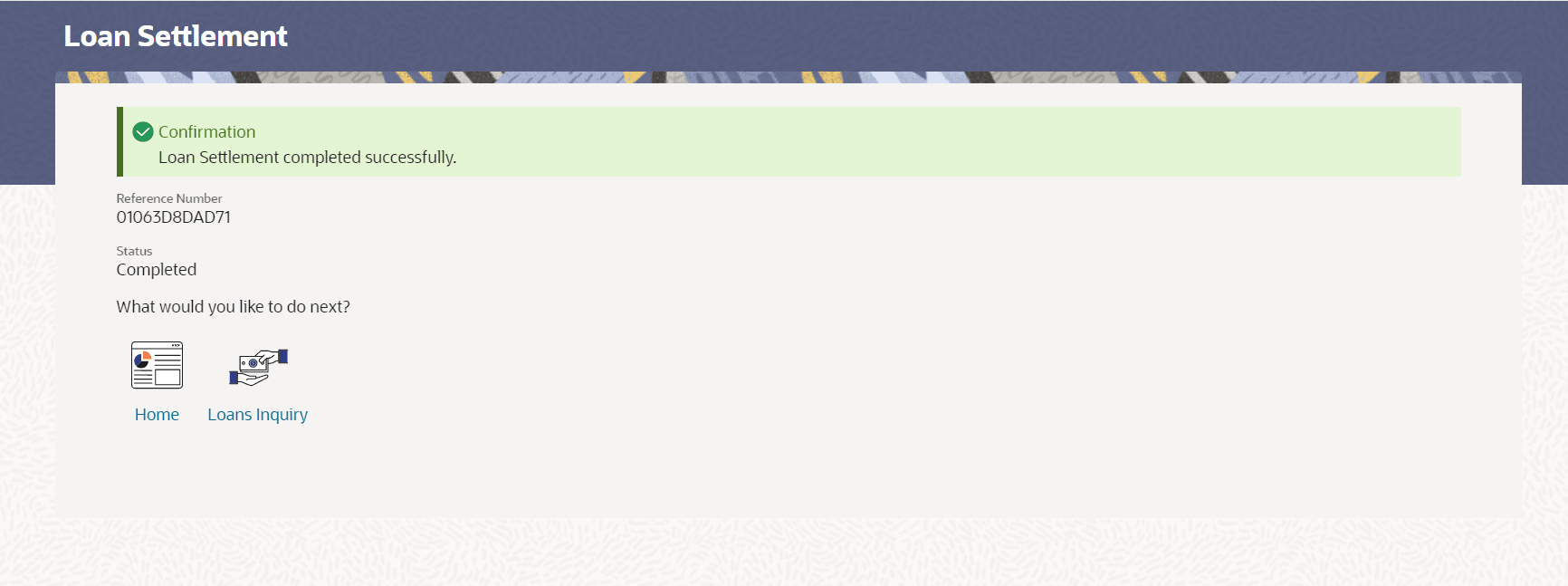
- Click Yes to initiate the loan settlement.The Loan Settlement screen displays.
- Click Yes to initiate the loan settlement.
Parent topic: Intercompany Loan