19.2 Islamic Lodge Claims - Details
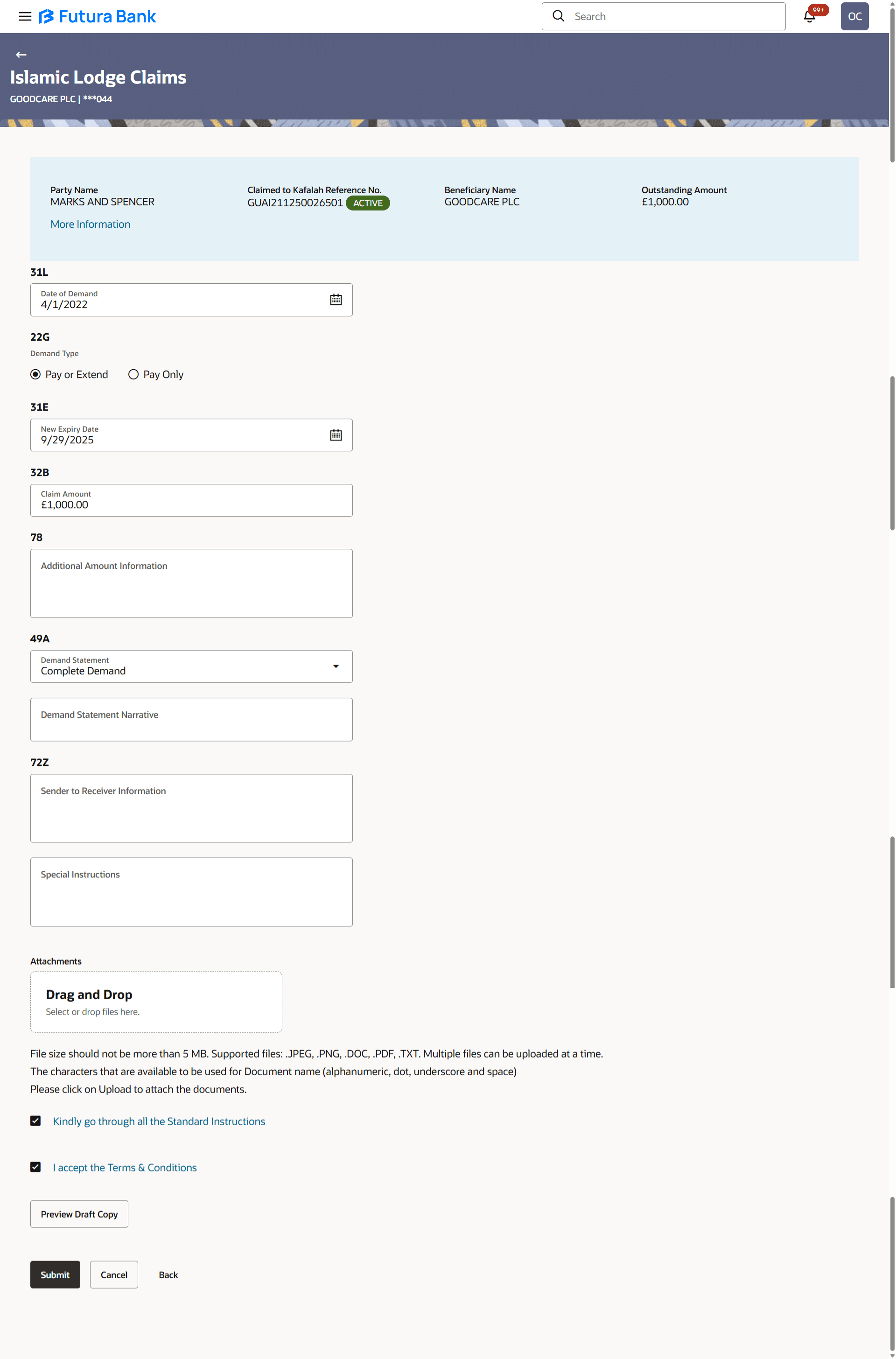
This topic provides the systematic instructions to capture the details required for a claim that is to be lodged against the issued guarantee in the application.
The user can enter the details required for a claim that is to be lodged against the issued guarantee. After entering the required information he has to send the application to his bank (Oracle Banking Trade Finance Process Management).
To lodge a claim:
- On the to Islamic Lodge Claims screen, click the desired
Guarantee Number link to view and lodge the guarantee claim.The Islamic Lodge Claims details screen appears.
For more information refer to the field description table below:
Table 20-3 Islamic Logic Claims - Field Description
Field Name Description Party Name Displays the party name of the customer. Claimed to Kafalah Reference No. Displays the guarantee reference number against which user has to lodge a claim. Beneficiary Name Displays the name of the beneficiary of the Islamic guarantee to be claimed. Outstanding Amount Displays the outstanding amount along with the currency of the Islamic guarantee. Lodgement Date Displays the date on which the claim was lodged. This field appears if the user click on More Information link.
Expiry Type Displays the type of validity applicable to the Islamic Guarantee. This field appears if the user click on More Information link.
Expiry Date Displays the date in which the Islamic Guarantee expires. This field appears if the user click on More Information link.
Demand Indicator Displays the details of whether the multiple or partial demands are permissible while initiating Islamic Guarantee claim or not. This field appears if the user click on More Information link.
Date of Demand Select the date on which the demand was raised by the beneficiary. Demand Type Select the type of demand. The options are:
- Pay or Extend
- Pay Only
New Expiry Date Select the new expiry date of the Islamic Guarantee. This field appears if you select Pay Only option in the Demand Type field
Claim Amount Specify the amount to be claimed against the Islamic guarantee. Additional Amount Information Specify the details on additional amount. Demand Statement Select the value for demand statements. Demand Statement Narrative Specify the narrative for demand statements. Presentation Completion Details Specify the details of presentation completion. Applicable only if demand statement is provided.
Sender to Receiver Information Specify the details of Sender to Receiver Information. Special Instructions Specify the instruction provided to bank for lodging a claim. Drag and Drop Click to browse and select the file to be uploaded or drag and drop the file to be uploaded. Document Category Select the category of the document uploaded. Document Type Select the type of the document uploaded. Remarks Displays the notes added, if any, for attaching the document. 
Click the icon to remove the attached document. Document Name Displays the name of the attached documents. Kindly Go through all theStandard The option to accept that the user is gone through all the standard instructions. View the maintained standard instructions by the bank.
I accept the Terms & Conditions The option to accept standard terms and conditions of the bank. Click the link to view the maintained standard terms and conditions by bank.
- Click to remove the attached document.
Parent topic: Lodge Claims Islamic
Parent topic: View Claims Islamic