27 Initiate Islamic Shipping Guarantee
This topic provides the systematic instructions to initiate an Shipping Guarantee in the application.
User must be having a valid corporate login credentials to get into the system. This will be under a maker – approver system, or as per user’s access. User must be having a sanctioned limit /credit available for his perusal.
- Perform anyone of the following navigation to access the Initiate Letter of
Credit screen.
- From the Dashboard, click Menu, then click Trade Finance, and then click Shipping Guarantee. Under Shipping Guarantee, select Initiate Shipping Guarantee - Islamic.
- From the Dashboard, click Overview, in Overview screen go to Quick Links and then Shipping Guarantee.
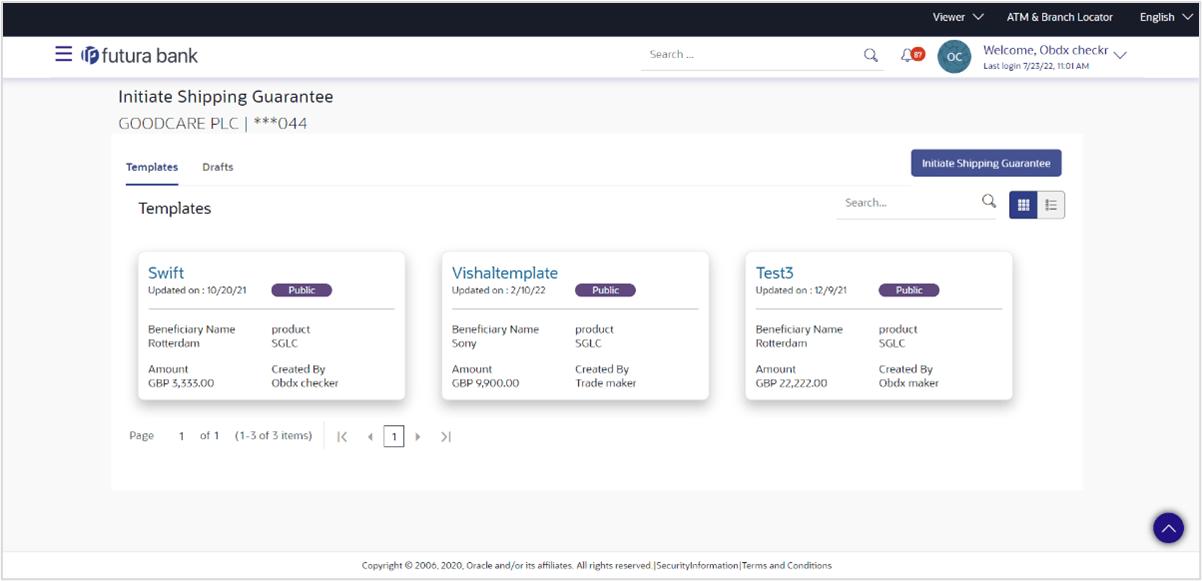
The Initiate Shipping Guarantee screen appears.For more information refer to the field description table below:
Table 27-1 Initiate Islamic Shipping Guarantee - Field Description
Field Name Description Party Name Displays the name of the applicant. Party ID Displays the party Id of the LC product is displayed in a masked format. Search Specify the name of the Shipping Guarantee template to search and view its details. Partial search is allowed.
Initiate Letter of Credit Template Card The Initiate Letter of Credit template card displays the name of the Initiate Letter of Credit template along with the other details like date of update, name of the beneficiary, type of LC, LC amount and draft at. Initiate Letter of Credit Template Card Details Following details are displayed on each Letter of Credit Template card. Template Name Displays the name using which template is stored and can be used to initiate a LC application. Access Type Displays the access type assigned to the LC, that is Private or Public. Beneficiary Name Displays the beneficiary’s name against whom LC is to be created. Type Displays the corresponding LC product type and as supported by Host. LC Amount Displays the amount of LC. Draft at Displays the LC draft type i.e. 'Sight' or 'Usance'. - Perform one of the following actions:
- Click Initiate LC to create a new Letter of Credit template.
- Click
 or
or  to view the initiate LC template as Summarized or Tabular view
- Click
 to delete the initiated LC template card.
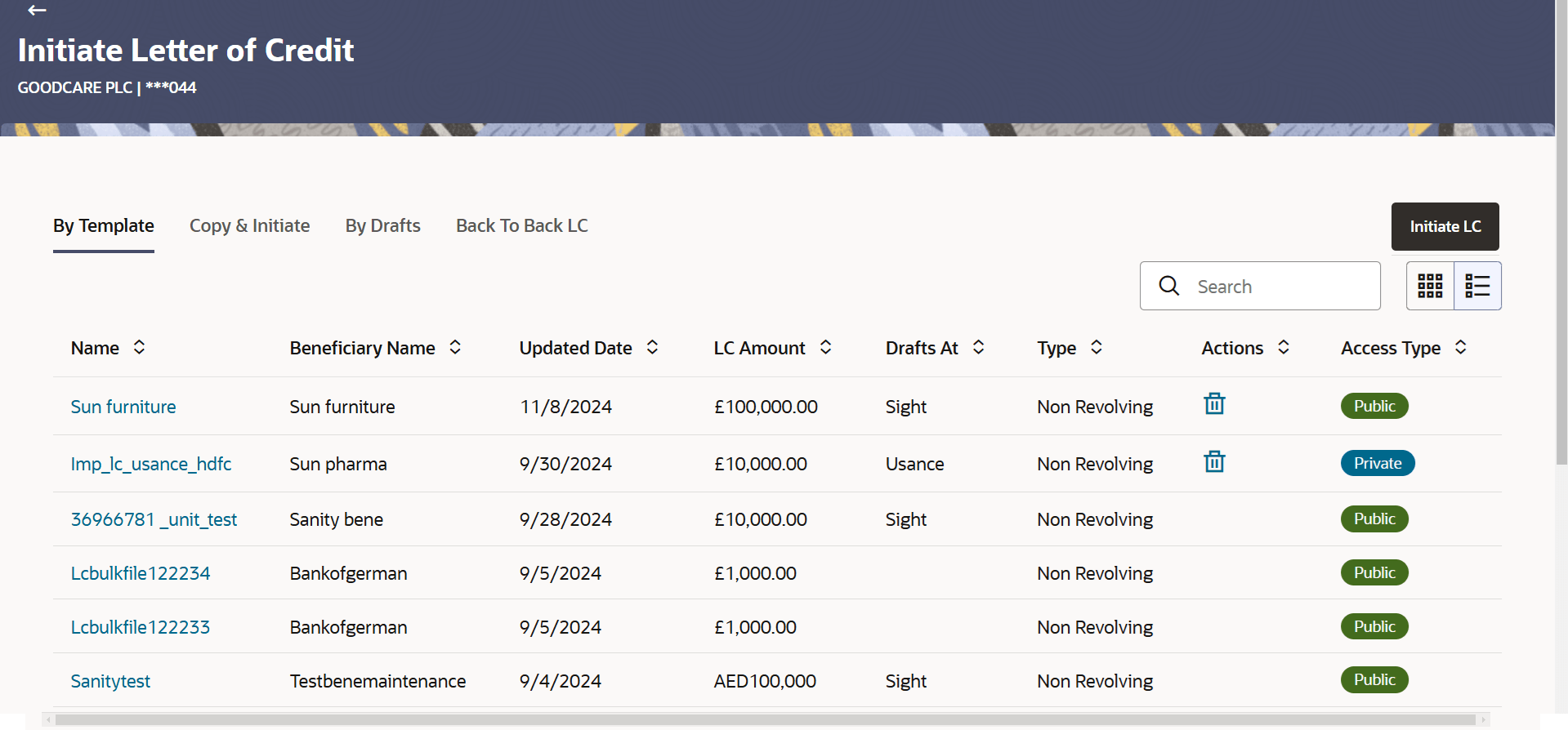
The Initiating LC Template - Tabular View allows the corporate user to view the LC Template in table format.
To view the Initiate Letter of Credit in tabular form:
- In the Initiate Letter of Credit - Summary page, click to view the initiate LC template as Tabular view.The Initiate Letter of Credit tabular view page appears.
Figure 27-1 Initiate Letter of Credit tabular view
- Search LC Template
This topic provides the systematic instructions to search an Import Letter of Credit (LC) template in the application. - Search Islamic Shipping Guarantee - Drafts
This topic provides the systematic instructions to search an Shipping Guarantee in the application using draft name. - Initiate Islamic Shipping Guarantee - Shipping Guarantee Details
This topic provides the systematic instructions to initiate an Shipping Guarantee - Shipping Guarantee Details in the application. - Initiate Islamic Shipping Guarantee – Goods and Shipment Details
This topic provides the systematic instructions to specify the Goods and Shipment Details in the application. - Initiate Islamic Shipping Guarantee - Linkages
This topic provides the systematic instructions to capture the Linkages details in the application. - Initiate Islamic Shipping Guarantee – Charges Commissions and Taxes
This topic provides the systematic instructions to capture the Charges Commissions and Taxes details in the application. - Initiate Islamic Shipping Guarantee - Instructions and Attachments
This topic provides the systematic instructions to capture the Instructions and Attachments details in the application. - Save as Template
This topic provides the systematic instructions to save application as a Template. - Save as Draft
This topic provides the systematic instructions to save Shipping Guarantee application as a Draft.