27.9 Save as Draft
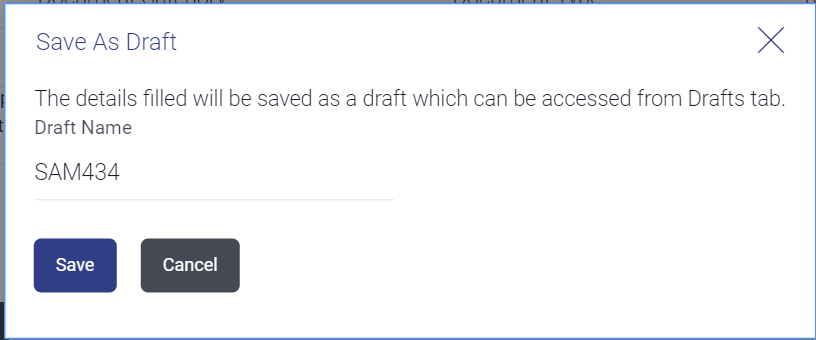
This topic provides the systematic instructions to save Shipping Guarantee application as a Draft.
User can save Shipping Guarantee application as a Draft so that it can be used
if required in future. It can be re used only one time for Guarantee Application initiation.
User can search the saved Guarantee draft using the draft name in search box. The saved
drafts can be accessed from the Draft tab. The Guarantee applications, which were saved as
draft can also be saved as template after adding all other necessary fields.
Note:
User cannot save application with attached document as Draft.To save Guarantee application as draft:
- Click Save As Draft.The Save screen appears.
For more information refer to the field description table below:
Table 27-11 Field Description
Field Name Description Draft Name Specify the name of the draft template.
Parent topic: Initiate Islamic Shipping Guarantee