6.1 Create Remittance ID
- Perform the following navigation to access the screen:
- From the Dashboard, click Toggle menu, click Virtual Account Management, then click Remittance ID. Under Remittance ID, click Create Remittance ID.
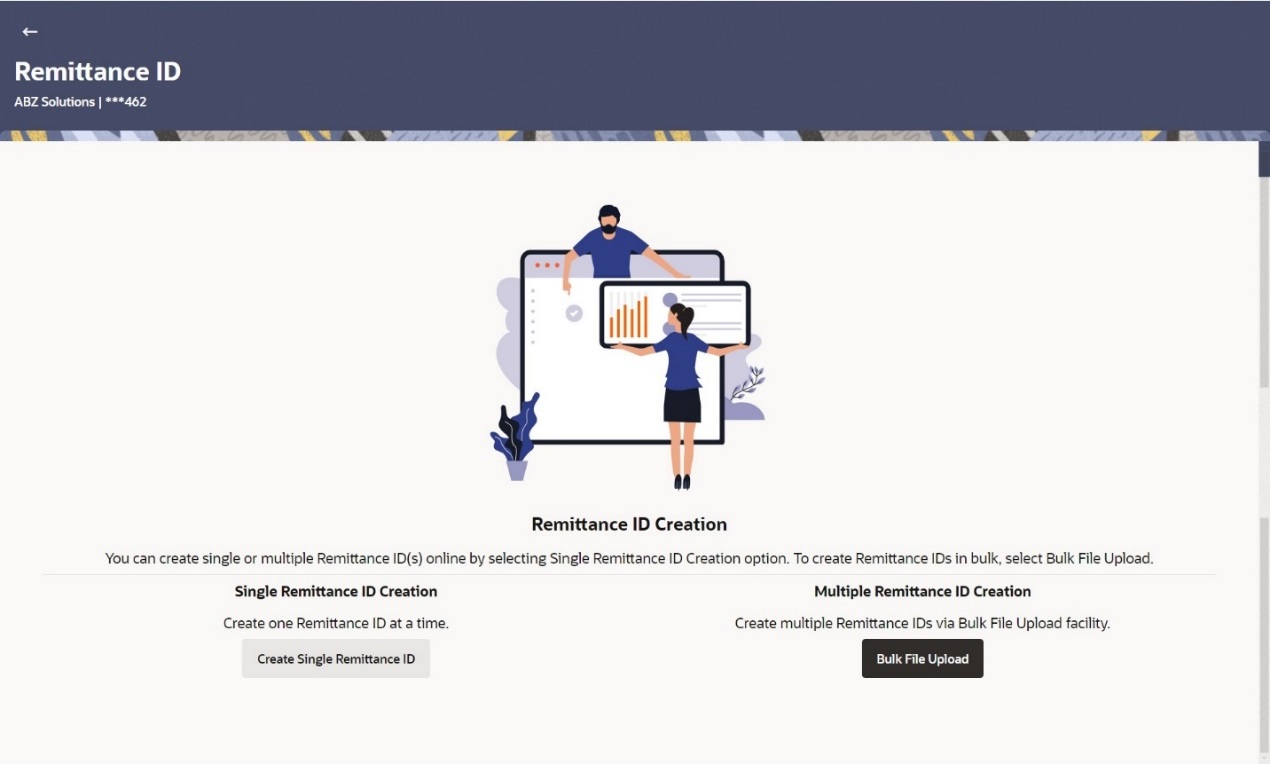
The Remittance ID Creation screen displays. screen appears. - Perform any one of the following actions:
- Click Create Single Remittance ID to create one Remittance ID at a time.
-
Click Bulk File Upload to create multiple Remittance ID through Bulk File Upload.
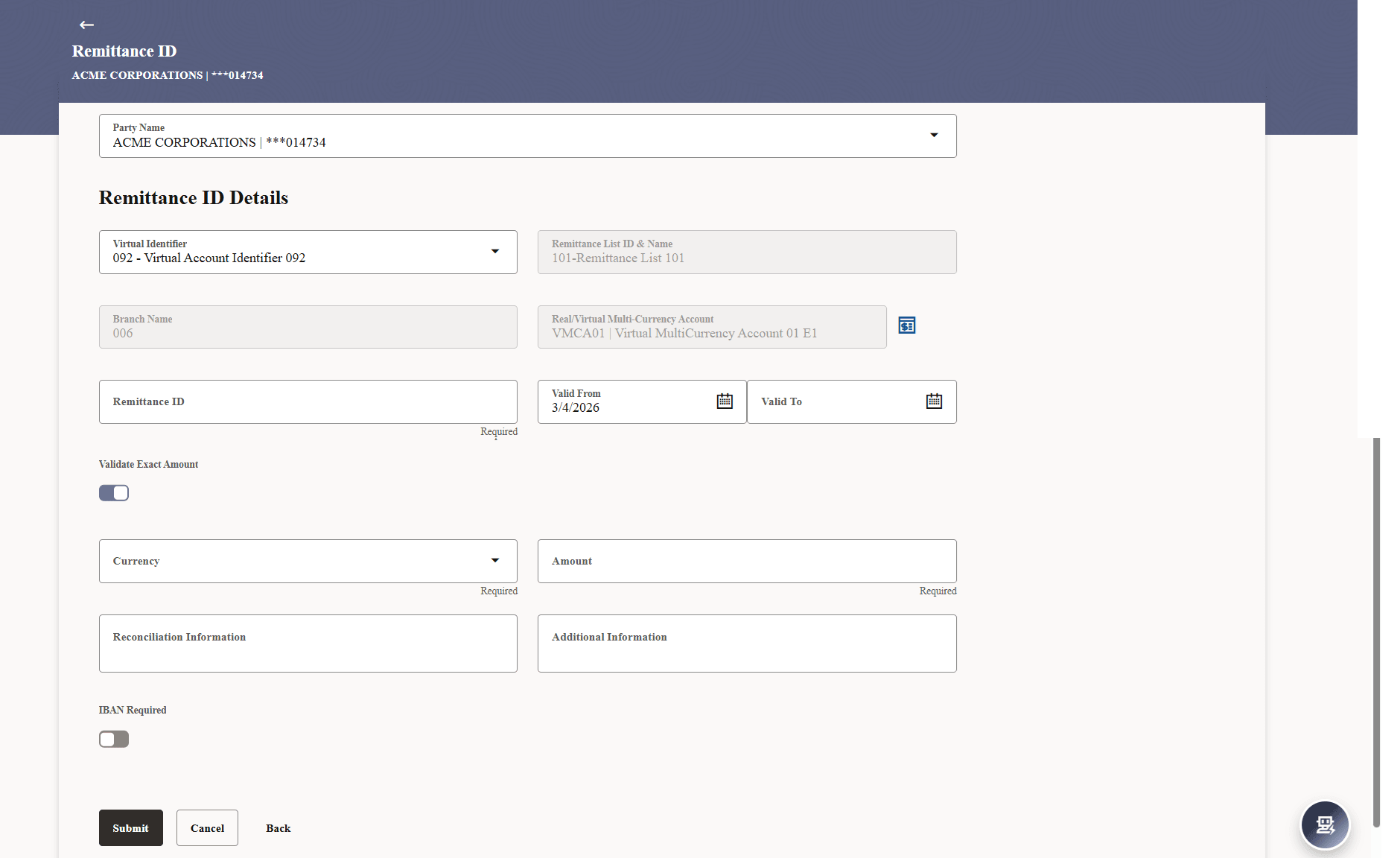
The Remittance ID screen appears.Table 6-1 Remittance ID - Field Description
Field Description Party Name Select the party name and ID from the drop-down list in which the Remittance ID must be created. By default, the primary party of the logged-in user is selected.
Remittance ID Details Information Specified in below fields are related to Remittance ID details. Virtual Identifier Select the Virtual Identifier from the drop-down list. Note:
The user can view the Virtual Identifiers for which he has access to.Remittance List ID & Name Displays the Remittance List ID and Name. Branch Name Displays the branch name of the selected Virtual Identifier. Real/Virtual Multi-Currency Account Displays the Real/Virtual Multi-Currency Account Number along with the available balance. This field appears only if the user has access to Real/Virtual Multi-Currency Account Number.
Remittance ID Specify the Remittance ID. Valid From Select the Remittance ID validity start date. Valid To Select the Remittance ID validity end date. Validate Exact Amount Switch on the toggle to validate the exact remittance amount. Currency Select the currency for the amount validation. This field appears if Validate Exact Amount option is enabled.
Amount Specify the exact amount for validation. This field appears if Validate Exact Amount option is enabled.
Reconciliation Information Specify the reconciliation information of the Remittance. Additional Information Specify the additional information about the Remittance. IBAN Required Move the toggle to enable the IBAN for the Remittance ID.
To create single Remittance ID:
Parent topic: Remittance ID