3.12.2.3.3 Warehouse Details
This topic provides systematic instructions about warehouse details.
Note:
The Warehouse Details data segment displays only if Storage Location Required toggle is enabled in Collateral Category Maintenance screen.- Under Maintenances, select Collateral Types. Under
Collateral Types, select Warehouse Details.
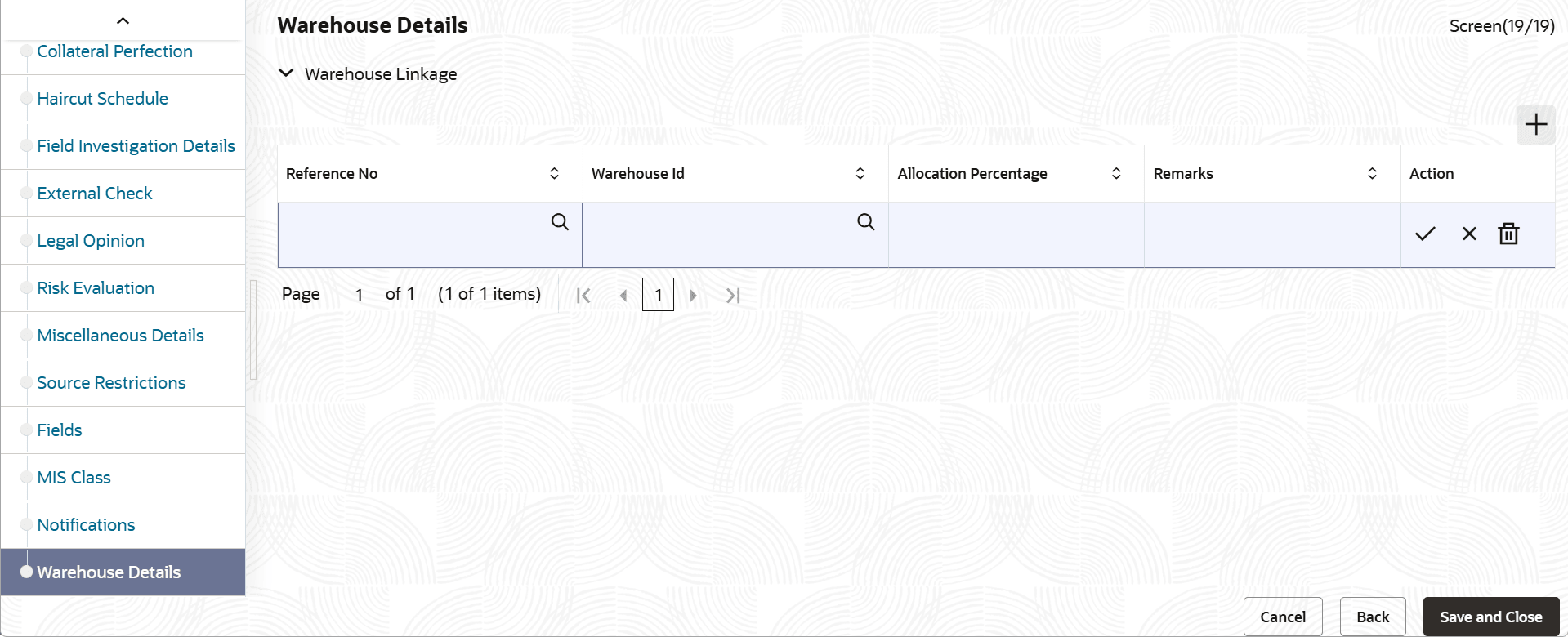
- Click Warehouse Details.The Warehouse Details screen displays.
Figure 3-85 Warehouse Details
Table 3-71 Warehouse Details
Field Description Reference Number Search and select warehouse reference number. Warehouse ID Search the select the warehouse ID. Allocation Percentage Specify the allocation percentage of warehouse. Remarks Specify remarks, if any. Action Click, to add new warehouse details.Figure 3-86 Add
 Click, to edit the existing warehouse details.
Figure 3-87 Edit
 Click, to delete the existing warehouse details
Figure 3-88 Delete

Note:
- Users can link collateral to specific warehouses at the child collateral level.
- Collateral can be distributed across multiple warehouses, with allocation percentages that must not exceed 100%.
- If only one warehouse is linked, the system automatically sets the allocation to 100%.
- Warehouse linkage is auditable and can be reported or exported as part of the collateral register.
- This is only applicable for collateral types (Agriculture, Commodity, Inventory, Machinery, Miscellaneous, Perishables, Precious Metals, and Vehicle) linked to warehouse.
- For more information, refer to the Collateral Warehouse Maintenance under section 3. Maintenances.
Parent topic: Agriculture Details Screen
Parent topic: Commodity
Parent topic: Inventory Details screen
Parent topic: Machinery screen
Parent topic: Perishables Details Screen
Parent topic: Precious Metal screen
Parent topic: Vehicle Details screen