17.1.2 View Charge Action
This topic describes the systematic instructions to view a list of configured charge action.
The user can view and authorize/reject ad-hoc charge action requests using View Charge Action screen. Requests initiated using API will also be displayed. Maker user can delete the unauthorized requests.
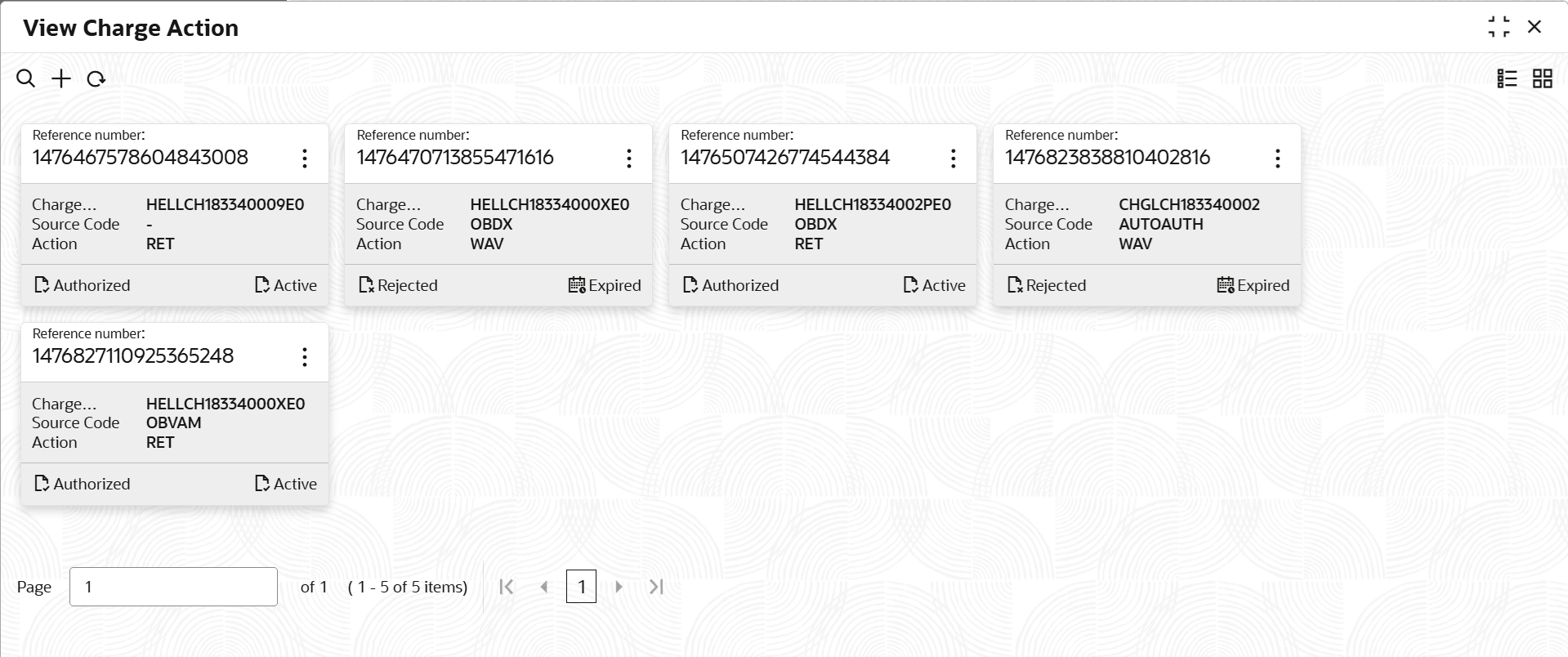
- Under Charge Action, click View Charge Action.The View Charge Action screen displays.
Table 17-2 View Charge Action - Field Description
Field Description Reference Number Displays the reference number. Charge Reference Number Displays the Charge Reference Number of the customer. Source Code Displays the source code. Action Displays the action buttons. The action buttons can be:
- Waive
- Retry:
- Reverse
Authorization Status Displays the authorization status of the record. The available options are:- Authorized
- Rejected
- Unauthorized
Transaction Status Displays the status of the transaction. The available options are:
- Active
- Expired
- Click
 and then select any of the following options:
-
Unlock – To modify the record details.
- Click Audit to view the maker details, checker details of the record.
- Click Show History hyperlink to view the historical data of the record.
-
Delete/Close – To remove the record.
- Optional: In the confirmation pop-up window, click View to view the record details.
- Click Proceed to delete the record.
-
Authorize – To authorize or reject the record. Authorizing/Rejecting requires necessary access rights.
- Optional: Click View to view the record details.
- If there are more than one modifications, Click Compare to view the comparison through the field values of old record and the current record.
- Select the record and click Approve to approve the record.
- Select the record and click Reject to reject the record. Specify the relevant comments in the pop-up window that appears, and click Confirm.
- View – To view the record details.
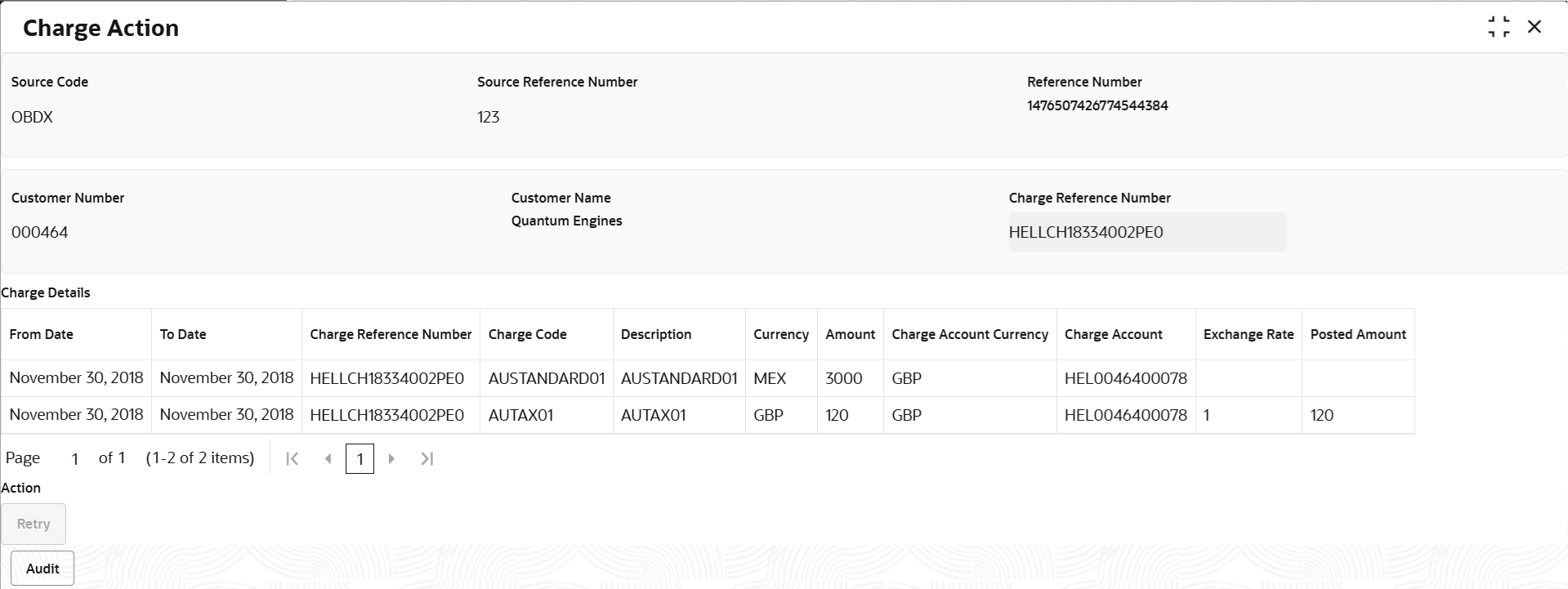
The Charge Action screen displays.
Table 17-3 Charge Action - Field Description
Field Description Charge Code Displays the unique ID to identify the charge code. Charge Code Displays the charge code. Charge Reference Number Displays the Charge Reference Number of the customer. Source Code Displays the source code. Source Reference Number Displays the source reference number. Reference Number Displays the reference number. Customer Number Displays the customer number. Customer Name Displays the name of the customer based on the Customer Number. Charge Reference Number Displays the charge reference number that for a customer. Charge Details This section displays the Charge Details on the bases of Charge Reference Number. From Date Displays the date from which the charges are applicable. To Date Displays the date from which the charges are applicable. Charge Reference Number Displays the Charge Reference Number of the selected customer. Charge Code Displays the charge code. Description Displays the description of the charge code. Currency Displays the currency of charges. Amount Displays the amount of charges. Charge Account Currency Displays the currency of the Charge Account. Charge Account Displays the account number of the Charge Account. Exchange Rate Displays the exchange rate. Posted Amount Displays the posted amount to the charge account. Collection Date Displays the collection date. Collection Status Displays the collection status. Action Displays the action buttons. The action buttons can be:
- Waive
- Retry:
- Reverse
Charge Credit Account Displays the GL account number. - Reopen – To reopen the closed record.
-
Unlock – To modify the record details.
Parent topic: Charge Action