17.1.1 Create Charge Action
This topic describes the systematic instructions to create the charge action.
- Reversal of already collected charges
- Waiver of charges
- Retry of failed charge collection
- On Home screen, click Liquidity Management. Under Liquidity Management, click Maintenance.
- Under Maintenance, click Charges. Under Charges, click Charge Action.
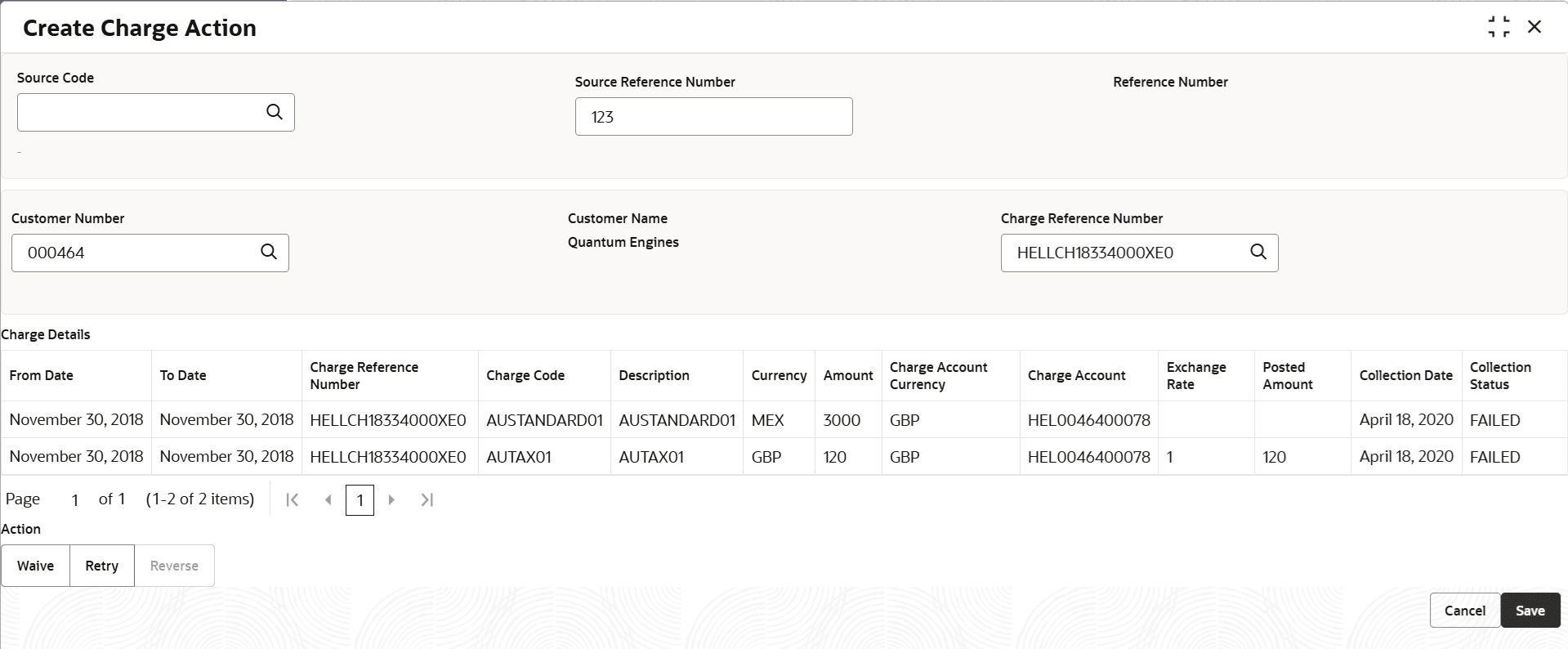
- Under Charge Action, click Create Charge Action.The Create Charge Action screen displays.
- On Create Charge Action screen, specify the fields.For more information on fields, refer to the field description table.
Note:
The fields marked as Required are mandatory.Table 17-1 Create Charge Action - Field Description
Field Description Source Code Click Search icon to view and select the source code to be used to create charge action. Source Reference Number Specify the source reference number. Reference Number Click Search icon to view and select the reference number. Customer Number Click Search icon to view and select the customer number. Customer Name Displays the name of the customer based on the selected Customer Number. Charge Reference Number Click Search icon to view and select the charge reference number that are listed for selected customer. Note: User can also use combination of search parameters such as Charge Reference Number, Charge Code and Collection Status to fetch the charge reference number that user wishes to act upon.
Charge Details This section displays the Charge Details. On selection of Charge Reference Number, its charge details will be displayed in the grid. If tax is applicable for charge reference number, then record in the grid shall also contain values for Tax currency & Tax amount.
From Date Displays the date from which the charges are applicable. To Date Displays the date from which the charges are applicable. Charge Reference Number Displays the Charge Reference Number of the selected customer. Charge Code Displays the charge code. Description Displays the description of the charge code. Currency Displays the currency of charges. Amount Displays the amount of charges. Charge Account Currency Displays the currency of the Charge Account. Charge Account Displays the account number of the Charge Account. Exchange Rate Displays the exchange rate. Posted Amount Displays the posted amount to the charge account. Collection Date Displays the collection date. Collection Status Displays the collection status. Action Displays the action buttons. Based on the value of Collection Status for selected Charge Reference Number , applicable action buttons will get displayed on the screen.
- Waive: Click to waive the charges. This button is enabled if Collection Status for the charge is Pending, External or Failed.
- Retry: Click to retry the charge posting. This button is enabled if Collection Status for the charge is Failed.
- Reverse:Click to initiate the refund of collected charges. This button is enabled if Collection Status is Success.
- Click Save to save the details and send for authorization.
Parent topic: Charge Action