5.9.2 View Customer Parameters
This topic describes the systematic instructions to view the list of customer parameters.
- Under Maintenance, click Customer
Parameters. Under Customer Parameters,
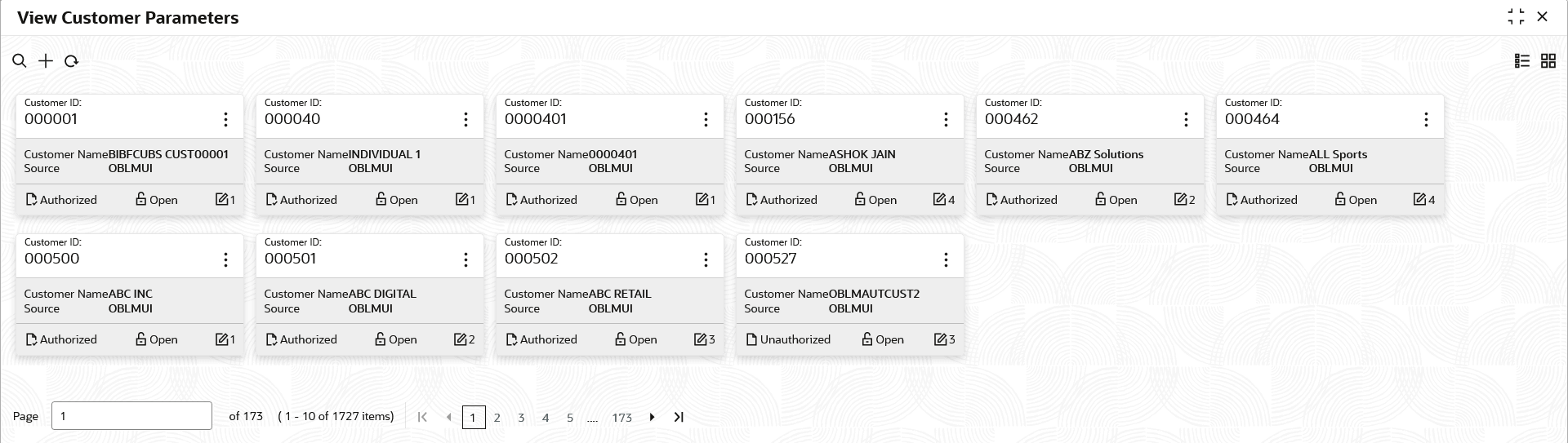
click View Customer Parameters. The View Customer Parameters screen displays. For more information on fields, refer to the field description table.
Table 5-26 View Customer Parameters – Field Description
Field Description Customer ID Displays the customer ID. Customer Name Displays the customer name. Source Displays the source. Authorization Status Displays the authorization status of the record. The available options are:
- Authorized
- Rejected
- Unauthorized
Record Status Displays the status of the record. The available options are:
- Open
- Closed
Modification Number Displays the number of modification performed on the record. - Click
 and then select any of the following options:
- Unlock – To modify the record details. Refer to the Create Interest Account Group screen for the field level details.
- Click Audit to view the maker details, checker details of the record.
- Click Show History hyperlink to view the historical data of the record.
- Delete/Close – To remove the record.
- Optional: In the confirmation pop-up window, click View to view the record details.
- Click Proceed to delete the record.
- Authorize – To authorize or reject the record. Authorizing/Rejecting requires necessary access rights.
- Optional: Click View to view the record details.
- If there are more than one modifications, Click Compare to view the comparison through the field values of old record and the current record.
- Select the record and click Approve to approve the record.
- Select the record and click Reject to reject the record. Specify the relevant comments in the pop-up window that appears, and click Confirm.
- View – To view the record details.
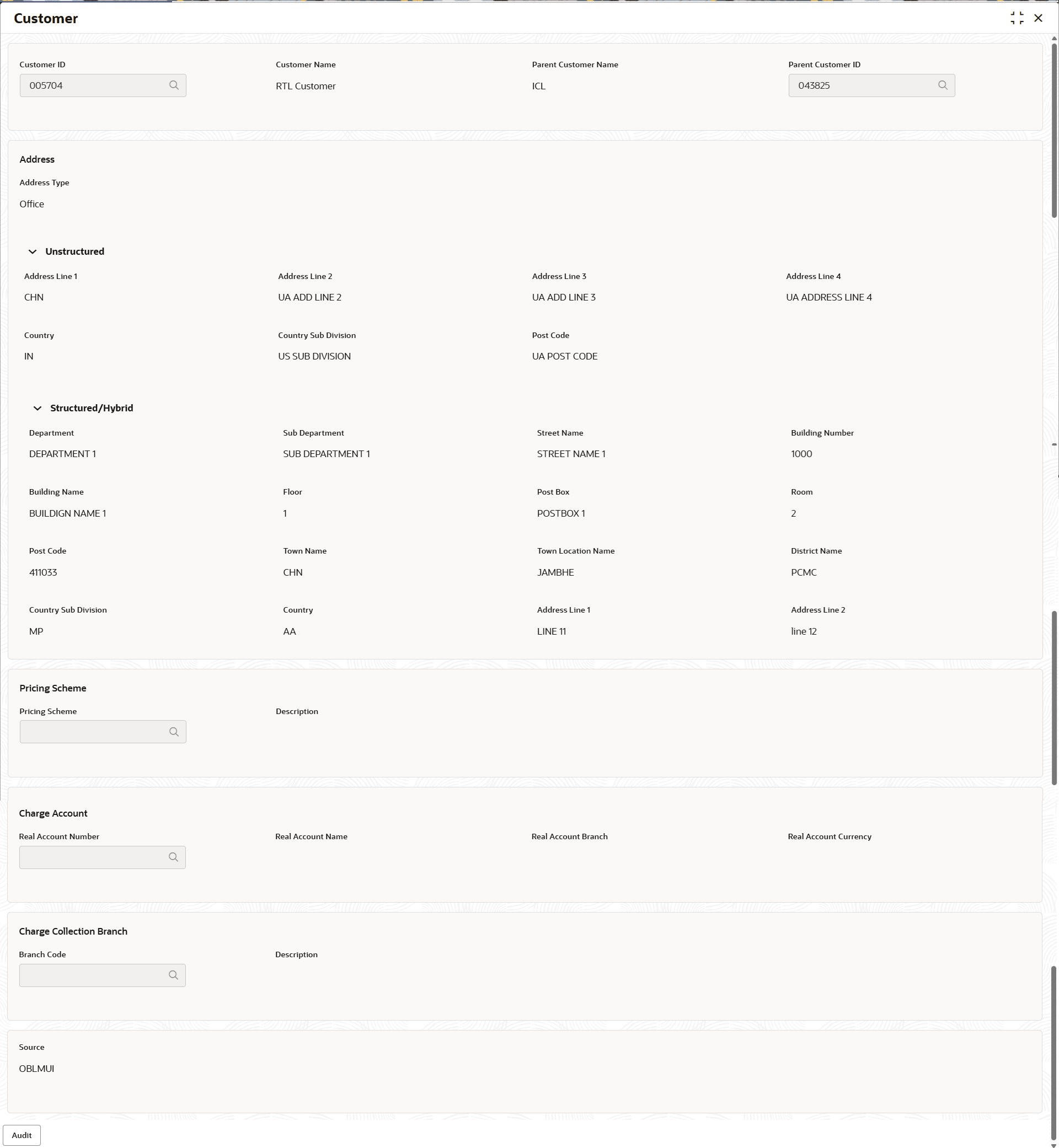
The Customer screen displays.
For more information on fields, refer to the field description table.Table 5-27 Customer – Field Description
Field Description Customer ID Displays the customer ID. Customer Name Displays the customer name based on the customer ID selected. Parent Customer Name Displays the parent customer name based on the parent customer ID selected. Parent Customer ID Displays the parent customer of the new customer. Address This section displays the address type of the customer to be sent in the payment services. Address Type Displays the address type of the customer. Unstructured This section displays the Unstructured address details of the customer. Address Line 1 - 4 Displays the address of the customer. Country Displays the country of the customer. Country Sub Division Displays the country sub division of the customer. Country sub division the state or region of the country.
Post Code Displays the postal code of the customer address. Structured/Hybrid This section displays the Structured/Hybrid address details of the customer. Department Displays the department of the customer. Sub Department Displays the sub department or a sub-division of the customer's department. Street Name Displays the name of a street or thoroughfare. Building Number Displays the building number. Building Name Displays the name of the building or house. Floor Displays the floor number within a building. Post Box Displays the post box details. Room Displays the room number. Post Code Displays the post code details. Town Name Displays the town name. Town Location Name Displays the location name within the town. District Name Displays the district name within a country. Country Sub Division Displays the subdivision of a country such as state, region, county. Country Displays the country of the customer. Address Line 1 - 2 Displays the address line 1 and 2 of the in Hybrid Address of the customer. Pricing Scheme This section displays the Pricing Scheme related fields. Pricing Scheme Displays the required pricing scheme. Description Displays the description of pricing scheme based on the selection. Charge Account This section displays the charge account details of the customer. Real Account Number Click Search to view and select the required real account number to collect the charges. Real Account Name Displays the real account name based on the Real Account Number selected. Real Account Branch Displays the real account branch based on the Real Account Number selected. Real Account Currency Displays the real account currency based on the Real Account Number selected. Charge Collection Branch This section displays the charge collection branch details of the customer. Branch Code Displays the real account name based on the Real Account Number selected. Description Displays the branch description based on the Branch Code selected. Source Displays the source defaulted from common core. - Reopen – To reopen the closed record.
- Unlock – To modify the record details. Refer to the Create Interest Account Group screen for the field level details.
Parent topic: Customer Parameters