2.4 Process EOD Workflow Configuration
This topic explains the systematic instructions for End-of-Day workflow configuration..
This job is configured automated EOD processes for branch operations.
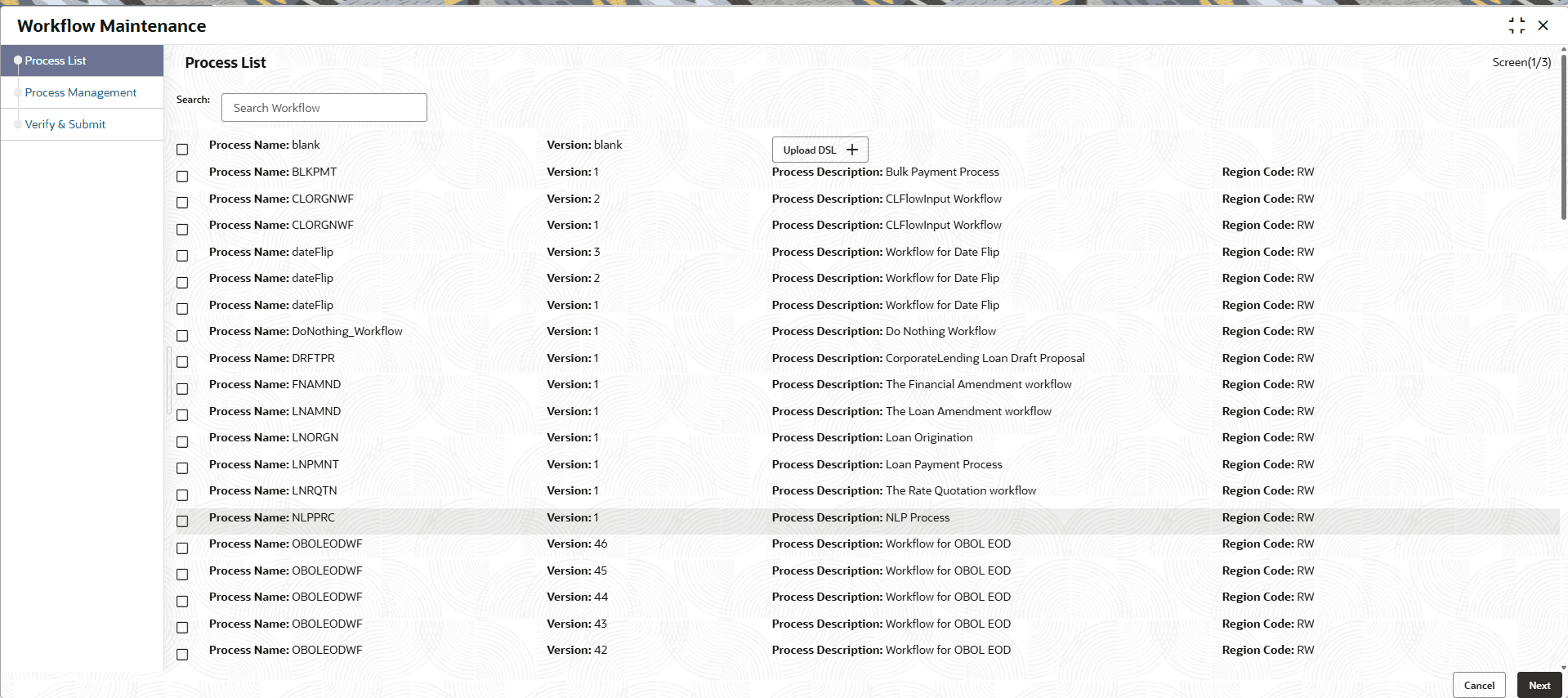
- On the homepage, click Tasks and then click Business Process Maintenance.The Workflow Maintenance screen displays.
- Follow the below steps for Branch EOD configuration:
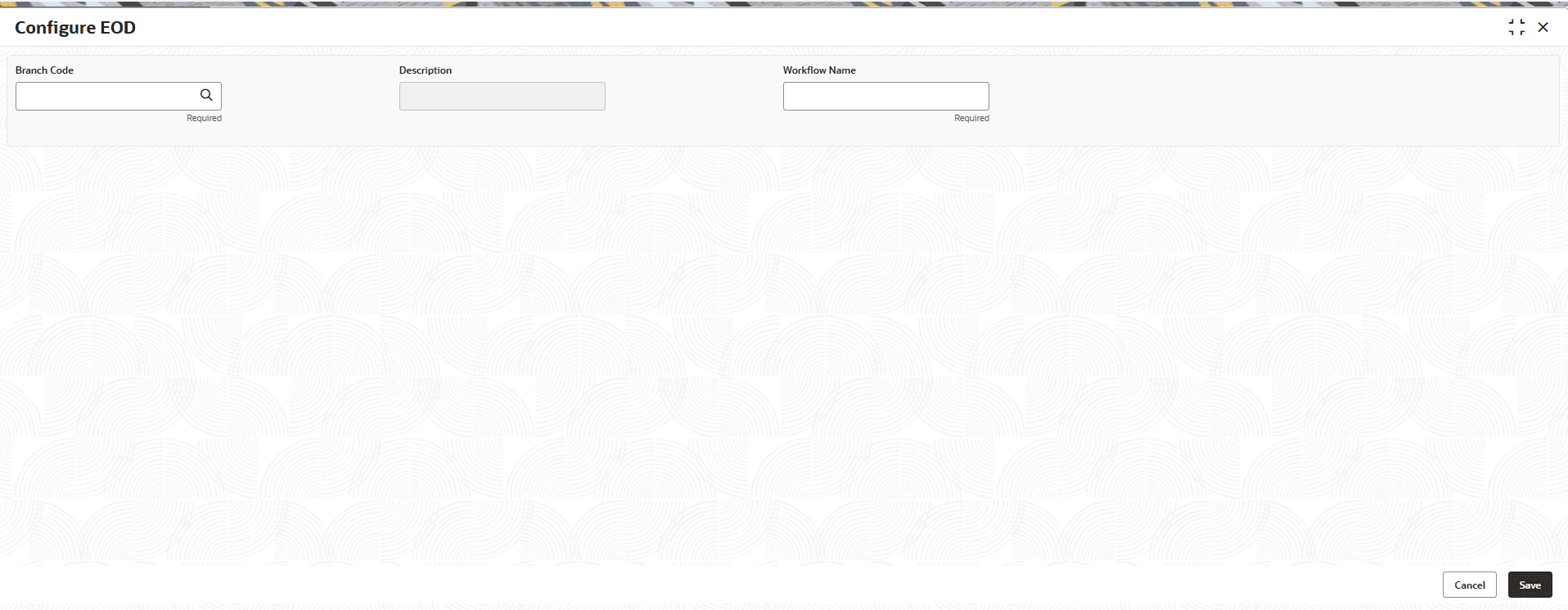
- On the homepage, click Core Maintenance, and then click Branch EOD. From Branch EOD, click Configure EOD.The Configure EOD screen displays.
- On the homepage, click Core Maintenance, and then click Branch EOD. From Branch EOD, click Configure EOD.
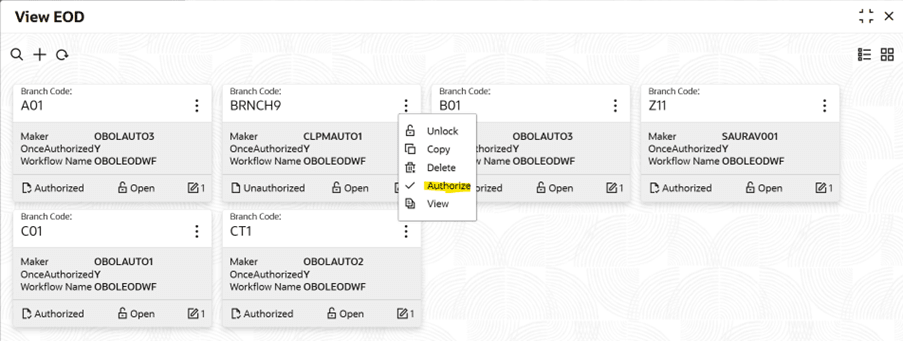
- Follow the below steps to Authorize and Invoke EOD:
- Go to View EOD and click the
 menu.The View EOD screen displays.
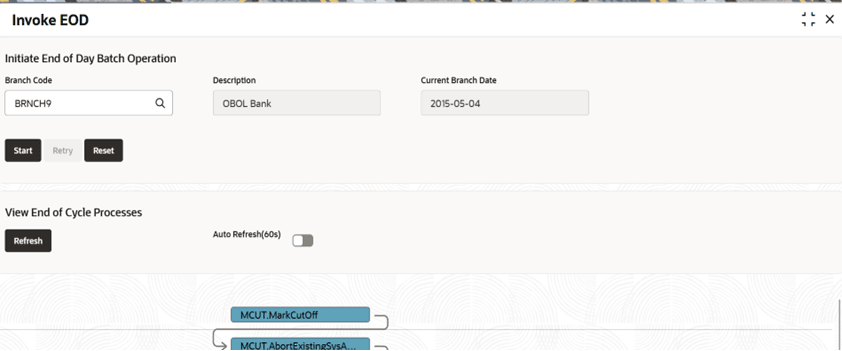
 - Then go to Core Maintenance, click Branch EOD and then click Invoke EOD.The Invoke EOD screen displays.
- Go to View EOD and click the
Parent topic: Job Configuration