2.1 Process Operational Transaction Staging Job

This topic explains the systematic instructions for operational transaction staging job.

This job is configured to move General Ledger and MIS transaction details from staging tables to the OBOL transaction log table.
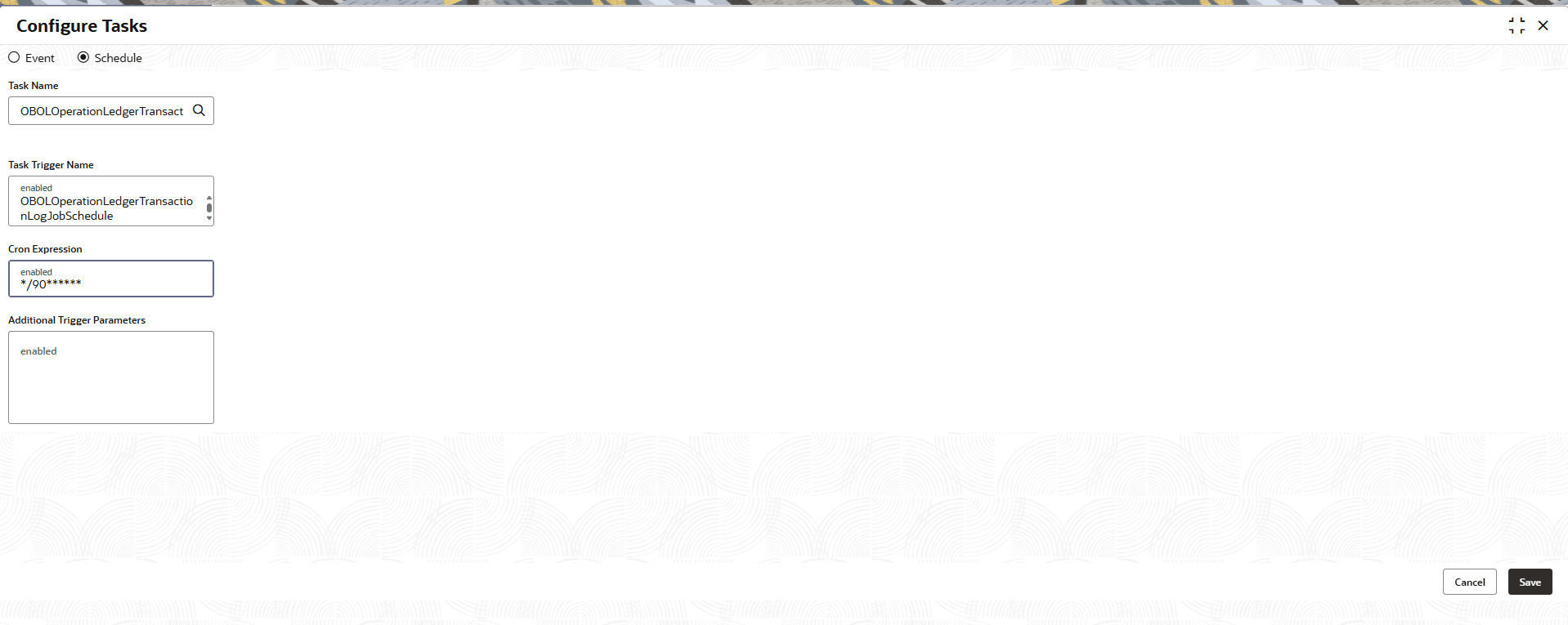
  1. On the homepage, click Task Management and then click Configure Tasks.
    The Configure Task screen displays.
  2. In Configure Tasks screen, specify the following details.

    Note:

    The fields marked as Required are mandatory.
    For more information on fields, refer to the field description table below.

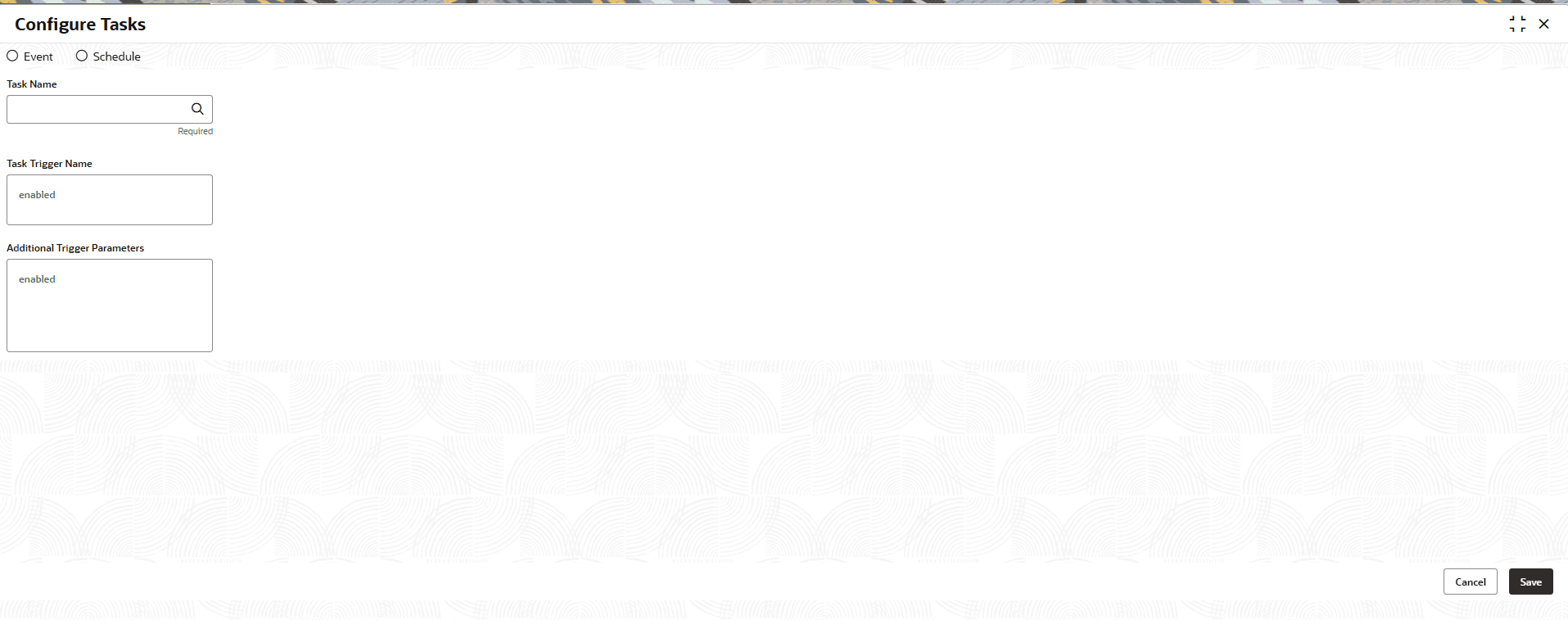
    Table 2-1 Configure Task - Field Description

    Field Description
    Event Select this option to configure a task that is triggered based on a system event.
    Schedule Select this option to configure a task that runs based on a defined schedule.
    Task Name Specifies the name of the batch task to be configured. Select the required task from the List of Values (LOV).
    Task Trigger Name Displays the same name that selected in task name field.
    Additional Trigger Parameters Enter additional parameters required for task execution.
  3. Select the Schedule.
  4. In Task Name, select OBOLOperationLedgerTransactionLogJob.
  5. Set both Task Name and Task Trigger Name as OBOLOperationLedgerTransactionLogJob.
  6. Enter the CRON Expression, below are the standard CRON expressions.
    0 0 * * * * = the top of every hour of every day.

    */60 * * * * * = every sixty seconds.

    Note:

    Leave the Additional Trigger Parameters blank.
  7. Click Save.

    Figure 2-2 Configure Tasks - Operational Transaction Staging Job


    Once configure task is saved successfully, it gets registered to plato-batch-server and job will trigger as per CRON expression mentioned.