1.5.1.1 Create Document Category
This topic describes the systematic instructions to create document category.
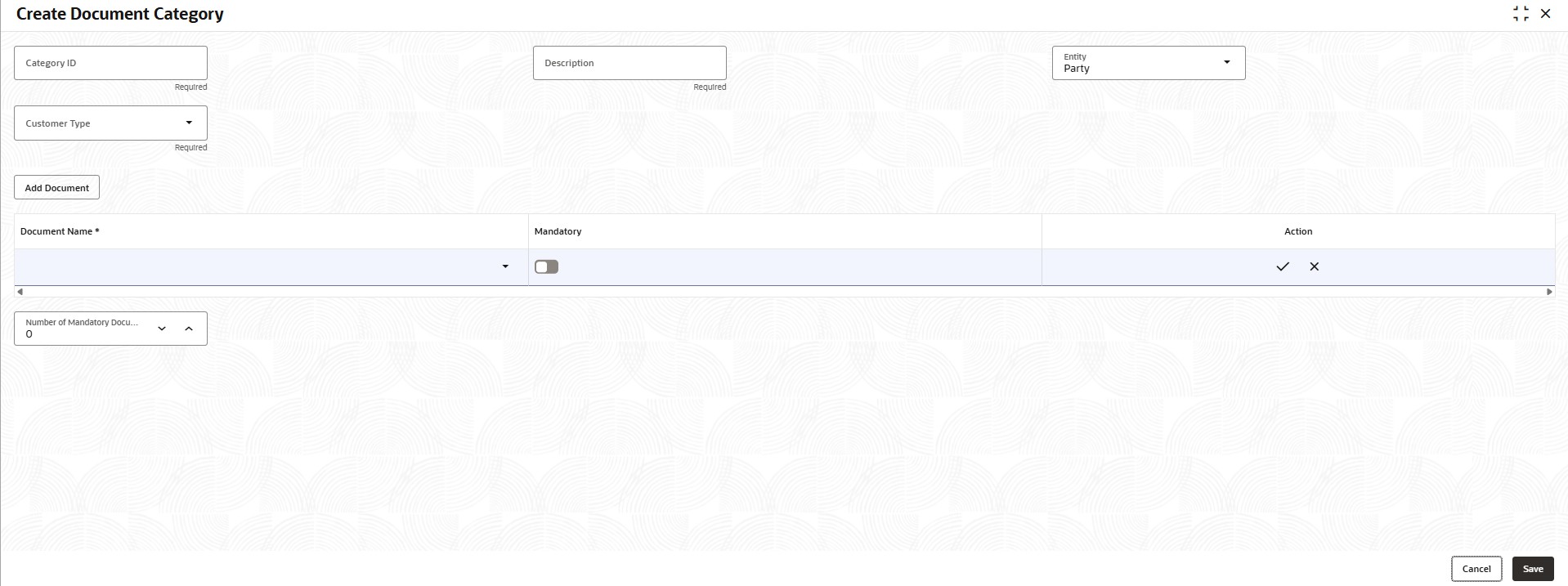
The Create Document Category enables bank user to classify similar types of documents based on product and applicant type.
To create document category
- Under Configurations, click Inbound Documents and click Document Category and then click Create Document Category.
The Create Document Category screen displays.
- Specify the fields on the Create Document Category screen.
For more information, refer to the fields description table below.
Note:
The fields marked as Required are mandatory.Table 1-102 Create Document Category – Field Description
Field Description Category ID Specify the category ID to define document category. Note: The maximum length is 16 characters.
Description Specify the description of document category ID. Note: The maximum length is 256 characters.
Entity Select the source entity from the drop-down list. Customer Type Select the customer type from the drop-down list. The drop-down options are shown based on the source entity selected in the Entity field. Add Document Click this button to add documents in the table. Document Name Select the document from the drop-down list. Mandatory - Switch
 to set the document as mandatory.
- Switch
 to set the document as optional.
Number of Mandatory Documents Specify the number of mandatory documents. - Switch
Parent topic: Document Category