1.5.1.2 View Document Category
This topic describes the systematic instructions to view document category.
Oracle Banking Origination supports to view the document category created. The View Document Category allows the user to view all of the authorized, un-authorized and closed document category. Authorize option is also available for supervisor users for approving unauthorized document category.
- Under Configurations, click Inbound Documents and click Document Category and then click View Document Category.
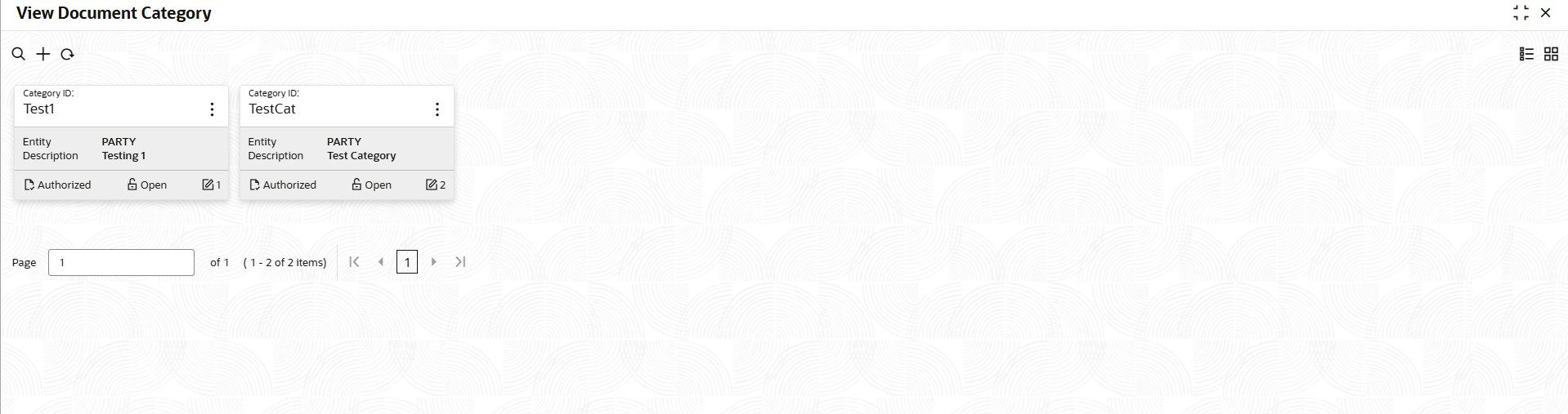
The View Document Category screen displays.
For more information on fields, refer to the field description table.
Table 1-103 View Document Category - Field Description
Field Description Category ID Displays the category ID. Entity Displays the source entity associated with category ID. Description Displays the description of the category ID. Authorization Status Displays the authorization status of the record. The options are:- Authorized
- Rejected
- Unauthorized
Record Status Displays the status of the record. The options are:- Open
- Closed
Modification Number Displays the number of modification performed on the record. - Click
 on the Document Category tile to perform the following actions on the added record.For more information on fields, refer to the field description table below.
Table 1-104 View Document Category – Option Description
Field Description View Click View to view the authorized or unauthorized document category. Unlock Click Unlock to edit the document category information.
System will not allow to edit the Category ID field.
Copy Click Copy to copy the authorized or unauthorized document category to quickly create new document category. Authorize User with supervisor access will be able to authorize the unauthorized document category. Once approved, the document category status changes to Authorized. Delete Click Delete to delete the unauthorized document category and no more required. Close Click Close to deactivate a document category. User can close only authorized document category. - On View Document Category screen, click
 .
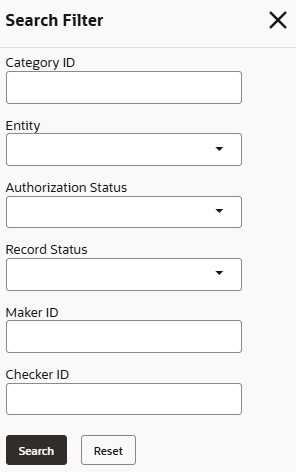
.The View Document Category - Search Filter screen displays.
Figure 1-101 View Document Category - Search Filter
For more information on fields, refer to the field description table.
Table 1-105 View Document Category - Search Filter
Field Description Category ID Specify the category ID to search. Entity Specify the source entity. Authorization Status Select the authorization status from the drop-down list. The available options are:- Authorized
- Unauthorized
- Rejected
Record Status Select the record status from the drop-down list. The available options are:- Open
- Close
Maker ID Specify the maker ID. Checker ID Specify the checker ID. - Click
 to create a new document category on the Create Document Category screen.
 - Click
 to refresh the screen.
 - Click
 to close the screen.
Parent topic: Document Category