2.1.2 Account Details
This topic provides the systematic instructions to capture the account related information for the application.
The Account Details data segment displays the account details.
- Click Next in previous data segment screen to proceed
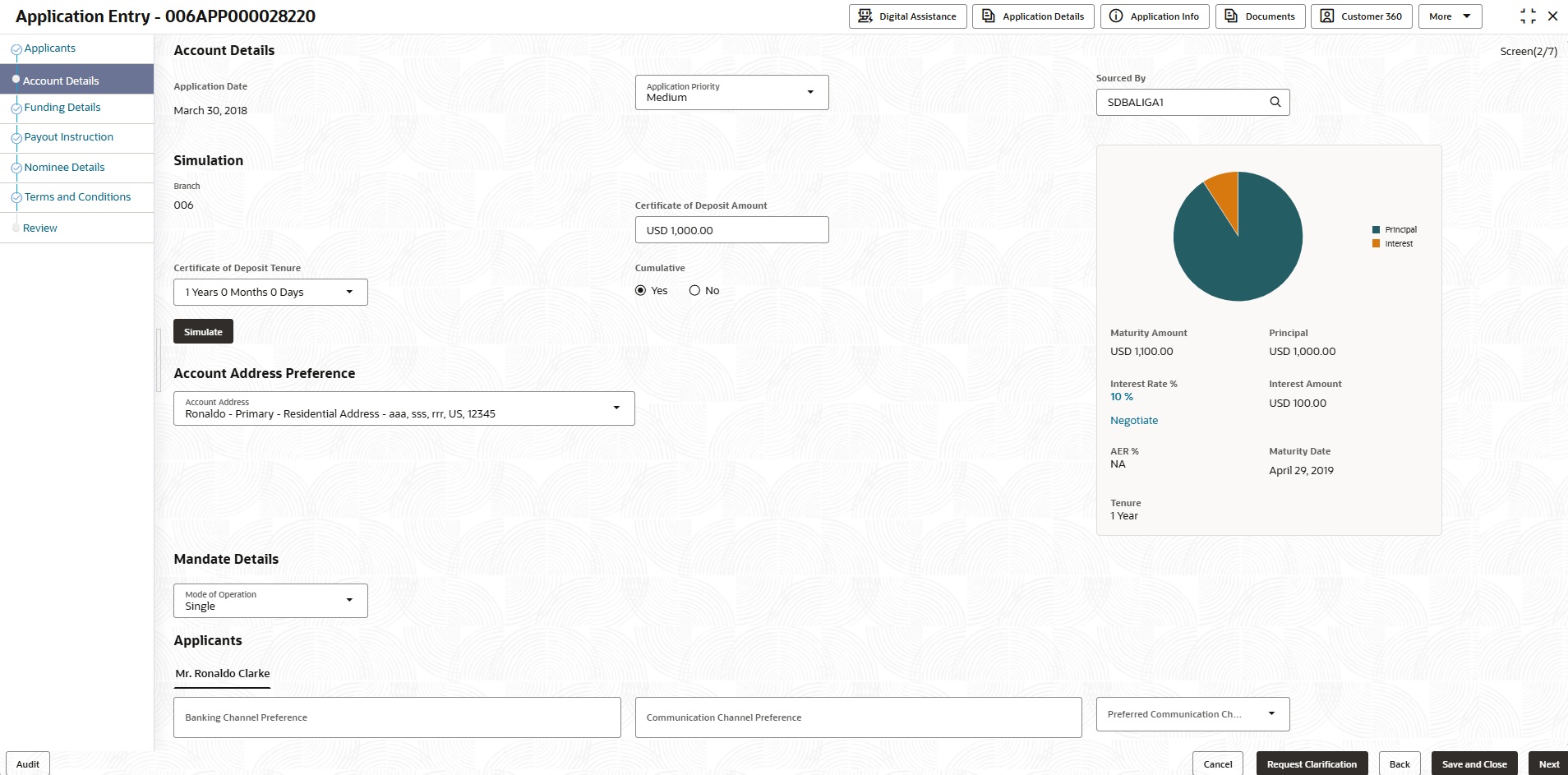
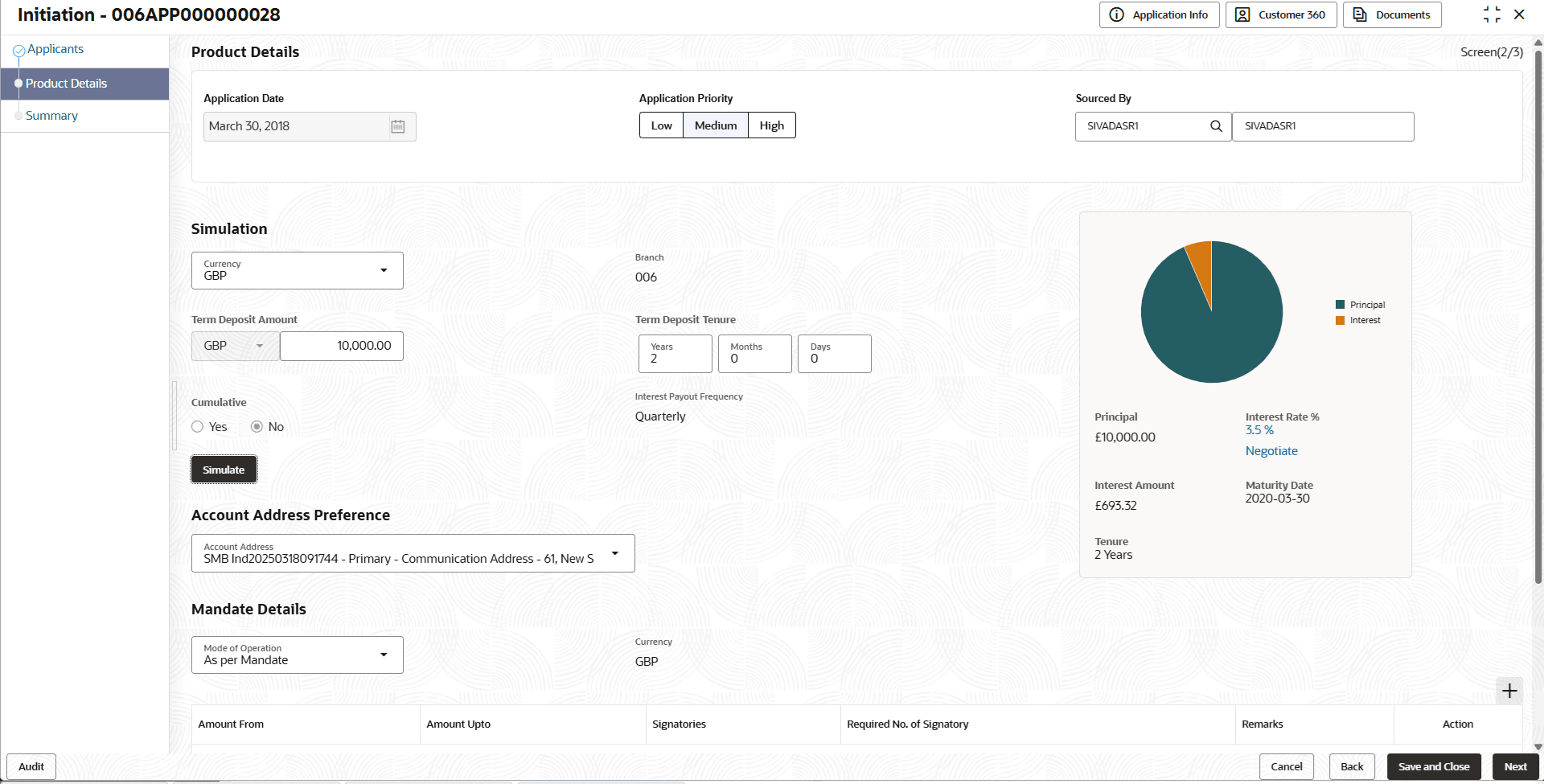
with the next data segment, after successfully capturing the data.The Account Details screen displays.Refer below screenshot if the customer type is selected as Individual:Refer below image if the customer type is selected as Small and Medium Business (SMB):
- Specify the fields on Account Details screen.For more information on fields, refer to the field description table.
Note:
The fields marked as Required are mandatory.Table 2-4 Account Details
Field Name Description Application Date Displays the date on which the application was initiated. Application Priority Select the application priority level from drop-down list. The available options are:- Low
- Medium
- High
Based on the selected option the applications appears in list of the logged in user
Sourced By Specify or select the user ID who initiate this account opening application. Simulation In this section you simulate the certificate of deposit amount. Branch Specify the branch code of this account opening application. Certificate of Deposit Amount Choose the currency and state the term amount. The currency user select from the Currency list will be displayed by default.
Certificate of Deposit Tenure The user can select the certificate of deposit tenure, specified in years, months, and days, as configured in the Host Product mapped on the Business Product Configuration screen. The user can choose the Certificate Deposit Tenure from the drop-down list if the mapped Host Product is Oracle Banking Accounts.
Cumulative Select to indicate whether the amount is cumulative. The available options are:- Yes
- No
A cumulative certificate of deposit accrues interest over time and pays it out at maturity, while a non-cumulative certificate of deposit pays out interest at regular intervals throughout the term.
Interest Payout Frequency Displays the interest payout frequency based on business product preferences. This field appears when Cumulative is selected as No.
Simulate Click Simulate button to compute the value based on the entered details. The section displays the visual representations and fields with the computed details:
- Pie Chart: The value of principal and interest is represented visually. User can hover to view the amount.
- Maturity Amount
- Principal
- Interest Rate %: Click the interest rate percentage and it displays the pop-up list. User can view the interest rate of all the margin types.
- Product Margin
- Discretionary Margin
- Negotiate: User can view the negotiated interest rates by clicking this link. The section for negotiated interest rates appears with the following fields:
- Interest Description
- Interest Rate %
- Margin
- Effective Rate %
- Interest Amount : This amount is calculated based on the applied Effective Rate and Certificate of Deposit Amount.
- AER % or APY%
Displays the Annual Equivalent Rate (AER) or Annual Percentage Yield (APY) value based on the Display Preferences configured on the Origination Preferences screen.
- Maturity Date
- Tenure
Staff Benefits Applicable Select to indicate whether staff benefits are applicable. The available options are:- Yes: Select this option to avail the staff benefits.
- No: Select this option for not making use of any staff benefits.
This field appears if the Staff Benefits is selected as Yes in the Applicant data segment. By default, the Yes option is selected in this field.
Account Address Preference Select the address which is indicated as account address. The applicant data segment displays the addresses indicated as account addresses for selection. The drop-down list displays the address in the following format:
<First Name> - <Applicant Role> - <Address Type> - <Address (Complete address separated by commas (,))>
After the account address is selected:- If the user deletes an address from the Applicant data segment then the system removes that address from this data segment and the user must then select another address as the account address.
- If the Applicant data segment is edited with a new address then the updated address is reflected in this segment.
Mandate Details In this section, the user can capture the mode of operation for the account.
Mode of Operations Select the appropriate option from the mode of operations list. The available options are:- Single
- Jointly
- Anyone or Survivor
- Either or Survivor
- Former or Survivor
- As per Mandate
- Operated by Custodian
- Operated by Guardian
Mandate Details Section In the Mandate Details section, below fields appear if the application is initiated with the customer type as Small and Medium Business. Click
 to add the operations as per mandate.
Amount From Specify the amount from which the applicant is allowed to operate. Amount To Specify the amount till which the applicant is allowed to operate. Signatories Specify the applicants as signatory. The user can select multiple applicants. All applicants relevant to the application will be displayed for selection.
Required No. of Signatory Specify the priority of the signatory for this mandate operation. The priority can be changed based on the number of applicants added in the application.
Remark Specify the remarks. Action Select the option to perform actions on the added record. The available options are:- Click
 to edit the added record.
- Click
 to delete the added record.
- Click
 to save the added record.
- Click
 to cancel the added record.
Applicants In this section, user can set the communication preferences of the applicants involved in an account opening application. The separate tabs appears for each applicants involved in the application. Banking Channel Preferences Select the preferences for the banking channel.
The channel options appears based on the Business Product Configuration.
Communication Channel Preferences Select the preference of the communication channel. The channel options appears based on the Business Product Configuration.
The available options are:- POST
- SMS
Preferred Communication Channel Select the preferred communication channel. The options in this drop down appears based on the selected options in the Communication Channel Preferences fields.
Parent topic: Application Entry