2.1.1.2 For Small and Medium Business (SMB) Customer Type
The topic describes the process to capture or edit customer information of Small and Medium Business type of customers.
To capture applicants details
- In the Current Application Entry stage, update the customer details in
the Applicants data segment based on the respective customer type.
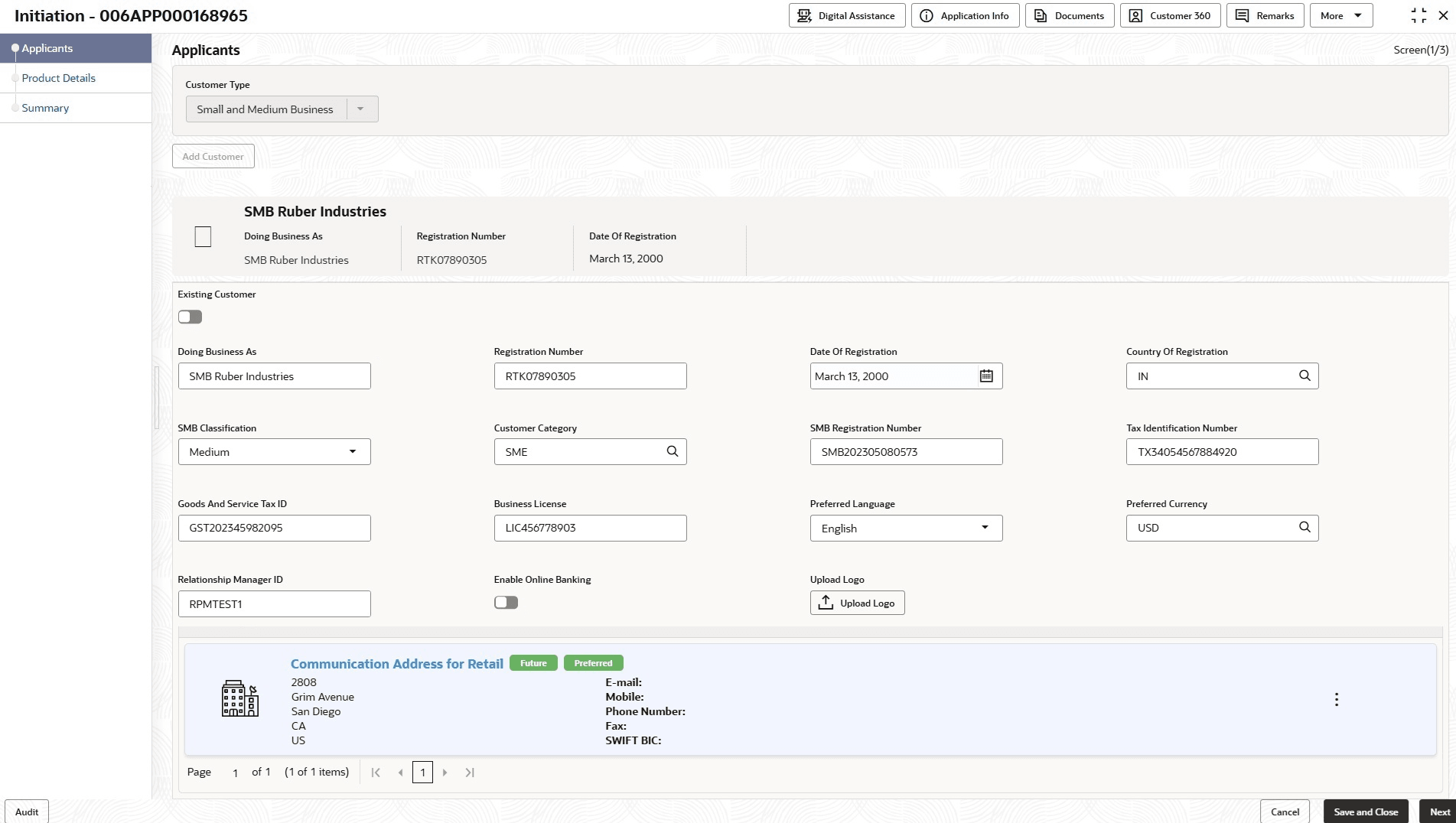
The Applicants - Small and Medium Business (SMB) screen is displayed.
Figure 2-5 Applicants – Small and Medium Business (SMB)
- Specify the details in the relevant data fields. For more information on fields, refer
to the field description table below.
Table 2-2 Small and Medium Business – Field Description
Field Description Customer Type Displays the customer type based on the product selected. Doing Business As Displays the business name of the SMB customer. Registration Number Displays the registration number of the business. Date of Registration Displays the registration date of the business. Edit Click Edit to modify the existing customer details and address details.
Click Save to save the modified details and click Cancel to cancel the modifications.
The Edit appears only for existing customers.
Existing Customer Switch  to indicate if customer is existing customer.
CIF Number Search and select the CIF number.
This field appears if the Search Existing Customer option is selected.
Advance Search Click this button to perform party using advance parameters. For more information on advance search, refer to the Advanced Search section in the Individual Customer Type topic.
Doing Business As Specify the name of the business. Registration Number Specify the registration number of the business. Date of Registration Select the registration date of the business. Country of Registration Search and select the country code where the business is registered. SMB Classification Select the SMB Classification from the drop-down list.
Available options are:
- Micro
- Medium
- Small
Customer Category Search and select the customer category. SMB Registration Number Specify the SMB registration number. Tax Identification Number Specify the tax identification number of the SMB customer. Goods and Service Tax ID Specify the goods and service tax ID. Business License Specify the business license. Preferred Language Select the preferred language from the drop-down. Preferred Currency Select the preferred currency. Relationship Manager ID Specify the relationship manager ID. Enable Online Banking Switch to indicates whether a customer wants to use online banking.
This field displays only to new customers.
Upload Logo Click Upload Logo button to upload the logo for the business. Address This section displays the added address of the applicant. It is mandatory to add communication address of the applicant.
Click
 to add address details.
Click
 to perform below actions on the added address details,
- Click View to view the address details.
- Click Edit to edit the address details.
- Click Delete to delete the address details.
Address Type Select the address type for the applicant from the drop-down list. The options in this drop down appears based on the Common Core Maintenance.
Effective Date Select the date when the applicant start residing at the specified address. Make this as preferred address Switch to prefer the entered address for communication.
Search Address Specify the address to search for the already captured address. Based on the configuration, on entering a few letters, the system fetches the related address that is already captured.
Based on the selection, the fields are fetched in the address section.
Unstructured Address - Switch to display the fields for capturing the unstructured address.
- Switch
 to hide the unstructured address fields.
Address Line 1/Building Name Specify the building name. Note: The maximum length is 105 characters.
Address Line 2/Street Name Specify the street name. Note: The maximum length is 105 characters.
Address Line 3/City/ Town Name Specify the city or town name. Note: The maximum length is 105 characters.
Address Line 4/Landmark Specify the landmark. Note: The maximum length is 105 characters.
Country Select and search the country code. State/Country Sub Division Specify the state or country sub division. This field appears based on the selected country code. Zip Code/Post Code Specify the zip or post code of the address. Note: The maximum length is 16 characters and allows alphanumeric characters, including spaces.
Zip +4 Specify the zip extension code of the address. Structured Address - Switch to display the fields for capturing the structured address.
- Switch to hide the structured address fields.
Department Specify the name of department. Note: The maximum length is 70 characters.
Sub Department Specify the name of sub department. Note: The maximum length is 70 characters.
Street Name Specify the street name. Note: The maximum length is 70 characters.
Building Number Specify the building number. Note: The maximum length is 16 characters.
Building Name Specify the name of the building. Note: The maximum length is 35 characters.
Floor Specify the floor number. Note: The maximum length is 70 characters.
Post Box Specify the post box number. Note: The maximum length is 16 characters.
Room Specify the room number. Note: The maximum length is 70 characters.
Zip Code/Post Code Specify the zip or post code of the address. Note: The maximum length is 16 characters and allows alphanumeric characters, including spaces.
Town Name Specify the name of the city or town where the customer is located. Note: The maximum length is 35 characters.
Town Location Name Specify the name of sub-location or area within the city or town. Note: The maximum length is 35 characters.
District Name Select the district from the drop-down list. Country Select the country from the drop-down list. Country Sub Division Select the country sub-division from the drop-down list. Address Line 1 Specify the address in line 1. Note: The maximum length is 105 characters.
Address Line 2 Specify the address in line 2. Note: The maximum length is 105 characters.
Contact Details In this section, user can provide digital contact details. Click Add Contact button to add new contact details.
<Communication Mode> Select the communication mode from the drop-down list. The available options are:- Mobile Phone
Country Select the country along with international subscriber dialing code of the mobile phone from the drop-down list. The drop-down list option consist of country code, country name and subscriber dialing code.
This field appears only if user selects the Mobile Phone option as communication mode.
Mobile Number Specify the mobile number. Preferred Select to indicate if the given mobile number is the preferred number. Action User can edit or delete the added mobile details. Email Id Specify the email ID. This field appears only if user selects the Email option as communication mode.
Preferred Select to indicate if the given email ID is the preferred ID. Action User can perform one of the following actions. - Click
 to save the contact details.
- Click
 to edit the added contact details.
- Click
 to delete the contact details.
Customer Dedupe Check:
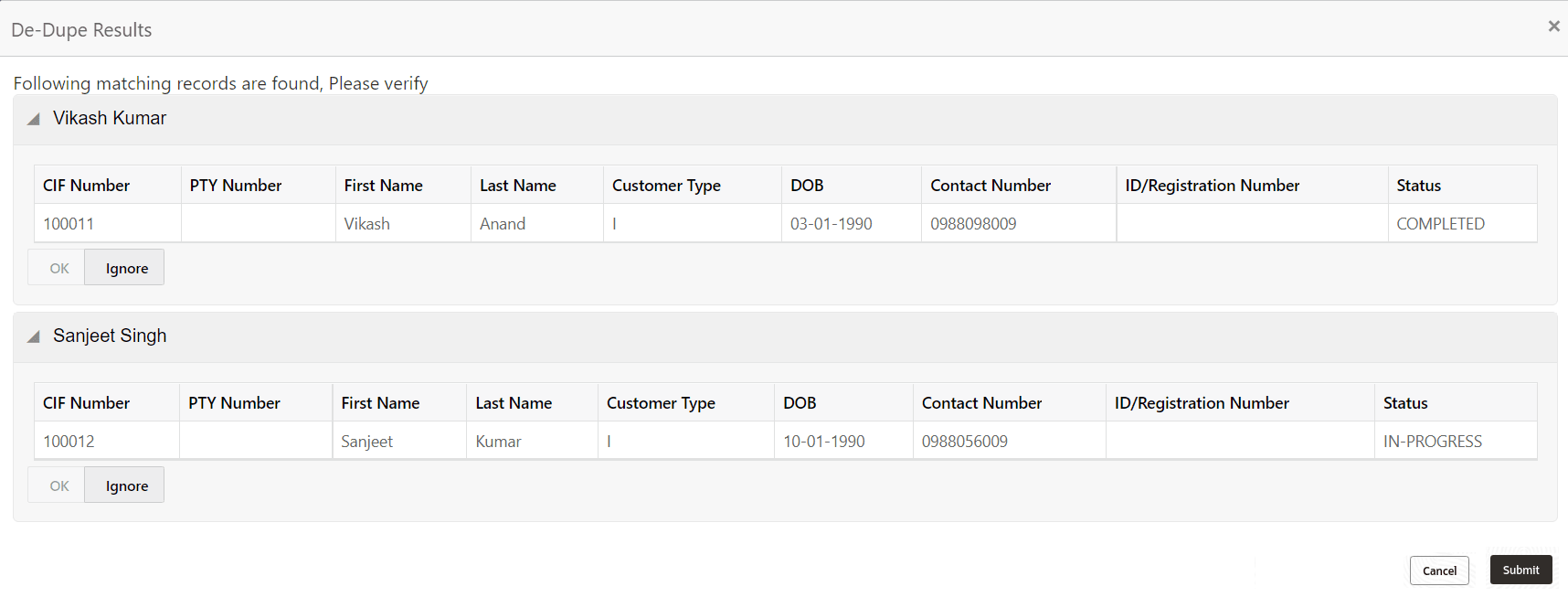
Based on the customer dedupe service is enabled in the Origination Preference screen. Once the new customer details is captured and click Next button on the Applicants screen, the system compares the same with the existing customers records. If there are any matching hits, the list of Duplicate records which matches to the New Customer Details will be displayed.
The customer details are compared based on a set of attributes configured. (Refer to Oracle Banking Party Documentation for Dedupe attributes configuration).- Click Next to perform the dedupe check and display the result.
The Dedupe Result screen is displayed
For more information on fields, refer to the field description table below.
Table 2-3 Dedupe Results – Field Description
Field Description CIF Number Displays the CIF Number. PTY Number Displays the PTY Number. First Name Displays the First Name. Last Name Displays the Last Name. Customer Type Displays the Customer Type. DOB Displays the Date of Birth. Contact Number Displays the Contact Number. ID/Registration Number Displays the Registration number. Status Displays the Status of the Dedupe check.
Parent topic: Applicants