3.7.1.1 Add Payment Preference Details
User can add the payment preference details for the loan account.
To add the preference details:
- User can add the preferences details as required in the respective
sections.
- Add Debit Account
To add debit account for account type:
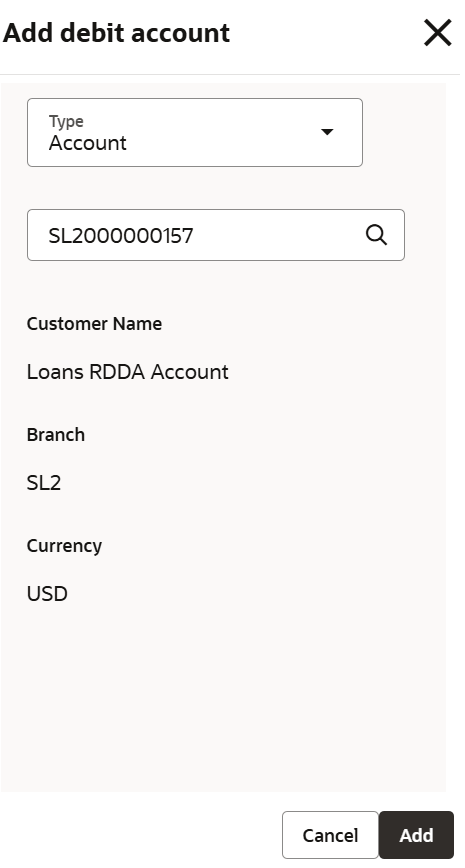
- Click Add Debit Account from the Default debit account section.The Add debit account section is displayed.
- In the Add debit account section, select Account from Type field, and maintain the required details. For more information on fields, refer to field description table below:
Table 3-70 Add debit account - Field Description
Field Description Type Select the type of debit account. The options are: - Account
- External Account
Account Number Select the account number from the list. Note:
This field is displayed, if you select Account option from the Type field.Branch Displays the branch code for the selected account number. Currency Displays the account currency. Account Number Specify the external account number. Note:
This field is displayed, if you select the External Account from the Type field.Customer Name Displays the customer name of the debit account. Note:
User can specify the customer name, if the External Account option is selected from Type field.Routing Number Select the external account's routing number. For more information, refer Routing Number. Note:
This field is displayed, if you select the External Account from the Type field.Account Type Select the type for the external account. Note:
This field is displayed, if you select the External Account from the Type field.Standard Entry Class Code Select the appropriate code for the standard entry class. The options are: - Internet-Initiated/Mobile Entries
- Telephone Initiated
- Corporate Credit or Debit
- Pre-arranged Payment or Deposit
Note:
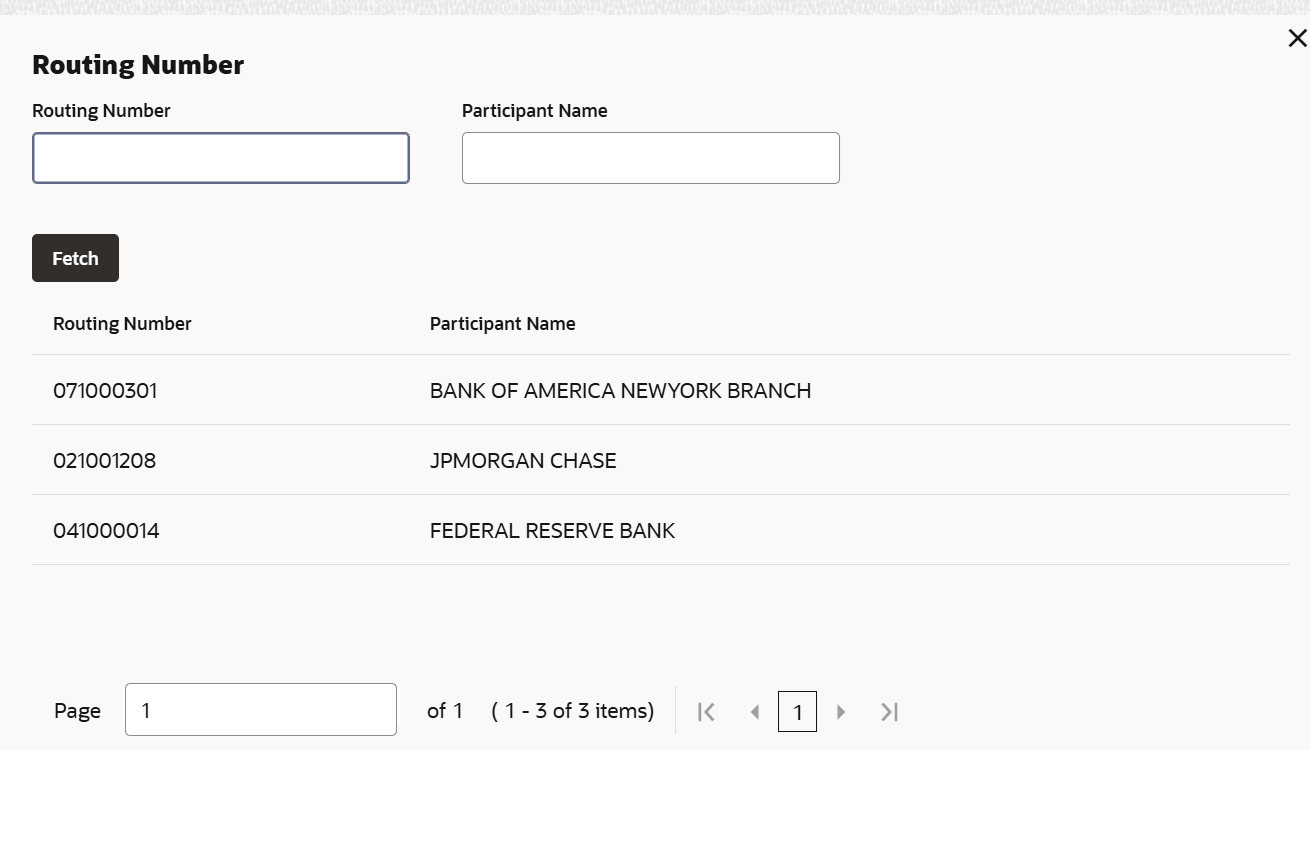
This field is displayed, if you select the External Account from the Type field.To add routing number:- Click the
 icon from the Routing Number field.
The Routing Number section is displayed.
- User can specify the details in the Routing Number or Participant Name fields.
- Click Fetch.
The search details are displayed in the tabular format. User can select
- Add Credit Account
To add credit account:
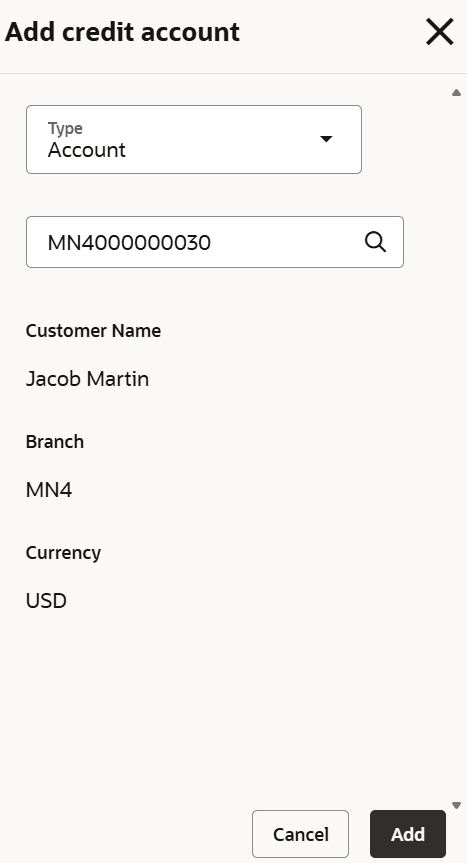
- Click Add credit Account from the Default credit account section.The Add credit account section is displayed.
- In the Add credit account section, maintain the required details. For more information on fields, refer to field description table below:
Table 3-71 Add credit account – Field Description
Field Description Type Select the type of credit account. The options are: - Account
- External Account
Select Account Click the 
icon and select the credit account number or specify the account number.Customer Name Displays the customer name of the credit account. Note:
User can specify the customer name, if the External Account option is selected from Type field.Branch Displays the branch code for the selected account number. Currency Displays the account currency. Account Number Specify the external account number. Note:
This field is displayed, if you select the External Account from the Type field.Routing Number Select the external account's routing number. For more information, refer Routing Number. Note:
This field is displayed, if you select the External Account from the Type field.Account Type Select the type for the external account. Note:
This field is displayed, if you select the External Account from the Type field.Standard Entry Class Code Select the appropriate code for the standard entry class. The options are: - Internet-Initiated/Mobile Entries
- Telephone Initiated
- Corporate Credit or Debit
- Pre-arranged Payment or Deposit
Note:
This field is displayed, if you select the External Account from the Type field.
- Auto Payment Window
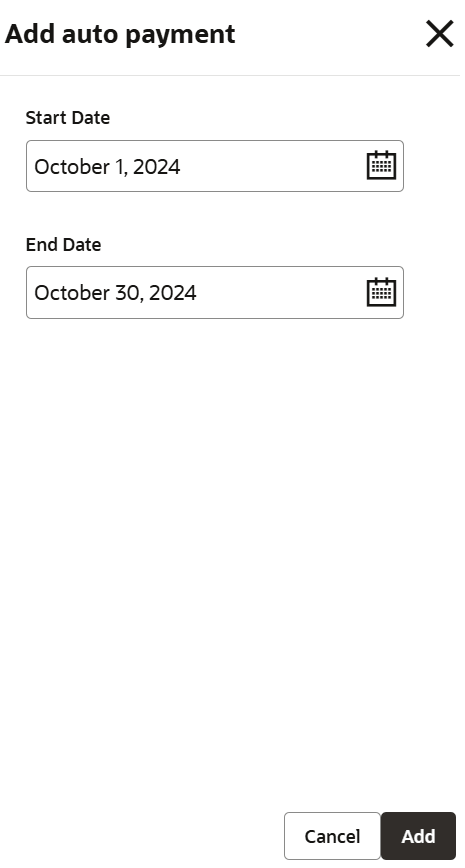
To add new auto payment:
- Click Add New from the Auto payment window section.The Add auto payment section is displayed.
Parent topic: Payment Preferences